


15 Vista Social Hacks for Easier Social Media Management
September 24, 2026
11 min read

Summarize with AI

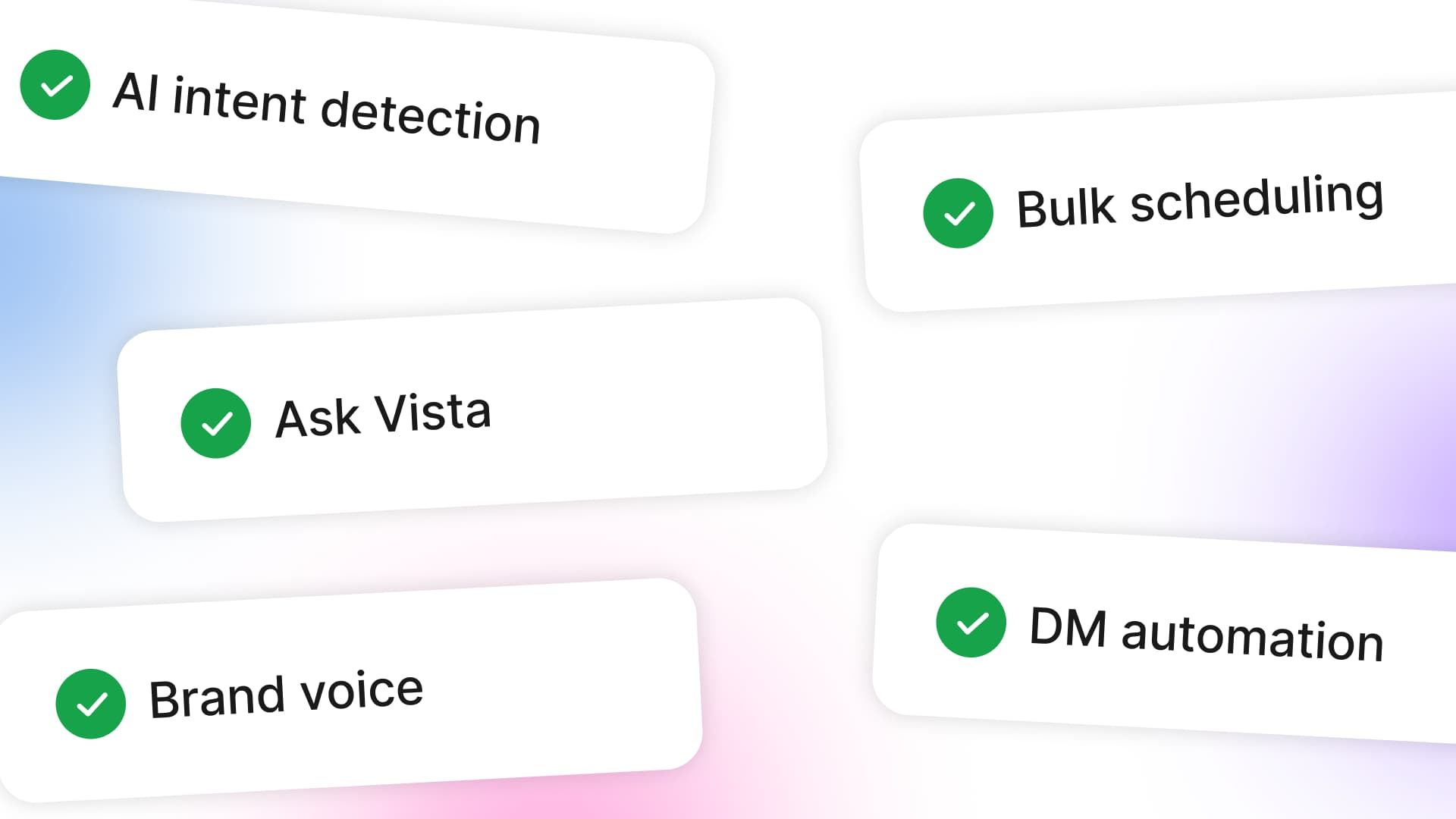
Table of contents
Share

Vista Social

X (Twitter)


It’s 4:52 on a Thursday, you’re on your ninth browser tab, and the social media hacks you bookmarked aren’t helping. The launch post went live on Instagram twenty minutes ago, and you’re still reformatting it for LinkedIn and X.
In another tab, a customer has asked twice whether the sale ends tonight. The AI caption tool that was supposed to help doesn’t know your brand, so you’re rewriting half of what it gave you.
Ann Handley summed up AI’s workload creep in one line while citing new HBR research: “AI didn’t reduce work. It intensified it.” HubSpot’s 2026 research backs this up, with 73.1% of marketers saying their workload increased over the past year.
Most of those tasks don’t need your hands on every step. The best social media hacks take a task off your plate entirely, and each one below does that for a real chunk of your week.
Key takeaways
- These social media hacks remove whole manual steps from your week, so the savings add up to hours
- The biggest wins fall into four moves: schedule once, create in the composer, answer from one inbox, and delegate the repeat work
- Vista Social puts every one of these in a single tool, with annual plans starting at $950 a year
- SERHANT.’s six-person team runs 80 profiles in Vista Social and has published 42,000 posts since January 2025
A social media management hack is a repeatable shortcut that removes a manual step from planning, creating, publishing, or engaging. The 15 social media hacks below follow your workflow in four groups, and each one notes the plan it needs.
Table of contents
Plan and schedule the whole week (or month) in one pass
Publishing one post at a time is the biggest time sink in social media management, so use the first social media hacks on this list to fix it. Bulk scheduling and a visual calendar turn a week of daily posting into one focused session.
1. Batch a month of content in one sitting
Posting daily means making the same small decisions every day, like which asset goes out and when. When you batch your content, you make those decisions once and let the calendar handle the rest.
In Vista Social, go to Create, then Bulk publishing. You can import up to 100 posts from a CSV file, pull in blog posts from an RSS feed, or upload images and videos from Google Drive, Dropbox, or OneDrive.
Each imported row becomes an editable post before anything goes live, so you can fix a caption or swap a time without redoing the upload. You still need a month of good content ready to load, so leave a few open slots each week for timely posts.
2. Write once, customize per network in the same window
Reformatting the same post five times is where you lose a lot of the week. Vista Social’s composer lets you write one post, pick every profile it goes to, and adjust the caption, tags, and media for each network in the same window.
Previews show how the post will look on each platform, so you catch a cut-off caption or a bad crop early. You can also open Canva from the composer and drop the design straight into the post.
Each network gets its own caption tab while the media stays shared. On launch days, that means a long LinkedIn post and an Instagram carousel come out of one pass. X publishing needs a $29/month add-on.
3. Set your posting options once per profile
Some settings go on almost every post, like a first comment with your link or a first like from the brand account. Adding them by hand is easy to forget, especially on a busy launch day.
Posting Defaults let you save those options once per profile, so they fill in on their own every time you schedule. If your LinkedIn page always gets a first comment with a link and your Instagram account never does, each profile keeps its own setup.
When one post goes to many profiles, stagger publishing spaces out the publish times between them. That way, your accounts don’t all post in the same second, which looks more natural in followers’ feeds.
4. Let the calendar (and smart scheduling) pick the time
General guides on the best time to post are a good starting point, and your own data takes it further. Vista Social’s optimal time suggestions study when your audience engages and show recommended times right in the scheduler, on every plan.
Publishing queues save even more clicks. You set time slots for each profile once, and new posts drop into the next open slot. SERHANT.’s publishing team uses queues this way, treating every open slot as space for a real request.
Together, these let you stop picking a time for each post. Advanced plans add Smart Scheduling for more hands-off timing.
Create the assets without leaving the composer
The second time sink is tool-hopping, and you can cut it with the next four social media hacks. You jump to a design app, then a stock photo site, then a caption generator, and then back to the scheduler. Vista Social lets you generate images and video inside the composer, so the whole post comes together in one window.
5. Generate the image or video right where you’re posting
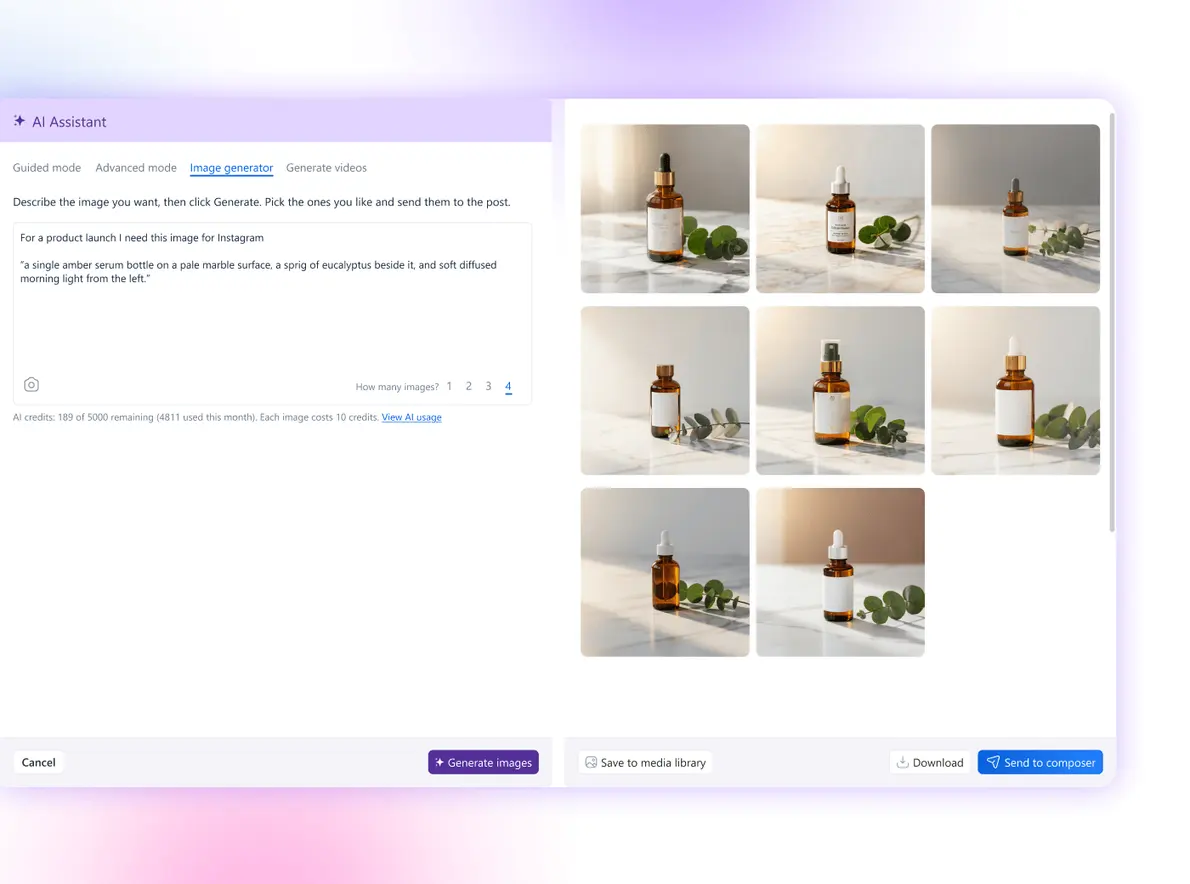
A missing visual used to mean leaving the post, opening a design tool, exporting, and uploading the file back. Now you describe the image you want in the composer, then refine it in plain language, like “change the background to blue.”
Video works the same way, starting from a text prompt, a photo, or any asset in your media library. The finished clip goes straight into a scheduled post.
You never export or re-upload a file, and that’s where you win the time back. Generation is on every plan and uses monthly AI credits: 1,000 on Professional, 2,000 on Advanced, and 3,500 on Scale. For campaigns with strict creative rules, treat these as fast drafts and keep your designer in the loop.
6. Never write a caption from a blank box
Gael Breton, co-founder of Authority Hacker, described the old AI loop well. “You’re copy-pasting between ChatGPT and your work. Re-explaining your business every session. Getting suggestions instead of results.”
Setting your brand voice once ends the re-explaining. Go to Settings, then Profile groups, and add a brand voice for each brand. The AI Assistant uses it for every caption and inbox reply, on every plan.
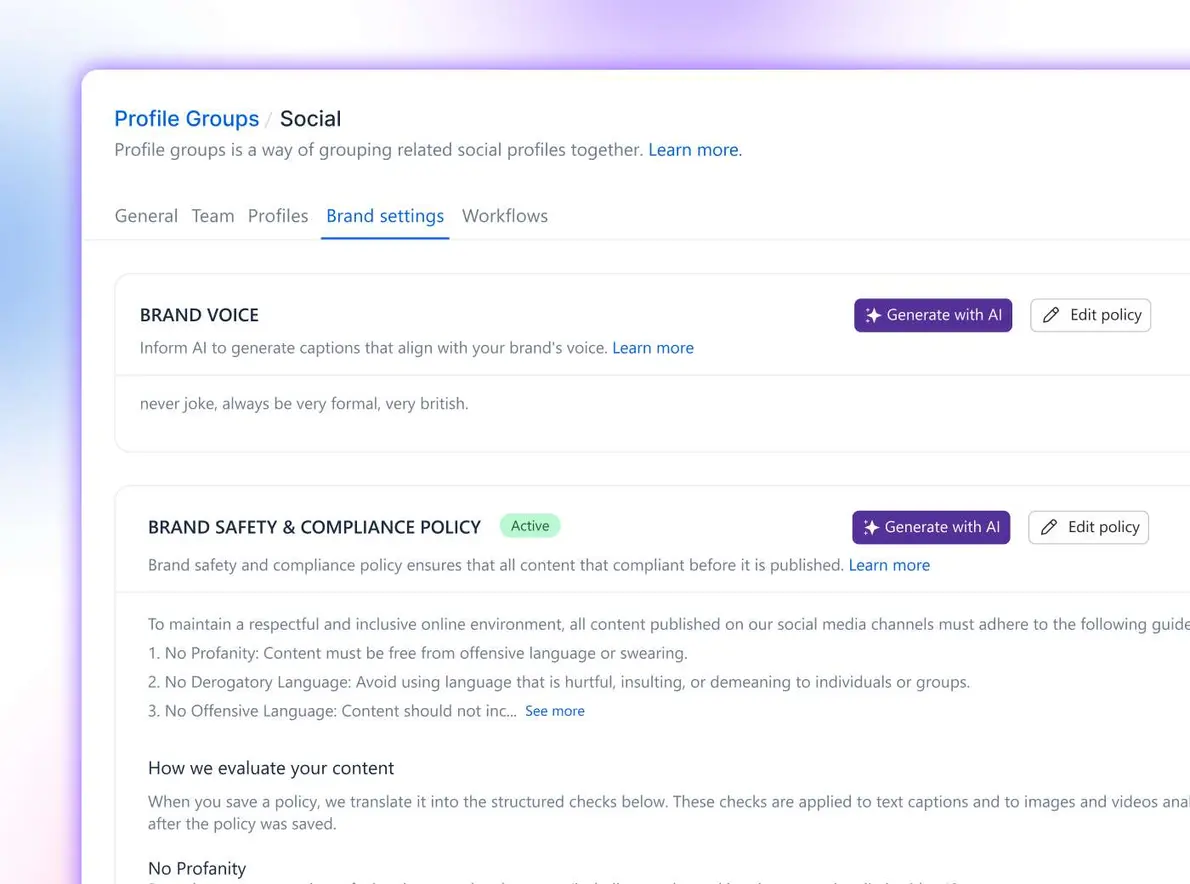
For captions that need real facts, AI Training & Knowledge (Advanced and up) lets you upload product details, FAQs, and web pages. You pick a Knowledge when you generate, and the AI grounds the caption in it. This assistant doesn’t read your live accounts, though, since that’s the job of Ask Vista.
7. Auto-fill alt text and titles on upload
Alt text is the accessibility step that’s easiest to skip when the week gets busy. It’s also what screen readers read aloud to people who can’t see your image, so skipping it shuts part of your audience out.
Vista Social writes alt text for images as you upload them, so posts stay accessible without extra typing. It’s still worth a quick read before publishing, especially for product shots where small details matter.
For YouTube, the AI can also suggest video titles. That saves a round of wordsmithing on every upload and gives you a starting point to tune for search.
8. Turn a trending topic into a ready post in one click
Trends often move faster than approval cycles. By the time you write, review, and design a post, the conversation has usually moved on.
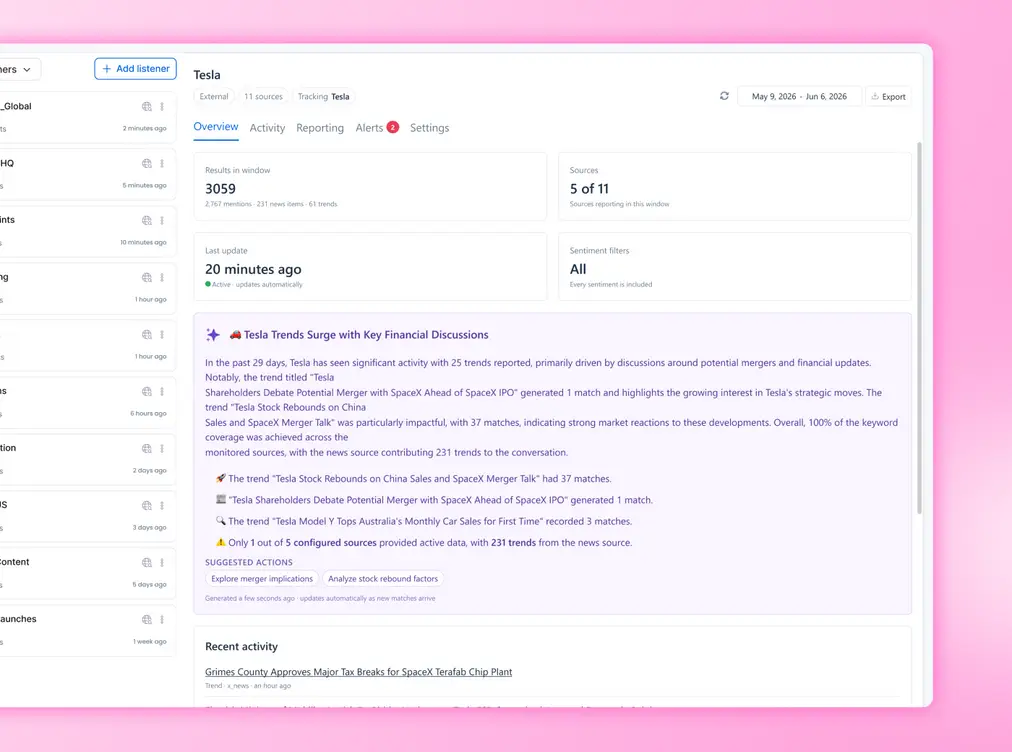
Vista Social’s social listening groups rising conversations from social media, news, blogs, and forums into trend cards. Each card has a Create post button, where you pick an angle and tone and can add an AI image. The composer then opens with a caption already written in your brand voice, ready for review.
This feature is an add-on that starts at $75 a month. Listening on your own profiles is free on every plan, so you can still track what people say about your brand’s posts without it.
Handle every comment, DM, and review from one screen
Missed messages usually come down to logins. Comments, DMs, and reviews sit in separate apps, so you see some of them days late. Use these two social media hacks to put them on one screen and add AI intent detection, so you stop missing messages and sorting them by hand.
9. One inbox for comments, DMs, mentions, and reviews
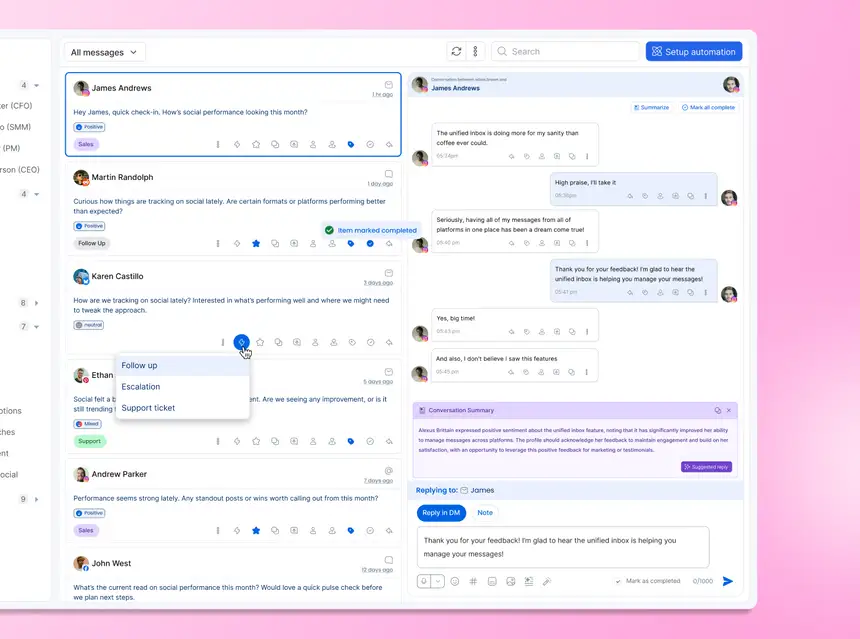
Vista Social’s Social Inbox pulls comments, DMs, mentions, and reviews from your connected profiles into one feed. You can reply, add internal notes, label conversations, and turn any message into a task for a teammate.
Review coverage depends on your plan. Professional covers Facebook and Google reviews. Advanced and up add Yelp, TripAdvisor, OpenTable, Trustpilot, the App Store, and Google Play.
A review and a DM from the same customer sit side by side, so you can answer both with the full picture in front of you. Nobody on the team has to check five apps to see what’s already been answered.
10. Auto-route and auto-reply by what people actually mean
Keyword automations break the moment someone writes the way people talk. A rule built on the word “price” misses “what’s the damage on this?” and the lead goes cold.
With inbox automations (Advanced and up), you describe the intent in plain words, such as “customer is asking about pricing.” The AI reads each message for meaning and can send a DM, reply, add a label, assign a teammate, or email an alert.
For a brand marketer, this is where you start turning the inbox into pipeline. You can send purchase-intent DMs straight to sales with a label you can report on, and route complaints to support. When a message needs a person, the AI Assistant drafts a reply in your brand voice for you to edit and send.
Delegate the recurring work and prove the time you saved
The biggest time savings come from tasks you stop doing at all. Gartner’s CMO survey found that using AI to automate key tasks ranked among marketing leaders’ top productivity moves. Vista Social’s built-in task management helps you keep the human work organized, and you can hand the repeat work to the social media hacks below.
11. Ask in plain language and let it act
Agentic social media AI connects to your actual social accounts and can draft, schedule, reply, and report with your approval. Ask Vista is Vista Social’s agentic assistant, and it’s on every plan.
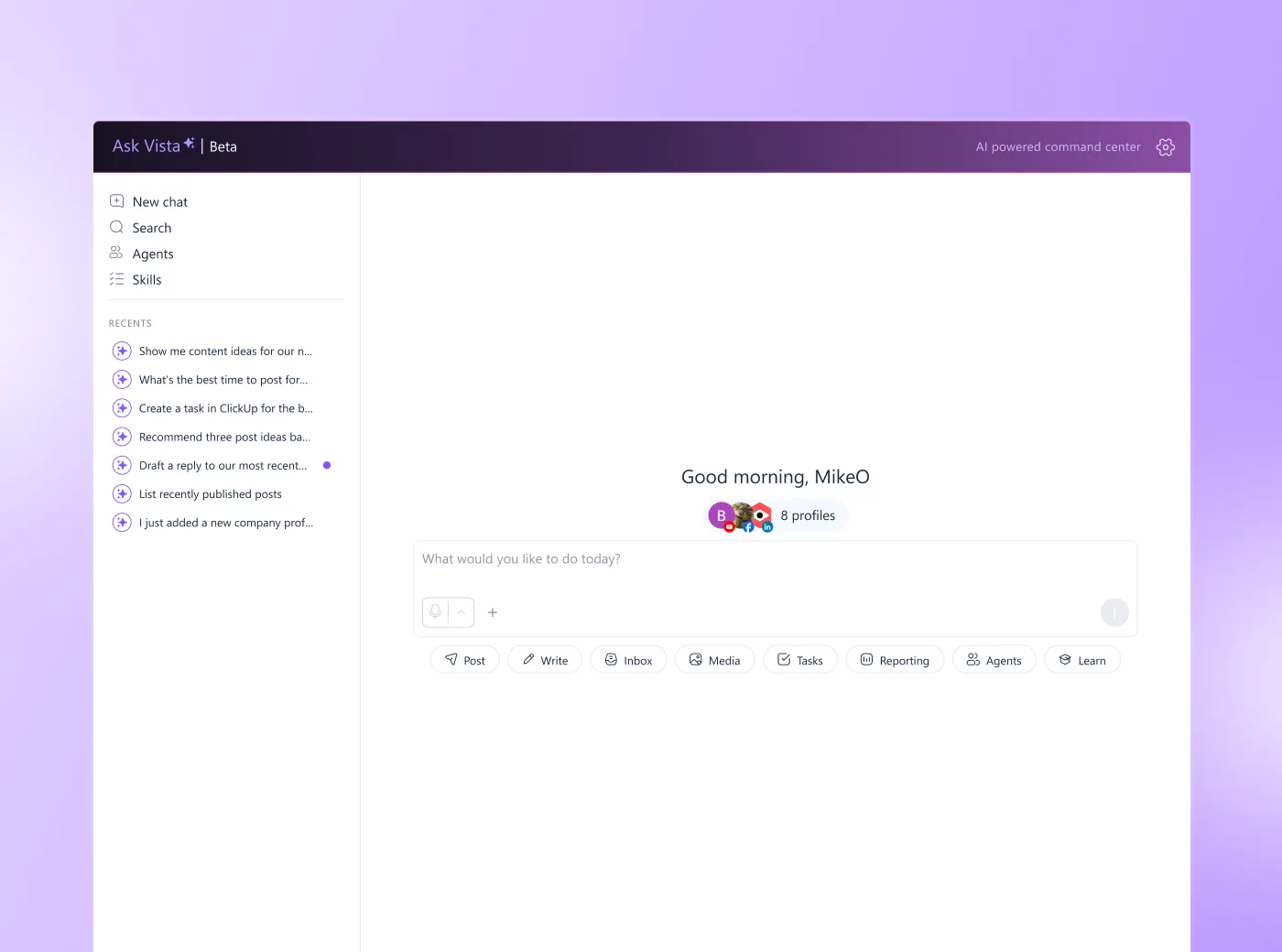
Press X anywhere in the dashboard and ask something like “Which LinkedIn posts drove the most clicks last month?” You get an answer from live account data, so you don’t paste in exports or re-explain the brand.
Ask Vista checks with you before anything that publishes, sends, or changes, and it keeps every run on the record. Try it before your next leadership update and turn the answer into your summary.
12. Hand recurring jobs to a scheduled agent
Some jobs repeat every week, like the Monday results summary or the morning inbox sweep. Ask Vista Agents run those jobs on a schedule you set, including overnight. You can pick a ready-made agent or describe a custom task, and Ask Vista builds it for you.
Agents can also run Skills, which are saved playbooks you trigger with a slash command. Set an agent to run /triage-inbox at 7 a.m., and you’ll log in to a sorted inbox.
The Agents list shows when each agent runs, so you can line jobs up with your real workday. You still approve high-stakes actions. According to Vista Social’s launch announcement, Agents come with Ask Vista on all plans.
13. Reports that build and email themselves
The report you hand your boss shouldn’t take a Friday afternoon to build. In Vista Social, you can schedule reports to land in inboxes automatically, share a live link, or export a PDF.
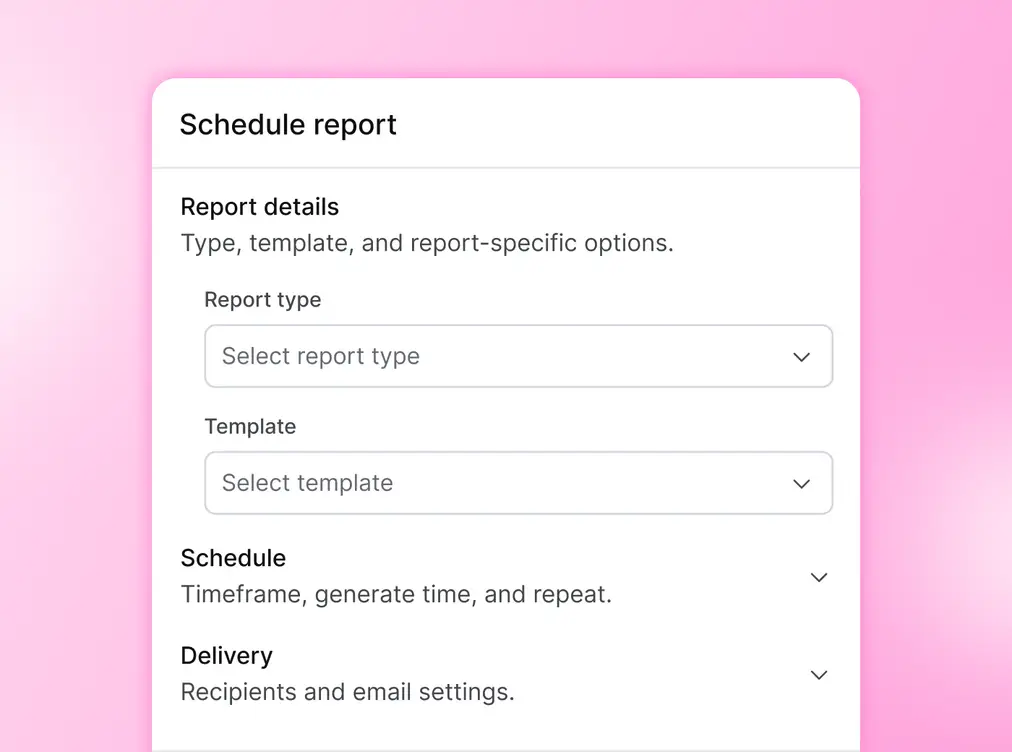
Connect Google Analytics, and your web analytics report shows how social traffic behaves on your site. That puts you closer to the revenue conversation leadership wants.
Advanced plans add custom reports you can save as templates, so you build the monthly report once and review it after that. You can also have Ask Vista summarize last month’s results before the meeting.
14. Collect stakeholder sign-off without the back-and-forth
Legal, leadership, and product teams rarely want another login. A shared calendar gives them a link where they can review, comment on, and approve posts without an account. You can stop pasting screenshots into email threads and chasing replies in Slack.
You can add a password and an expiration date, and approved posts are already sitting in your schedule. Shared calendars start on the Advanced plan with 10 links, and Scale includes 25.
You can limit the link to certain profiles or dates, so legal only sees the posts that need legal review. Professional still includes single-stage approval workflows for your own team.
About the Author

Content Writer
Russell Tan is a content marketing specialist with over 7 years of experience creating content across gaming, healthcare, outdoor hospitality, and travel—because sticking to just one industry would’ve been boring. Outside of her current role as marketing specialist for Vista Social, Russell is busy plotting epic action-fantasy worlds, chasing adrenaline rushes (skydiving is next, maybe?), or racking up way too many hours in her favorite games.