

Published on September 9, 2026
5 min to read
Introducing Vista Home: Your Social Media Morning, in One Screen

Summarize with AI

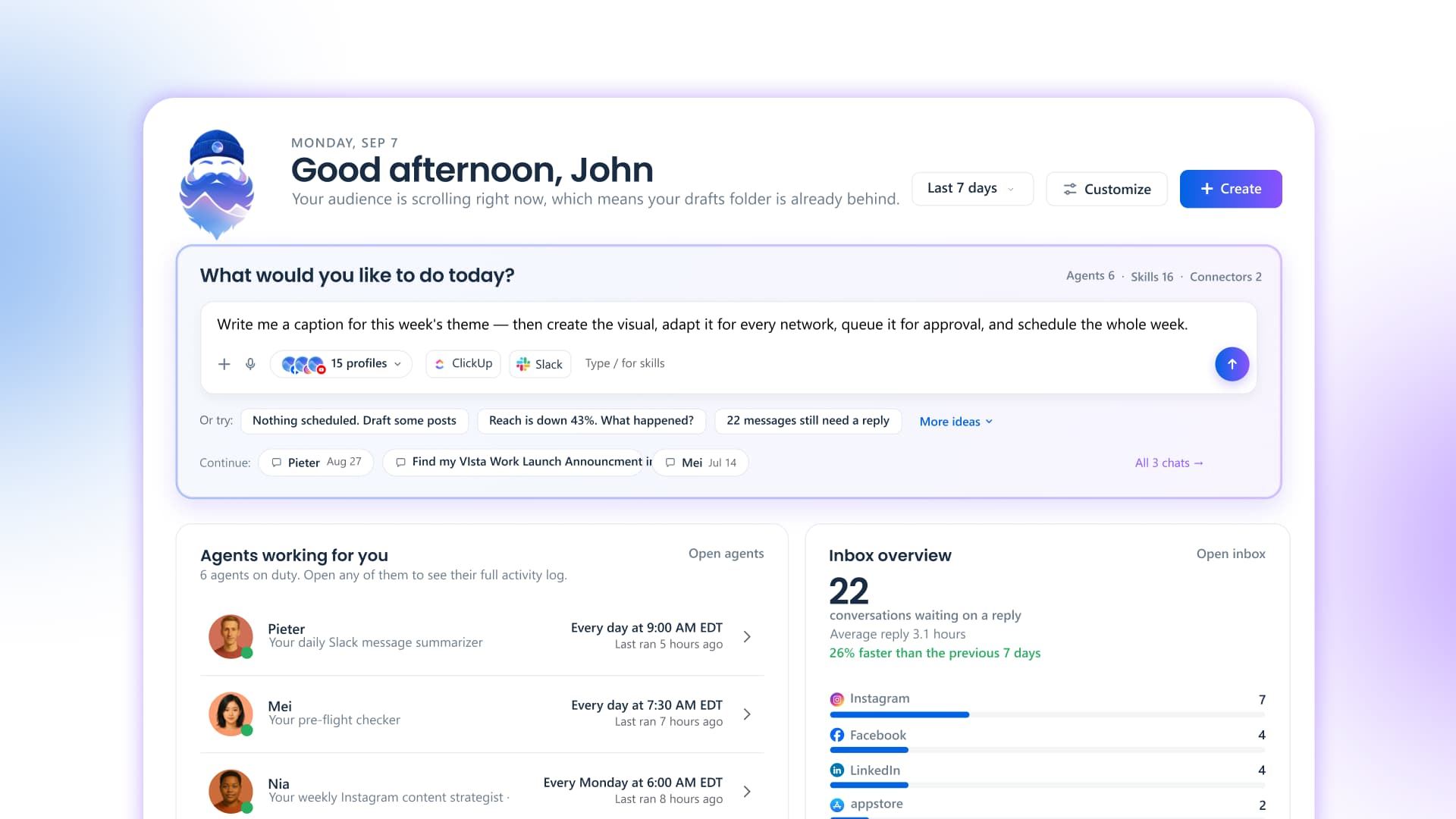
Table of contents
Summarize with AI

ChatGPT

Claude

Perplexity
Share

Vista Social

X (Twitter)


Your social media morning no longer has to begin with a lap around the platform because Vista Home brings the work that needs you, the work Vista already handled, and the next useful action onto one screen.
Vista Home is live now and is the default landing page for every Vista Social account, so log in and you are there.
Ask Vista sits at the top, ready to work with your account activity. The page also includes 26 widgets across Insights, Content, Agents, Inbox, Trends, and Work. Every widget follows the profiles you select, whether you are checking one client or looking across a large portfolio.
Your home page has become the place to start and act, so you can approve a post, reply to a review, schedule content for a strong time, or open an urgent task without rebuilding the story across several tabs.
Table of contents
What can you do from Vista Home?
Start with the question that usually sends you searching: what needs attention today?
For example, Vista Home can surface a failed post, a pending approval, a profile that needs reconnecting, or a starred message waiting for follow-up. You can then open the item from the same page and deal with it.
The rest of the board also helps you decide what deserves attention next:
- Performance pulse: Check engagement, reach, follower movement, and your top post without opening a full report.
- Best time to post: Review ranked publishing windows and a weekly heatmap based on your own history, then schedule into a chosen time.
- Inbox overview and sentiment: See what is waiting, check average reply time, and find posts drawing stronger reactions than usual.
- Reviews summary: Put unanswered reviews in view, surface low-star feedback first, and reply or prepare an AI draft.
- Industry benchmark: Compare performance with bands across your industry where the widget is included in your plan.
- Work widgets: Check your tasks, project health, and team activity across Vista Work.
| What you need | Where Vista Home helps | What you can do next |
| A quick performance check | Performance pulse | Open the top post or move into the full report |
| A strong time for the next post | Best time to post | Schedule directly into a ranked window |
| Urgent publishing work | Needs your attention | Review the failed post or approve pending content |
| A faster community check | Inbox overview and sentiment | Open the queue that needs a response |
| Reputation follow-up | Reviews summary | Reply, or prepare a response with AI |
| A clearer next improvement | Opportunities | Send the suggested fix to Ask Vista |
The Opportunities widget goes beyond showing the current state because it can find a gap and help you fix it. That could mean heavy inbound volume with no automation or regular posts missing the strongest time windows. It can then hand the next step to Ask Vista.
Move from signal to action
A traditional dashboard can tell you that something changed, while Vista Home helps you continue the work with the context still in front of you.
The best-time insight leads into scheduling, while a low-star review leads into a reply. A pending approval opens the decision, and a workflow gap can move straight to Ask Vista.
That shorter path matters because busy accounts move quickly. You spend less time locating the right screen and more time deciding what the brand should do.
Why does Ask Vista belong at the top?
Ask Vista is the hero of Vista Home, because it can work with the social context behind the page. Its suggestions come from real account activity, so it may point to messages that still need a reply or another current issue.
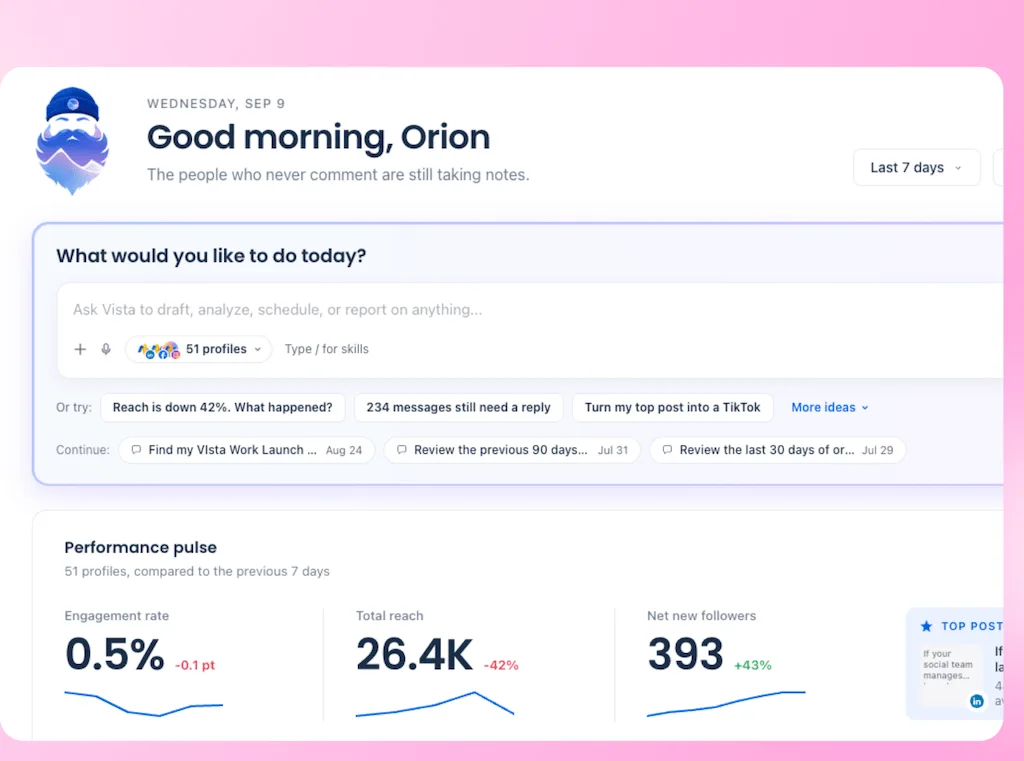
You can then ask it to draft, analyze, schedule, or build a report. Since the account context is already inside Vista Social, you can skip copying a result or conversation into a separate chat first.
Ask Vista helps close the distance between noticing the work and moving it forward. Your team, meanwhile, still checks the details, applies judgment, and approves public actions.
Can you see what your AI agents handled?
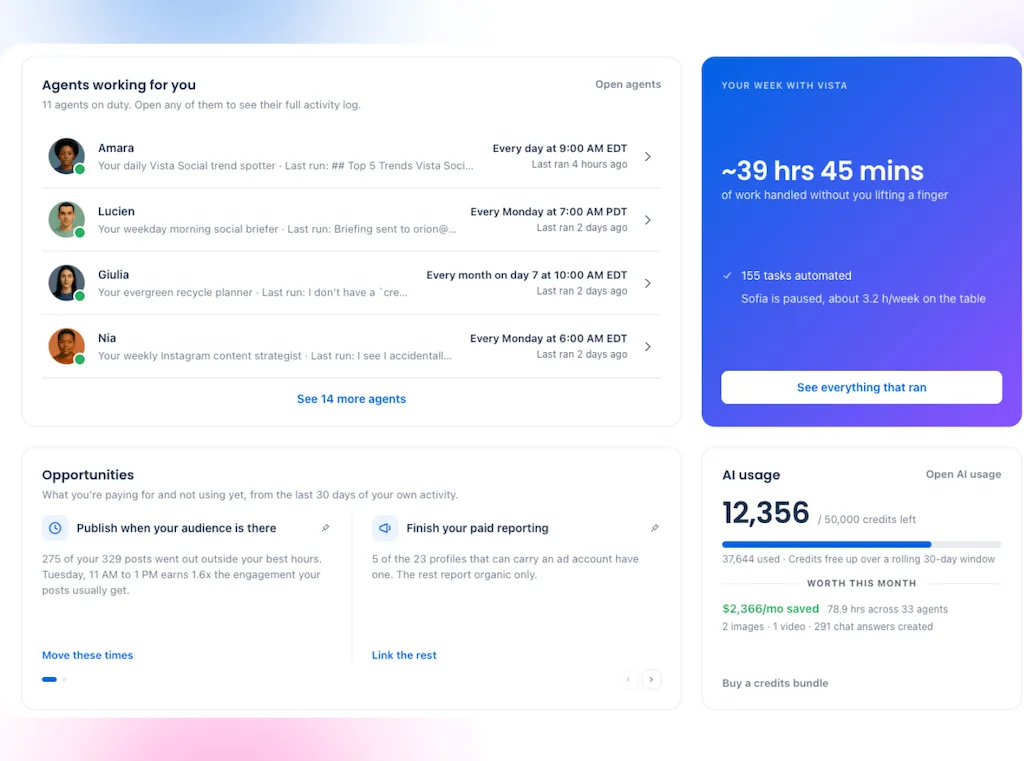
Yes. Vista Home also gives managers a visible record of AI and automation activity, including the estimated time saved.
- Agents on duty shows your named Agent roster and the latest run summaries.
- Agent runs shows what happened during each run.
- Automations shows which routines fired and what they handled.
- Value recap shows what ran and the estimated time saved by Agents, automations, and AI drafts during the period.
This is the AI’s timesheet. You can then check whether the morning routine ran, see what it found, and decide where a person should step in.
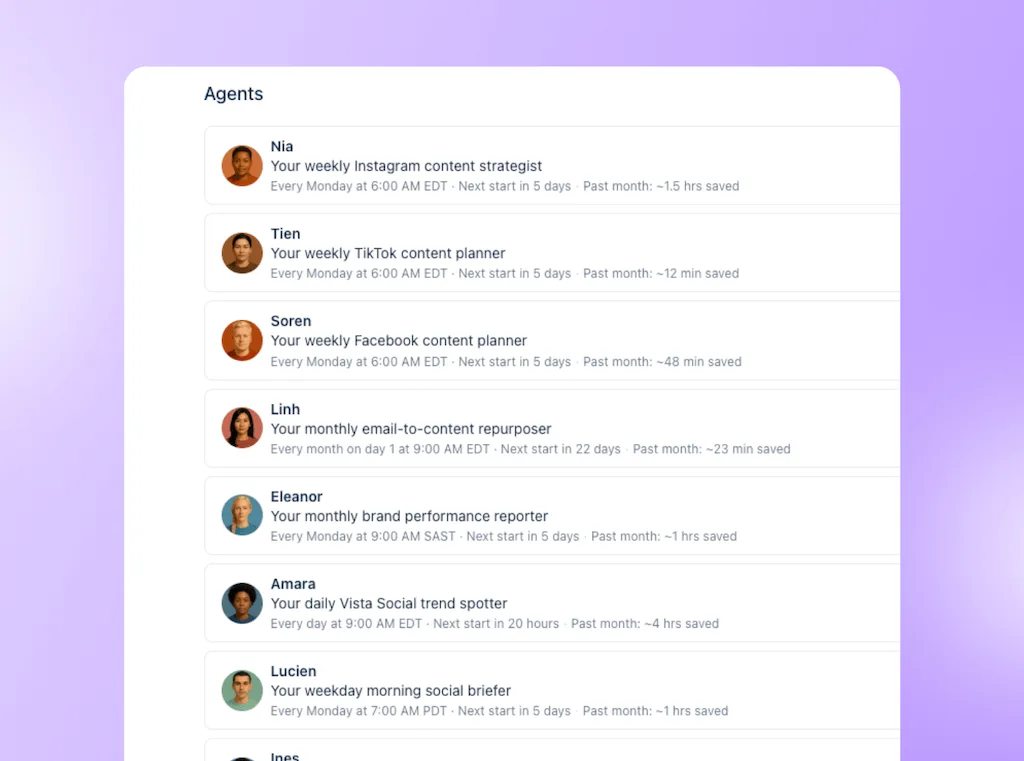
AI Agents can take care of repeat checks and setup work, while SMMs keep control of choices that require brand judgment, creative instinct, or a sensitive response.
How does Vista Home work across clients and brands?
Because every widget respects the profile selector, an agency lead can view work across clients. They can then narrow the same board to one brand before opening its approvals, messages, reviews, or results.
The board can work across up to 500 profiles, so agencies, multi-brand companies, and regional teams can share one starting point without mixing every account into the same view.
Admins can also control who sees and changes the board:
- Manage: The user can customize the board.
- View: The user receives a read-only view.
- None: Vista Home stays hidden from the user.
These controls support internal stakeholders, junior teammates, and client-safe views inside the account. White-label accounts also suppress Vista Social branding where required.
Vista Home does not provide a public dashboard link, scheduled dashboard email, or PDF export. Instead, social reports and shared calendars cover those external sharing needs elsewhere in Vista Social.
What should you put on your board first?
Your role should decide the first row. Put the widgets that change what you do today near the top, then keep slower trends and reference information below them.
Each user saves a separate layout, so the agency lead does not have to work from the community manager’s board. Vista Social will not overwrite the arrangement after you customize it.
Meanwhile, new accounts get a different start. The Getting Started view walks them through connecting profiles, inviting the team, and scheduling the first post before they move into the full dashboard.
How do you customize Vista Home?
Your default board is ready when you log in. A few quick changes will make it more useful for your role:
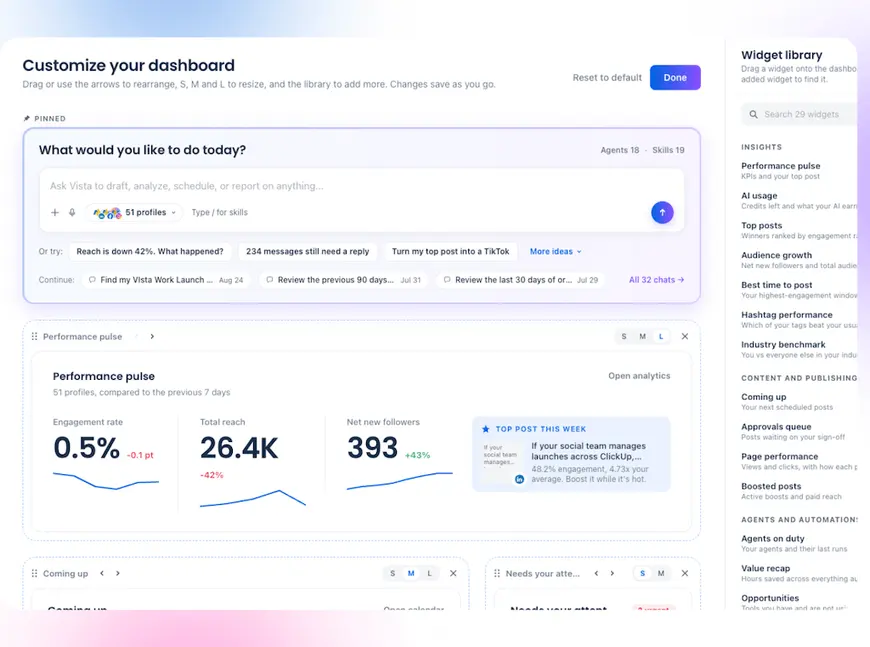
- Open Vista Home and review the widgets already on the page.
- Drag your most useful widgets toward the top.
- Resize each one to small, medium, or large based on how much detail you need.
- Remove anything that does not help your day-to-day work.
- Use reset whenever you want to return to the default layout.
Your changes are also saved to your user account. Other teammates can build their own version without altering yours.
Try Vista Social for free
A social media management platform that actually helps you grow with easy-to-use content planning, scheduling, engagement and analytics tools.
Get Started NowAbout the Author

Content Writer
Orion loves to write content that refuses to be boring. As part of Vista Social, he helps brands, creators, and agencies stop doom scrolling and start winning with social media. When he's not in front of a keyboard, he's watching films in IMAX with his wife, dissecting football tactics (the European kind), and getting lost in a good book.
Loading related tools...

The most complete social media management platform for teams who demand more.





Tools
PublishingAnalyticsEngagementIntegrations
FacebookInstagramLinkedInRedditSnapchatThreadsTikTokX (Twitter)YouTubeMCPVista Page (link-in-bio)All IntegrationsCopyright © 2026 Vista Social LLC. All Rights Reserved.