

Published on September 10, 2026
9 min to read
How to Use Ask Vista MCP Connectors: 7 Practical Workflows

Summarize with AI

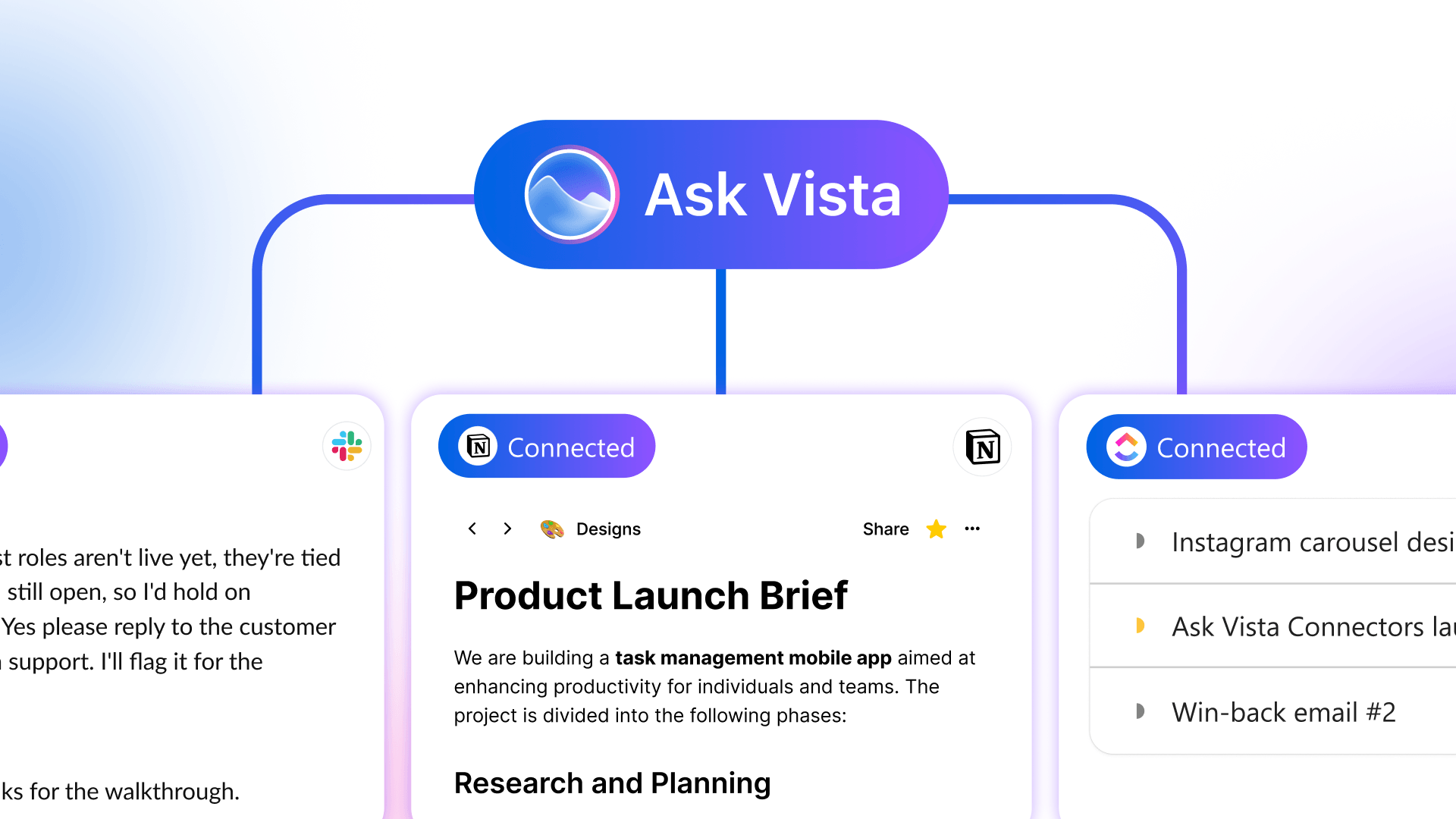
Table of contents
Summarize with AI

ChatGPT

Claude

Perplexity
Share

Vista Social

X (Twitter)


Ask Vista MCP Connectors make social workflows faster because they let Ask Vista read approved context from Slack, Notion, ClickUp, Linear, HubSpot, or a custom MCP server.
It can then use that context with the live posts, inbox conversations, reports, listening data, approvals, and tasks already inside Vista Social.
MCP stands for Model Context Protocol, an open standard that lets AI tools connect to other software, which means an assistant can reach approved context without someone copying it into chat.
In practice, it gives Ask Vista a secure route to the brief, project update, or customer context your team would otherwise carry between tabs.
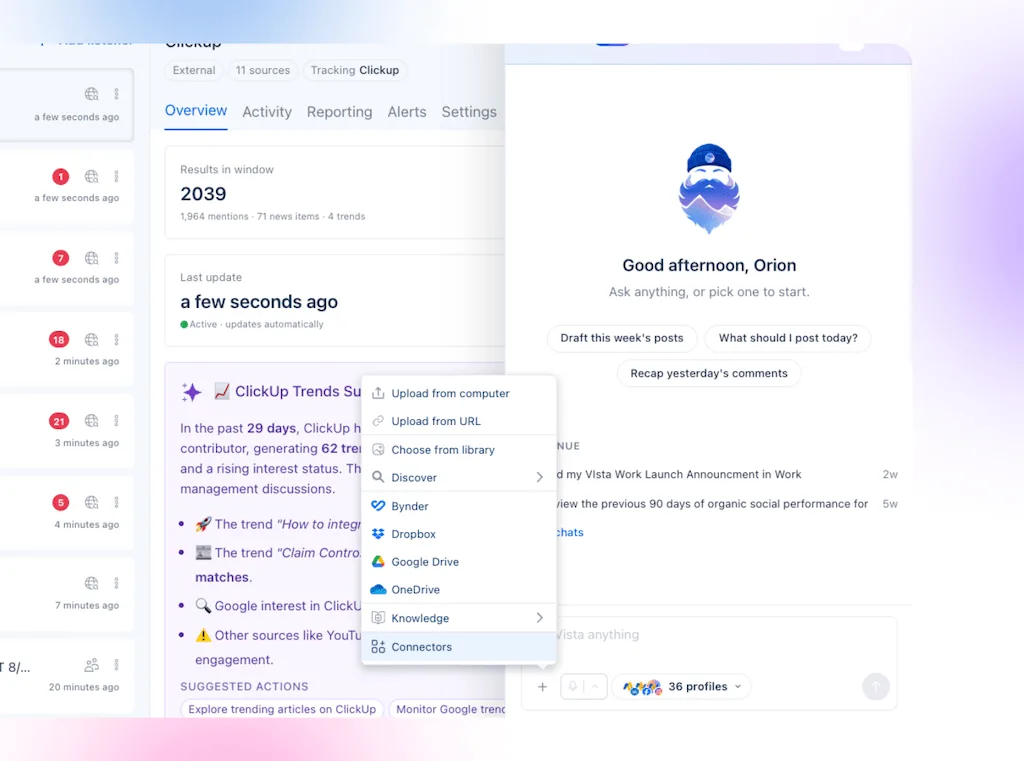
The biggest gain comes from removing a handoff your SMM repeats every week. Start with one workflow, keep the first action easy to check, and then add an Agent only after the result is dependable.
This guide also gives you seven Ask Vista MCP Connector workflows you can adapt now. The launch announcement covers the release overview and full connector list.
The short version
- Start with one handoff: Connect the tool your SMM checks before doing the social work.
- Give the request four parts: Name the source, social action, destination, and human checkpoint.
- Use chat before an Agent: Run the workflow by hand until you trust the instructions and output.
- Keep public work reviewed: Ask Vista can prepare and organize the work, while a person approves what goes live.
Table of contents
What makes a connected workflow useful?
A connector should remove a specific trip between tools. “Connect our marketing stack” is too broad to test, while “check the approved launch date before drafting the posts” gives Ask Vista a clear job.
A useful workflow answers four questions because every handoff needs a clear start, finish, and owner:
| Decision | What to specify | Example |
| Source | Where should Ask Vista read the current information? | The approved launch brief in Notion |
| Social action | What should happen inside Vista Social? | Prepare channel drafts in the correct Profile Group |
| Destination | Where should the result or update go? | Post a short recap in the launch Slack channel |
| Human checkpoint | What must wait for a person? | Keep every post in draft until the SMM approves it |
Use names that someone else on the team would recognize. Also include the workspace, project, channel, Profile Group, date range, and output format when they matter.
That detail also keeps Ask Vista from choosing between two similarly named projects or returning a summary that is too broad to use.
How should you choose your first workflow?
Start with a handoff that is frequent, easy to verify, and annoying enough that the team will notice when it disappears. A weekly launch check is a stronger first test than a rare crisis process because you already know what a correct result looks like.
Write down how the work happens today before you connect anything. Capture the source someone opens, the details they copy, the Vista Social action they take, the person they update, and the final review. That short baseline gives you something real to improve.
Your first workflow should meet four conditions:
- Name the owner: A specific person can confirm whether the result is useful.
- Choose one source: The request points to a specific project, channel, document, or record.
- Request a reviewable result: The output is a draft, check, recap, or task someone can inspect quickly.
- Set a safe boundary: Public replies, approvals, and publishing wait for a person unless your policy says otherwise.
For example, an SMM might spend each morning checking ClickUp for moved campaign dates and then comparing them with the social calendar.
That is a clean starting point because the source and expected result are both easy to see. Once it works in Ask Vista chat, save the instructions as a reusable Skill; when several manual runs stay accurate, schedule an Agent to repeat the check.
Avoid starting with a request that reaches every workspace and can change public content. A smaller test is easier to troubleshoot because it gives your team proof before you expand the workflow.
3. Bring approved customer context into campaign follow-up
HubSpot can hold the campaign, lifecycle, or customer details that explain why a social follow-up matters. Ask Vista can therefore use the approved parts of that record without forcing the SMM to rebuild the context in a separate prompt.
Where CRM context helps
Use this for a webinar follow-up, customer campaign, event recap, or segmented social plan. Keep the request tied to fields and records your social team is allowed to use.
The human check covers consent, audience fit, claims, and whether the CRM detail belongs in public content. Ask Vista should also explain which approved fields shaped the work so the reviewer can spot an irrelevant or sensitive source quickly.
4. Turn an inbox issue into owned follow-up work
A social inbox conversation can expose a product issue, sales question, or campaign problem that another team needs to handle. Because the source is already inside Vista Social, Ask Vista can collect the live context, create the follow-up in ClickUp, and alert the right Slack channel.
How the escalation moves
- Opens the exact Vista Social conversation and keeps its source attached.
- Summarizes the customer’s request without adding facts.
- Creates a ClickUp task with the owner, due date, source link, and next action.
- Posts a brief Slack alert with the task link.
- Leaves the public reply waiting for human approval.
This removes the manual explanation that often sits between community management and the team resolving the issue. The task still needs a clear owner, while the reply still needs a person who understands the customer and risk.
5. Turn a performance report into next week’s work
A report becomes more useful when the finding reaches the person who can act on it. Ask Vista can also review live Vista Social results, create the follow-up tasks in ClickUp, and send the team a short Slack recap.
How the report becomes action
Ask Vista compares the selected period with the previous one, identifies changes worth investigating, and separates evidence from suggestions. It can then create a small action list instead of handing the team another long report.
The SMM should challenge weak conclusions before tasks are created. A spike may reflect paid support, seasonality, a platform change, or one unusually strong post, which is why the action should match what the data can prove.
Use our reporting guide when you need a stronger review method before automating the handoff.
6. Keep agency and multi-brand sources separated
Agencies can connect more than one workspace from the same service. Clear names matter because “Client launch” may exist in three Notion spaces and two ClickUp workspaces.
Name each connection with the client, brand, or region, then pair it with the matching Vista Social Profile Group. Examples include “Notion | Northstar Hotels,” “ClickUp | Northstar Hotels,” and “Slack | Northstar Launch.”
How to protect client boundaries
- Limits the request to one named client or brand source.
- Checks that the matching Profile Group is active before taking action.
- Returns the source names so the account lead can verify the boundary.
- Keeps drafts and updates inside the intended client workflow.
Permissions in the connected service still control what Ask Vista can reach. Clear naming also acts as an operational safeguard because it helps the user confirm the right source before the request runs.
7. Let a scheduled Agent prepare the morning check
Once a workflow works reliably in chat, a Scheduled Agent can run it at a set time. The team arrives to a prepared check instead of remembering the prompt and collecting the same updates again.
What the morning Agent prepares
The Agent reads overnight ClickUp activity, checks the next seven days in Vista Social, and posts a Slack digest. Its job is to surface conflicts and missing work, while the SMM decides what changes.
Run the same instructions manually for several days before scheduling them. Then check whether the Agent finds the right records, ignores unrelated projects, and gives the team enough detail to act.
Our Agent guide explains where recurring AI work helps and where human review still belongs.
When should you use a custom MCP connector?
Use the custom option when an important source is not in the ready-made list and the service exposes an MCP server your organization trusts. This could be an internal content library, campaign system, or another approved marketing tool.
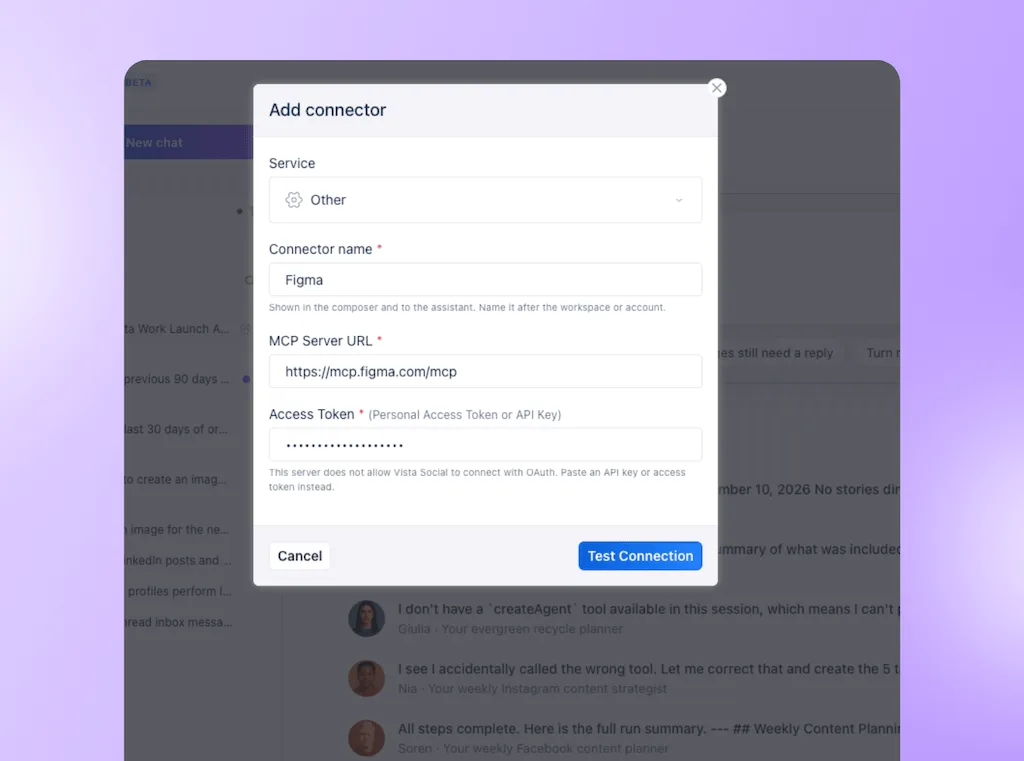
Start with a read-only request. Test one record, confirm the returned source, and review the available tools before you allow any action that changes data.
Avoid connecting a broad internal system because it might be useful later. Each connection should have an owner, a current use case, and a clear reason to remain active.
How do you keep a connected workflow safe?
Ask Vista treats content returned by an outside app as untrusted. Its automatic safety check looks for hidden instructions before the assistant acts, while detected prompt injection attempts are blocked.
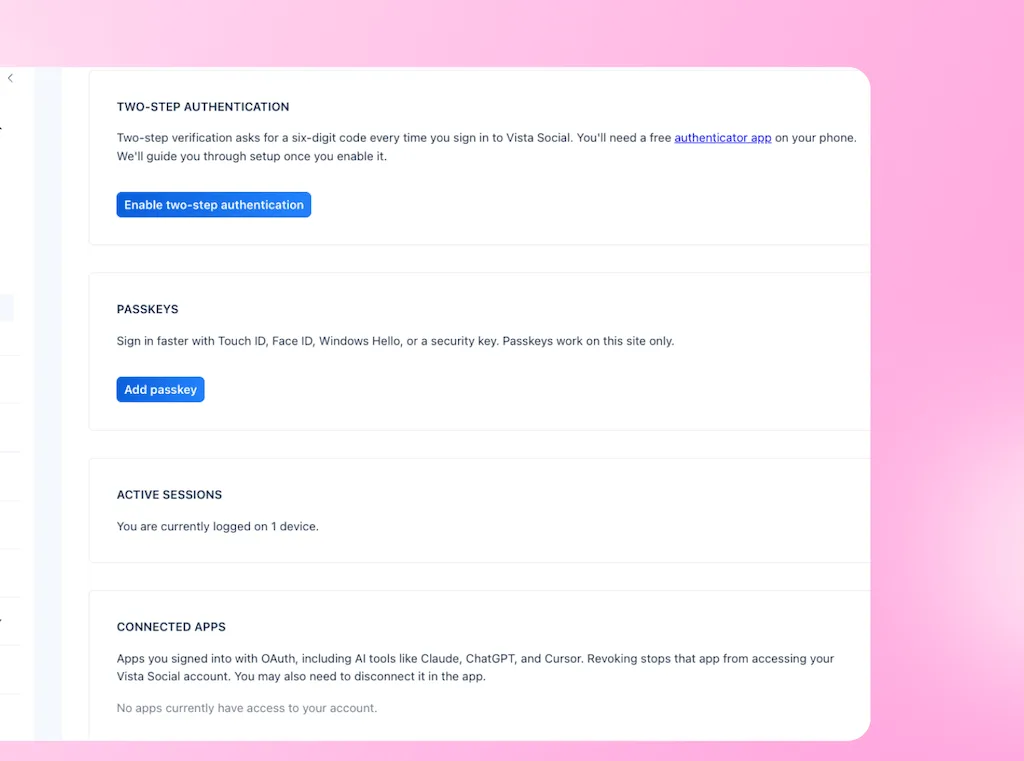
Vista Social also provides provenance tracking, scoped authorization, auditable authentication, and a fast way to disable or disconnect a connector. Those controls sit within Vista Social’s SOC 2 Type II security program.
The technology handles part of the risk, while the workflow still needs sensible boundaries:
- Grant the smallest useful scope: Give each connector only the access required for its job.
- Name every connection clearly: Include the client, brand, region, or workspace.
- Request source details: Ask which record, channel, task, or document informed the result.
- Keep public actions reviewed: Drafting and analysis can move faster without automatic publication.
- Test before scheduling: A manual run shows whether the Agent follows the right source and date range.
- Remove unused access: Disable a connection during review or disconnect it when the workflow ends.
The connector guide covers setup and the built-in screening, while the Security Center explains Vista Social’s wider controls.
How can you tell whether the workflow is faster?
Do not judge the first workflow by how impressive the prompt looks. Time the handoff before and after connecting it. Track a small set of signals for one week:
- How many tools the SMM opens to finish the job
- Minutes spent finding and copying source material
- Follow-up questions caused by missing context
- Drafts changed because the project record was out of date
- Time from a social issue appearing to an owner receiving it
- Checks the Agent completes before the team signs in
The first result may feel modest, but even a few minutes removed from a daily check can protect the SMM’s focus every morning.
If the workflow creates more review work than it removes, narrow it. Reduce the sources, shorten the output, or move the action back to draft-only until the instructions are stable.
Build one connected workflow this week
Ask Vista MCP Connectors become useful when the brief, project record, social calendar, and team update stop depending on one person to carry the details between them.
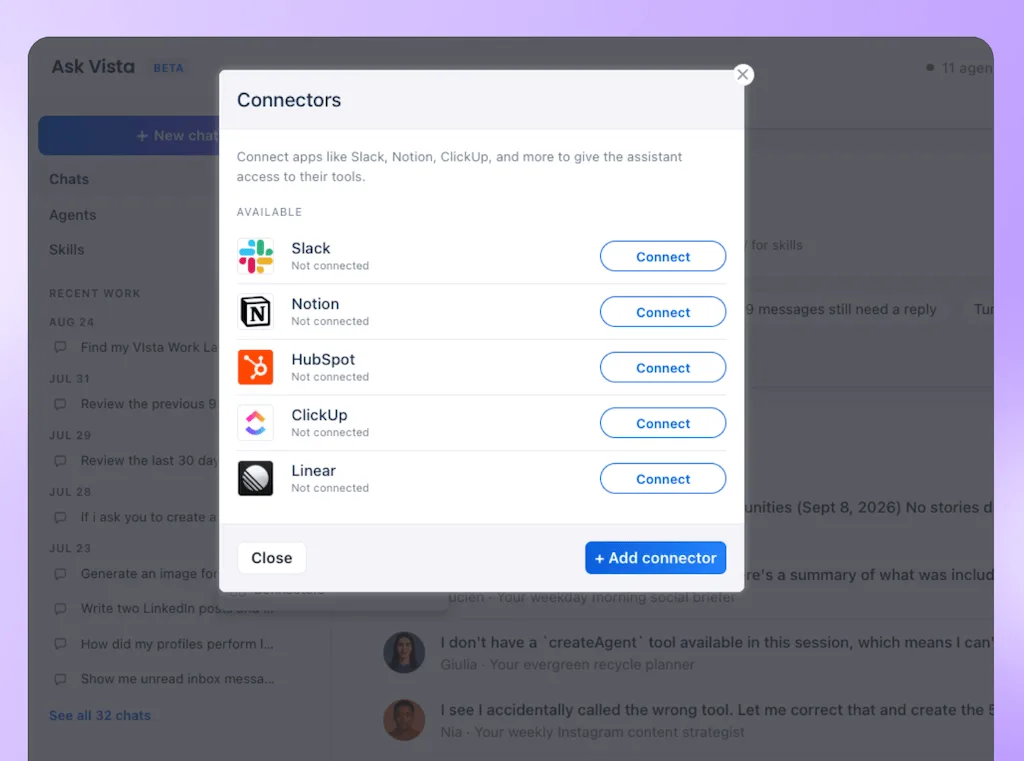
Pick the handoff your SMM repeated most often last week. Connect its source, run one prompt in chat, and check every record Ask Vista used. Once the result holds up, save the process as a Skill or let a Scheduled Agent run the repeat check.
The goal is a calmer route from approved context to social action. Your SMM still sets the direction, reads the room, and approves the public work, while Ask Vista handles the searching, checking, and setup around those decisions.
Already use Vista Social? Press X, click +, open Connectors, and build the first workflow with a real campaign.
Start free if you are new to Vista Social. The trial lasts 14 days, with no credit card or automatic charge.
Frequently asked questions
Do I need to connect every marketing tool?
No. Start with the source behind one repeated handoff. Add another connector only when it gives the workflow useful context or a clear destination.
Can Ask Vista use several connectors in one request?
Yes. You can make several saved connectors available at the same time. Name each workspace clearly and specify which sources the request should use.
Can I use different workspaces for different clients?
Yes. Add and name separate connections, then pair each request with the correct Vista Social Profile Group. Access still follows the permissions granted in the connected service.
Should an Agent publish posts automatically?
Keep public work in draft or approval until the workflow has been tested and your policy allows the action. Human review remains the safer default for claims, tone, timing, and sensitive replies.
What happens if connected content contains hidden instructions?
Ask Vista screens outside results before acting. If it detects a prompt injection attempt, it blocks the suspicious content and tells the user.
How do I turn off a connector?
Open Connectors from the Ask Vista composer. Use the toggle to disable it without deleting it, or choose Disconnect to remove the connection.
Try Vista Social for free
A social media management platform that actually helps you grow with easy-to-use content planning, scheduling, engagement and analytics tools.
Get Started NowAbout the Author

Content Writer
Orion loves to write content that refuses to be boring. As part of Vista Social, he helps brands, creators, and agencies stop doom scrolling and start winning with social media. When he's not in front of a keyboard, he's watching films in IMAX with his wife, dissecting football tactics (the European kind), and getting lost in a good book.
Loading related tools...

The most complete social media management platform for teams who demand more.





Tools
PublishingAnalyticsEngagementIntegrations
FacebookInstagramLinkedInRedditSnapchatThreadsTikTokX (Twitter)YouTubeMCPVista Page (link-in-bio)All IntegrationsCopyright © 2026 Vista Social LLC. All Rights Reserved.