

Published on September 8, 2026
6 min to read
Introducing Ask Vista MCP Connectors: Your Marketing World, Connected

Summarize with AI

Table of contents
Summarize with AI

ChatGPT

Claude

Perplexity
Share

Vista Social

X (Twitter)


Your campaign context no longer has to be copied into Ask Vista one brief, task update, and team conversation at a time. Starting today, the expert agent that runs your social work can reach the rest of your marketing world itself.
Ask Vista MCP Connectors are live now on every paid Vista Social plan. Press X anywhere in Vista Social, click the + icon, choose Connectors, and select + Add connector.
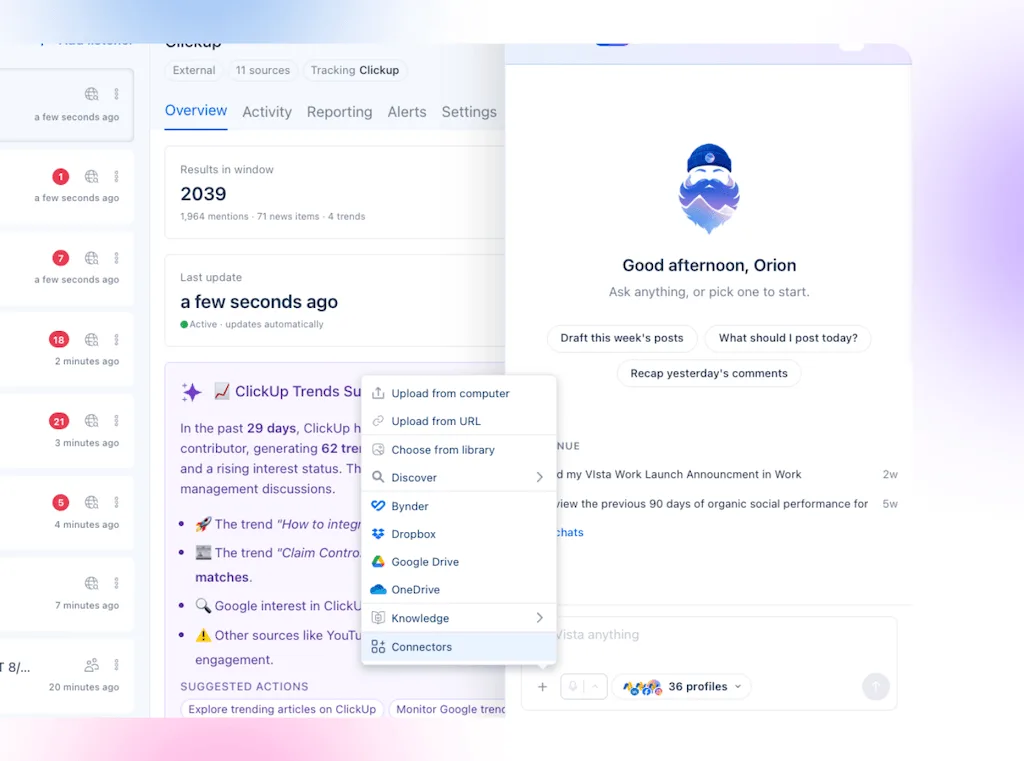
You can connect Slack, Notion, ClickUp, Linear, HubSpot, or another service through a custom MCP URL. Ask Vista can then use those tools with the posts, inbox, approvals, reports, listening data, and tasks already inside Vista Social.
Ask Vista already has nearly 100 tools built for social media. MCP Connectors add five ready-made connections and any MCP server your team chooses without losing the social context that makes its work useful.
A general chatbot reaches social through a connector, while Ask Vista starts inside the social operation and reaches everything around it.
Table of contents
What can you do with Ask Vista MCP Connectors?
Run a launch without spending the first half of the task collecting context. Ask Vista can read the approved brief and check the project status. It can then prepare the social content and send the team an update.
That one request is the product shift. Notion keeps the brief, ClickUp keeps the task, and Vista Social keeps the calendar and account data, while Slack keeps the team informed. Ask Vista carries the right context between them and completes the social work where it belongs.
Move from context to social action
A general assistant can often find a document or summarize a thread. Ask Vista can then use what it finds inside the platform that runs your social operation.
It can also draft posts, check approvals, review the inbox, compare results, find trends, run listening, use media, start automations, and manage Vista Work tasks. Your team still reviews claims and voice, while people approve anything that will reach the public.
| What you need | Where Ask Vista looks | What happens next |
| The approved campaign direction | Notion or HubSpot | Ask Vista prepares channel drafts using the right account context |
| The current launch status | ClickUp or Linear | Ask Vista checks blockers before work reaches the calendar |
| The latest team decision | Slack | Ask Vista uses the confirmed direction and prepares the next social action |
| Social performance and customer response | Vista Social | Ask Vista analyzes live data, drafts follow-up work, or creates a task |
Which tools can you connect?
Ask Vista ships with connectors for the services many marketing teams already use:
- Slack: Read relevant channel updates and send a clear recap back to the team.
- Notion: Pull campaign briefs, content plans, client notes, and approved messaging.
- ClickUp: Search projects, check task status, create tasks, and update work.
- Linear: Follow product and engineering work that affects launch communications.
- HubSpot: Bring approved customer and campaign context into social follow-up.
- Custom MCP: Paste the URL for another public or internal MCP server and review the tools it provides.
The list is a starting point, not a boundary. Even if a service is not shown, your team can connect it through a custom URL when it speaks MCP.
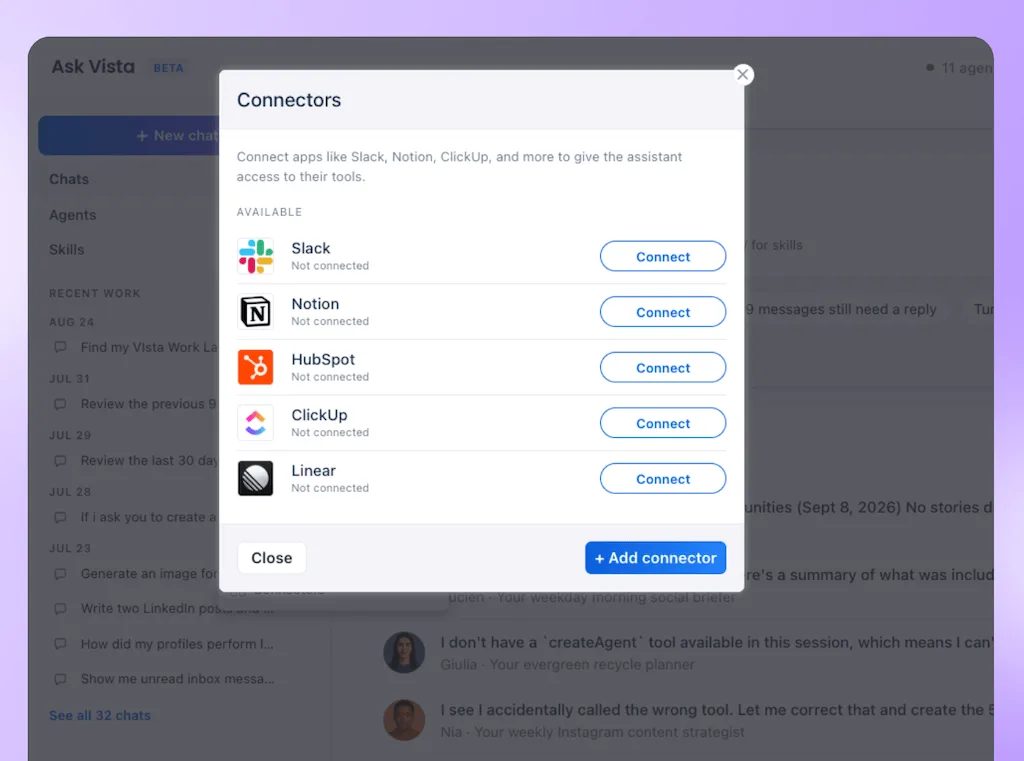
Agencies can also add more than one workspace from the same service. Then name each connector by client, brand, or region, so Ask Vista keeps those sources clear.
Can scheduled agents use your connectors?
Yes. Because Scheduled Agents can use the same connected tools, repeat checks can move off your team’s morning list.
A morning agent can read overnight ClickUp activity and check the Vista Social calendar. It can then post a digest to Slack before the team signs in. Nobody has to remember the prompt or rebuild the update by hand.
The agent handles the repeat check. Your SMM then decides whether a moved date changes the campaign, whether the message still fits, and what should go live.
How does Ask Vista protect connected data?
Connecting an AI agent to business tools is a trust decision, especially for agencies and enterprise teams. We assumed connected tools could be hostile, and built for that reality.
- SOC 2 Type II controls: Connectors run within Vista Social’s existing security program and compliance posture.
- Prompt injection screening: Every external result is checked for hidden instructions before Ask Vista can act on it. The check is on by default and fails toward caution.
- Provenance tracking: Each result keeps a record of where it came from. If Ask Vista cannot confirm the source, it treats the content as untrusted and screens it.
- Scoped authorization: Each connector can use only the access your team grants through that service.
- Auditable authentication: Supported services use standard sign-in flows, while security decisions are logged without storing the untrusted content itself.
- Fast shutdown: You can disable a connector without deleting it or disconnect it completely. Credentials stay out of the user interface.
- Connected Apps control: Open Settings > Security > Connected Apps to review every app with OAuth access. Revoke one app or all apps at once.
Detected prompt injection attempts are quarantined before they reach the model. Normal records, messages, and reports also pass through the check without adding another task for the user.
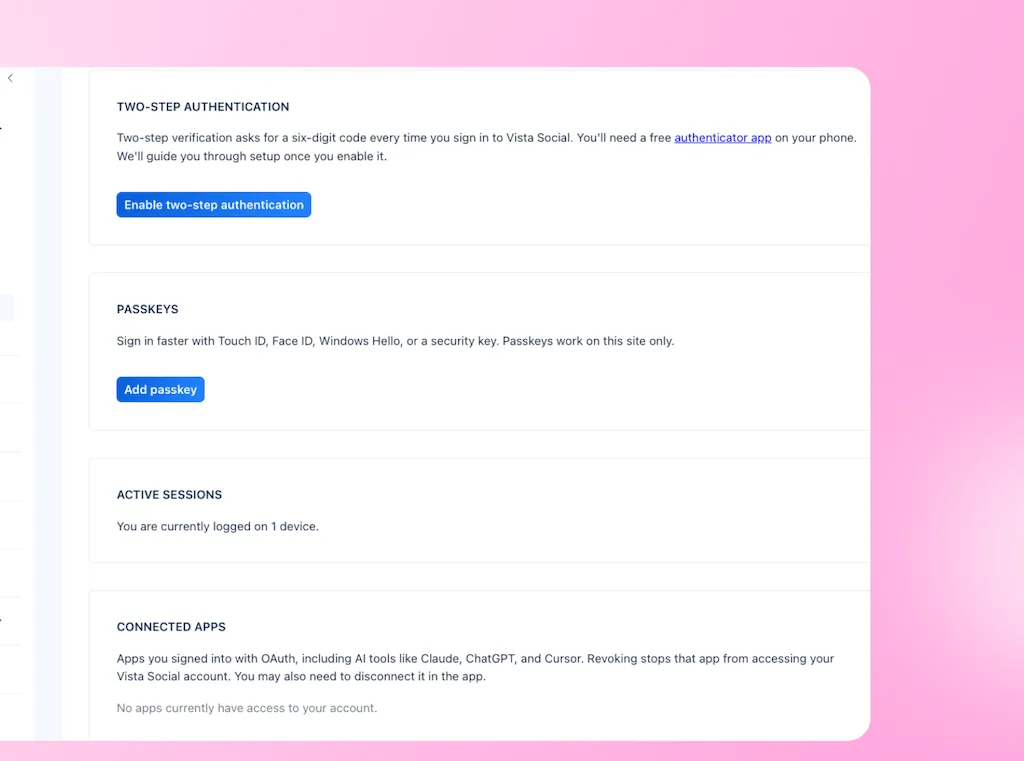
Vista Social’s Security Center covers its broader controls and SOC 2 Type II status. The connector guide explains the built-in screening and connection controls.
What should you connect first?
Begin with the handoff your team repeats most often because one useful connection is enough to prove the workflow.
| The handoff slowing you down | Connect first | Try this job |
| Campaign briefs keep changing | Notion | Read the approved brief before preparing social drafts |
| Launch tasks block the calendar | ClickUp | Check blockers before drafting or rescheduling content |
| Product status changes near launch | Linear | Confirm the current release state before writing the announcement |
| Decisions disappear in team chat | Slack | Find the approved decision and prepare the next social action |
| Customer context shapes the message | HubSpot | Use the approved campaign or customer context when planning follow-up |
| Your source is not listed | Custom MCP | Test one small read action before widening access |
Keep the first request easy to verify. Then check the workspace, source, date, and result before turning it into an Agent or adding more actions.
How do you add an Ask Vista MCP Connector?
These steps add a work source, such as Slack or ClickUp, inside Ask Vista.
- Press X anywhere in Vista Social to open Ask Vista.
- Click the + icon beside the composer.
- Choose Connectors, then select + Add connector.
- Pick a ready-made service or the custom MCP option.
- Complete the requested authorization and click Test Connection.
- Review the connection preview and available tools, then save it.
The connector appears as a tag beside the prompt field, so you can see what Ask Vista can use. You can also name connections to keep client and brand work clear.
Try Vista Social for free
A social media management platform that actually helps you grow with easy-to-use content planning, scheduling, engagement and analytics tools.
Get Started NowAbout the Author

Content Writer
Orion loves to write content that refuses to be boring. As part of Vista Social, he helps brands, creators, and agencies stop doom scrolling and start winning with social media. When he's not in front of a keyboard, he's watching films in IMAX with his wife, dissecting football tactics (the European kind), and getting lost in a good book.
Loading related tools...

The most complete social media management platform for teams who demand more.





Tools
PublishingAnalyticsEngagementIntegrations
FacebookInstagramLinkedInRedditSnapchatThreadsTikTokX (Twitter)YouTubeMCPVista Page (link-in-bio)All IntegrationsCopyright © 2026 Vista Social LLC. All Rights Reserved.