


Published on August 3, 2026
9 min to read
How to Set Different AI Rules for Every Client You Manage

Summarize with AI

Table of contents
Summarize with AI

ChatGPT

Claude

Perplexity
Share

Vista Social

X (Twitter)


One AI rule rarely fits dozens of social accounts.
The flagship brand may allow caption help. A regulated division may approve performance summaries but keep generation off. One region may prohibit AI from processing customer conversations, while another uses sentiment analysis to sort a packed inbox.
A policy can describe every exception. The social platform still needs to enforce them. When the same AI options remain available everywhere, the policy depends on people remembering which rule applies before they click.
Vista Social moves that decision into each profile group. Agencies can match the tool to each client agreement, while enterprises can set different controls for brands, regions, and business units. This guide covers every switch, what it changes, and how to make the approved setup the easiest one to follow.
The short version
- Check every group: Vista Social enables the listed AI features by default, so review each profile group instead of assuming its setup.
- Choose feature by feature: One client or business unit can allow caption help and summaries while another disables every AI option.
- Use the master switch: “All AI options” turns every listed feature off for that profile group in one click.
- Keep the agreement: Settings record the operational choice. Client terms, enterprise policy, and human approval still govern the wider workflow.
Table of contents
What are profile-group AI controls?
Profile-group AI controls let a team turn specific AI features on or off for one defined set of social accounts. An agency can use a group for each client. An enterprise can organize groups by brand, region, division, market, or another operating boundary. Each group has a master switch and nine individual feature toggles.
That separation matters whenever one organization manages accounts with different rules. A consumer brand may welcome AI-assisted ideas and image generation. A healthcare division may allow performance summaries but prohibit generative features. A public-sector team may require a human to review every public-facing word.
These are already live commercial questions. In 2024, the World Federation of Advertisers found that 63% of surveyed brand owners used generative AI in marketing. At the same time, 80% were concerned about how agency partners used it on their behalf, and 55% planned to review agency contracts for AI-related terms. The findings came from 48 major companies with a combined annual marketing spend of $102 billion, according to the WFA research.
A responsible team therefore needs a more useful answer than “we use AI.” It needs a clear list of what each profile group permits, where the rule applies, and who checks the work.
Why do these controls matter at enterprise scale?
A global social program rarely has one universal risk level. Corporate communications, customer care, employer branding, regulated products, and regional marketing may share one platform while operating under different policies. Profile-group controls let the central team reflect those differences inside the workspace.
- Stage the rollout: Enable selected features for a pilot group before making them available across every brand or market.
- Respect local rules: A region or regulated division can use a stricter setup without slowing teams whose policies allow more.
- Pause precisely: Turn AI off for the affected group during a legal, security, or accuracy review while other approved workflows continue.
- Reduce accidental use: Disabling a feature removes that option from the group instead of relying on every user to remember a policy.
Turning a feature off can reduce where that Vista Social AI capability is available, which may support a company’s data-handling policy. It does not replace vendor security review, contractual protections, retention requirements, data-residency decisions, or access controls. Those remain separate enterprise responsibilities.
The same applies to accuracy. Disabling generative features removes one route for unsupported copy or media. When generation stays on, AI Training & Knowledge, brand policies, source checking, and human approval help teams catch missing context and claims the organization cannot support. None of those controls guarantees that every output is true.
Check AI controls in Vista Social with a free trial.
Where do the AI settings live in Vista Social?
Start with the relevant client, brand, region, or business unit set up as a profile group. You also need admin-level access to that group. If you are still organizing the account, profile groups keep the appropriate profiles, calendar, reports, users, and settings together.
- Open Settings in the Vista Social dashboard.
- Choose Profile Groups from the left menu.
- Select the profile group you want to control.
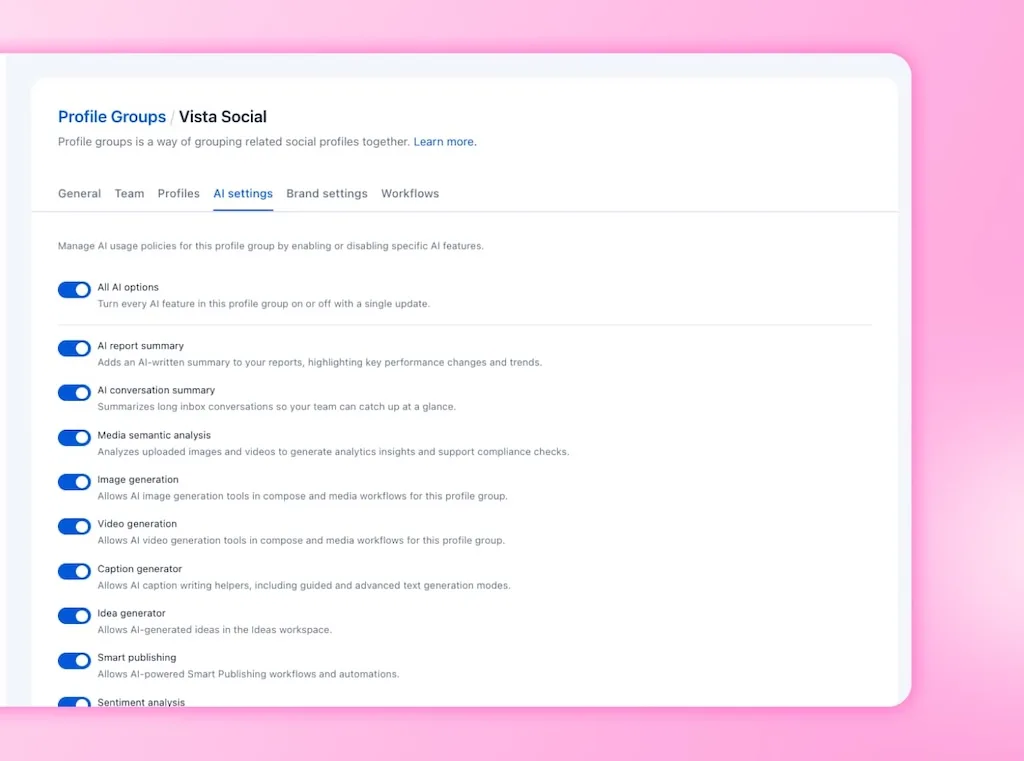
- Open the AI settings tab.
The screen shows every available toggle for that group. “Blue” means “on,” and “gray” means “off.” Changes take effect immediately, so there is no save button to hunt for.
How do you turn off all AI for one profile group?
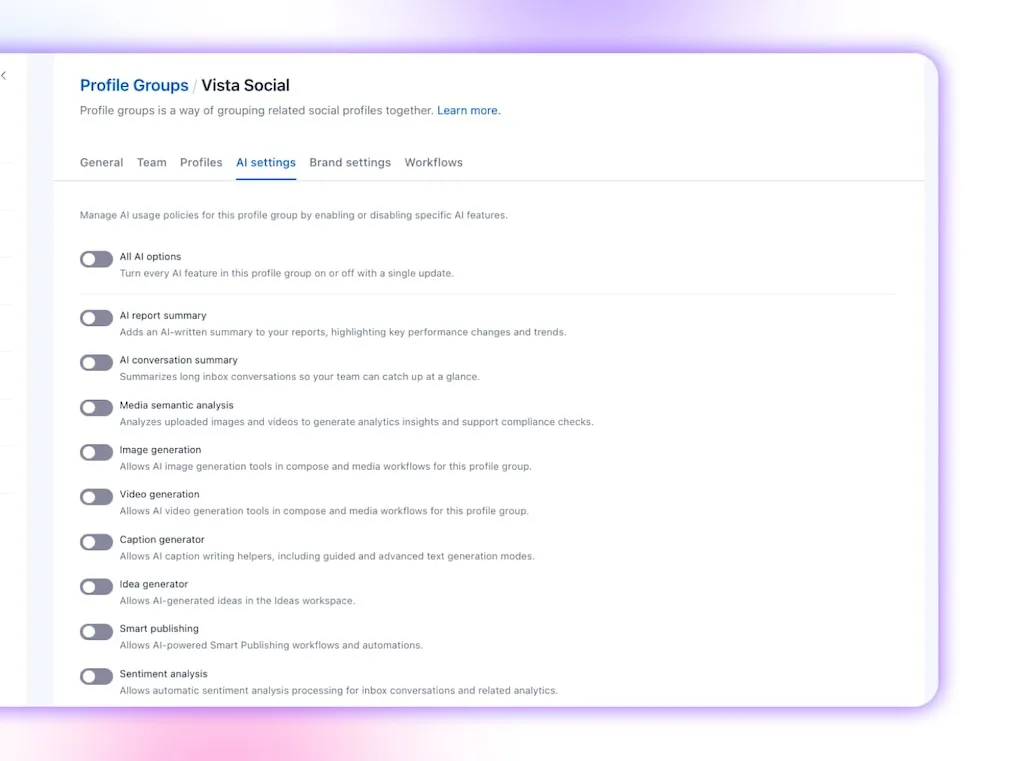
Turn off “All AI options” at the top of the group’s AI settings tab. That master switch disables every AI feature listed underneath it for the selected profile group. It does not change the setup for any other group.
The switch is useful when AI use is prohibited, approval is pending, or your team needs to pause AI features during a review. It gives the organization a clear rule until the responsible stakeholders approve a selective setup.
If you turn the master switch on again, Vista Social restores the individual toggles to their previous states. Check them before leaving the screen in case the governing policy has changed.
Test the switch for free in Vista Social, with no credit card required.
What does each AI toggle control?
Most profile groups will not need an all-or-nothing setup. Use the nine individual controls to match the features to the approved work and risk level.
| AI feature | Leave it on when | Switch it off when |
|---|---|---|
| AI report summary Explains key changes and trends in reports. | The team wants faster performance recaps, and someone checks the interpretation. | The governing policy requires analyst-written commentary only. |
| AI conversation summary Condenses long inbox threads. | Community managers need quick context before replying. | The inbox contains sensitive conversations excluded from AI processing. |
| Media semantic analysis Analyzes images and videos for performance insights and supported compliance checks. | The team wants to learn which visual elements appear in stronger posts. | The policy does not permit AI analysis of uploaded media. |
| Image generation Creates images in Compose and media workflows. | Generated visuals are allowed, and your review covers accuracy, rights, and brand fit. | The brief requires licensed photography, approved assets, or human-made artwork. |
| Video generation Creates video in Compose and media workflows. | The brand has approved generated motion assets and a reviewer checks every frame. | Synthetic people, products, settings, or motion are outside the brief. |
| Caption generator Provides guided and advanced caption help. | AI can create a first draft that follows the approved voice and review flow. | The policy limits generative writing or requires every line to start with a named writer. |
| Idea generator Suggests content ideas in the Ideas workspace. | AI-assisted brainstorming is allowed and strategists choose what enters the plan. | Even early concepts fall under a restricted creative process. |
| Smart publishing Runs AI-powered publishing workflows and automations. | The workflow, scope, and optional review step have been approved. | That level of automation has not been authorized. |
| Sentiment analysis Classifies inbox sentiment for triage and analytics. | The team uses sentiment as a sorting signal and checks the conversation itself. | The policy restricts automated analysis or the labels could be mistaken for final judgment. |
What do two sensible profile-group setups look like?
The right combination comes from the approved policy or client agreement, not an industry label alone. These examples show how the same screen can support two very different briefs.
| Illustrative brief | Possible setup | Human control |
|---|---|---|
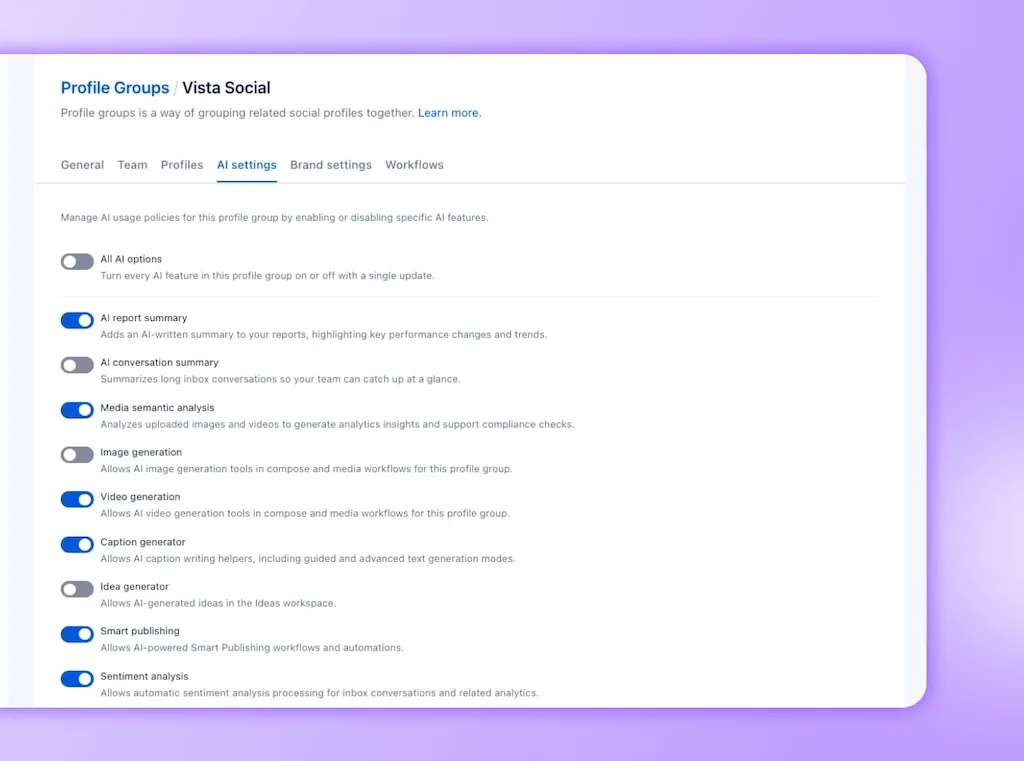
| Healthcare organization The agreement permits analysis and summaries but excludes generative content. | Keep report summaries, conversation summaries, and sentiment analyses on. Disable captions, ideas, generated images, generated video, and Smart Publishing. Confirm whether uploaded media may be analyzed before enabling semantic analysis. | A named reviewer checks summaries and reads the underlying conversation or report before acting. |
| Consumer retail brand The agreement allows AI-assisted ideation and first drafts but keeps publishing human. | Keep captions, ideas, approved image generation, summaries, analysis, and sentiment on. Disable video generation if it is outside the creative brief, and leave Smart Publishing off until its workflow is approved. | The strategist chooses the ideas, verifies product details, and sends every public-facing draft through the client’s approval path. |
Neither setup should become an agency-wide preset. A second healthcare client may prohibit every form of AI processing, while another retail brand may approve Smart Publishing for a narrow workflow. Configure the agreement you actually have.
Review the nearby controls too. AI Training & Knowledge grounds captions and replies in approved source material. Brand policies and approval workflows add another layer. Ask Vista and its AI agents have their own scope and approval choices, so audit them separately.
“The world may turn to AI for answers. But the world will turn to you for the thinking.”
Carla Johnson, 2026 article
That is the clean division of labor. The setting decides what the software may help with. Your team decides what is accurate, appropriate, and ready to represent the client.
How do you get the right sign-off on AI?
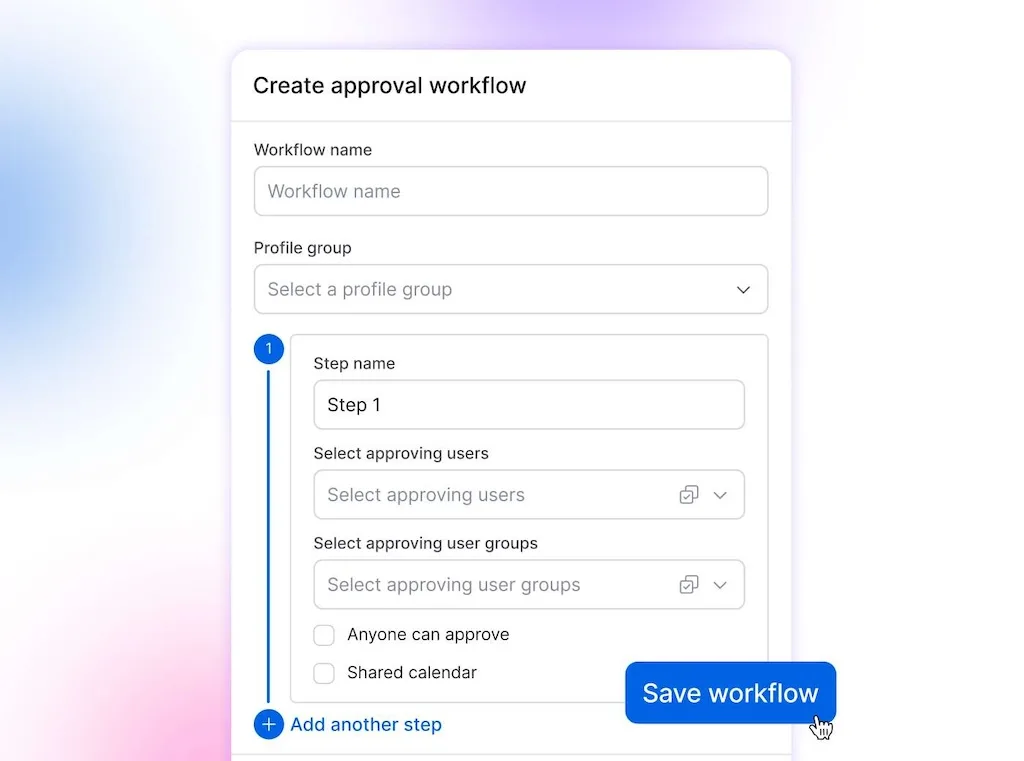
Do not reduce the decision to a vague yes-or-no question. Show the feature list to the client or internal owners and record the choices in plain language. The goal is a short operating agreement an account lead or platform administrator can turn into settings.
- Define the use cases: Separate analysis, brainstorming, draft creation, generated media, customer message processing, and publishing automation.
- Name the boundaries: Record restricted content, data, markets, campaigns, and channels.
- Set the approval: Identify who checks the output and who can authorize publishing or replies.
- Agree on disclosure: Ask the client or enterprise legal team what must be disclosed under contracts, industry rules, platform requirements, and local law.
- Choose a review date: Revisit the decision when the scope changes, a new feature launches, or the governing policy changes.
Keep the record short enough to update during the decision meeting. At minimum, capture the profile-group name, master AI decision, approved features, disabled features, restricted data or content, human approver, disclosure rule, decision date, and next review date. Record the client contact or internal policy owner so a future administrator can trace the decision without searching an old message thread.
Then match the signed decision to the group’s AI settings. Agencies can include the setup in their agency audit. Enterprise teams can add it to onboarding, change-control, and periodic access reviews. If the work requires publishing approval, use an approval gate as well.
Important: These toggles control feature availability inside a profile group. They do not certify legal or security compliance, create disclosures, verify factual accuracy, or replace advice from the responsible legal and security teams.
What do teams get wrong during setup?
- Leaving the defaults untouched: Every listed feature begins enabled. An untouched screen reflects the default, not the client’s decision.
- Using one rule for everyone: The settings are independent because contracts, regions, business units, risk levels, and creative permissions differ.
- Confusing analysis with generation: Sentiment and semantic analysis process existing content. Caption, image, and video tools create new material. The governing policy may draw the line between them.
- Treating “off” as forever: A temporary restriction should have an owner, reason, and review date, or it will be forgotten.
- Giving too many people admin access: Only account admins and profile-group admins should change controls. Review team permissions before handoff.
Run this 10-minute audit for every profile group
- Open the profile group and go to AI settings.
- Compare the screen with the signed agreement or approved internal policy.
- Use “All AI options” if AI is prohibited or approval is still pending.
- Review all nine feature toggles when selective use is allowed.
- Check related agent scopes, approval workflows, AI Training & Knowledge, and brand policies.
- Record the date, settings, approver, and next review in the account record.
Repeat the audit during onboarding and whenever the contract, policy, market, business owner, or product feature set changes. The first pass takes about ten minutes. Later checks usually take seconds because the decision is already documented.
Audit a profile free in Vista Social, with no credit card required.
Let the settings remember the rule
Good AI governance should feel almost boring in practice. People see the features their profile group is allowed to use. Restricted options stay unavailable. A temporary pause affects the accounts under review without freezing every approved team.
That becomes more valuable as AI spreads through captioning, reporting, media analysis, customer care, and publishing. The policy can stay detailed without asking every social manager to memorize every exception.
Give each profile group an owner, an approved setup, and a review date. Keep source checking and human approval wherever the stakes demand them. After that, the settings do the remembering, and your team can focus its judgment on the work.
Try Vista Social free, with no credit card required, and test your policy on one profile group before rolling it out further.
Frequently asked questions
Can different clients, brands, or regions have different AI settings?
Yes. Vista Social stores AI settings independently for each profile group. One client, brand, division, or region can use every listed AI feature while another uses a smaller set or none at all.
How do I turn off all AI features at once?
Open Settings, choose Profile Groups, select the relevant group, and open AI settings. Switch off “All AI options.” The change applies immediately and overrides every individual toggle below it.
Which AI features can I disable?
You can disable AI report summaries, conversation summaries, media semantic analysis, image generation, video generation, the caption generator, the idea generator, Smart Publishing, and sentiment analysis. A master switch controls the full list.
Do clients have to consent to AI-generated posts?
The answer depends on the agreement, industry, location, content, and platform rules. Agencies should get the client’s terms in writing. Enterprise teams should follow their approved AI policy and legal guidance. Vista Social’s toggles help enforce the operational decision, but they do not provide legal advice.
Who can change the AI settings?
Team members with admin-level access to the profile group can manage its AI settings. Restrict that access to the people accountable for configuration, then review permissions during onboarding, role changes, and offboarding.
Does turning a feature off remove it from my plan?
No. The toggle changes whether the feature is active for that profile group. It does not change your subscription. You can switch the feature on later if the responsible owner approves it and your plan includes it.
Try Vista Social for free
A social media management platform that actually helps you grow with easy-to-use content planning, scheduling, engagement and analytics tools.
Get Started NowAbout the Author

Content Writer
Orion loves to write content that refuses to be boring. As part of Vista Social, he helps brands, creators, and agencies stop doom scrolling and start winning with social media. When he's not in front of a keyboard, he's watching films in IMAX with his wife, dissecting football tactics (the European kind), and getting lost in a good book.