


Client Portal for Agencies: When to Use an Approval Link
October 27, 2026
8 min read

Summarize with AI

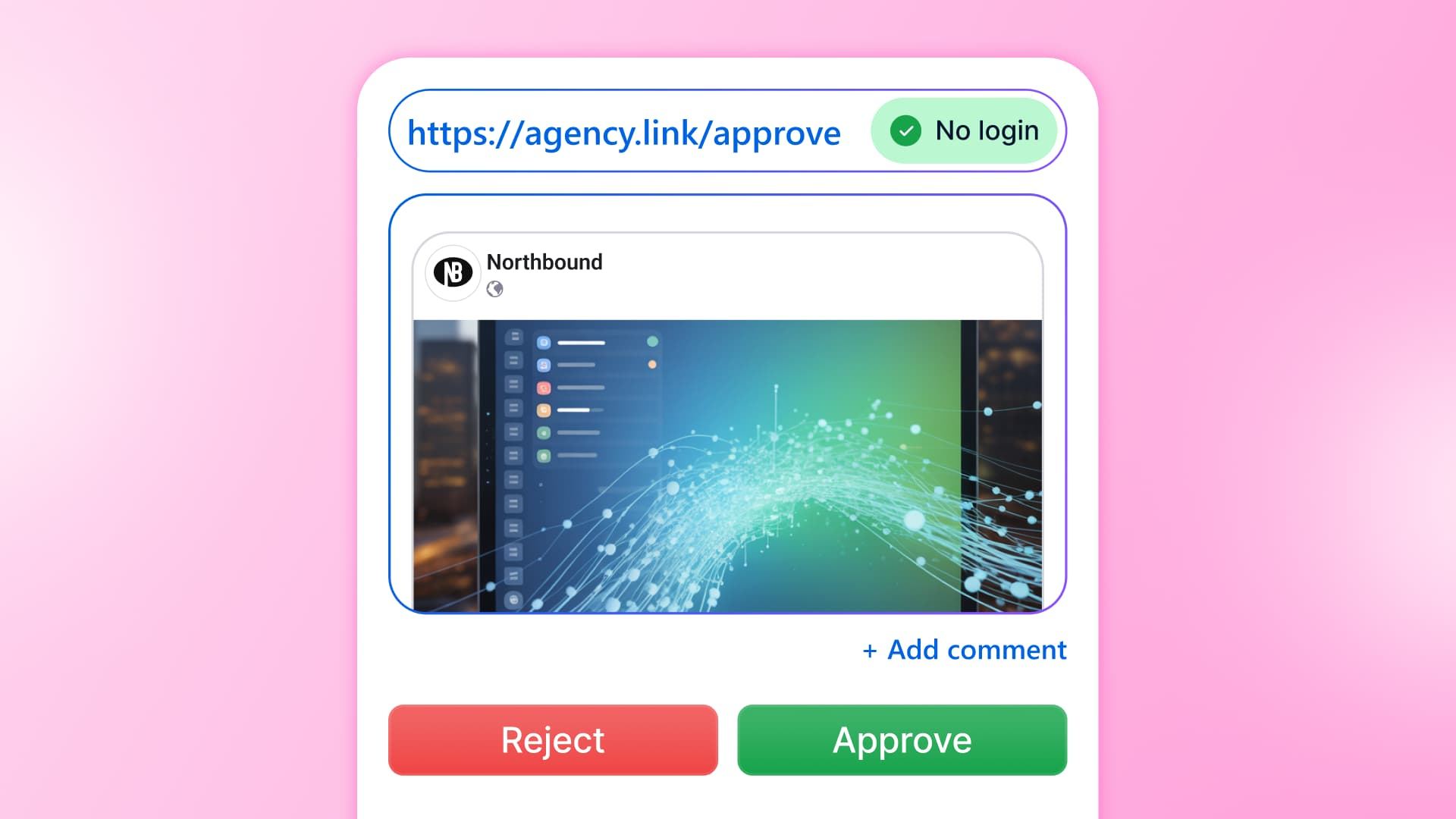
Table of contents
Share

Vista Social

X (Twitter)


Client portals are easy to like in a demo. Your logo is on the page, the files are neatly arranged, and every project has its own space. The useful test is whether your client can review next week’s posts without asking your account manager where to click.
If you’re comparing a client portal for agencies, start with the work your clients need to finish. A shared workspace makes sense when they need files, billing, and project updates together. For social sign-off alone, a direct link to review and approve the posts may be all you need.
The short version
- Start with client jobs: List what clients need to review, upload, track, sign, or pay for before comparing portal features.
- Test the client’s experience: Ask a client contact to open the request, review the right posts, and return after an edit without a guided tour.
- Match the sign-in rules: A password-protected link and a separate account for each reviewer offer different ways to control entry.
- Buy only the missing capability: Keep a portal that earns its place, move approvals outside it where useful, or skip an additional portal when a review link meets the need.
Table of contents
What a client portal for agencies should handle
A client portal is a private, logged-in workspace where an agency shares files, project updates, and deliverables with a client.
Its value comes from the jobs clients return to finish, rather than how many features appear in your agency’s dashboard.
Start with a current client and their last few requests. Use the table to check what they needed to review, send, track, or pay for.
| Client job | What the client needs to do | Useful route |
|---|---|---|
| Review social posts | Inspect the caption, media and destination, then approve or request a change | A direct approval link for the current posts |
| Supply new assets | Upload, replace and organize files the agency will use | A portal, upload form or asset workspace with suitable contribution access |
| Follow a multi-service project | Check progress and outstanding decisions across social, paid media, web or design | A project portal with a useful view of the wider engagement |
| Sign or pay | Complete the agreed contract or invoice action | The appropriate signing or billing system, whether linked from a portal or sent directly |
| Review results | Read a report or explore the agreed performance data | A shareable report or reporting workspace, according to the client’s needs |
For example, a client buying a website launch, paid campaigns, and social content may have several reasons to use a common workspace. A client buying only a monthly social package might mainly need to review posts and read a report. Those accounts don’t automatically need the same portal experience.
For client reporting, ask whether the client wants a finished report or a place to explore the numbers. A monthly report doesn’t by itself justify another login. If the client needs to filter and compare results, test the reporting view they will use.
Keep the wider approval process separate from this purchase decision. Agree who reviews the work and which changes need sign-off before choosing where clients open it.
Test the portal as a client
A tidy agency view doesn’t prove the client can finish the review. Ask your account manager to prepare a small batch. Have a client contact who wasn’t part of setup try it from the message they would normally receive.
Use an ordinary phone or desktop browser, without your agency’s signed-in session. Don’t narrate the clicks. Watch where the person needs an explanation and whether the request gives them enough information to decide.
Baymard’s checkout research found that, excluding shoppers who were just browsing, 18% of US shoppers cited required account creation as a reason for abandonment. That’s an ecommerce analogy, but it has merit in this conversation. It makes account setup worth testing rather than assuming it is a harmless first step.
| Test | Ask the client to do this | What the result tells you |
|---|---|---|
| First visit | Open the request, find the right batch and respond to one post | Whether the client can begin without account-support help |
| Revised post | Return after your team changes the caption or image, then inspect the current post | Whether the route brings them back to the work they need to judge |
| Covering reviewer | Have another authorized client contact open the request while the usual approver is away | Whether the agreed cover needs another invite or account setup |
Microsoft’s June 2025 Work Trend Index report puts the average at 117 emails a day, based on Microsoft 365 activity. Most are skimmed in under a minute. For your test, put the dates, requested action, and deadline beside the review link so the client has the request in one place.
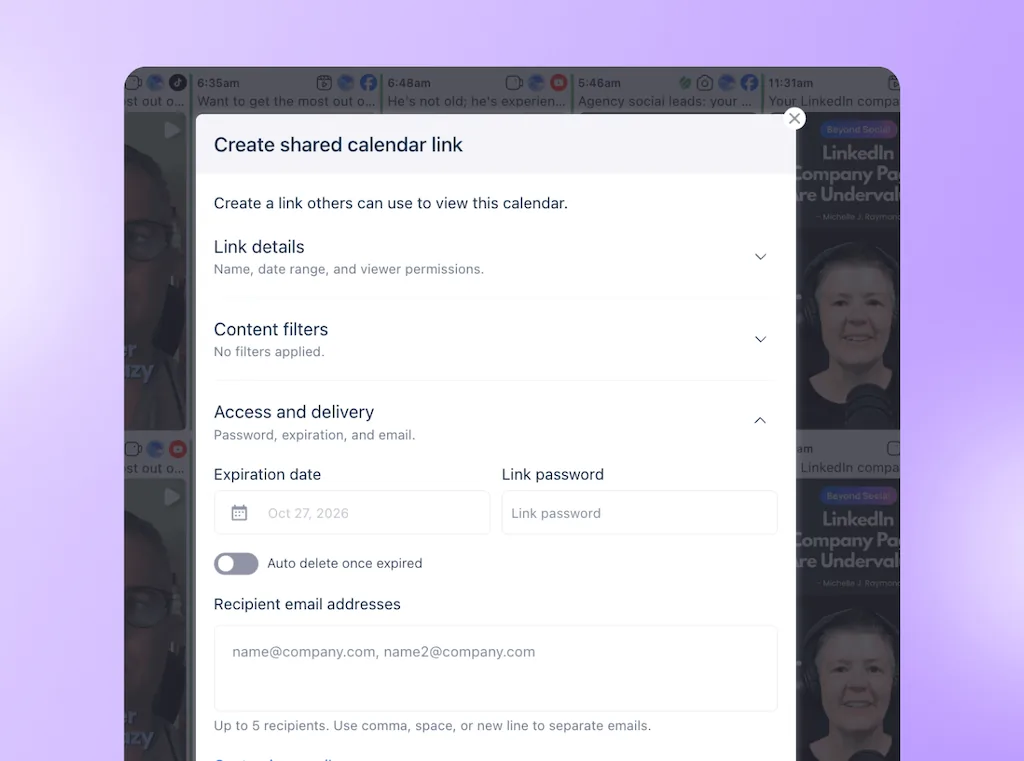
Clients review the post itself and submit a decision from the calendar link.
Record whether the client couldn’t get in, couldn’t find the right content, or couldn’t decide after reading it. A new login page won’t fix an unclear brief. If you can’t match the returned decision to the draft, our guide to approvals leaving the scheduler covers that different problem.
Check the client’s sign-in and record rules
Before comparing branding, ask what your client agreement permits. A convenient review route still has to meet the conditions of the work you’re sharing:
- Access by link: A shared link with a password can suit a defined review batch. Anyone receiving both may be able to open it, so decide how you will share it and when access should end.
- Named reviewer accounts: If each reviewer must sign in with their own account, choose a route that supports it. A name and email typed into a review form aren’t the same as a verified account.
- Records after the review: Decide what copy, decision, and supporting files you must keep. A live page that changes with the work isn’t a fixed record of every earlier version.
Check the date range and viewer options before sharing. Enable comments when you want feedback on the posts.
If the client requires a separate sign-in for each reviewer, keep that safeguard. Where a password-protected review link meets their rules, you don’t need a full portal just to provide access.
Use Vista Social for the social review
Vista Social’s shared-calendar approval workflow lets an external client approve, reject, and comment on posts without creating a Vista Social account.
The client supplies a name and email with the response; the agency manages the review inside its existing publishing setup.
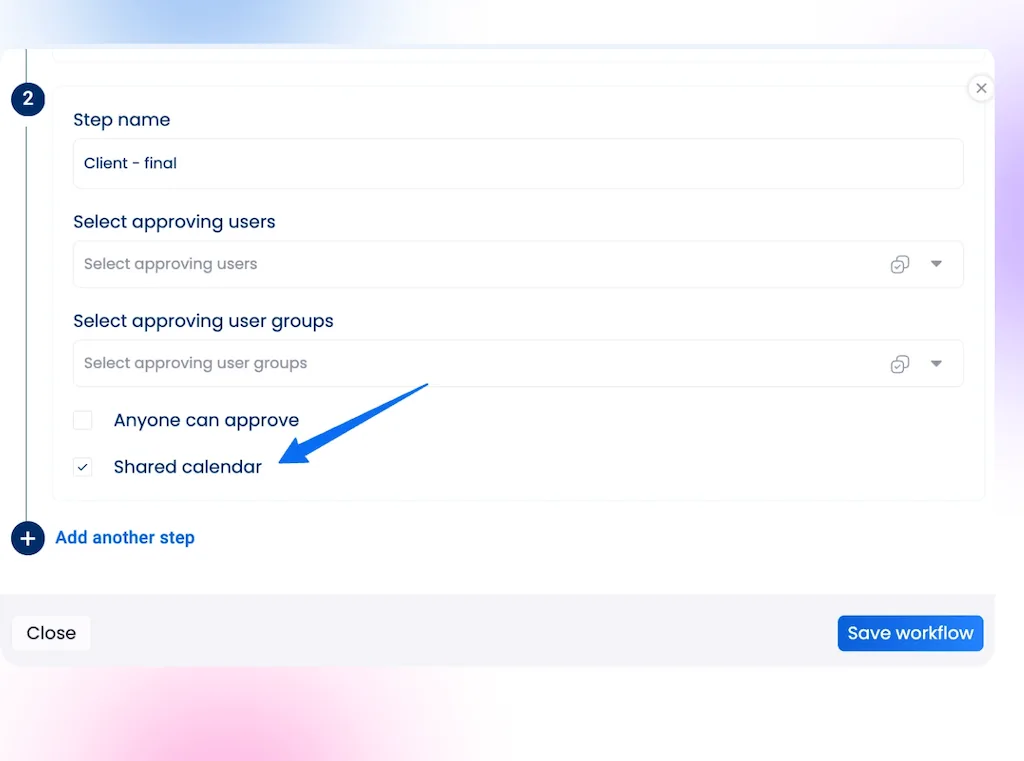
The short setup has three parts:
- Connect the approval: Add a Shared calendar client step to the approval workflow, after any internal review, and assign the posts to it.
- Choose the batch: Share the client’s profiles and review dates with In review status. Leave Show ‘In review’ posts regardless of workflow stage off, and enable comments for feedback.
- Check the external view: Open the link in a private window before sending. Verify the batch, available review actions, and intended client step, then send the deadline with the link.
The no-login approval guide covers the full configuration. A view-only calendar link alone doesn’t establish the approval route.
Norstella’s in-house team replaced repeated screenshots of posts with live calendar links. In its 2026 case study, the team described the change:
“Live calendar links that can be shared with any stakeholder or leader changed everything.”
Prepare the review request with Ask Vista
Use Ask Vista inside your agency account to prepare the cover note from the client’s calendar. Select the profiles, provide the review dates, and use this prompt:
Your account manager checks the result and confirms which posts have reached the client step. They add the deadline and approval link before sending; the client still signs off. Count AI credits and review time when deciding whether preparing the request this way is worthwhile.
Check how many client links you need
An agency client portal and a shared calendar may count access differently. Check the number of distinct client views you need, rather than assuming a link allowance is a reviewer allowance.
Vista Social’s current Shared Calendar guide lists these conditions:
- Plan and link allowance: Shared calendars are available on Advanced with 10 unique links, Scale with 25, and Enterprise with 100+. Professional doesn’t include this setup.
- Client views: Fifteen clients with one separate link each exceed a ten-link allowance. Additional campaign views count too. Multiple reviewers can use the same link; the creation form supports emailing up to five recipients, or you can copy the link yourself.
- Viewer restrictions: Disabling caption copying and media downloads requires Enterprise or the Scale add-on. These restrictions are separate from password and expiry settings.
- Custom domains: White labeling is a separate setup documented for Scale and above through support. Access to approval links doesn’t automatically include a custom-domain arrangement.
Set a password and expiry where appropriate, and retain the review records you need before enabling auto-delete once expired. That option permanently removes the link. Links can also be edited or removed through Calendar > Share.
Recheck the linked eligibility details before purchasing. If a different plan is needed for the number of client views, include that change in the comparison with a separate portal subscription.
Decide what to keep and what to move
Take the client test back to your requirements list. Choose one of three outcomes instead of assuming every client interaction must move into the newest tool:
- Keep approvals in the portal: Your clients already use it and can judge the correct content there and return a decision your team can apply reliably. Replacing a working route adds migration and training without a demonstrated need.
- Keep the portal and separate social review: Clients use the workspace for wider projects or commercial work, but social sign-off works better through a direct link. Keep the delivery message explicit about which place handles which job.
- Skip an additional portal: The missing capability is post review, and the tested approval link meets the client’s access and record requirements. You can improve that handoff without buying a broader client workspace.
Agree where the decision belongs when a client responds somewhere else. Acknowledge the message, apply the agreed change, and return the current review route for sign-off. Don’t make the client repeat useful feedback just to satisfy a new system.
Choose the right setup for client review
Judge the purchase by a completed client job, rather than the polish of the agency dashboard. Add the chosen review route and its instructions to your client onboarding checklist, so the next contact knows where to go without another guided tour.
Use a 14-day Vista Social trial to let a client open a review, request a change, and return to the updated post. Then decide whether you need a portal alongside it, already have the right workspace, or can avoid the extra purchase. Your retainer should pay for client work, not for maintaining two places to make the same decision.
Frequently asked questions
Does an approval link replace a client portal?
It can replace the social-review part of the client experience. Other jobs, such as billing, contract signing, and collecting new assets, still need a route that supports them. Choose those tools according to the work the client needs to finish.
Do clients need a paid Vista Social seat to approve posts?
No. The shared-calendar approval workflow lets external reviewers respond without a Vista Social account or team invitation. Your agency needs a plan that includes the feature.
Can clients upload replacement media through the review link?
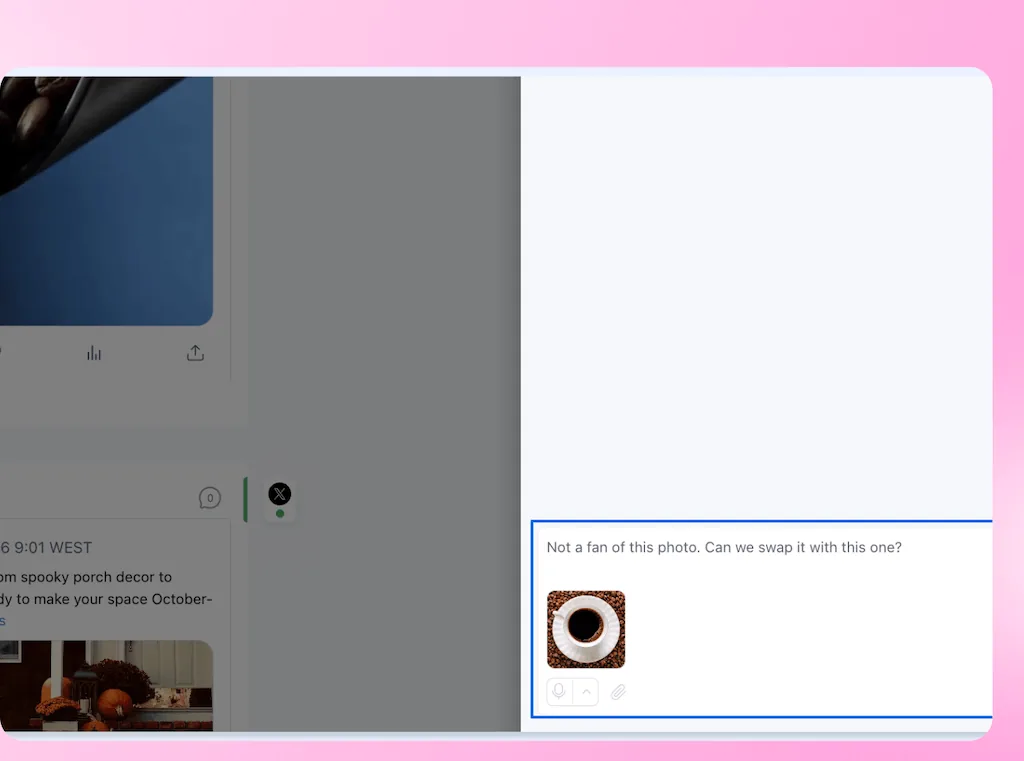
They can attach images or videos to a comment when comments are enabled. The attachment stays with the comment; it doesn’t automatically replace the post’s media. Your team applies the change before the appropriate further review.
Is a password-protected approval link enough for every client?
No. If a client requires individually authenticated reviewers, choose a route that provides that identity check. Decide the access requirement before sharing sensitive work, not after selecting the most convenient link.
Does each reviewer use up a shared-calendar link?
No. The allowance applies to unique links rather than people viewing them. A separate calendar view uses another link; another reviewer using the same view doesn’t.
Can clients see posts before their approval step?
They can when cross-stage visibility is enabled. Leave that setting off for client-only review and inspect the external view before sharing, rather than relying on your agency’s signed-in calendar.
About the Author

Content Writer
Orion loves to write content that refuses to be boring. As part of Vista Social, he helps brands, creators, and agencies stop doom scrolling and start winning with social media. When he's not in front of a keyboard, he's watching films in IMAX with his wife, dissecting football tactics (the European kind), and getting lost in a good book.