

Published on October 19, 2026
7 min to read
Ask Vista Can Now Read, Create and Edit Documents

Summarize with AI

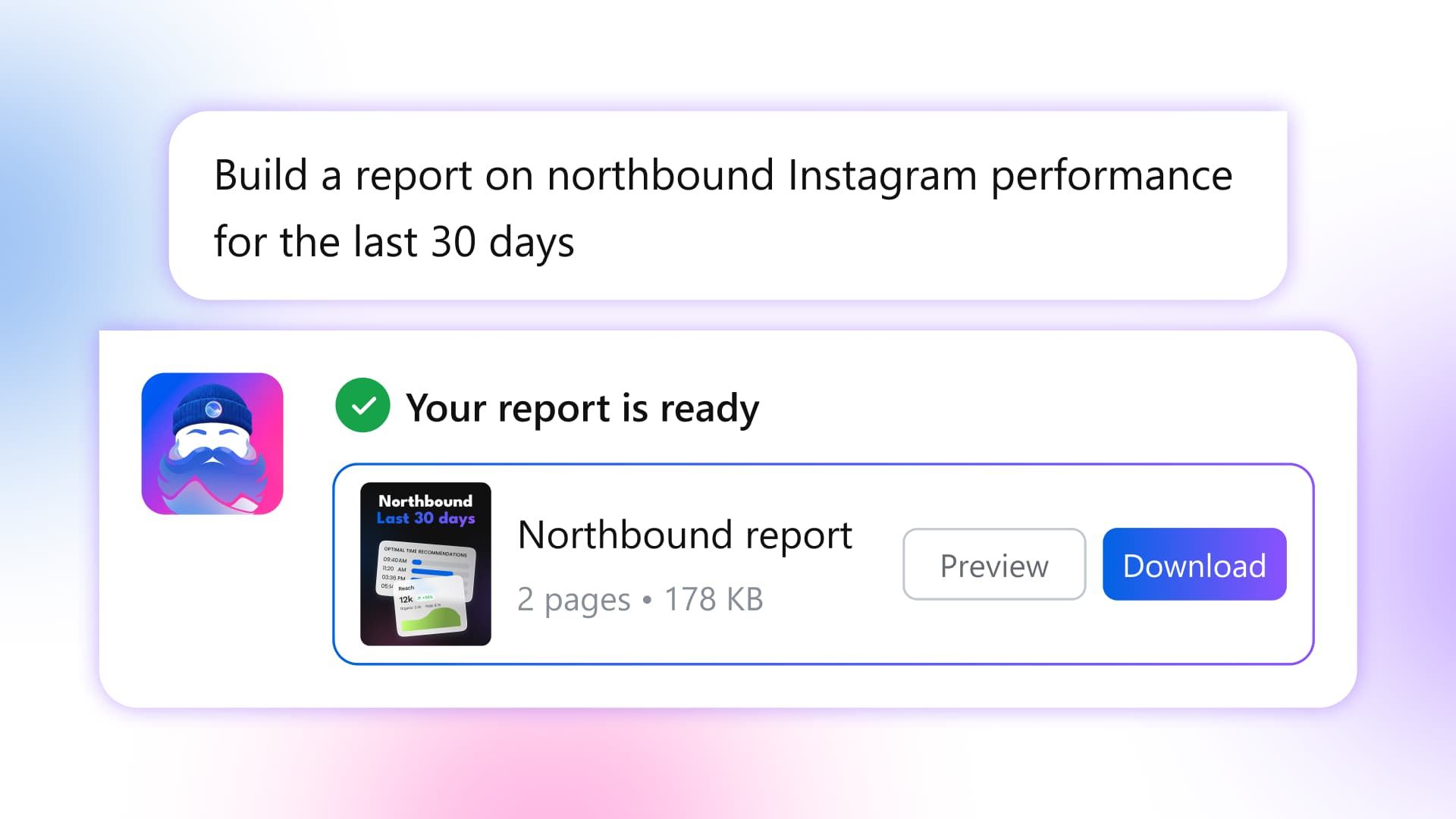
Table of contents
Summarize with AI

ChatGPT

Claude

Perplexity
Share

Vista Social

X (Twitter)


Ask Vista already helps you analyze performance and work across your social accounts. Now it can read the supported files you bring in, create reports, decks, and workbooks, and revise those generated documents as the request changes.
These new file and document capabilities are available now in Ask Vista on paid Vista Social plans in the web app. Open the same Ask Vista you already use from your workspace sidebar, or press X.
Ask for the comparison and the leadership deck together, then refine the generated document in chat. Ask Vista now handles that production work too, so you don’t have to carry the answer into another AI tool or assemble the slides yourself.
The short version
- Create custom reports in Ask Vista: Specify the accounts, period, and question instead of rebuilding a report around a fixed template.
- Include the data outside Vista Social: Upload a supported export, spreadsheet, or brief and work with it alongside your connected account data.
- Send a usable deliverable: Choose from seven formats, including editable PowerPoint charts and Excel tables with values your analyst can calculate.
- Revise after the first review: Change the document in chat. A shared web link can show the updated version without another attachment to circulate.
Table of contents
Upload spreadsheets, exports and briefs to Ask Vista
Drop a supported file onto the chat box, Ask Vista drawer or Vista Home dashboard card. Ask Vista reads its contents without a separate import wizard or column-mapping step. A file alone is enough to start the conversation; add a request when you know what you want to do with it.
Uploads support files up to 10 MB, with up to 50,000 rows and 200 columns per sheet. The file-attachment guide covers supported types and limits.
This also gives Ask Vista more context for work beyond reporting. Bring in an approved campaign brief and ask for a week’s posts, or attach a content plan and ask it to prepare the publishing work. Keep resulting posts in your required review process before publication.
Compare an uploaded export with current performance
Historical data does not have to sit unused because it came from a previous platform. Upload the export, specify the accounts and periods you want to compare, and ask Ask Vista to produce a report from both sources.
Vista Social calculates sums, averages, counts, and groupings over the uploaded data rather than asking the AI to estimate them. Check that the metric definitions and account coverage match before treating a difference as growth or decline. The upload supplies context for this analysis; it does not backfill your standard analytics reports.
Download your report in seven formats
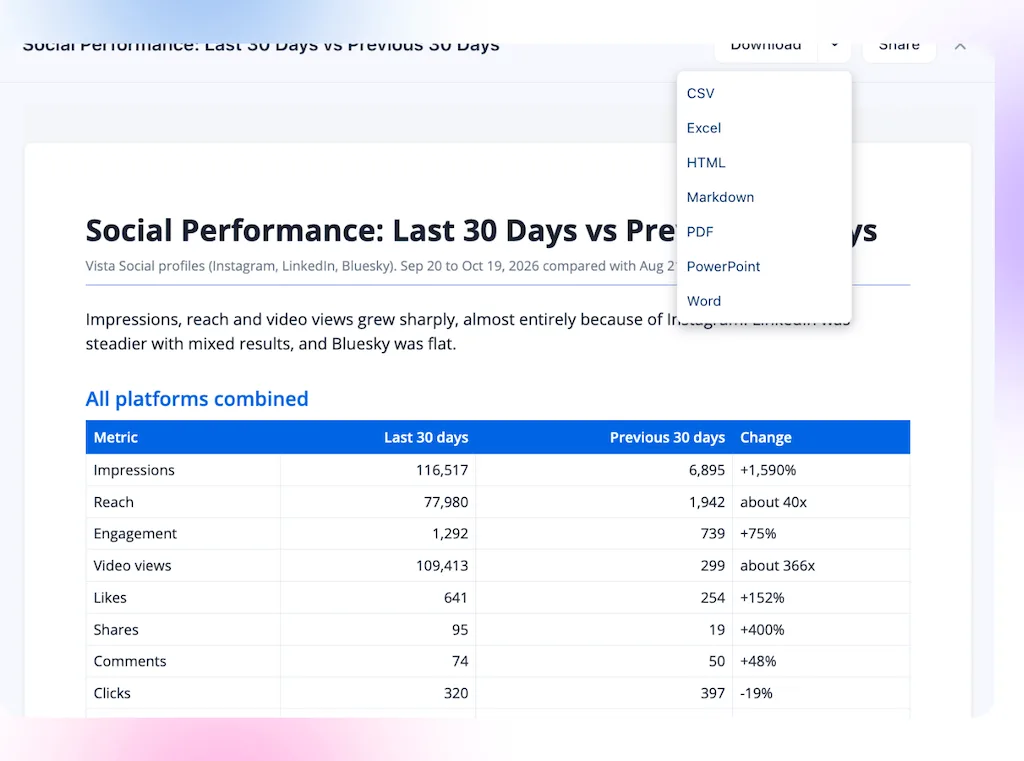
Open Preview to inspect the document beside the chat. Use the arrow next to Download to select another format from the same result. Excel and CSV are available when the document contains a table.
Create a PDF for leadership or clients
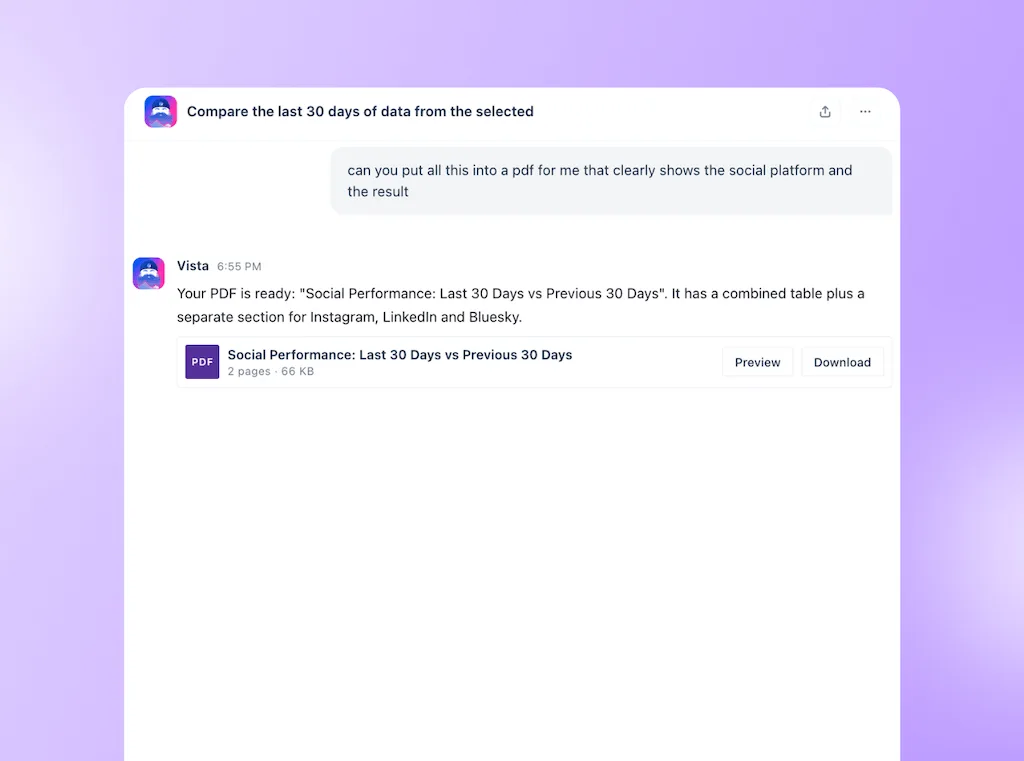
Ask for a report someone can read before the meeting, with an executive summary, key results, and decisions that need attention. Ask Vista to produce a paginated PDF with headings, KPI cards, charts, and tables in your account’s brand color.
Long tables continue across pages with the header row repeated. The supporting detail stays with the report instead of becoming another spreadsheet your recipient has to find.
Share a report by link
Send a web page when the report needs to stay current through a review. Recipients can open it without a Vista Social login, and later document edits appear at the same address. White-label accounts can share links on their own domain.
Set access in the Share panel before sending:
- Choose the audience: Allow anyone with the link or require a password. Send the password separately.
- Set the review window: Choose an expiry of 7, 30 or 90 days.
- Review updates before making them: Your existing recipients see the revised document through the link they already have.
A corrected figure or revised summary no longer means asking everyone to replace an attachment. Treat edits to that shared document as changes to something people can already read.
Build a PowerPoint deck with editable charts
Turn the analysis into a quarterly business review, or QBR, deck with a title slide and sections built for presentation and speaker notes. The charts are editable PowerPoint charts, so your team can adjust the presentation before the meeting.
Try: “Turn this quarter’s performance into a QBR deck covering the strongest content, changes by network, and decisions for next quarter.”
Ask Vista prepares the slides as well as the analysis. You can use the review to challenge the conclusions and sharpen the recommendation rather than rebuild the charts.
Export report tables to Excel
Give finance or an analyst a workbook they can sort, filter, and calculate. Each table gets its own sheet, with numbers, percentages, currency, and dates stored as usable values. A Summary sheet keeps the write-up and other report elements together.
Charts in Excel are images. Use the table values for further analysis and choose PowerPoint when you need editable presentation charts.
Send a Word document for review
Choose Word when a regional lead, legal reviewer, or colleague needs to change the wording. Headings, lists, tables, and charts stay together in a document they can mark up in Word or Google Docs.
That gives the reviewer a working document instead of a chat transcript to turn into one.
Save an analysis brief as Markdown
Markdown keeps the headings and tables in a plain-text file. Charts become tables of their underlying numbers, so the saved brief carries the evidence as well as the written findings.
Attach it to a later Ask Vista conversation when you want to build on an approved analysis, such as preparing next month’s campaign priorities. Your team can also use the file in its other approved workflows without stripping the structure out of a PDF.
Download tables as CSV
Use CSV when you need to load the results into a spreadsheet or BI workflow. One table becomes a CSV; several tables become a ZIP containing one CSV per table, named after its heading.
CSV includes table data only. The report narrative, KPI cards, and charts are left out, so choose another format when your recipient needs the explanation too.
Edit documents you’ve created in Ask Vista
Ask for changes to the document Ask Vista created while the analysis is still in the conversation. You can refine its content or presentation without returning to an exported file and reconstructing the request.
- Add the missing detail: Ask for a network section or an account-level table a stakeholder wants to inspect.
- Adjust the explanation: Shorten the executive summary or ask for a clearer account of what changed.
- Change the presentation: Request a different heading color or ask for the report as slides.
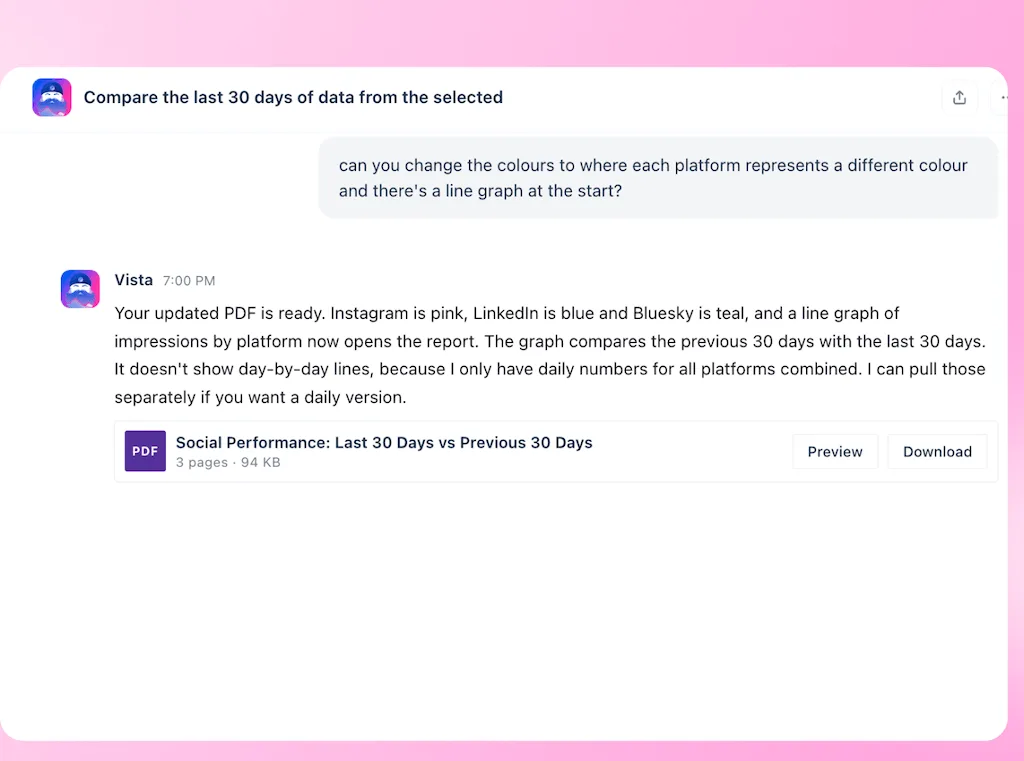
Ask Vista creates a revised version in the same chat. Inspect the update before sending, especially if you added new data or changed the recommendation.
Check file access and export limits
Attached data files stay private to your workspace and are not automatically added to the media library. Sharing a report as a web page is a separate action, controlled by the access settings you choose.
The document guide covers the current output details. Keep these practical limits in mind:
- Review documents in the web app: Slack and Teams can receive download links, but Preview and Share are not available there yet.
- Choose the format for the job: Word and PowerPoint use standard fonts. Markdown preserves structure and data, not colors or fonts.
- Keep large documents focused: Long reports may need fewer rows or shorter sections. A workspace can create up to 50 new shared links per day.
Try the new document capabilities in Ask Vista
Already use Vista Social?
Open Ask Vista and try the next report you would otherwise build elsewhere. Choose the profile group and date range, describe what the recipient needs, and ask for a PDF or presentation. Add an outside file if the question needs it.
New to Vista Social?
Book a Vista Social walkthrough with one reporting request your team regularly rebuilds. See how Ask Vista can handle the account analysis, document, and review edits inside the workspace where you manage social.
Frequently asked questions
Can I create a report without uploading a file?
Yes. Ask Vista can use connected profile data available to you. Attach a file when the question needs outside context, such as an older export or an approved brief.
Why are Excel and CSV missing from the Download menu?
Those formats require a table in the document. Ask Vista to add the relevant data as a table, then open the download options again. CSV exports the tables rather than the full report.
Which format should I send for someone else to edit?
Use Word for text review and PowerPoint for presentation edits. Both are working files colleagues can change, while Excel provides table values for further analysis. Choose the format that matches the work you want them to do.
Can I upload PDFs and Word documents directly?
For PDFs, Word documents, and PowerPoint files, open the attachment menu and select Choose from library. Direct uploads support CSV, TSV, Excel, JSON, TXT, and Markdown. Ask Vista reads text from the library documents you select.
Try Vista Social for free
A social media management platform that actually helps you grow with easy-to-use content planning, scheduling, engagement and analytics tools.
Get Started NowAbout the Author

Content Writer
Orion loves to write content that refuses to be boring. As part of Vista Social, he helps brands, creators, and agencies stop doom scrolling and start winning with social media. When he's not in front of a keyboard, he's watching films in IMAX with his wife, dissecting football tactics (the European kind), and getting lost in a good book.
Loading related tools...

The most complete social media management platform for teams who demand more.






Tools
PublishingAnalyticsEngagementIntegrations
FacebookInstagramLinkedInRedditSnapchatThreadsTikTokX (Twitter)YouTubeMCPVista Page (link-in-bio)All IntegrationsCopyright © 2026 Vista Social LLC. All Rights Reserved.