

Published on November 22, 2023
10 min to read
YouTube Shorts Dimensions | The ULTIMATE Guide

Summarize with AI

Table of contents
Summarize with AI

ChatGPT

Claude

Perplexity
Share

Vista Social

X (Twitter)


You need to pay very close attention to YouTube’s dimension requirements before publishing your YouTube Shorts. Ignore the dimension requirements, and you’ll find your client videos cropped or adjusted in the most unflattering, undesirable manner.
That’s a problem because poorly displayed videos discourage people from watching and engaging with your content, which slows down your overall performance on the platform.
TLDR: If you want your clients’ videos to rake in engagements and views, you must use the correct YouTube Shorts dimensions. This ultimate guide covers everything you need to know about nailing your clients’ YouTube Shorts dimensions.
Let’s jump right in.
Table of contents
Why You Need the Right YouTube Shorts Dimensions
Getting the right YouTube Shorts dimensions for your clients’ content includes the following perks.
- Maximized space: YouTube Shorts dimension requirements are meant to let you utilize the entire screen. This way, your client’s content has all the space it needs to turn heads and boost views.
- Optimal experience for viewers: Using the right YouTube Shorts dimensions ensures your clients’ videos look great on smartphones and mobile devices. The perfect Shorts dimensions allow your client’s content to fit mobile screens perfectly without those big black areas and awkwardly cropped angles.
- Nail that professional look: The correct Shorts dimensions give your clients’ videos a more professional look and feel. It can add credibility to your clients’ YouTube channels and brands.
- Ensure top-quality videos: The right Shorts dimensions keep your client’s video quality intact. You won’t have shrunk or stretched videos that can make the content look distorted.
- Stick to YouTube’s rules: YouTube provides specific guidelines to ensure your client’s content is compatible with the platform. Using the required guidelines ensures your clients’ videos follow these guidelines and avoid potential content takedowns or YouTube Shorts monetization issues.
- Drive audience engagement: Content that looks great and fits the screen just right will likely engage audiences. It can entice your clients’ viewers to watch to the end and even share, like, and comment on the video.
- Get some algorithm recognition: YouTube’s system now prioritizes watch behavior and completion signals. If you want a quick breakdown, check out how the YouTube algorithm works to understand why viewer signals matter so much.
YouTube still pays close attention to how people watch. When your clients’ Shorts fit the screen properly and keep viewers watching until the end, the system reads it as a strong signal that the content feels satisfying. This makes the algorithm more willing to recommend the video to new viewers.
If your clients’ Shorts fit the screen just right and are visually appealing and engaging, the algorithm will likely recommend the content to more viewers.
YouTube Shorts Dimensions Standards
Below are the YouTube Shorts dimensions you should know to help your clients create engaging and compliant videos.
YouTube Shorts Dimensions and Resolution
While the standard YouTube video size requires a 16:9 ratio, Shorts must have a 9:16 aspect ratio with a 1920 x 1080 resolution. The YouTube Shorts aspect ratio and resolution ensure your clients’ videos display in their best quality on mobile devices (where Shorts are commonly viewed). Use a vertical format (in full screen) to create YouTube Shorts.
YouTube Shorts Duration
YouTube Shorts can be a continuous video up to 60 seconds long. You can still mix in short clips to keep the pace lively, but the old habit of cutting everything into 15-second segments does not hold up anymore. You have way more freedom now since YouTube only cares that your final Short stays under the sixty-second limit.
YouTube Shorts File Size
The upload limit is still 128 GB. YouTube also keeps enforcing the 60 second rule so anything over 60 seconds automatically becomes a regular long-form video. Add a short reminder telling readers that YouTube will no longer treat the upload as a Short once it passes the sixty second mark.
YouTube Shorts Supported Video File Formats
YouTube Shorts supports the following formats:
- .MOV
- .MPEG4,
- MP4
- .AVI
- .WMV
- .MPEGPS
- .FLV
- 3GPP
- WebM
YouTube Shorts Recommended Resolutions for Landscape
You can upload landscape clips, but YouTube still doesn’t treat them as true Shorts. They’ll show up with padding and tend to perform poorly. Stick to vertical unless you really need a landscape shot for context.
- 240×426 (240p)
- 360×640 (360p)
- 480×854 (480p)
- 720×1280 (720p)
- 1080×1920 (1080p)
- 1440×2560 (1440p)
- 2160×3840 (2160p)
YouTube Shorts Audio Requirements
YouTube lets you use audio from the platform’s Shorts music library or other sound clips from other videos as long as you follow the rules and policies on copyright.
YouTube supports the following audio file formats:
- PCM audio in WAV container
- MP3 audio in MP3/WAV container
- FLAC audio
- AAC audio in MOV container
Read YouTube’s audio file guidelines to learn more.
Additional Considerations
Besides the video dimensions, consider the following components to help drive engagement and more views for your clients’ YouTube Shorts.
- Title: You can include up to 100 characters in your client’s YouTube Shorts title. But remember that viewers will only see the first 40 characters on the YouTube app. Your best bet is to keep your client’s Shorts title well, short—with important keywords at the beginning of the title. This way, viewers get a good idea of your clients’ content, enticing them to tap and watch the video.
- Description: Add detailed descriptions to your clients’ Shorts videos, such as the content’s nature, theme, or genre. The descriptions let viewers know if your client’s video is relevant to them or if it’s something they can enjoy. Descriptions can also boost the video’s discoverability, helping it reach and engage more viewers.
- Hashtags: Include relevant hashtags in your clients’ YouTube Shorts, such as #shorts in the titles, to improve their visibility and discoverability. Also, add hashtags relevant to the video’s genre or theme. Doing so can prompt the algorithm to show your client’s content to viewers interested in similar videos.
- YouTube Shorts Thumbnail size: Like your client’s YouTube Shorts video, the thumbnail should have a 9:16 aspect ratio and a 1920 x 1080 pixels resolution.
How to Adjust the YouTube Shorts Dimensions
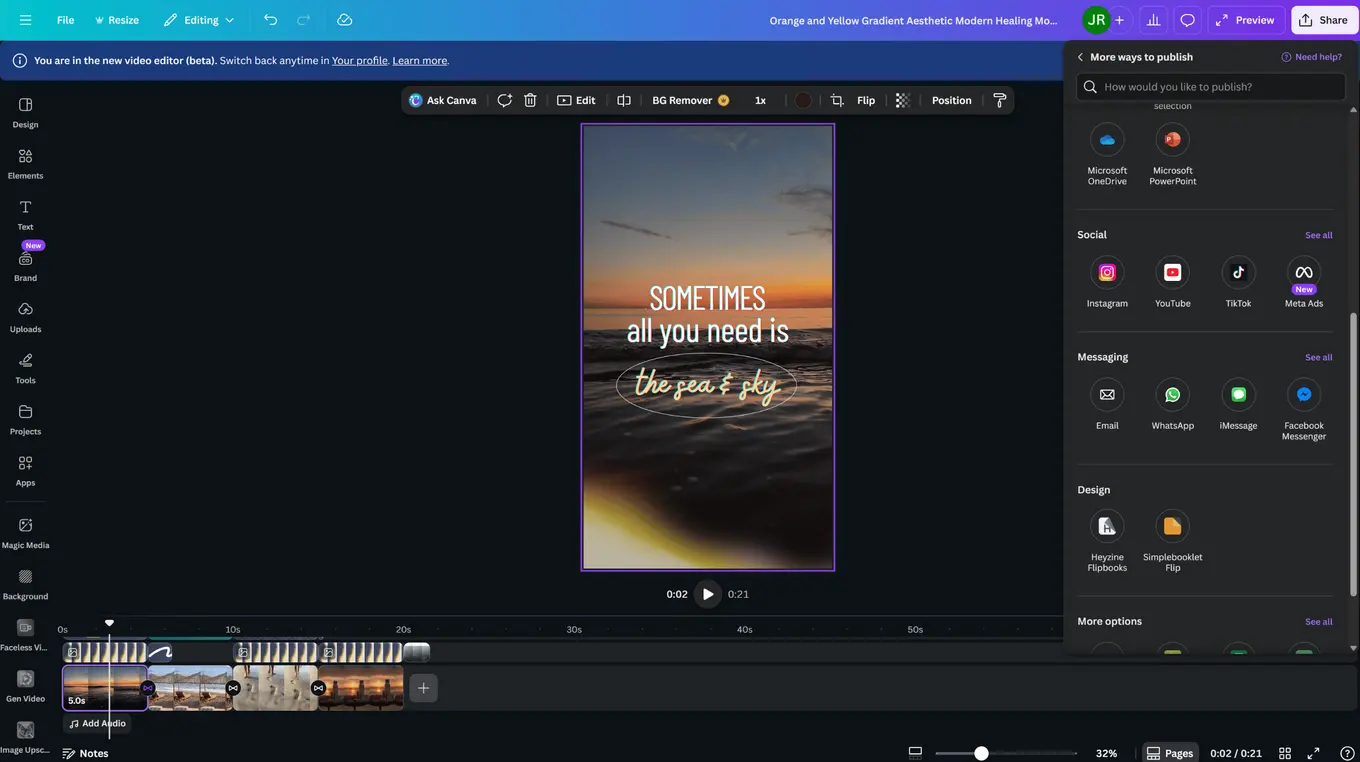
The best way to adjust your client’s video dimensions for YouTube Shorts is to use a video editing tool. For instance, Canva’s free video editing tool makes editing and creating YouTube Shorts videos quick and easy with these steps:
Step 1: Open Canva online.
Go to Canva and enter “YouTube Shorts” in the search bar.
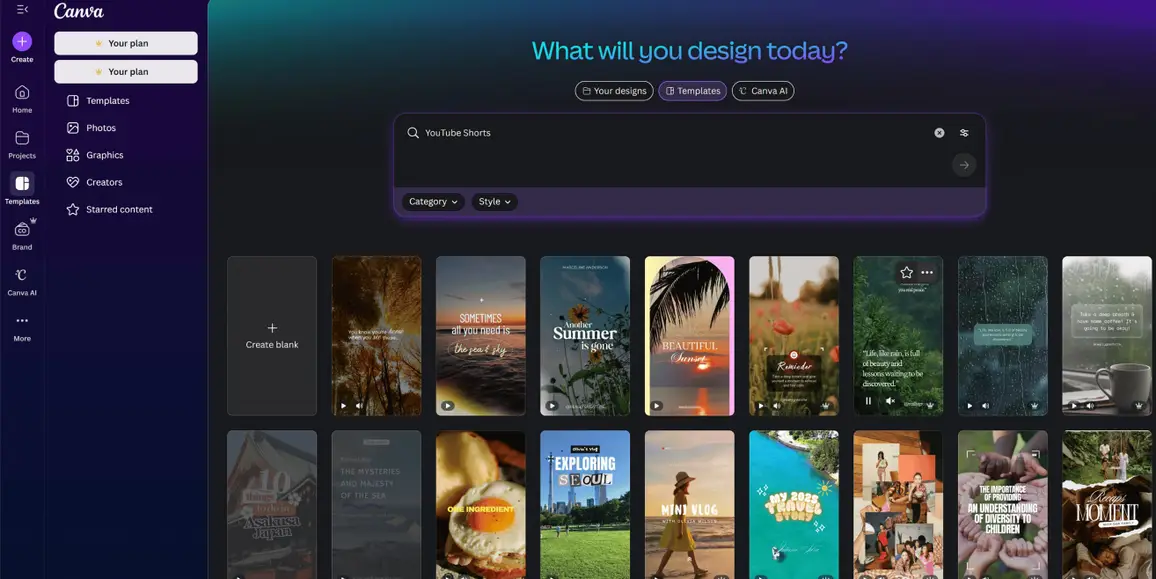
You can choose a blank layout or a ready-to-use, customizable Shorts template for your clients’ videos.
Step 2: Upload the video
Upload the video clips you want to include in your client’s Shorts.
Then, drag and drop the clips on the timeline.
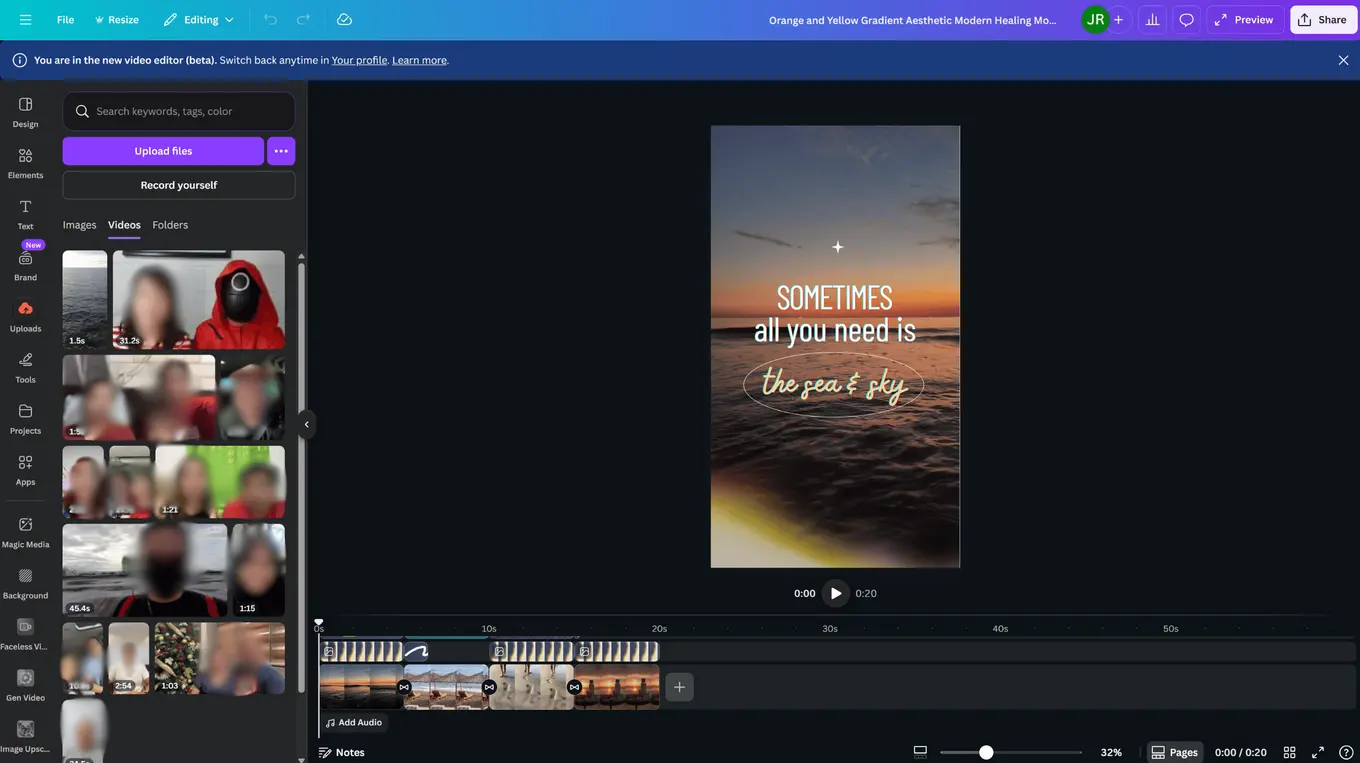
You can also find high-quality and royalty-free stock videos in Canva’s media library.
Step 3: Customize and edit the video
Customize the Shorts video by adjusting each frame so the timing fits the pacing you want. You can do this by dragging the timeline’s slider. You can also slow down or speed up moments your clients want to highlight. Add more customizations using the editing tools.
You can add transitions, animations, plus background music, yet it helps to keep these effects light so your Short stays easy to follow. Recent YouTube updates place more weight on retention signals. When a Short feels too busy, viewers lose focus on the main message, which lowers completion rates.
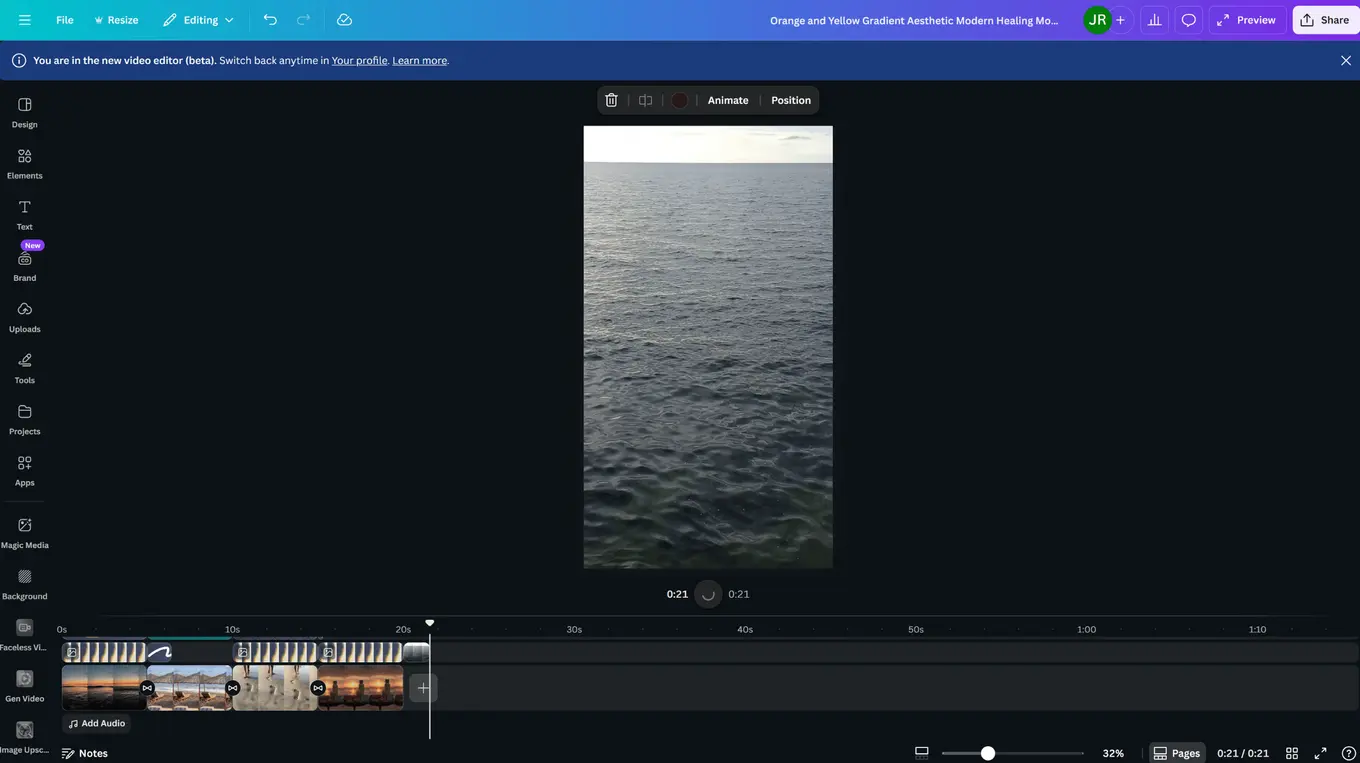
Sprinkle more text elements throughout your Shorts so each moment feels intentional. Add subtitles that guide the viewer’s attention and place captions that clarify what is happening on screen. Apply creative filters to shape the mood of the video and help your clients’ Shorts stand out with a style that feels polished and memorable.
Remember to keep the entire video within 60 seconds or less.
Step 4: Save and share the video
Once you’re done, download the video as a high-resolution MP4 file. The video will have the right YouTube Shorts format and dimensions since you used a template.
After downloading, you can upload and share the video on YouTube Shorts. You can also share the video directly to other social media platforms and apps, such as when you want to share a YouTube video on Instagram Story.
Common Mistakes About YouTube Shorts Dimensions
Steer clear of these common mistakes to ensure you get your clients’ YouTube Shorts dimensions right.
- Not using the right resolution: YouTube supports various video resolutions, but if you use the wrong one, your clients’ videos will get the low-resolution treatment. It’s like viewers are watching your clients’ videos through pixelated glasses. So keep your clients’ videos sharp and use the right resolution for YouTube Shorts for that top viewing experience.
- Keeping the file size too large: Uploading massive video files means longer wait times and potential playback issues, especially for viewers with slower internet connections.
- Missing out on handy Shorts features: YouTube Shorts gives you creative tools that help your videos feel more expressive. You can add filters, place text, or choose music that matches the mood of your content. When you lean into these features, you make your Shorts more engaging and give your audience a smoother viewing experience.
- Failing to follow guidelines: Shorts fall under the YouTube Community Guidelines. Keep your clients’ content in check and stick to the rules to avoid getting your clients’ videos and channels in trouble.
- Forgetting to attribute and ask permission when using other creator’s assets: Using copyrighted material, from music to other video clips, can land your clients’ videos and YouTube accounts in hot water. Be copyright savvy and get the green light before using other creators’ content in your clients’ Shorts.
- Zooming too much: Getting in those zoom shots can give your clients’ Shorts some creative flair, but overdoing it can ruin a great video. Ease off on the zooming and keep it to a minimum, or it could distract viewers from seeing what your clients’ videos want to highlight.
- Turning the description box into an emoji party: Emojis are fun, but don’t flood your clients’ Shorts descriptions with too many.YouTube no longer penalizes descriptions that use emojis, although loading a description with too many can make it harder to read. Use emojis with intention so your client’s text stays clear.
- Getting too creative: Creative aspects help your clients’ Shorts videos pop and draw attention. However, there is such a thing as “too creative” that the content fails to get the point across and confuses viewers. YouTube’s recent updates still favor fast clarity, so messy cuts can hurt how long people stay on your Short. Keep the pacing smooth so viewers understand your message the moment it appears.
Use Vista Social for Easy YouTube Shorts Publishing
As a busy social media manager, publishing your multiple clients’ YouTube Shorts should be seamless. Enter Vista Social, a modern social media management solution that simplifies and streamlines managing, organizing, and publishing YouTube Shorts and other social media content.
The platform makes it easy to turn your clients’ YouTube channel ideas and Shorts dream content into reality. The best part? You can schedule your clients’ YouTube Shorts to auto-publish on optimal dates and times.
Upload your client’s short video to Vista Social, open the linked profile, then enter the details needed for the post.
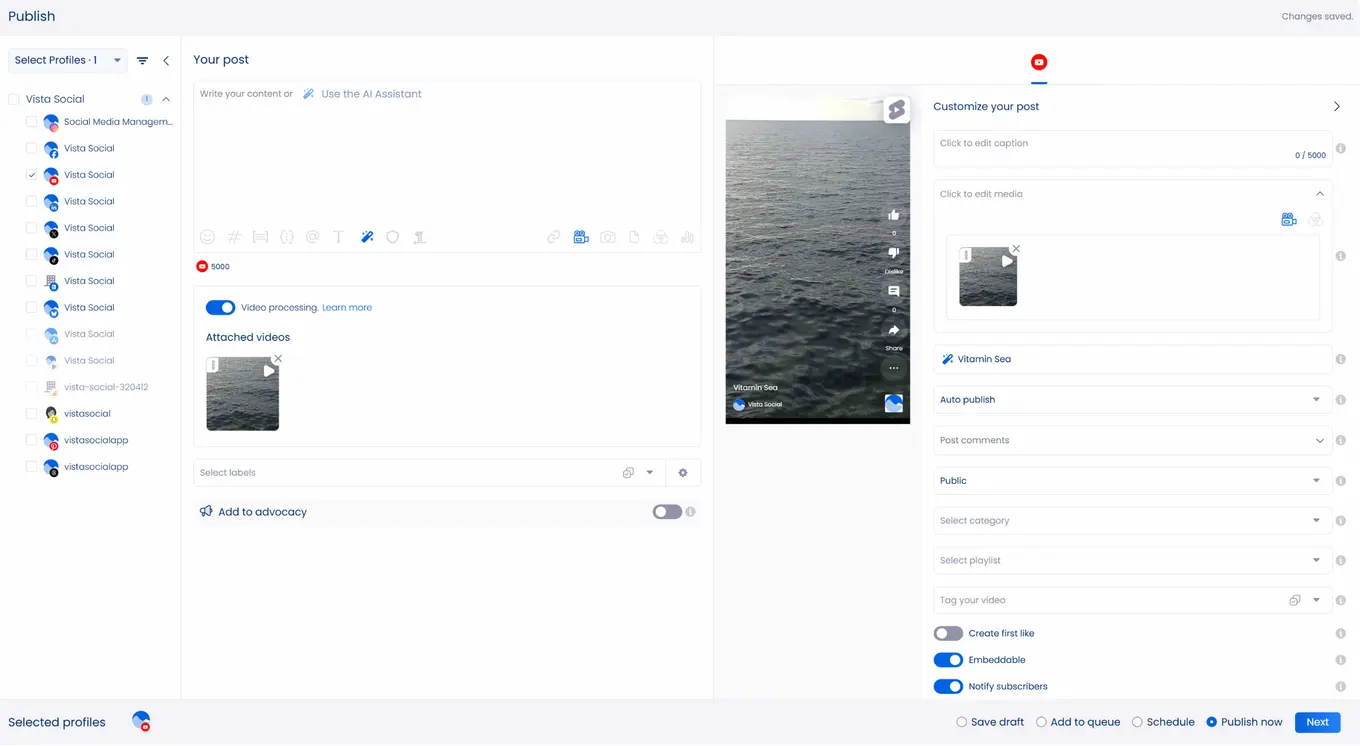
Then, customize your client’s post by adding captions and selecting the video settings.
Once done, you can save the post as a draft, publish it instantly, add it to a scheduled post queue for a specific day, or select a posting schedule. Vista Social’s optimization still selects strong posting times based on how your client’s audience behaves on each platform. YouTube Studio offers its own timing insights, although Vista Social brings all of this into one place so you can schedule without jumping between dashboards.
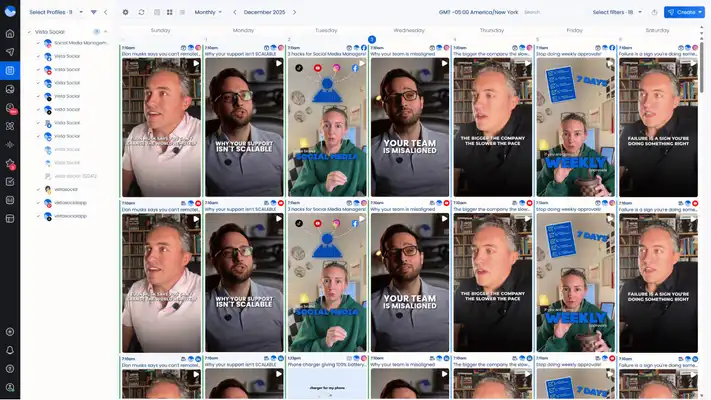
This way, you’ll know the best time to post on YouTube Shorts without wasting too much time and effort. You’ll see every draft along with any published content, older YouTube videos, plus upcoming posts inside a single content calendar that keeps everything easy to track and manage.
Vista Social’s YouTube management tools for business include other cool features that help you:
- Manage conversations and build relationships with your clients’ viewers and other creators through a social inbox: The tool lets you keep track of user comments and messages, including your clients’ YouTube comment history, if they get replies from a central social inbox.
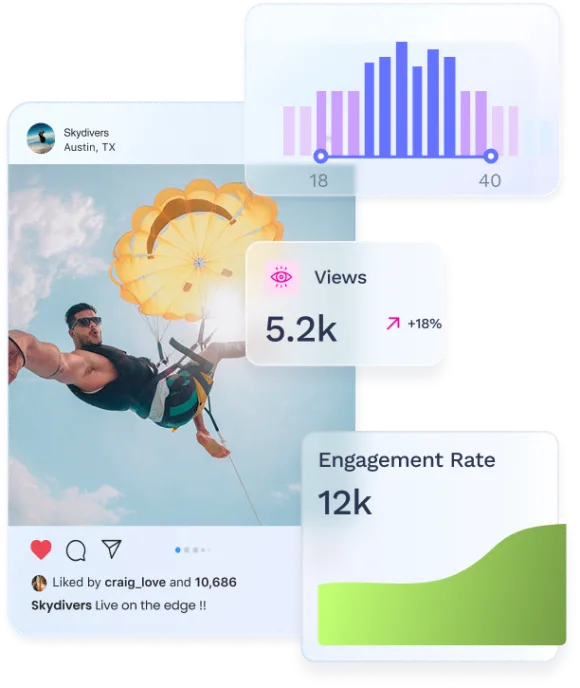
- Benchmark your clients’ YouTube performances through analytics features: You can gather organic and paid insights from your clients’ YouTube channels to study how people respond to the content, understand how each upload performs over time, and see whether the audience is growing in a steady way.
- Instantly generate engaging posts and captions for your clients’ videos with the AI assistant, saving you time and effort: It can speed up turning YouTube Shorts ideas into reality.
- Create approval workflows that show how content should move from submission to review and then to final sign off: This keeps you in control of quality while giving your clients a smoother experience since every step feels organized and intentional.
Author and speaker Dave Willis once said…
“Don’t use social media to impress people; use it to impact people.”
Vista Social can be your ticket to help your clients achieve this.
Get the YouTube Shorts dimensions right
Knowing the right YouTube Shorts dimensions and sticking to them ensures your clients’ videos display correctly. It gives viewers a better viewing experience, giving your clients’ videos more views and engagement–or even getting you more channel subscriptions. Use Vista Social to manage your clients’ YT accounts and publish YouTube Shorts more efficiently.
P.S. If you’re new here, Vista Social is a full social media management platform built for agencies, freelancers, and in-house social teams. It helps you work with clients smoothly, keep your workflow steady, and carry out your daily tasks with clarity. Once you start using it, you get a setup that supports stronger collaboration and a more efficient approach to social media marketing.
Create your Vista Social account now to explore our tools and enhance your social media strategy today!
FAQs on YouTube Shorts Dimensions
Read up on the top questions people ask about YouTube Shorts dimensions below.
Are the 9:16 and 16:9 aspect ratios the same?
No.
The 9:16 aspect ratio is best for vertical videos that you commonly see when watching on mobile phones.
The 9:16 aspect ratio (also ideal for Short form video platforms like Instagram and TikTok) is a perfect 90-degree flip of the 16:9 video.
Can you convert video aspect ratios from one to another?
Yes, using video editors and converters with features that let you change the aspect ratio. However, some parts of your YouTube video can be cut off when changing between aspect ratios.
Can you create square videos as YouTube Shorts?
Yes. Technically, you can create YouTube Shorts with a 1:1 aspect ratio and 1080 x 1080 dimensions, making them square. However, square videos look smaller, especially on the YouTube mobile app So you’re better off sticking to the recommended YouTube Shorts format and dimensions for best-quality videos.
Try Vista Social for free
A social media management platform that actually helps you grow with easy-to-use content planning, scheduling, engagement and analytics tools.
Get Started NowAbout the Author

Content Writer
Jimmy Rodela is a social media and content marketing consultant with over 9 years of experience, with work appearing on sites such as Business.com, Yahoo, SEMRush, and SearchEnginePeople. He specializes in social media, content marketing, SaaS, small business strategy, marketing automation, and content development.
Loading related tools...




Tools
PublishingAnalyticsEngagementIntegrations
FacebookInstagramLinkedInRedditSnapchatThreadsTikTokX (Twitter)YouTubeBlueskyVista Page (link-in-bio)All IntegrationsCopyright © 2026 Vista Social LLC. All Rights Reserved.