

Published on December 9, 2025
7 min to read
What is MCP: How to Manage Social Media Through AI Chat

Summarize with AI

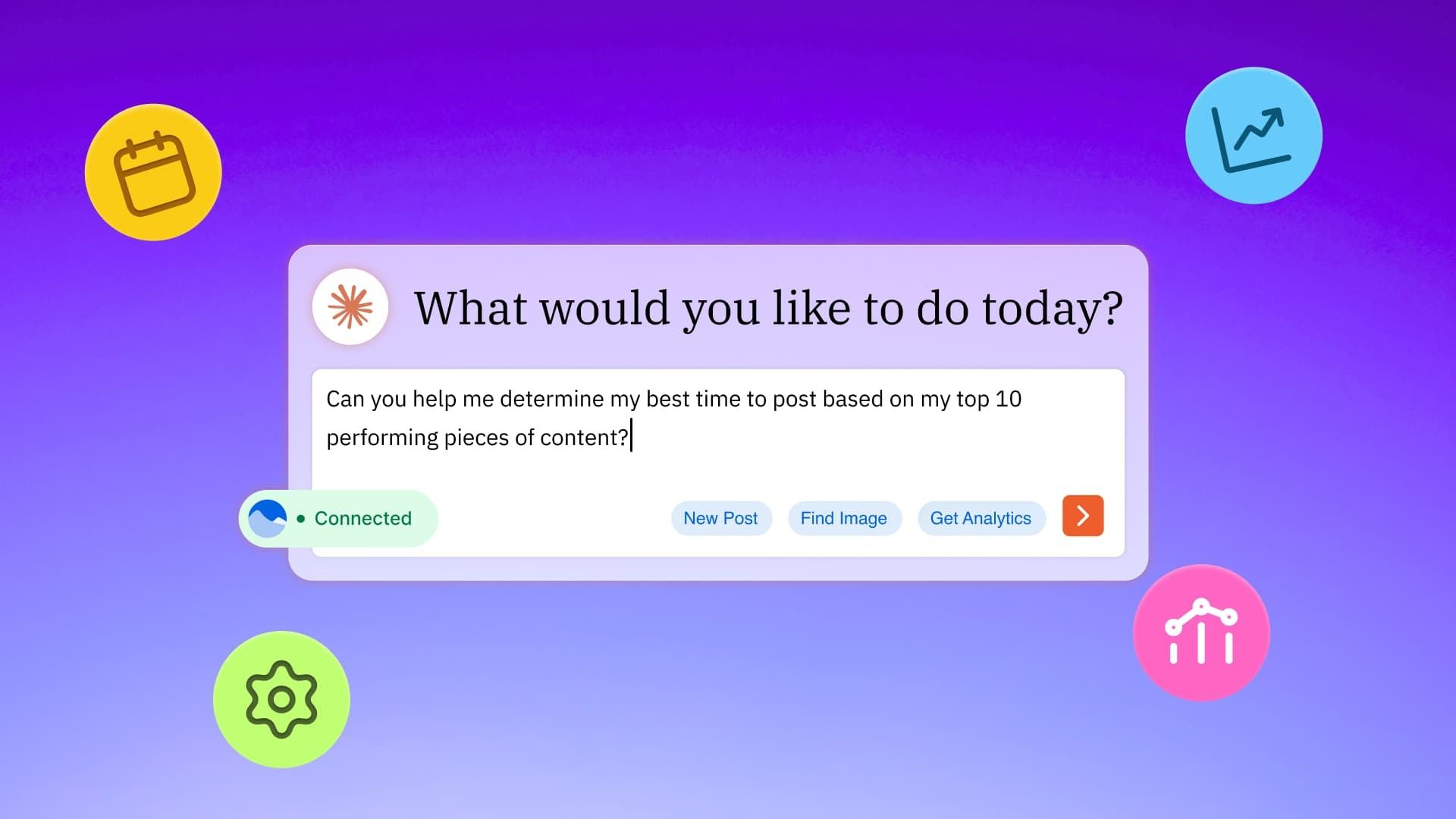
Table of contents
Summarize with AI

ChatGPT

Claude

Perplexity
Share

Vista Social

X (Twitter)


Are you a big Claude or ChatGPT user? How much of your day do you spend on that interface, asking questions and generating ideas?
What if I told you that you can now manage your social media strategy without ever leaving your favorite AI tool?
Through MCP, this is now possible. Yes, we marketers and techies love our initialisms, so you might be wondering what is MCP. Let’s walk you through what this technology is and how it can be a game changer for your social media strategy.
Table of contents
What is Model Context Protocol (MCP)?
Model Context Protocol (MCP) is an open standard that allows users to connect AI assistants to other sources of data and information. It was created by Anthropic (the founder of Claude) back in 2024, but can also be used with other AI tools like ChatGPT.
But let’s get a little less technical. You can think about it like this—when you work with an AI tool, that tool’s output is limited to what it’s been trained on so far. It can’t learn more information in real time unless you feed it that information yourself.
This is where MCP comes in. An MCP connection gives your AI tool access to more data and information that it can then use to do more tasks for you and provide you with better output.
How does MCP work?
Before we dive into what you’re really here for—learning why MCP matters to your brand’s social media strategy—let’s just cover one more technical aspect. And that’s how the MCP actually works.
It can be helpful to have an understanding of what this integration or connection is doing behind the scenes. But if you don’t really care about the technology behind it, you can skip right on to the next section to learn how to set your Vista Social x MCP integration up!
So here’s the gist. There are five main components to make MCP work:
- The protocol itself: This is what ensures the AI tool and the end tool are speaking the same language
- The transport layer: The delivery mechanism for sending messages from the AI tool to the end tool
- The MCP host: This is the AI application you’re using to manage everything, like Claude or ChatGPT
- The MCP client: This refers to the component within the host that speaks to the end tool
- The MCP server: The connector built by the end tool (in this case, Vista Social) that provides additional capabilities to the host
These five components work together to ensure that the user (you) can connect Claude and Vista Social, then make them work together all from the Claude interface.
Here’s how this process goes:
- You input your request into Claude or ChatGPT. For example, you ask the AI tool to summarize your Instagram performance over the last 30 days.
- The AI tool (MCP host) recognizes that it needs to get more information from Vista Social in order to complete your request.
- The host then sends a request to the Vista Social MCP server asking for Instagram data over the last 30 days, ensuring it’s following the protocol (or language) so the server understands the request.
- The MCP server does the work to find the information and send it back to the MCP host.
- The MCP host then compiles its response to you, the user, with your Instagram performance perfectly summarized.
And this happens in seconds. So while you could log into Vista Social, run your Instagram performance report, and gather all of this information yourself, you’re a busy person. Why not just have AI do it for you?
How to set up Vista Social’s MCP integration
Now that you’re starting to see the magic behind this connection, let’s get your MCP integration set up and ready to go.
How to connect Vista Social to Claude
If you’re an avid Claude user, use this step-by-step guide to set your MCP integration up so you can start chatting about your social media presence.
Step 1: Head over to Claude.ai, then click the Search and tools button (the icon with the toggles). Scroll down in the menu that appears to select Add connectors.
Step 2: Click Manage connectors from the menu that appears.
Step 3: Then click Add custom connector to set up the Vista Social integration.
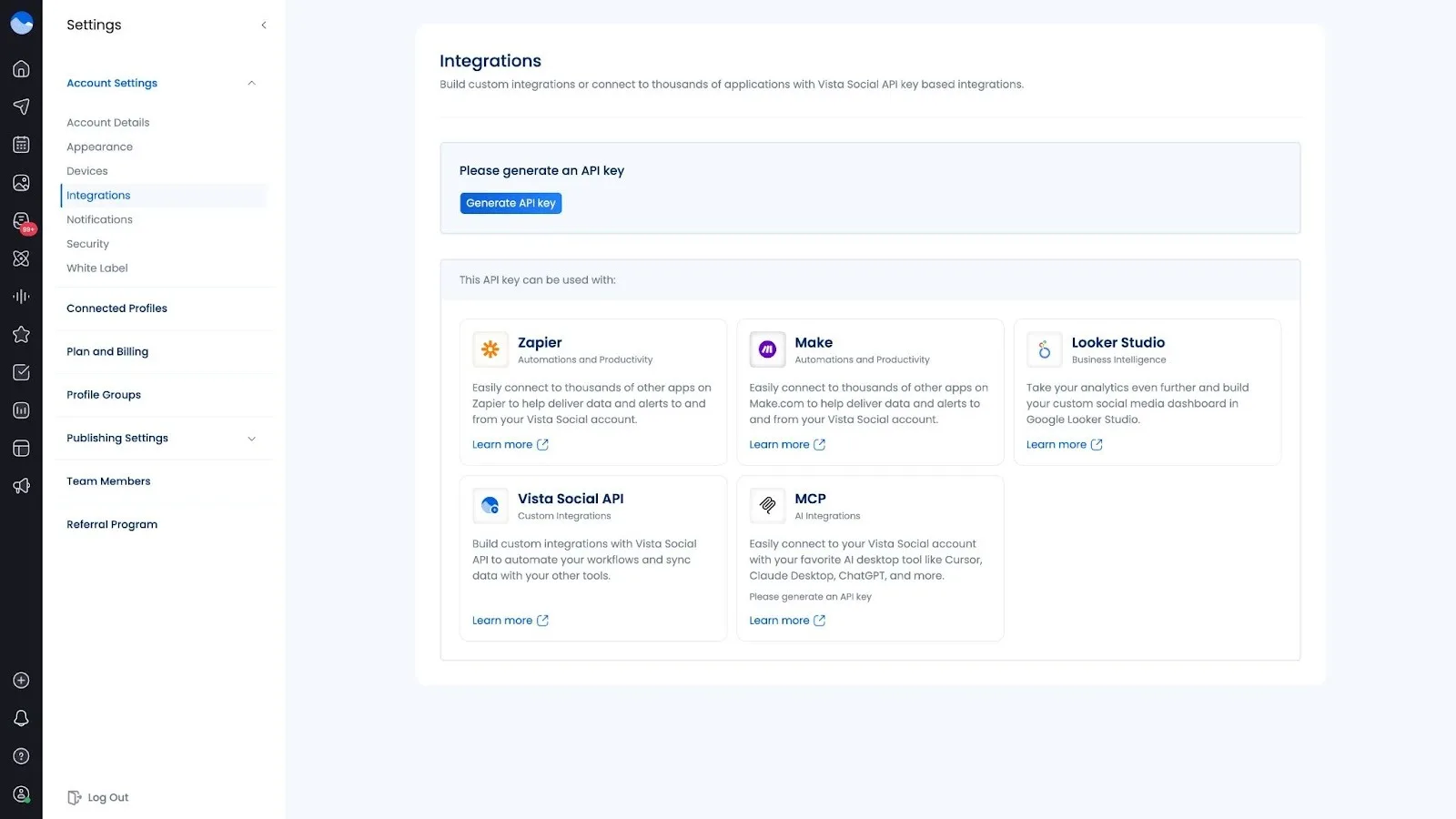
Step 4: Log into your Vista Social dashboard, then head to Settings > Account Settings > Integrations. If this is your first time setting up integrations, click Generate API key. If not, you can simply click Copy link next to the MCP integration.
Step 5: Now it’s time to set up the connector in Claude.
You’ll give it a name (we recommend just “Vista Social” so it’s easy to find and remember) then paste in your MCP URL from the integrations settings.
Under advanced settings, select No authentication, as the API key needed is already in the server URL.
Then click Add.
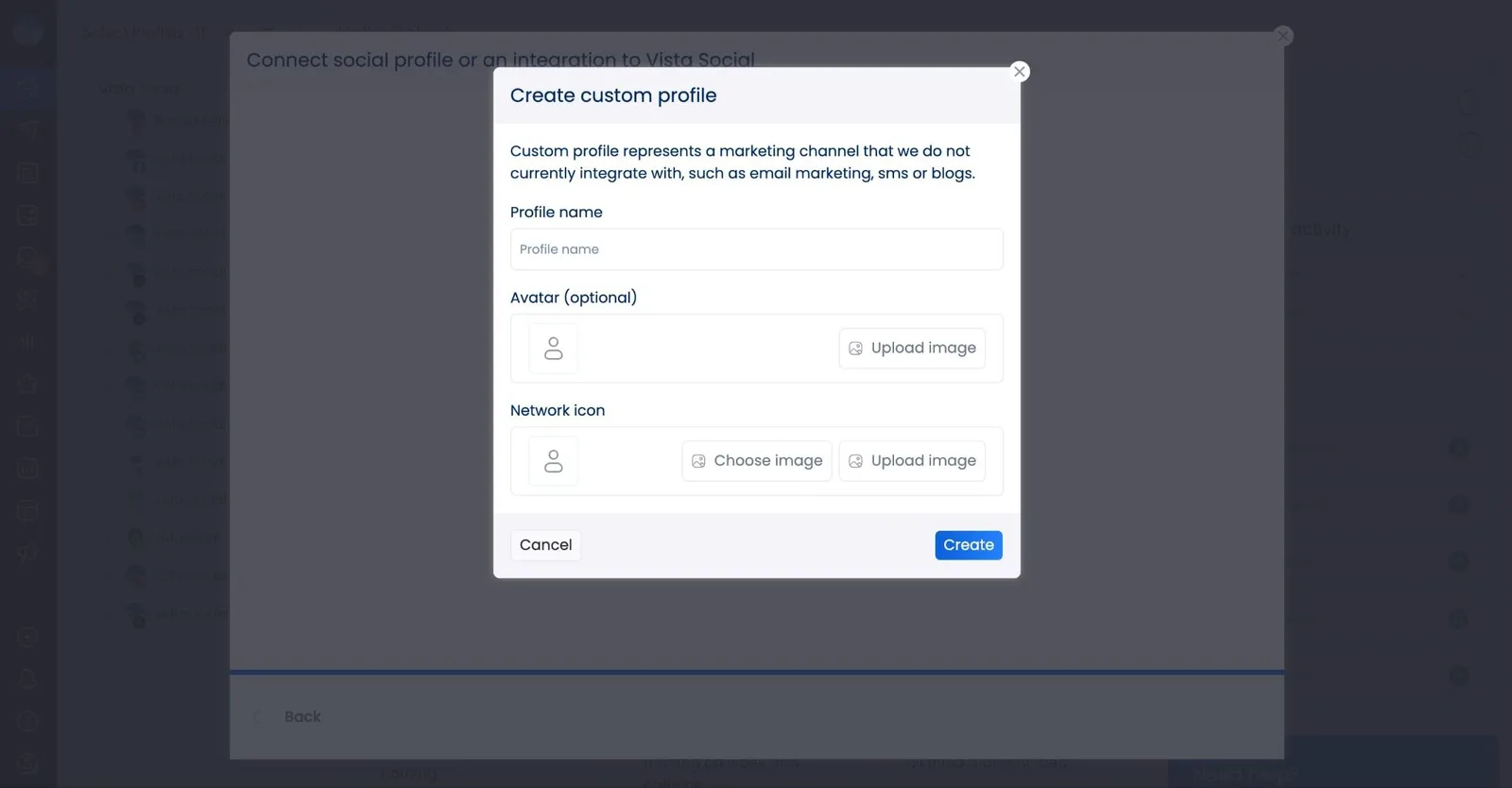
Step 6: Head back to the Claude chat window to make sure the Vista Social connector is enabled.
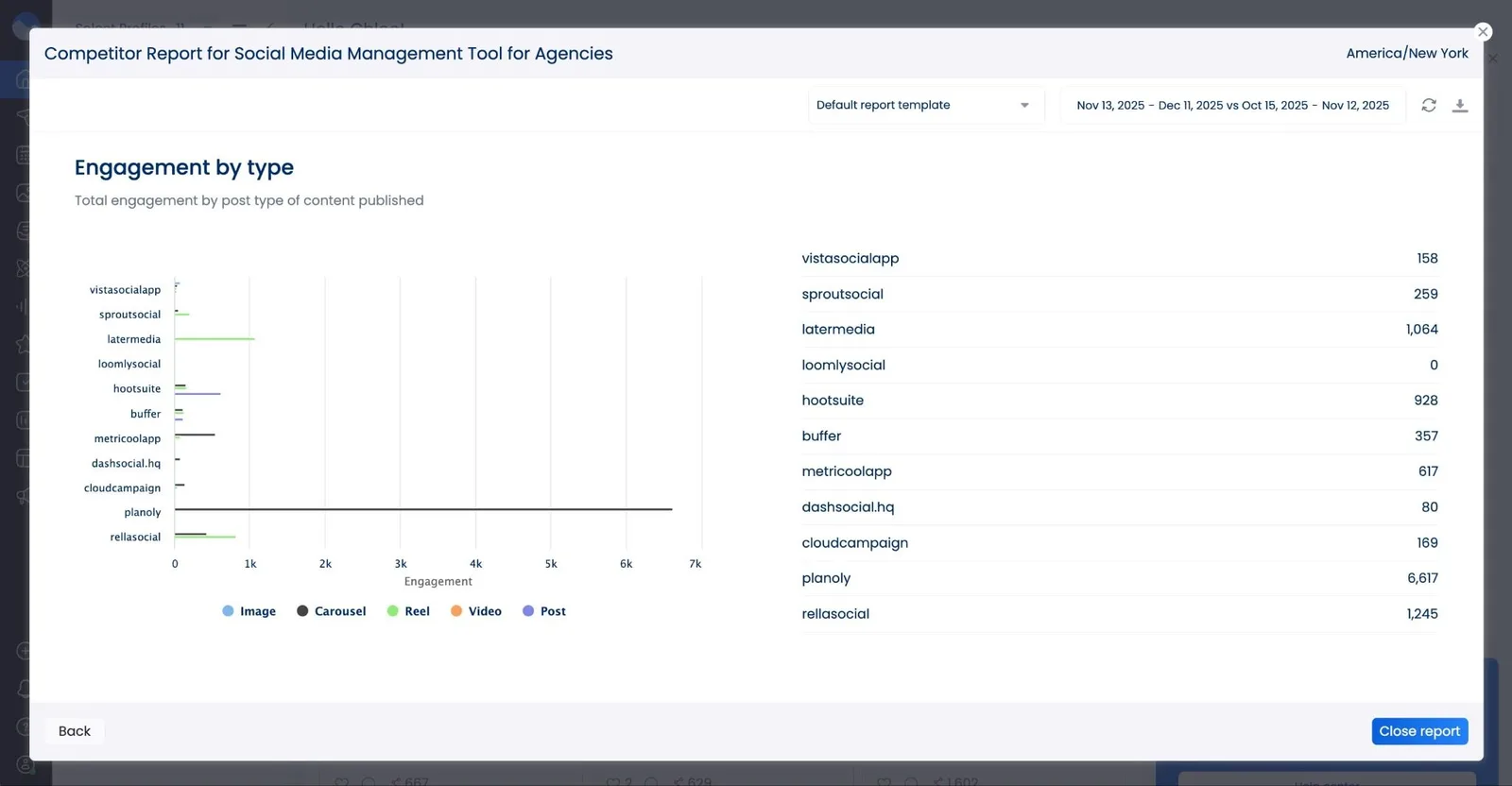
Now you can start interacting with your Vista Social account right from Claude! For example, our co-founder Reggie is regularly turning to his Claude connection to analyze his LinkedIn performance.
The tool not only provides a summary of his recent performance, but it also turns the data into visualizations to make it easy to understand at a glance.
How to connect Vista Social to ChatGPT
However, if you prefer ChatGPT, you can follow this step-by-step to get started.
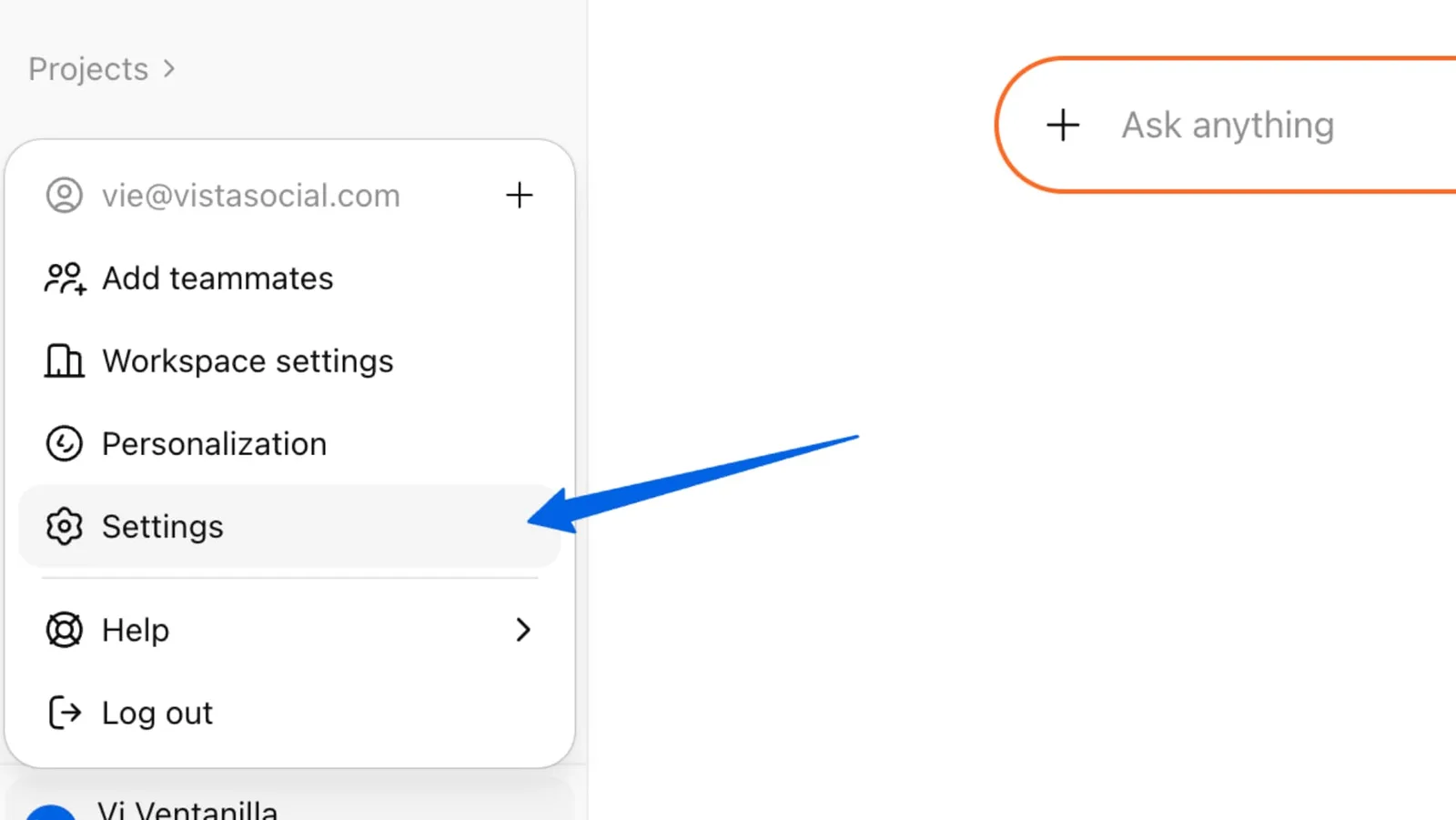
Step 1: Head over to ChatGPT.com, then click on your account name in the bottom left corner to go to your Settings > Apps & Connectors.
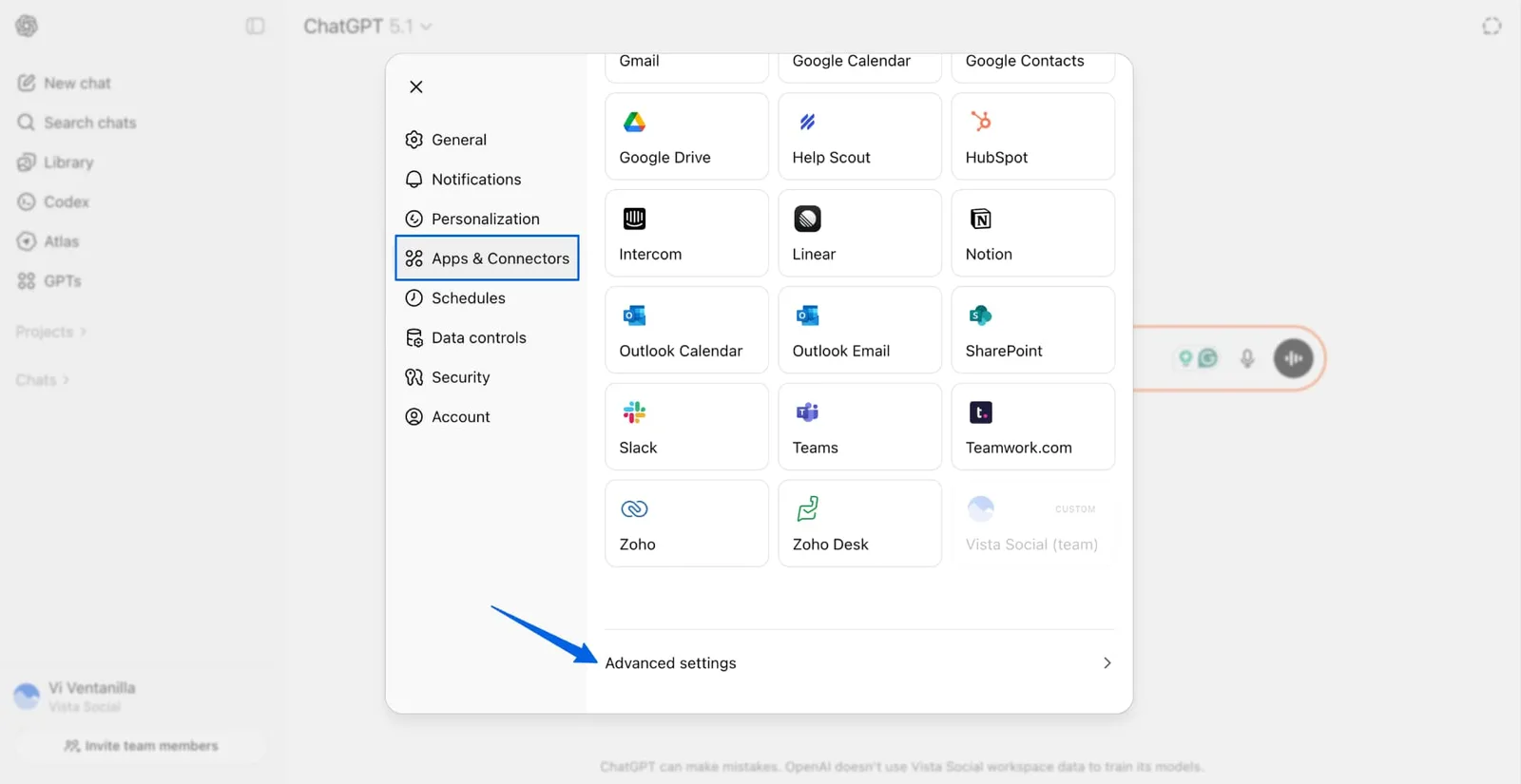
Step 2: Scroll down to the bottom to click Advanced settings.
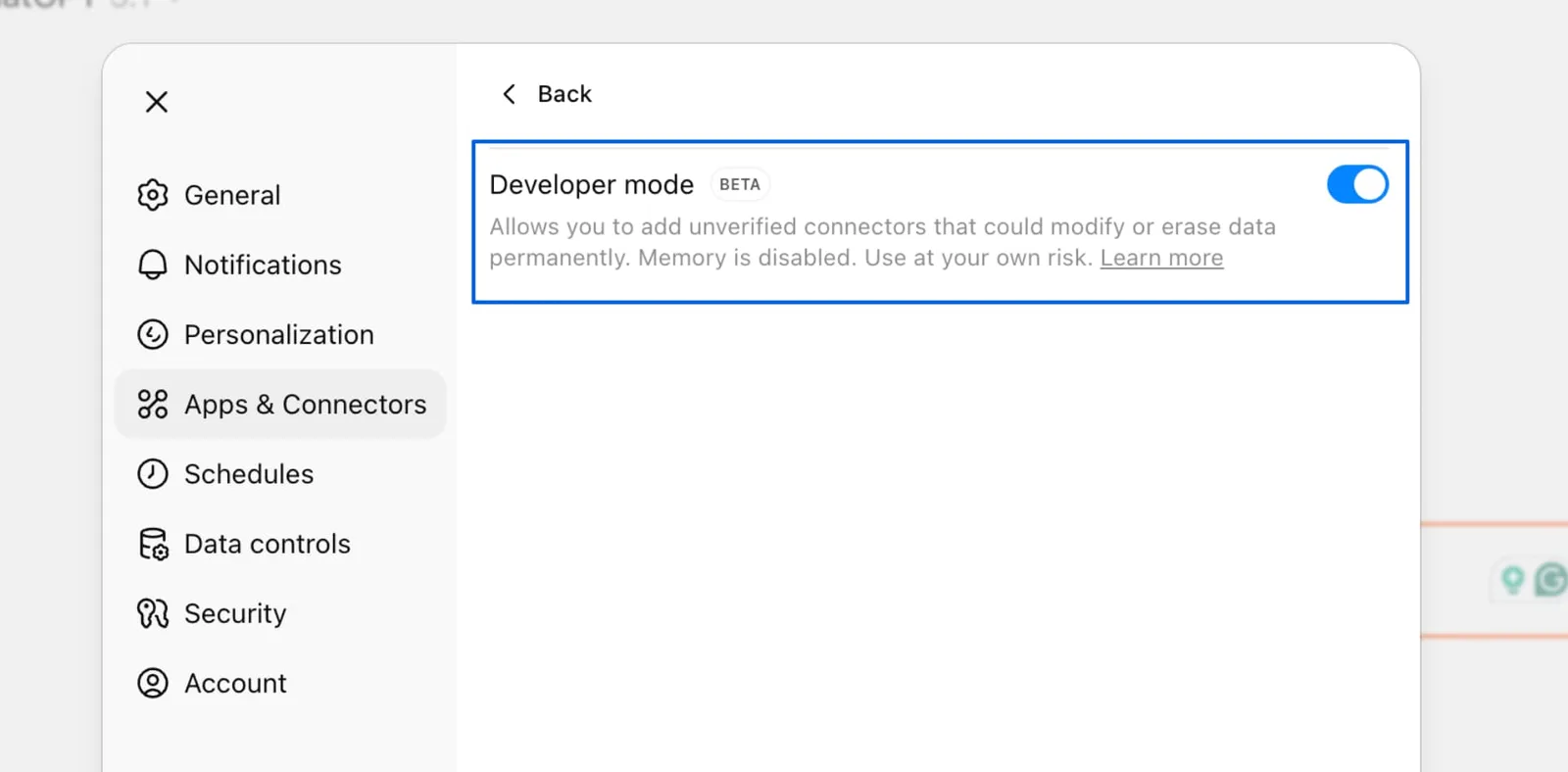
Step 3: Toggle Developer mode into the On position.
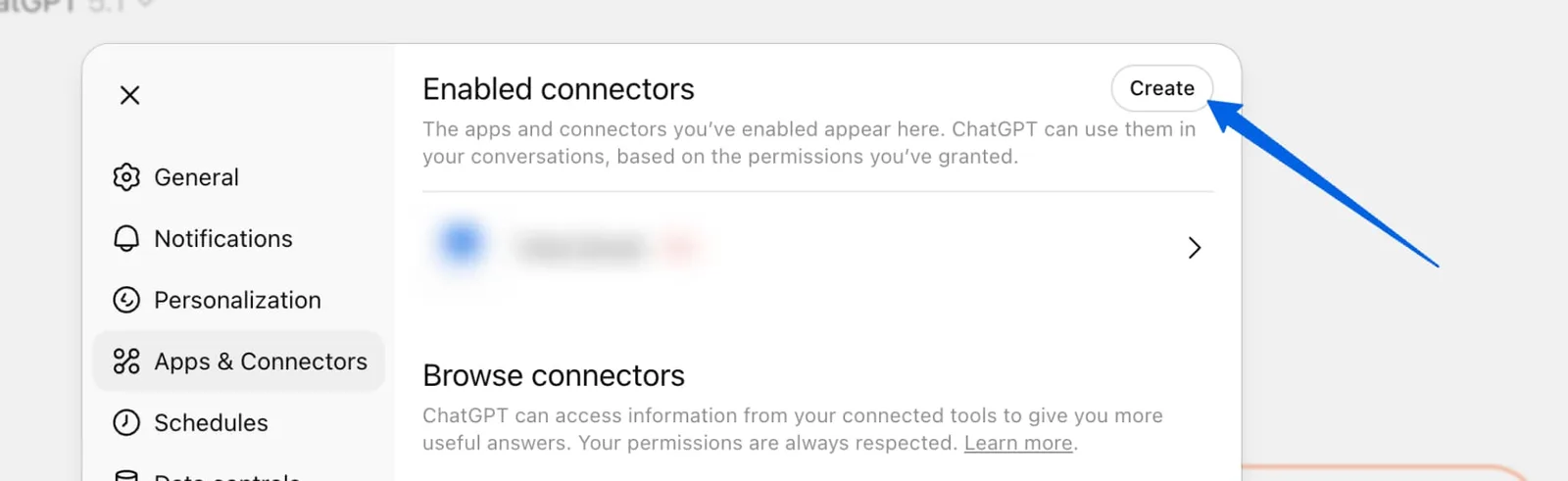
Step 4: Head back to Apps & Connectors. You should now see a button that says Create at the top.
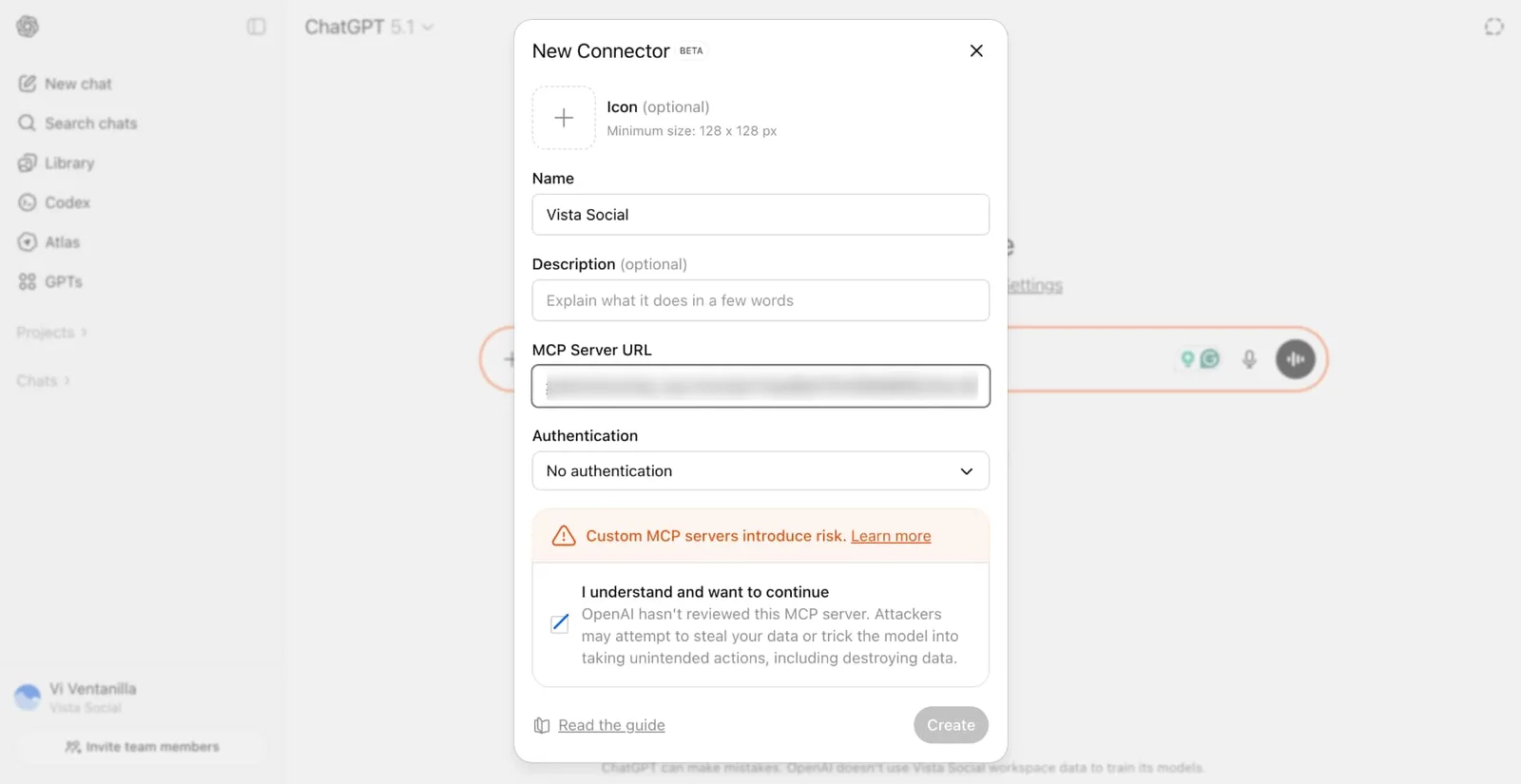
Step 5: Fill out the following connector details:
- Icon: If you want to visualize your AI connector, you can upload an icon of Vista Social’s logo
- Name: The name that will appear—we recommend just putting “Vista Social” to keep it easy
- Description: This is optional, but input a quick description of the AI connector if you want
- MCP Server URL: Copy the MCP URL from your Vista Social integration settings
- Authentication: Select No authentication as the the API key needed is already in the URL
Once this is done, click Create.
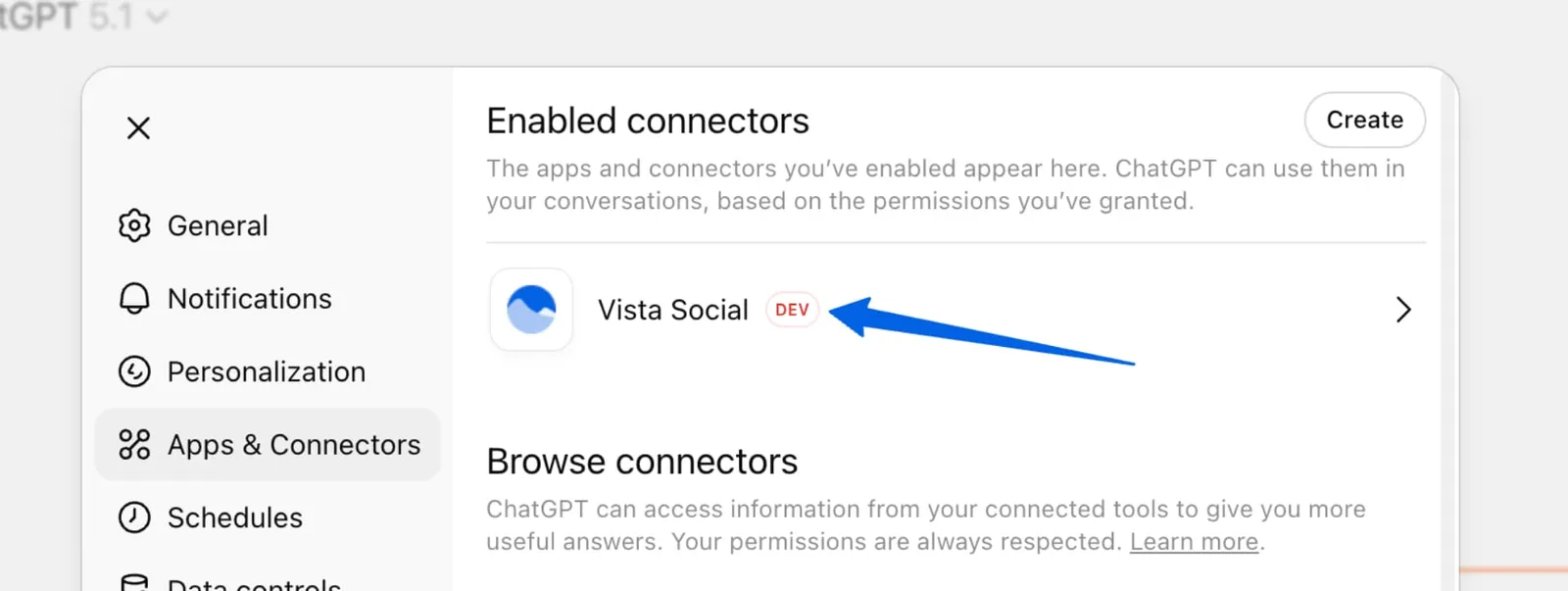
Step 6: Double check that your connector appears under Enabled connectors.
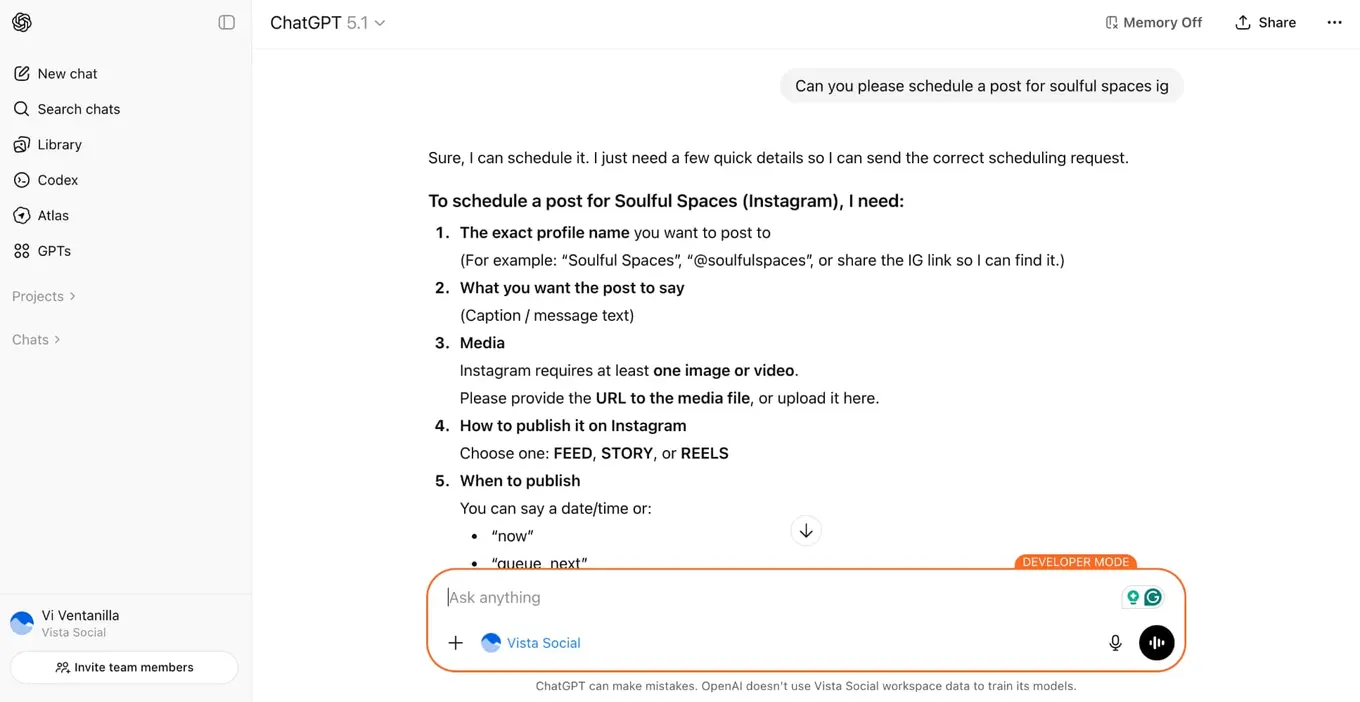
Now you can start a new chat and select Vista Social from the tool selector to make social media-specific requests from the chatbot.
What is MCP FAQs
What is MCP in AI?
MCP (Model Context Protocol) in AI is an open standard that allows AI assistants to securely connect with external tools and data sources. It enables AI to move beyond just generating text to actually taking actions in your apps—like scheduling social media posts, pulling analytics, or managing your content calendar.
What does MCP mean for social media managers?
For social media managers, MCP means being able to manage your entire social media operation through natural conversation with an AI assistant. Instead of navigating through multiple tools and dashboards, you can schedule posts, analyze performance, coordinate with team members, and adjust your strategy—all by simply describing what you need.
Try Vista Social for free
A social media management platform that actually helps you grow with easy-to-use content planning, scheduling, engagement and analytics tools.
Get Started NowAbout the Author

Content Writer
Chloe West is a content marketing manager for Vista Social. She has over seven years of experience in digital marketing for B2B SaaS companies. When she's not working, you'll find her spending time with her family, reading a book, or watering her plants.
Loading related tools...



Tools
PublishingAnalyticsEngagementIntegrations
FacebookInstagramLinkedInRedditSnapchatThreadsTikTokX (Twitter)YouTubeBlueskyVista Page (link-in-bio)All IntegrationsCopyright © 2026 Vista Social LLC. All Rights Reserved.