


Published on October 22, 2026
10 min to read
Social Media Password Management: A Guide to Team Access

Summarize with AI

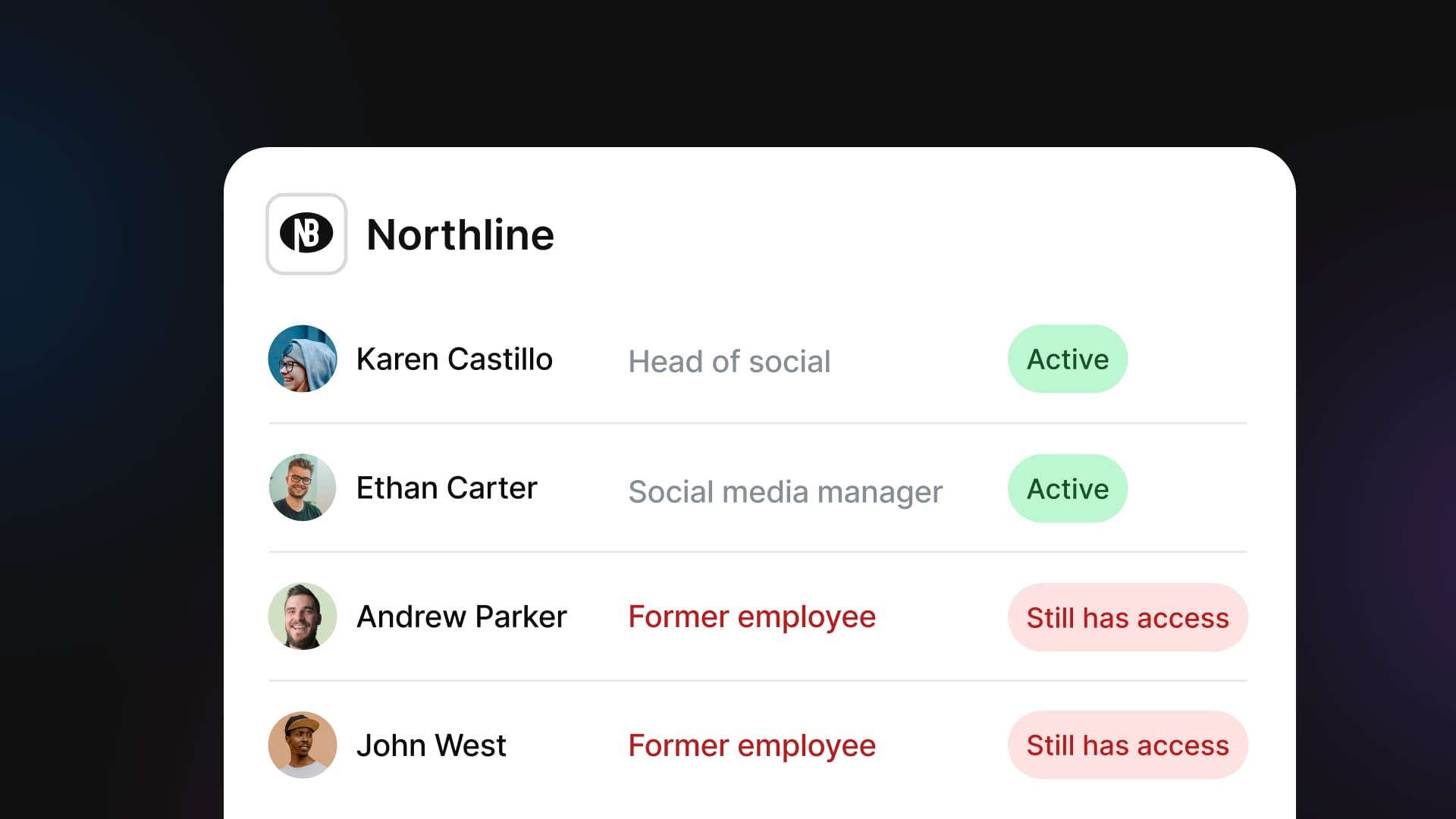
Table of contents
Summarize with AI

ChatGPT

Claude

Perplexity
Share

Vista Social

X (Twitter)


Who can publish from your company’s social accounts today? Include former agency partners, colleagues who changed regions, and AI assistants connected through an administrator’s account. Would everyone on that list still need their access?
As the person responsible for social, you need to know which accounts they can reach and what they can do there. That means looking beyond the current team list to the permissions people and connected apps still hold.
This guide approaches social media password management through the changes you already handle: someone joining, moving teams, or leaving. You’ll learn what to update, what to remove, and how to verify the result. You’ll also see how AI can help inspect access and apply changes your admin approves.
The short version
- Use named access: Give people their own login and only the accounts and features their work requires.
- Prioritize transfers: Remove the previous assignment when adding the new one. Set an end date if someone needs both during a handover.
- Include AI connections: Check whose account each assistant uses and what it can do. Asking it to stay within one region isn’t an access restriction.
- Keep a complete record: Check the management platform, direct network roles, and connected apps. Record what changed and who verified it.
Table of contents
Where people keep access after their work changes
Start with people who moved teams, then check departures, shared logins, and recovery. Transfers deserve their own review because the person is still employed and the leaver process never starts.
Transfers leave old permissions in place
A person who changes teams still needs a working company account. If each move adds new brands without removing the old ones, their permissions soon cover far more than their current job.
That includes private messages, reports, and approval rights as well as publishing. Your regional lead can be accountable for an account while someone outside their team still has authority over it. Include the old permissions in the transfer request, with a named person to remove them.
Former employees remain on network admin lists
Disabling company email doesn’t remove a Facebook Page role or erase a password someone already knows. HR can finish a departure while the person still holds access on a social network.
You then have no complete handover record to show security. You may also find that only the departing person could reconnect a Page or change its recovery details.
Shared passwords outlast the project
In a May 2023 Ponemon study, 76% of respondents reported staff sharing login details; 41% reported passwords weren’t rotated. It surveyed 595 US IT and security practitioners about apps outside their central login system, rather than social teams alone.
The current vault membership doesn’t tell you everyone who saw or copied a password earlier. When you retire a shared login, check both:
- The password itself: Change it if former staff or partners knew it and no longer need access.
- Other connections: Review active sessions and authorized apps. Don’t assume changing a password has closed every route.
Recovery settings need an owner
On January 9, 2024, an attacker used the US Securities and Exchange Commission’s X account to post a false Bitcoin ETF approval announcement. In its incident update, the SEC said the attacker took control of the linked phone number through an apparent SIM swap and reset the password.
MFA had been disabled months earlier to resolve access problems and wasn’t restored until after the takeover. Include recovery channels and temporary security changes in your review, alongside the people on the admin list.
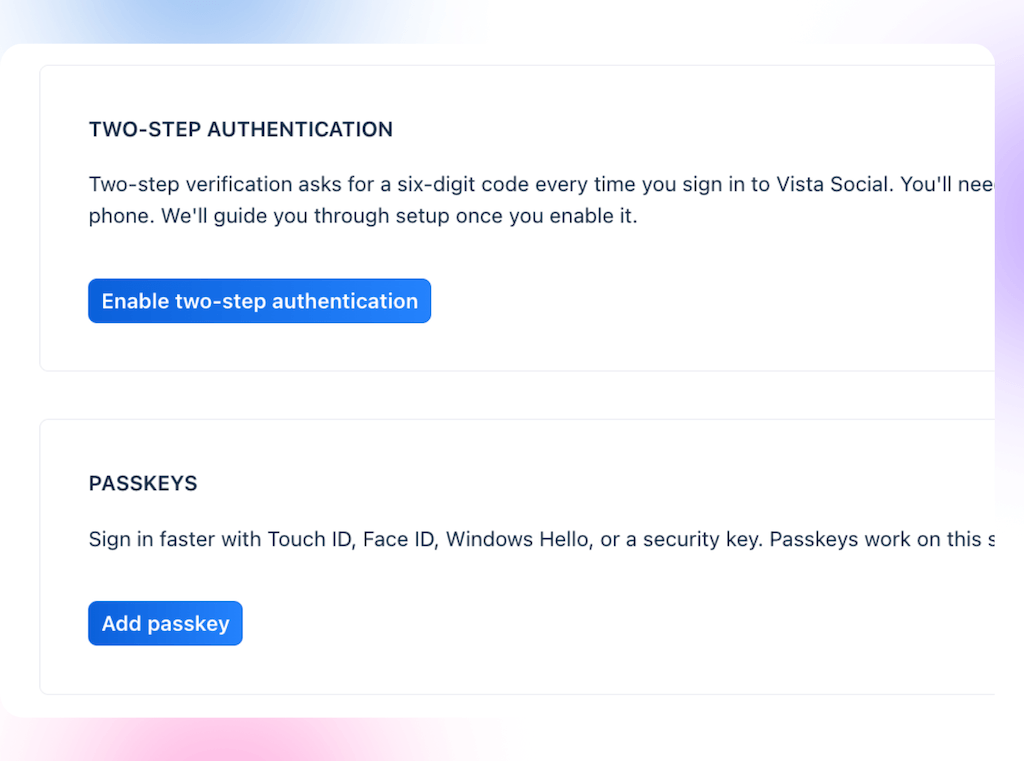
Keep ownership records and business recovery details where the company can reach them. If a network requires a real person’s profile, appoint named admins and a backup. Don’t share their personal login or create a fictional employee account.
If those routes haven’t been checked, you don’t know who can speak for the company today.
Set access by person, account and task
Each teammate needs their own login, a set of social accounts, and permission to do specific tasks. Set these rules before you invite or move users.
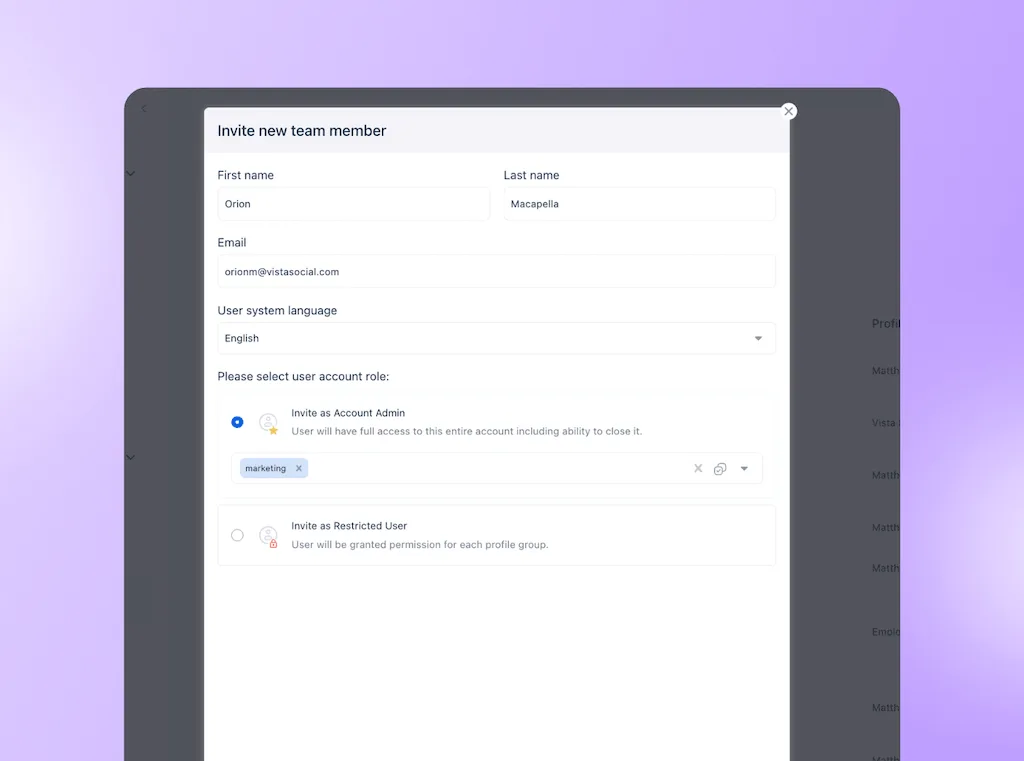
In Vista Social, a profile group holds the social accounts for a brand, region, or set of locations. Assign someone to the groups they need, then control what they can do there. That’s role-based access; giving only the rights the job needs is called least privilege.
- Company login: IT controls the identity used to sign in. Single sign-on, or SSO, routes that login through the company’s identity service.
- Account access: You define the brands, regions, or locations the person works on. A working company login shouldn’t grant access to every social account.
- Feature permissions: The person’s job determines whether they can view reports, prepare posts, approve work, or manage settings.
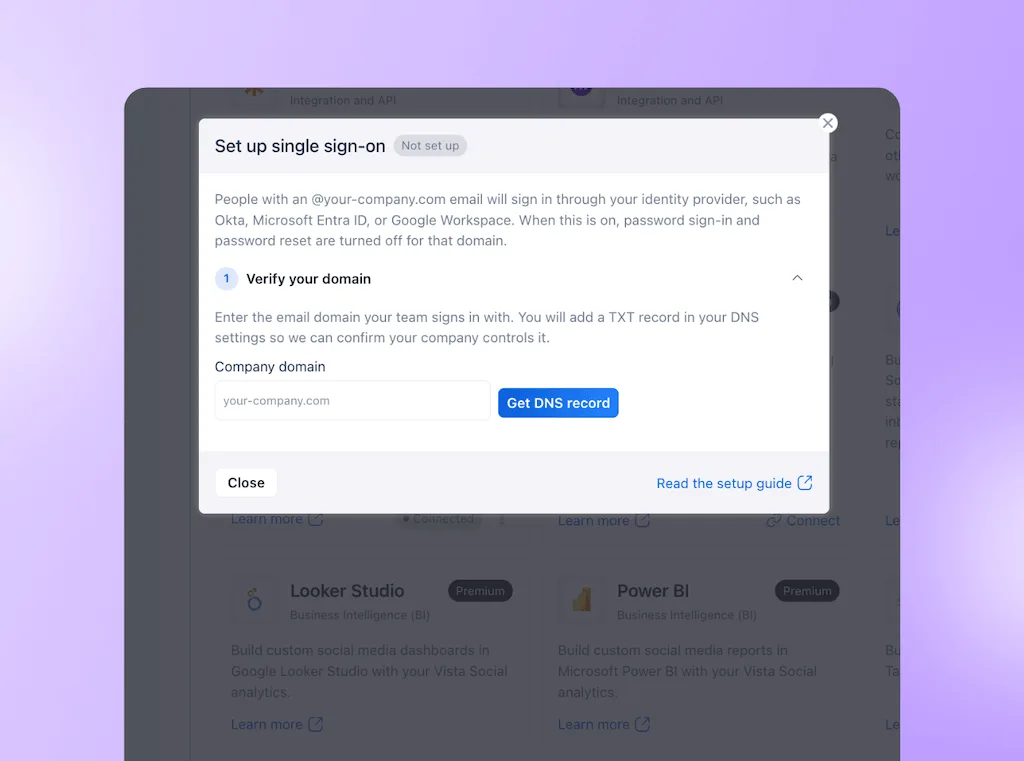
Vista Social supports SAML SSO. Once enabled for a domain, it replaces those users’ separate Vista Social password login. Have IT test sessions and apps when it disables a login, rather than assuming every connection has ended.
Use AI to check permissions and apply approved changes
An approved AI assistant with the right permissions can work with these settings through MCP, the Model Context Protocol.
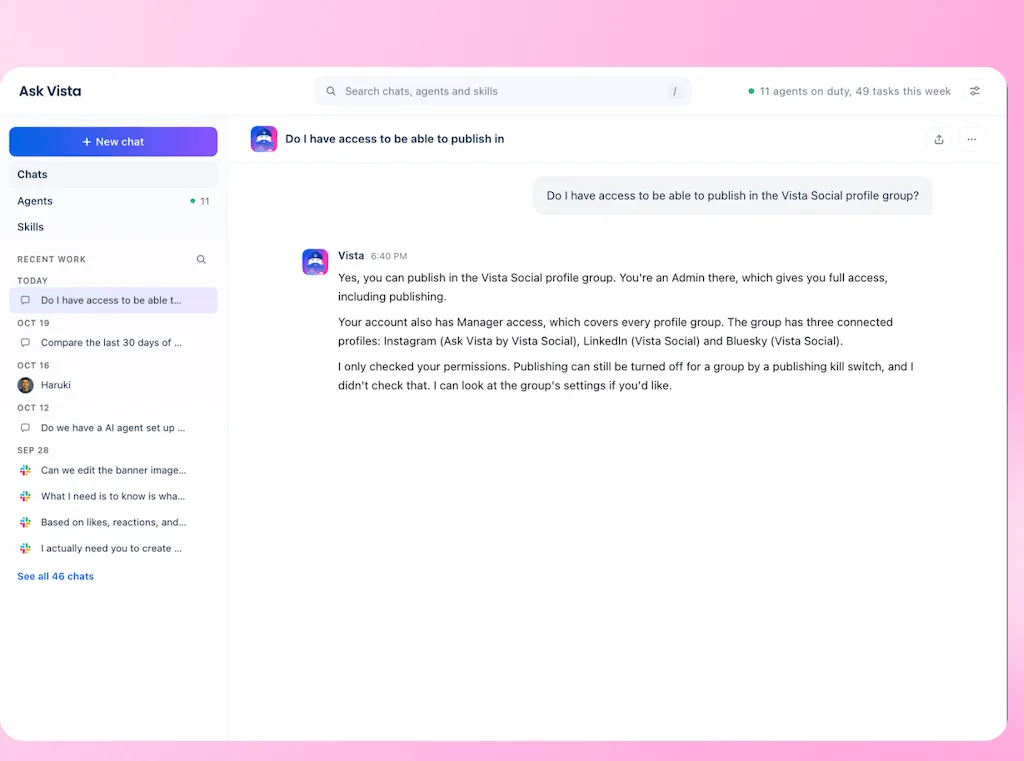
Vista Social’s available tools can read users’ roles, update profile-group access, and remove teammates. That lets your admin delegate the inspection and edit while retaining the decision.
For a regional transfer, use this sequence:
- Inspect the current record: Confirm which account the assistant is connected to. Have it retrieve the teammate’s groups and permissions, then compare them with the new assignment you supply.
- Authorize a specific change: Review what should be removed, retained, or added before telling the assistant to make the edit.
- Check the saved result: Retrieve the updated user record and verify access to the affected groups. Keep that evidence with the approved request.
Give the assistant details of the new job, or an approved source can check. It shouldn’t assume someone has left an account because they haven’t posted recently.
Give new teammates only the access they need
Choose the accounts and actions the role needs before you send an invite. Someone drafting for one location shouldn’t need control of the whole company account.
Vista Social’s user permissions provide these options:
| Access option | What it permits | Who needs it |
|---|---|---|
| Account admin | Full account access, including the ability to close it | The small group responsible for the whole account |
| Profile group admin | Full access to selected profile groups | A lead responsible for those accounts |
| Restricted user | Feature controls such as No Access, View or Manage | A teammate with a defined set of tasks |
| Contributor under Publish | Scheduling that requires review before publication | Someone preparing posts without independent publishing rights |
Contributor is a publishing permission, not a fourth account-wide role. Assign an approver and test your approval workflow with a sample draft.
- Check the accounts: The new user should see the required groups and have no access to unrelated ones.
- Test the work: Have them prepare a draft, view a report, or perform another task their role allows.
- Test the limit: Confirm the user can’t publish independently or change settings when the role doesn’t allow it.
Define the job using your team roles, then test through the new user’s login. Checking the admin settings alone doesn’t show what that person can do.
Update access when someone changes roles
Review the previous assignment when granting the new one. In Vista Social, an administrator can edit the user under Settings > Team Members and update both profile groups and feature permissions.
A move from publishing to analytics needs a change in permitted actions, even if the person keeps working on the same accounts.
- Remove the old assignment: Take away groups or features no longer required. If the person needs temporary overlap, name who will remove it and when.
- Grant the new assignment: Add the accounts and actions the new job requires.
- Hand over pending work: Reassign approvers and task owners, then check for items still waiting on the previous lead.
The transfer is complete when the regional owner confirms the saved access matches the new job. Use the same check to determine whether an admin or an authorized assistant made the change.
Remove access when someone leaves
Remove the user without deleting the social profiles or their work. Vista Social lets you remove a teammate from selected groups or the whole account; scheduled posts, drafts, and other created content remain intact.
The primary account holder is an exception: normal team removal can’t remove them. Arrange that handover with support before the departure. If SSO is part of your setup, review the handover with IT and the enterprise team too.
Use this social-specific employee offboarding checklist:
- Assign a continuing owner: Name who will handle upcoming posts, pending approvals, and open conversations. Retaining a draft doesn’t assign it a new approver.
- Remove platform access: Remove the user from the whole account when they leave the company. Removing one group leaves their other group access in place.
- Remove direct network access: Have network admins check Page roles, business-portfolio access, and partner relationships, as described below.
- Secure business recovery: Update business recovery channels, rotate shared passwords the person knew and review active sessions with IT. Don’t take over their private accounts.
- Review integrations: Check app authorizations, API credentials and scheduled workflows. Put required connections under a continuing owner and revoke those no longer needed.
- Record completion: Save the action, owner, date and verification result. Give unresolved issues an owner and deadline.
Check Facebook, Instagram and other networks separately
Check the person’s roles on the networks themselves. Removing their Vista Social access doesn’t remove those separate permissions.
- Facebook and Instagram: Review people, partners and asset assignments in the business portfolio. Check direct Page roles and any separate Instagram login too.
- Other networks: Review LinkedIn Page admins and delegated access on your other channels.
- Publishing connections: Confirm a continuing admin can keep the accounts connected. If the access change disrupts publishing, use the reconnection guide.
Test the replacement’s access before removing the last person who can manage the account. The handover needs to end the former user’s access without locking out your current team.
Make access part of every handover
You should be able to answer the opening question with a current record: who can publish, which accounts they can reach and why they still need access. Start with recent role changes and three priority accounts, then record each removal and any unresolved exception.
Bring that record and your security lead to a Vista Social walkthrough. Test a new hire, a role change and a departure against your own account structure, including the access that remains outside the platform. You’ll know which checks the platform supports, what AI can carry out under your direction and what your network admins still need to own.
Frequently asked questions
Should you share social media passwords with your team?
Use individual access wherever the network or management platform supports it. That lets you change one person’s rights without redistributing a shared login. Keep unavoidable business credentials in an approved vault with a named owner and a review when staff change.
Who should own a company’s social media accounts?
Document company ownership and keep business recovery details under your control where the network allows it. For networks that require personal profiles, appoint real people as admins. Ask legal to review ownership disputes; an admin seat doesn’t settle the contract question.
How do you remove a former employee from a Facebook Page?
Have a current admin identify whether access comes directly from the Page, a business portfolio or a partner relationship. Remove the relevant permissions and check for other routes into the account. Keep a working admin in place and verify that required publishing connections still work.
Does removing someone from Vista Social delete their drafts?
No. Scheduled posts, drafts and other content they created remain intact. Give someone responsibility for pending edits, reviews and upcoming posts before closing the handover.
Is single sign-on enough to offboard someone?
SSO controls sign-in through the company identity provider. Ask IT to verify active sessions and integration access, and have the relevant admins complete the platform and network removals. A disabled company login isn’t evidence that every route has closed.
What is a social media account takeover?
An account takeover happens when someone gains unauthorized control of an account, for example through stolen credentials or a compromised admin profile. Finding an old admin role doesn’t by itself prove a takeover, but it does identify access you need to review.
Try Vista Social for free
A social media management platform that actually helps you grow with easy-to-use content planning, scheduling, engagement and analytics tools.
Get Started NowAbout the Author

Content Writer
Orion loves to write content that refuses to be boring. As part of Vista Social, he helps brands, creators, and agencies stop doom scrolling and start winning with social media. When he's not in front of a keyboard, he's watching films in IMAX with his wife, dissecting football tactics (the European kind), and getting lost in a good book.
Social media password management can’t replace access controls
A password vault protects stored credentials. It should support your access process, not serve as the main way a changing team reaches brand accounts.
Use individual logins for daily work and keep the vault for business credentials you must retain. The question here is who should still have access after the job changes.
Social media access management sets who can view, draft, approve, and publish for each account and when those rights must change.
IT manages the company login. You and your regional leads decide which social accounts each person needs, including roles outside IT’s login system.
If two people run one stable brand, check what your existing platform and network permissions already cover before adding another tool. Centralized access becomes more useful as people, agencies, and accounts keep changing.