


LinkedIn Ads Optimization: How to Review Campaigns Before You Change the Budget
November 17, 2026
8 min read

Summarize with AI

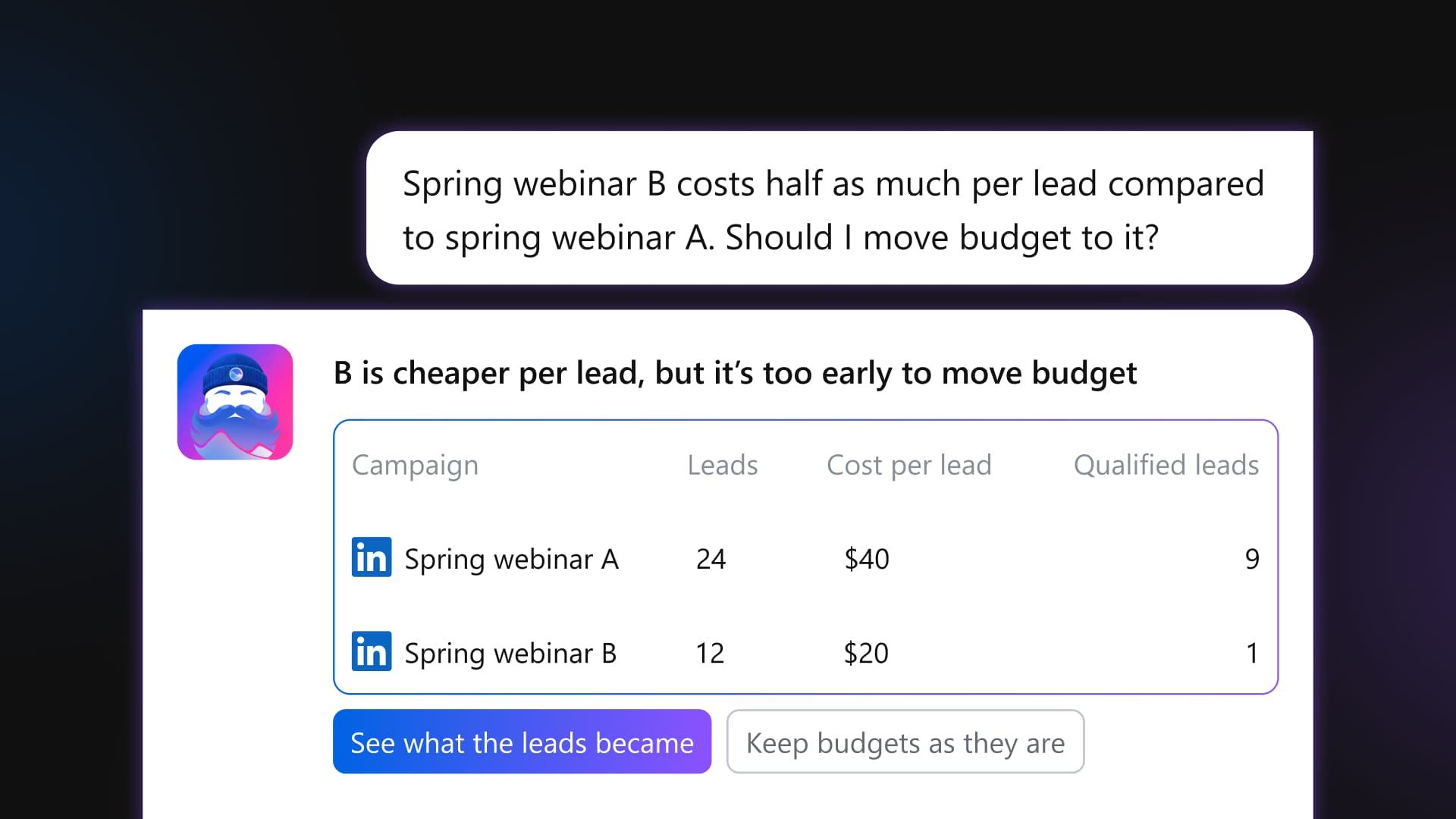
Table of contents
Share

Vista Social

X (Twitter)


Before you give a LinkedIn campaign more budget, check how many of its leads your sales team would actually pursue. Cost per lead counts every submission equally, whether it came from a buyer who fits your criteria or someone sales would rule out. A campaign can look cheaper in Campaign Manager and still cost more per qualified prospect.
If regional teams or brand leads own their ad accounts but you sign off on budget changes, ask each team to bring the same evidence: what it spent, which leads qualified, and why it recommends raising or holding the budget.
This LinkedIn ads optimization guide takes you through five checks on two campaigns in one account. The result is a decision record finance can read without reopening the ad dashboard.
You can run these checks in LinkedIn Campaign Manager and your CRM, or bring the review into Ads Manager in Ask Vista.
Start with:
- Two live campaigns: In the same LinkedIn ad account, ideally promoting the same offer.
- Access to the results: In Vista Social, the ad account must be linked to an already connected LinkedIn profile you can access.
- CRM outcomes: For leads acquired in the period you’re reviewing.
Vista Social lists Ads Manager on Advanced, Scale, and Enterprise.
Table of contents
Why a lower LinkedIn cost per lead can send you the wrong way
Say you’re running two campaigns for the same offer, one with a prefilled LinkedIn form and one sending clicks to a landing page. The form almost always brings in cheaper submissions, but cheaper submissions aren’t the same as cheaper qualified prospects, and that gap is what this check is built to find.
To see it, measure both campaigns over the same reporting window, and keep leads still awaiting review separate from the ones sales has already ruled out.
- Cost per lead (CPL) = ad spend ÷ leads captured. In the example here, a lead is a completed form.
- Cost per qualified lead (CPQL) = ad spend ÷ leads that meet the same qualification rules in your CRM.
Five LinkedIn ads optimization checks to run before moving budget
1. Check what you’re actually comparing
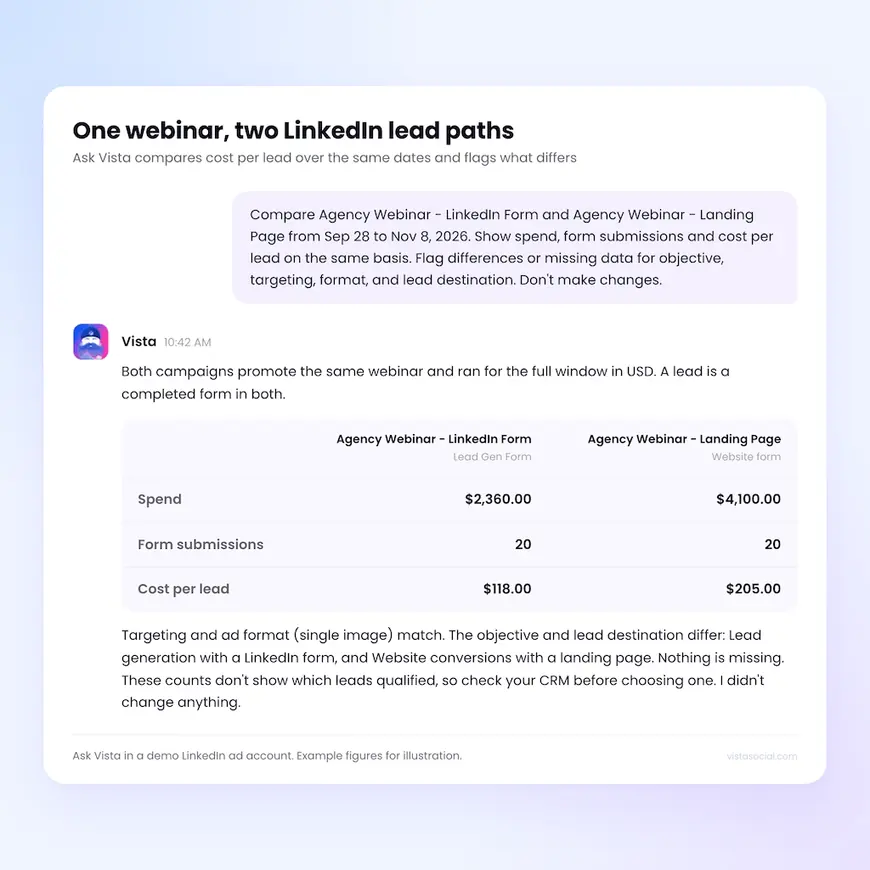
Check three things before you put the costs side by side:
- Dates and currency: Use the same reporting window and currency.
- Objective and audience: Check what each campaign was trying to achieve and who it targeted.
- Format and conversion: A LinkedIn form submission and a landing-page visit aren’t equivalent. Compare submissions with submissions, and don’t assume the form alone explains the gap.
In Metadata’s 2026 benchmark, built-in LinkedIn forms came in at $193 per lead versus $346 for landing pages. That’s a good reason to separate the two in reporting. To test whether the form itself made the difference, use LinkedIn’s A/B testing tool and isolate the variable you want to test.
Move on when: You can explain what differs besides the price of a lead.
2. Look at the weeks behind the average
Use the weeks when both campaigns were live. Look at the lead count behind each weekly CPL and flag partial weeks or targeting and bid changes. One strong week doesn’t settle it.
LinkedIn describes a two-week learning phase for its Qualified Leads Optimization goal and recommends sending at least five qualified lead events in that window to help it learn. Events must reach LinkedIn within 30 days.
Move on when: The pattern holds across comparable weeks and isn’t driven by a few submissions.
3. Compare what you paid for qualified leads
The landing page looks expensive until you check what sales got from it. In this illustrative webinar example, both campaigns generated 20 leads, but the landing page produced ten qualified leads at $410 each, versus four at $590 each for the LinkedIn form.
| Metric | LinkedIn form | Landing page |
|---|---|---|
| Ad spend | $2,360 | $4,100 |
| Form submissions | 20 | 20 |
| Cost per lead | $118 | $205 |
| Qualified leads | 4 | 10 |
| Cost per qualified lead | $590 | $410 |
Check whether pending reviews could change the call. If just two more form leads qualify and the landing-page count stays at ten, the form campaign drops to about $393 per qualified lead. That would reverse the ranking. When pending leads could swing the decision, hold and set a recheck date.
Run it on your account:
- Pull CRM outcomes for leads acquired during the spend window. Count each lead once, use the same qualification rule, and give both groups the same time to qualify.
- Match the CRM counts to LinkedIn spend by campaign ID. Check the totals and keep one row per campaign with dates, spend, qualified leads, booked meetings, and pending reviews. Leave out names and email addresses.
- Attach the checked CSV or Excel file to Ask Vista to calculate the costs. It reads the file; it doesn’t pull those outcomes from the ad account.
- If your team has connected HubSpot to Ask Vista, it can read those CRM outcomes directly within your permissions instead, so you skip the export, though you still set the qualification rule and confirm each lead is matched to the right campaign.
Choose the outcome your team actually uses. In LinkedIn’s BambooHR case study, that was cost per demo, which fell by about half.
Move on when: You can name the comparison period, the qualification rule, and whether pending reviews could change your recommendation.
4. Find out if the better campaign can spend more
Check daily spend against the budget. If the campaign rarely gets near its limit, look at status, bid, audience, and schedule first. Verify anything Ask Vista can’t see in Campaign Manager.
In one BlueDot Impact test, raising the daily budget from $32 to $320 at a fixed $1.50 bid took daily spend from $8.38 to $36.34. One test isn’t a rule, but spend changed even though the campaign wasn’t hitting its original ceiling.
Move on when: You have a reason to expect the campaign to use more budget, or you’ve decided what to investigate first.
5. Review the budget change before anyone applies it
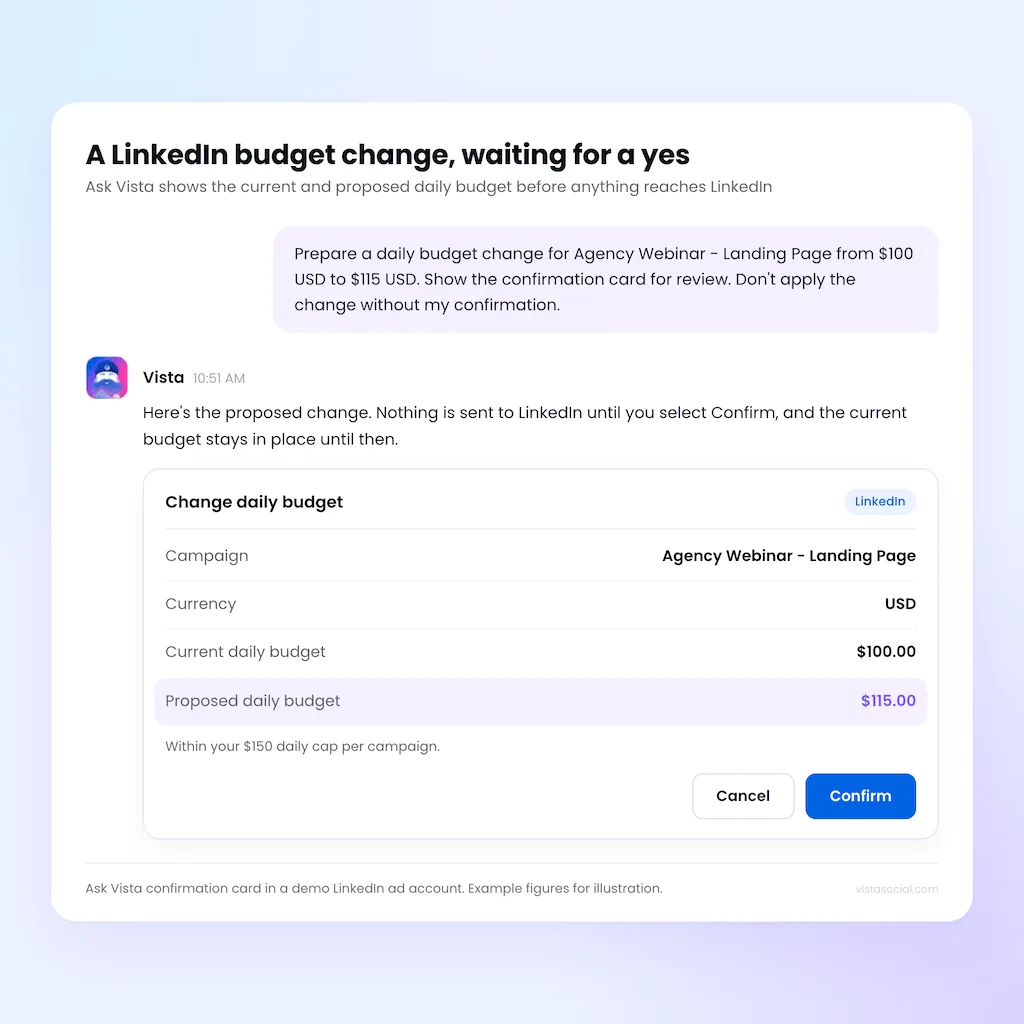
If lead quality is sufficiently settled and the stronger campaign can use more budget, test a small increase within the account’s limits. If delivery or lead quality is unclear, hold and record what would change your mind.
Review the account, campaign, and current and proposed daily amounts on the confirmation card. Ask Vista submits the change to LinkedIn only after you select Confirm. Follow your internal budget sign-off process before confirming.
If the budget or access rules block it, Ask Vista tells you why before the card appears. On Enterprise accounts with the audit log enabled, the Ads category records who made the change.
Decide who can review results and who can change spend
Profile groups determine which ad accounts a person can see. Give regional leads or finance View if they only need results. An authorized Admin or Manager can change budgets only within the access level set for that account.
| Ad account access | What an authorized editor can do |
|---|---|
| Everything | Make supported changes, including budget increases that pass the spend checks. |
| Pause and lower only | Pause campaigns or reduce budgets. No new launches or increases. |
| Read only | Review results. Make no changes from Vista Social. |
Set two types of limits before the review:
- Daily budget cap (required): Vista Social rejects a launch, boost, or budget increase above the campaign’s cap.
- Monthly spend limit (optional): Counts spend across the ad account, including spend made directly on LinkedIn. When the limit is reached, Vista Social blocks new launches, boosts, and budget increases through Vista Social. Existing campaigns keep running, and changes made directly on LinkedIn aren’t blocked.
If one specialist handles the account and sign-off in Campaign Manager, keep it there. Vista helps when more people need to see the evidence than should be able to act on it.
Finish with one budget decision you can forward
Run the five checks on one account first. Send finance and the account owner a short decision record they can read without a screen share. Use the same format for every region, even when the qualification rules or cost targets differ.
| Field | What to put in the record |
|---|---|
| Scope | Brand or region, ad account and campaign IDs, currency, and dates reviewed. |
| Evidence | Spend, qualified lead counts, cost per qualified lead, and any pending reviews that could change the recommendation. |
| Decision | Hold or increase, why, and the current and proposed daily budgets. Label the change as proposed or confirmed. |
| Ownership and follow-up | Who owns the account, who signs off, when you’ll recheck, and what result would make you keep or reverse the change. |
Preview and download the PDF after checking it against your notes. For a broader leadership view, include Paid Performance Reports separately.
What should more LinkedIn ad spend buy?
Before you raise a LinkedIn campaign’s budget, agree on what would make the increase worth keeping: more qualified prospects at a cost you’re willing to pay. If form submissions rise but qualified leads don’t, take a closer look before committing any more spend.
If there are enough leads still waiting for review to change which campaign you’d back, leave the budget where it is. Give sales time to finish and set a date to make the call.
To run the review in Ask Vista, start a 14-day Vista Social trial on a plan that includes Ads Manager.
Frequently asked questions
Is a lower cost per lead on LinkedIn always better?
No. A lower CPL tells you it cost less to capture a lead. Compare what you paid for qualified leads or booked meetings before giving the campaign more budget.
How long should a LinkedIn campaign run before you compare cost per lead?
Two comparable weeks are a useful first check. Wait longer if lead counts are low, campaign settings have changed, or sales hasn’t had time to qualify leads from both campaigns.
What is a good cost per lead on LinkedIn?
Metadata’s benchmark put the median at $202 across 138 B2B advertisers with LinkedIn lead data for 2025. Treat it as context, not a target. Your own conversion rates and sales economics determine what you can afford to pay.
Can Ask Vista change a LinkedIn budget without approval?
Not through Ask Vista. An authorized person must confirm the proposed change, and it must pass the account’s access and limit checks. Connected AI assistants use the same permissions and limits, but you review their proposed action in that conversation instead of on a Vista Social confirmation card.
Does Ask Vista know which LinkedIn leads became customers?
Not from ad results alone. Use CRM outcomes to see which campaigns brought in qualified leads or customers. If those outcomes aren’t available yet, report what you know and keep the budget recommendation provisional.
Does uploading a CRM export change how LinkedIn optimizes my ads?
No. The upload is for your review in Ask Vista. LinkedIn’s Qualified Leads Optimization uses qualified lead events sent through a separate CRM Sync or Conversions API setup.
What still needs LinkedIn Campaign Manager?
Use it for billing, policy appeals, and unsupported campaign options, as well as controlled A/B tests. If you’re promoting an individual organic post, use our LinkedIn boosting guide.
About the Author

Content Writer
Orion loves to write content that refuses to be boring. As part of Vista Social, he helps brands, creators, and agencies stop doom scrolling and start winning with social media. When he's not in front of a keyboard, he's watching films in IMAX with his wife, dissecting football tactics (the European kind), and getting lost in a good book.