


How to Connect Your Social Media Tool to Claude Desktop
September 21, 2026
8 min read

Summarize with AI

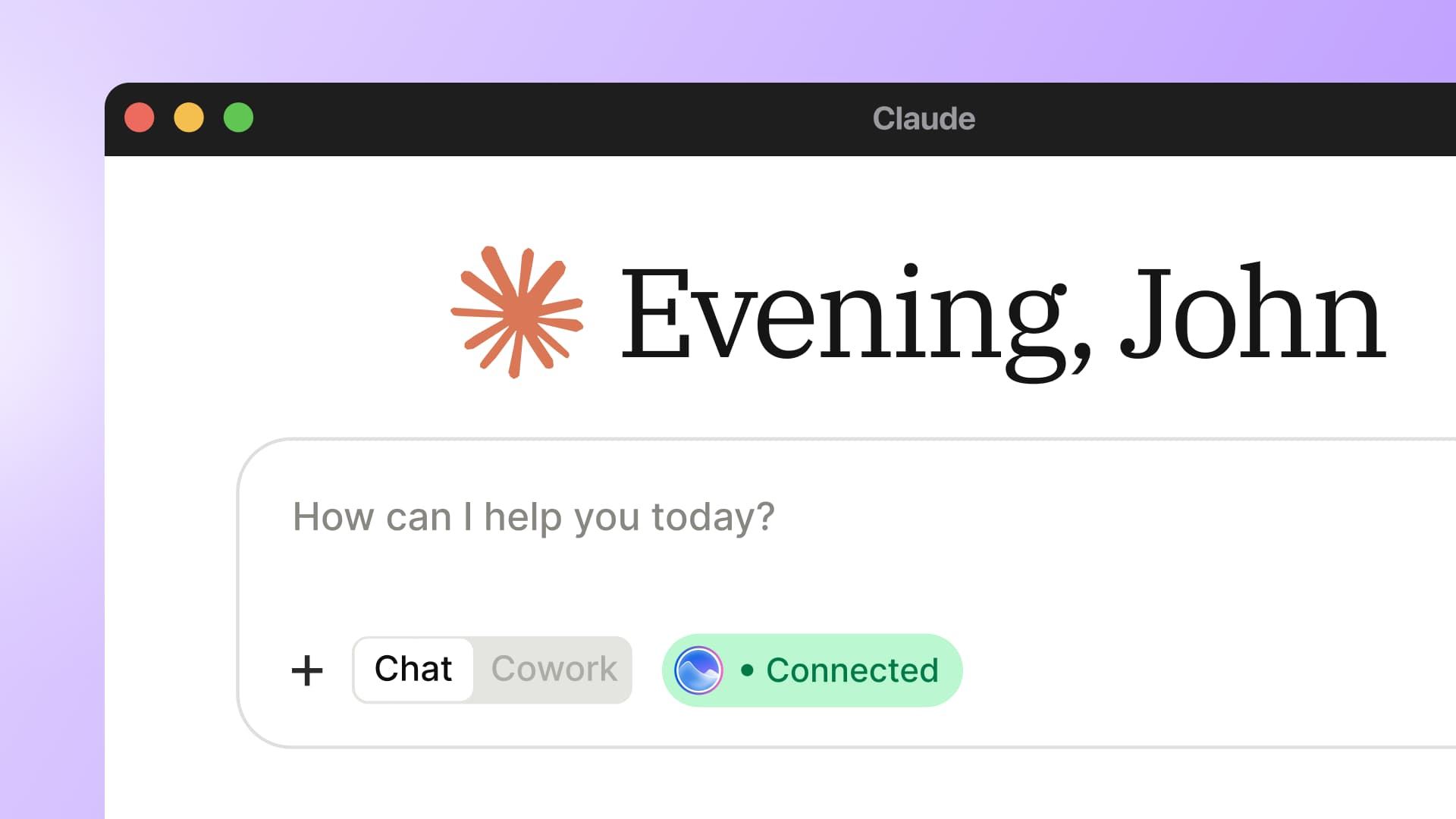
Table of contents
Share

Vista Social

X (Twitter)


You get as far as the second Claude Desktop MCP tutorial before the setup takes an unexpected turn. It asks you to find a hidden folder and open “claude_desktop_config.json.” Then you are expected to paste in JSON and run a command with software you have never installed.
You wanted Claude to answer a question about last week’s posts. Twenty minutes later, you have a terminal window open and three documentation tabs competing for your attention.
Those instructions solve a local-server setup. Vista Social’s server already runs online. As a result, your setup consists of one link, one OAuth sign-in, and one test request.
Six steps take you from the connector screen to a live account response. Claude will return only the social profiles your Vista Social role allows you to access.
Table of contents
The short version
- No local install: Claude reaches Vista Social through a hosted URL.
- Vista Social access starts on every paid plan: Free and AppSumo plans are excluded.
- Claude follows your permissions: it can reach only the profiles and actions your Vista Social role already allows.
- Access is revocable: review OAuth apps under Settings → Security and remove one at any time.
Why Claude Desktop MCP setup does not need a config file
Config-file tutorials cover local servers that run on your computer. Vista Social provides a remote server instead, so Claude can reach it over the internet.
Anthropic’s August 2026 remote connector guidance says the connection originates from Anthropic’s cloud, including in Claude Desktop. Because your computer does not host the server, there is no background process to run. The desktop config file remains relevant only for local tools.
If you want the protocol background, read our guide to what MCP is. For this task, the useful distinction is shorter:
| Connection type | Where it runs | What you configure |
| Hosted remote connector | On the provider’s internet-accessible server | A URL and an OAuth sign-in |
| Local server | On your computer | A local app, runtime, and config file |
What you need before connecting Claude Desktop
Set these up before opening the connector screen:
- A paid Vista Social plan: Vista Social’s current MCP connection guide lists Standard, Professional, Legacy Pro and Pro+, Advanced, Scale, Enterprise, and Meltwater. Free and AppSumo are excluded.
- A Claude account: Anthropic currently supports remote custom connectors from Free through Enterprise. A Free account can add one custom connector.
- The right access: Use the Vista Social login and workspace you intend Claude to reach. Your role determines what the connector can see and do.
- About five minutes: The universal link uses OAuth, so you do not need to generate an API key.
Claude Team and Enterprise require an Owner or Primary Owner to add the connector. The steps below cover both routes.
Before you begin
Use the universal OAuth link. The API-key link is for custom integrations that cannot sign in with OAuth. Because Claude supports OAuth, the universal link is the correct choice here.
Claude Desktop MCP setup in six steps
You will copy Vista Social’s universal MCP URL and add it to Claude. Then you will authorize access, enable the connector in a conversation, and run a read-only test. Complete the steps in order because adding a connector and enabling it in a chat are separate actions.
1. Confirm your plan and permissions
Sign in to the Vista Social workspace you want to connect to. Confirm that it uses a paid plan and that your role can access the profiles you expect Claude to return. On Claude Team or Enterprise, also confirm that an Owner or Primary Owner can add the connector.
2. Copy Vista Social’s universal MCP link
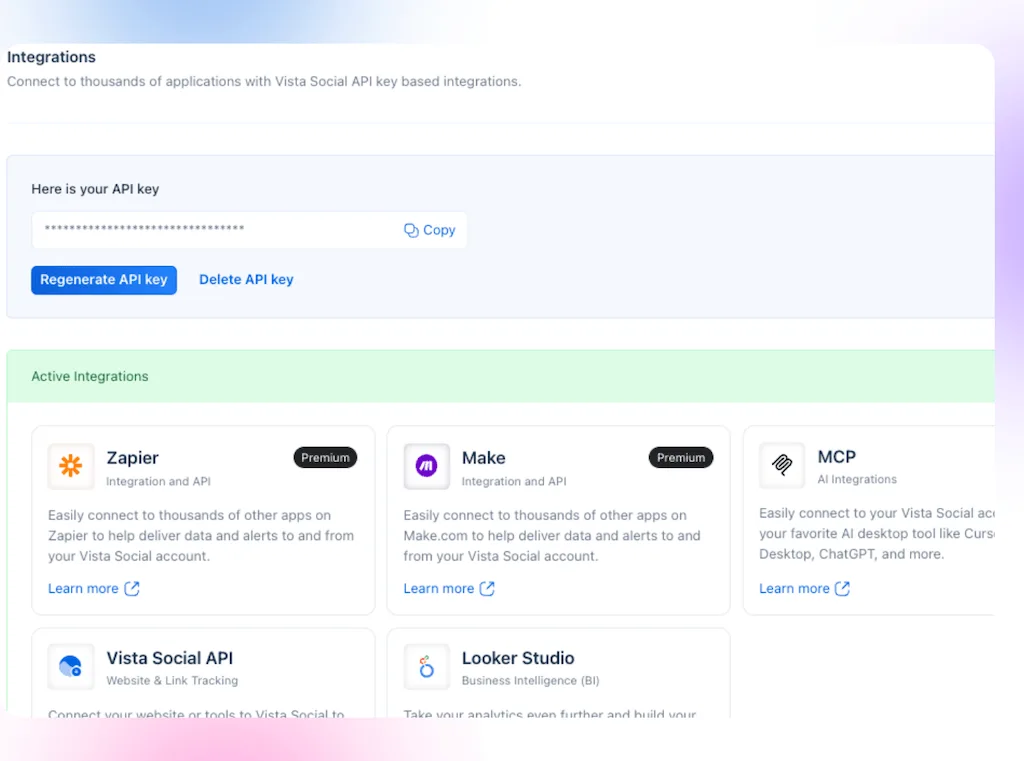
In Vista Social, open Settings → Integrations. Then find MCP, select Connect, and copy the Universal link (recommended).
The universal endpoint is:
Use the link exactly as shown because Claude will handle authentication through Vista Social. Do not add an API key.
3. Add Vista Social as a custom connector in Claude
For an individual Claude account, follow these steps:
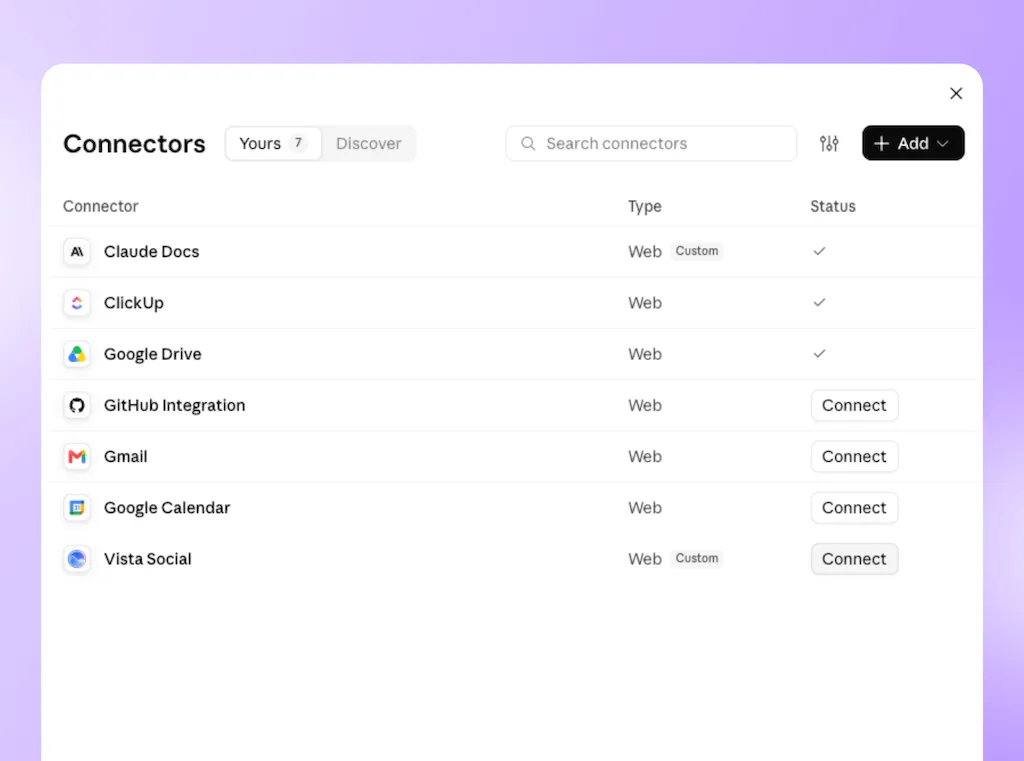
- Open Customize → Connectors.
- Select the + button, then Add custom connector.
- Enter Vista Social as the name.
- Paste the universal MCP URL into the remote server URL field.
- Leave the optional advanced OAuth client fields empty, then select Add.
For Claude Team or Enterprise, an Owner or Primary Owner uses Organization settings → Connectors → Add → Custom → Web. Each member can then find Vista Social under Customize → Connectors and select Connect.
4. Authorize Claude through Vista Social
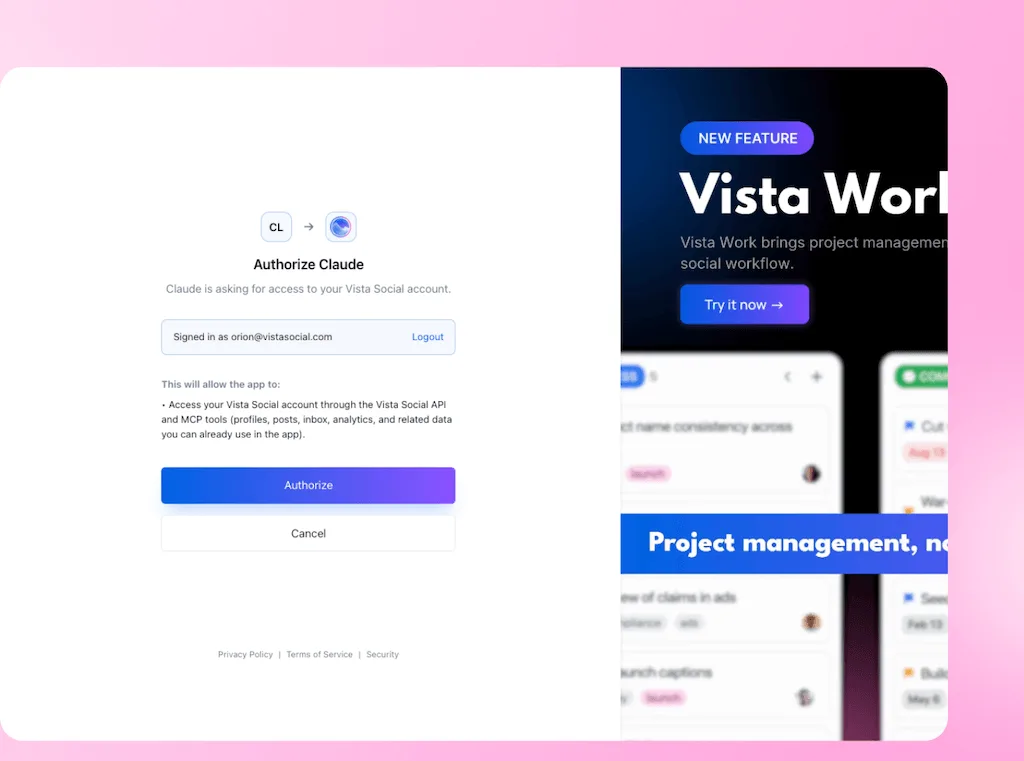
Select Connect beside Vista Social, then Claude will open a Vista Social authorization screen.
Check that you are signed in to the intended Vista Social account, review the permissions, and select Authorize. Because OAuth handles the sign-in, Claude does not receive your Vista Social password or an API key. For an agency, this check prevents a healthy connection to the wrong account.
5. Enable the connector in a Claude conversation
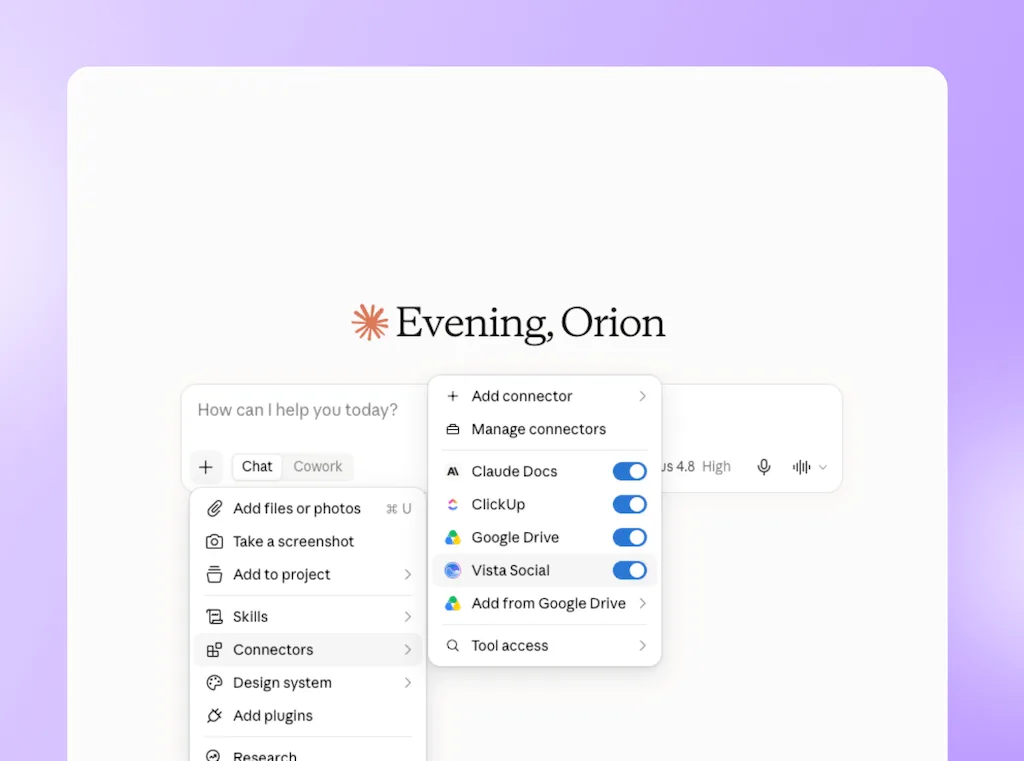
Open a new conversation. Select the + button at the lower left of the chat. Then choose Connectors and switch Vista Social on.This separate toggle is easy to miss. A configured connector remains unavailable to the chat until you enable it there.
6. Run a read-only request that proves it works
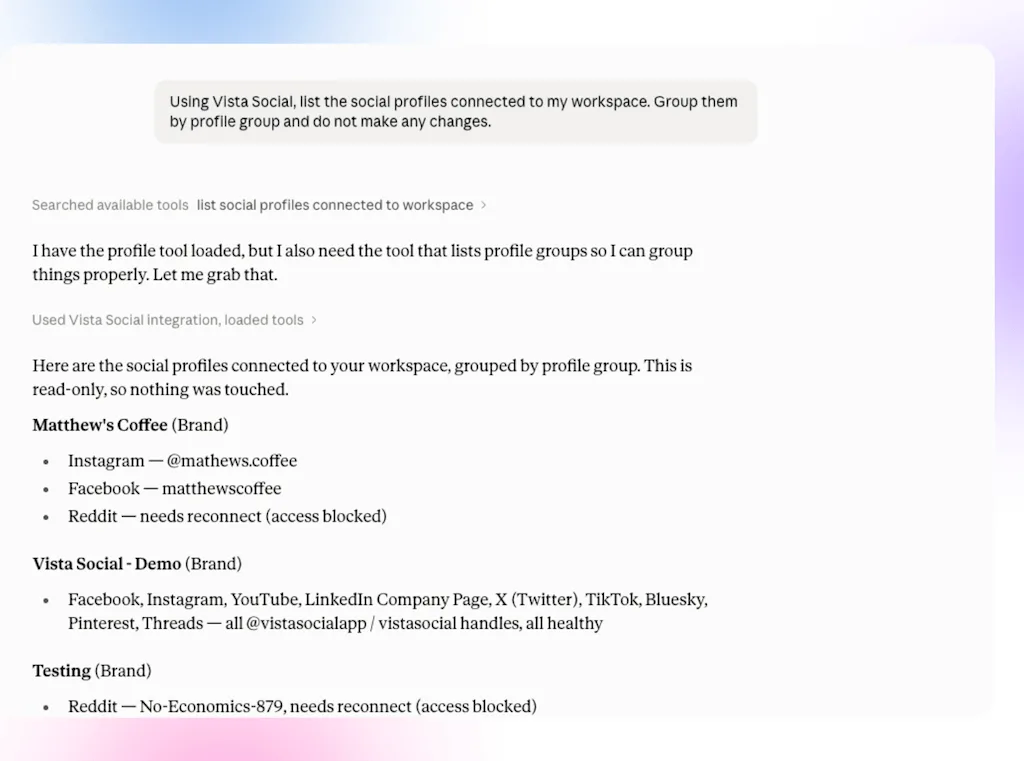
Begin with a request that reads account data without changing anything, so the first result is easy to verify:
Using Vista Social, list the social profiles connected to my workspace. Group them by profile group and do not make any changes.
This confirms that Claude can reach Vista Social, OAuth is finished, and the returned profiles match your permissions. If a profile is missing, check the role and workspace before rebuilding the connection.
Then ask one question that replaces a genuine reporting click path:
Using Vista Social, show me the posts published last week for [profile name], rank them by engagement, and summarize the two patterns worth testing again. Do not create or edit any posts.
For your first write action, ask Claude to create a draft, then review the profile, date, copy, media, and network settings inside Vista Social before publishing.
Start a Vista Social trial, connect Claude, and use the read-only prompt above before trying a draft.
When the Claude Desktop connector does not work
Check two setup gaps first: whether Vista Social is enabled for the current conversation and whether the universal link was added unchanged. These checks are quick, so complete them before removing the connector.
| What you see | Likely cause | What to do |
| Claude answers generally and never uses Vista Social | The connector is off in this conversation | Select + → Connectors and enable Vista Social, then repeat the request |
| The connector will not authenticate | The URL is incomplete, altered, or belongs to the API-key route | Remove the connector and add https://mcp.vistasocial.com/mcp again |
| Claude returns the wrong workspace | OAuth used a different Vista Social login | Disconnect, sign in to the intended Vista Social account, and authorize again |
| One client profile is missing | Your Vista Social role cannot access it, or you authorized the wrong workspace | Check the profile and profile-group permissions inside Vista Social |
| A large batch stops with a rate-limit error | The workspace exceeded the current MCP allowance | Follow the retry time in the response and reduce the batch size |
Vista Social’s dedicated rate-limit documentation currently lists a default MCP allowance of 180 requests per minute per workspace. Resource-heavy tools may have lower burst limits, while the response headers show the allowance applied to your workspace. Split unusually large batches and follow the “Retry-After” value after a 429 error.
If the steps still fail, remove the custom connector in Claude and add it again with the universal URL. Otherwise, an outdated URL remains attached because Anthropic does not currently offer in-place editing.
What Claude can do after the connection works
Because Claude inherits your Vista Social access, it can work across publishing, analytics, inbox management, tasks, profiles, teams, Vista Pages, and supporting utilities covered by your role.
Start with work that has a clear output and an easy review point. For example:
- Triage the inbox: Ask for today’s conversations grouped by urgency, so complaints appear first.
- Use performance data: Ask for the best posting windows on chosen profiles, then request a proposed schedule for review.
- Inspect recent output: Rank last week’s posts by engagement, then ask which formats deserve another test.
- Check a draft: Ask Claude to flag network limits, missing media, or formatting problems before the post enters approval.
Vista Social remains the system where your team reviews calendars, approvals, and final publishing details, while Claude becomes a second interface for the same live workspace.
How to review or revoke Claude’s access
Open Vista Social Settings → Security to see apps that hold OAuth access to your account. Claude appears there after authorization.
You can revoke Claude individually or revoke every connected app at once. Removing it in Claude controls its availability there, while revoking it in Vista Social ends its OAuth access.
Vista Social sends the data requested through the connector, while Claude’s handling or retention of that data follows Anthropic’s plan and privacy terms. Use the official URL, keep workspace roles current, and review write actions before approval.
The other direction: Ask Vista Connectors
This guide connects Claude to Vista Social, while Ask Vista Connectors handles the reverse direction. They bring context from Slack, Notion, ClickUp, Linear, HubSpot, or a custom MCP server into Vista Social’s own assistant.
Use Claude’s connector when you want to work from Claude, but use Ask Vista Connectors when you want the social workflow to stay inside Vista Social. Our September 2026 Ask Vista MCP Connectors announcement covers that workflow.
Start with one result you can verify
Once Claude returns the correct profile list, the setup work is finished. Keep the first recurring workflow read-only, compare the answer with Vista Social, and then widen the task after the result checks out.
That small verification matters more than an ambitious first prompt because it confirms the right account, permissions, and data before Claude creates or changes anything.
Ready to try it? Open Claude, connect Vista Social, and run your first read-only request. If you do not have a Vista Social account yet, start your free trial and connect your social workflow in minutes.
Frequently asked questions
Do I need to install anything to connect Claude Desktop to Vista Social?
No. Claude connects to Vista Social’s hosted server through a URL, while local installation instructions apply to software hosted on your computer.
Where do I find the Vista Social connection link?
Open Settings → Integrations, find MCP, and select Connect. Copy the universal link.
Which plans support the connection?
Vista Social MCP is available with any paid subscription, while Free and AppSumo accounts are excluded. Claude includes the feature across all current account tiers, but Free is limited to one custom connector.
Why is Claude ignoring the connector?
Open + → Connectors and confirm that Vista Social is switched on in this chat. Repeat the request. If authentication still fails, remove the connector and add the universal URL again.
Can Claude see every client account in the workspace?
Claude follows the Vista Social permissions of the user who authorized the connection. A profile that user cannot access in Vista Social will not appear through the connector.
How do I turn the connection off?
Open Vista Social Settings → Security and revoke Claude under Connected Apps. You can also remove the custom connector from Claude under Customize → Connectors.
Is there a request limit?
Vista Social’s dedicated rate-limit page currently documents a default workspace bucket of 180 calls each minute. Some resource-heavy tools have lower short-term limits. The response headers remain the source of truth, while a 429 response tells the client when to retry.
About the Author

Content Writer
Orion loves to write content that refuses to be boring. As part of Vista Social, he helps brands, creators, and agencies stop doom scrolling and start winning with social media. When he's not in front of a keyboard, he's watching films in IMAX with his wife, dissecting football tactics (the European kind), and getting lost in a good book.