


Your First Week in a New Social Media Management Tool: What to Set Up, in Order
September 23, 2026
11 min read

Summarize with AI

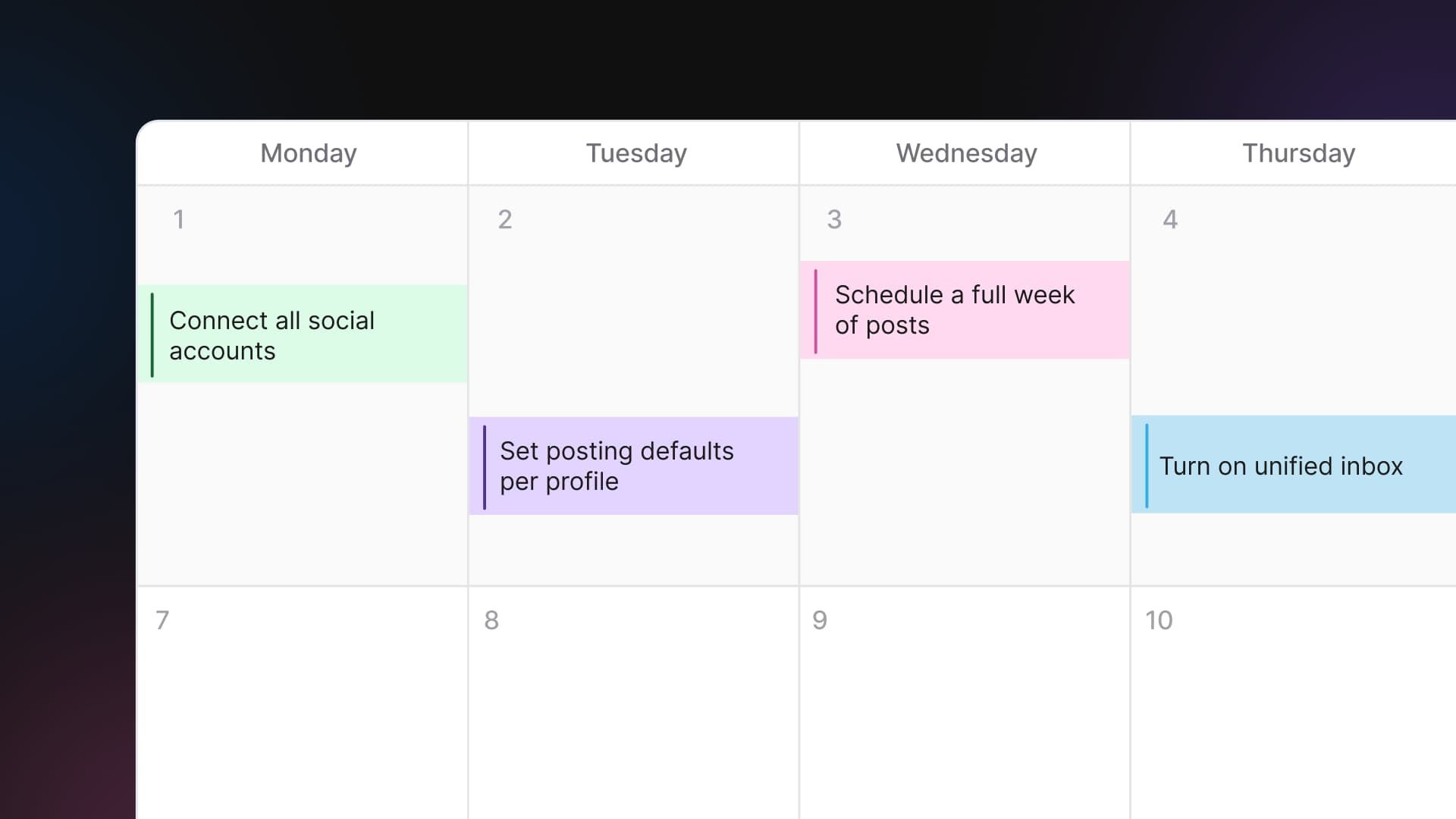
Table of contents
Share

Vista Social

X (Twitter)


The easiest way to waste the first week in a new social media management tool is to explore it.
A tour of the analytics, integrations, and settings may feel productive, but it leaves the existing workflow untouched. The real test is simpler: did a real post publish without anyone opening a native app?
This guide works backward from that result. By Friday, the platform should be carrying part of the job for you, with next week’s content scheduled, incoming engagement in one place, and a report saved for reuse.
The short version
- Connect every profile on day one and confirm that each connection is healthy.
- Save recurring settings on day two, including the publishing times you would otherwise choose repeatedly.
- Schedule real content on day three: one post within 24 hours, followed by the rest of next week.
- Consolidate engagement on day four by choosing one inbox view and one daily check time.
- Build a reusable report on day five and save it as the baseline for the next reporting period.
Table of contents
Why does the order matter more than the setup itself?
Setup order decides how quickly a new platform begins carrying real work. Analytics and integrations can wait until the accounts, defaults, and calendar are functional.
HubSpot’s survey of more than 1,500 marketers found that 73.1% saw their workloads increase over the previous year, including 25.7% whose workloads increased significantly. A useful first week should retire repeated work, not create an onboarding project beside it.
Small setup omissions also create repeated context switches. In a 2023 American Psychological Association interview, attention researcher Gloria Mark said logged screen attention averaged 47 seconds, with a 40-second median. Faster switching correlated with higher stress.
Retyping a first comment or reopening a network to check a DM may look trivial. Repeated across ten profiles, those actions consume the time the platform was supposed to return.
The order follows the work itself:
- Connect accounts so the tool can act.
- Set defaults so each action takes less effort.
- Schedule a real week so the tool takes work off your plate.
- Consolidate engagement once replies begin arriving.
- Save a report after there is something useful to measure.
Content operations analyst Cathy McKnight defines the scope of this work clearly:
“the big-picture view of everything content-related within your organization, from strategy to creation, governance to effectiveness measurement, and ideation to content management.”
Cathy McKnight, Content Marketing Institute
A social media management tool touches nearly every part of that system. Week one gives the technology a defined role through connected accounts, saved defaults, a populated calendar, one inbox, and a reusable report.
Vista Social’s published Social Hackettes customer story shows the same approach at the agency scale. The agency said it onboarded all clients within days and reported 200% faster onboarding plus an estimated 100 hours saved each week.
Those figures are self-reported. The practical lesson is how the work changed: scheduling, formatting, and reporting stopped being rebuilt by hand.
Each day below ends with a visible condition, so you know when the setup is complete.
Day one: connect every account you manage
Done when every profile you are responsible for appears in the tool with a healthy connection status. Include the quiet accounts you only use for occasional campaigns. Leaving one out guarantees a return to native posting later.
Group profiles by client, brand, or business unit. Four clients should produce four clean groups, not one long account list.
Before connecting anything, collect:
- The correct login or an available account owner
- Admin access to the profiles or pages you need
- Two-factor authentication access
- The profile group or client each account belongs to
- The preferred time zone for publishing and reporting
Some networks require a business, creator, or page connection for direct publishing and analytics. Requirements differ, so check the current connection guide. Meta connections may begin with a personal Facebook login because it grants access to the pages and Instagram business profiles that person administers.
Grant the required permissions unless your security team has reviewed a narrower setup. Removing one can leave the profile connected while publishing or reporting fails later.
A connected account has authorized the tool to act on its behalf. That authorization can expire after a password change, security event, token expiry, or revoked permission.
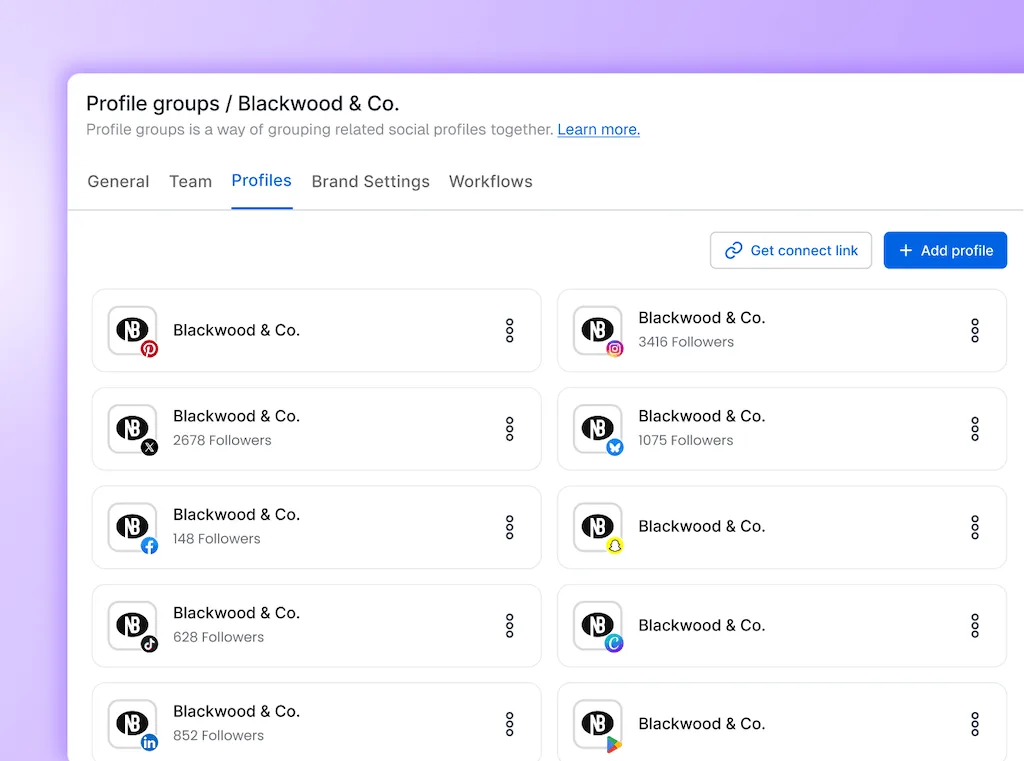
Find the connection-status screen before moving on. In Vista Social, disconnected profiles show an error under Settings → Connected Profiles, and the same area is used to reauthorize them. The initial setup guide covers the current click path.
What should move from your old tool?
Take the assets and records you may realistically need again:
| Bring with you | Leave behind unless a contract requires it |
| Media library and approved brand assets | Years of expired campaign drafts |
| Saved captions, response templates, and hashtag sets | Old approval conversations |
| Recent client-facing reports and exported raw data | Analytics views the new tool cannot import |
| Future scheduled posts, after checking for duplicates | Every post ever published “just in case” |
Export anything a client may ask you to reproduce. Platform-side data may backfill after connection, but the range varies by network and tool. Vista Social offers guided migration support for teams planning a move.
During a live campaign migration, move day three ahead of day two. Secure the essential posts, then tidy the defaults.
Set a cutoff date for the old tool and confirm when its billing ends. Two active calendars invite duplicate posts, missed edits, and a migration that never finishes.
Day two: set defaults before you create more posts
Done when a new post opens with the recurring profile-level choices already filled, and the regular publishing slots already exist.
Saved defaults remove decisions from every future post. The settings look small until you multiply them by every profile, post, and month.
Posting defaults are profile-level settings that a tool applies when you create a post. Publishing queues are recurring day-and-time slots that posts can fill. Keep the two concepts separate because one controls how a post behaves and the other controls when it goes out.
Set only the defaults you use consistently:
| Set once | Manual work it removes | What to check |
| Time zone | Converting client times by hand | Use the audience or business location, not your laptop location |
| Publishing queue | Choosing the same day and time repeatedly | Add only the cadence you can sustain |
| First comment | Pasting a recurring disclosure, link, or hashtag set | Confirm the network supports first comments |
| Auto-publish preference | Switching between automatic and reminder-based publishing | Some post types still require a mobile reminder |
| Location or link handling | Re-entering the same destination | Keep campaign links out of permanent defaults |
| Comments or partnership options | Rechecking a recurring profile rule | Use per-post overrides for exceptions |
Keep temporary campaign choices out of permanent defaults. Launch hashtags and short-lived boost settings belong on the relevant posts only.
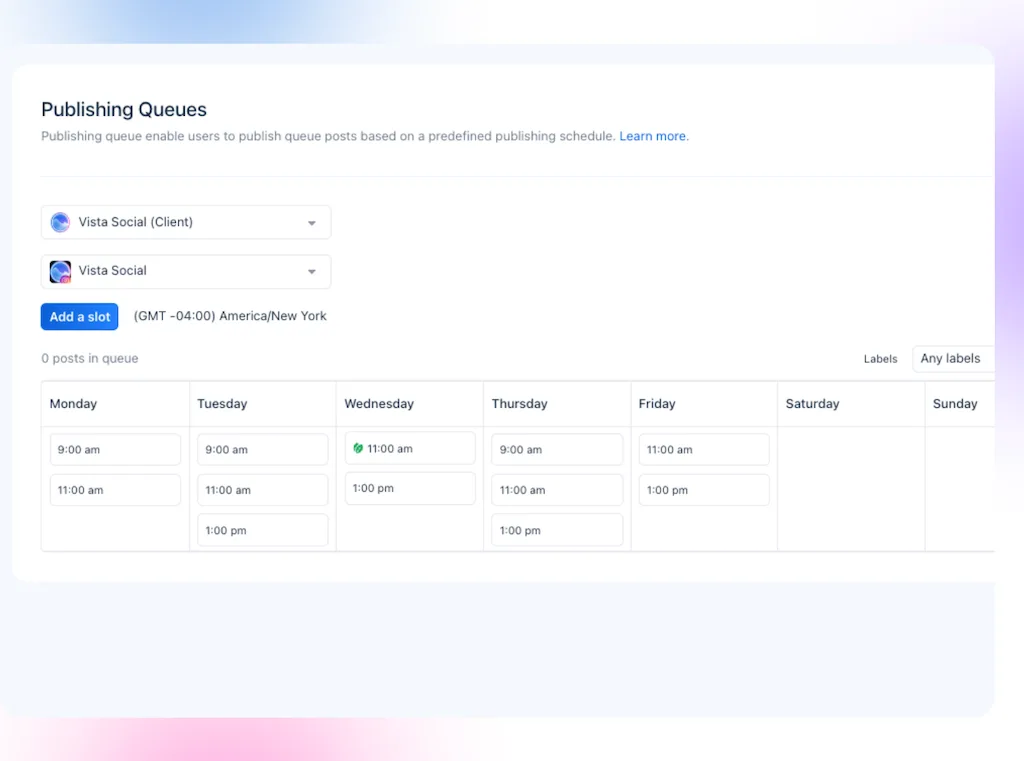
In Vista Social, posting defaults can be configured per profile and overridden without changing the saved setting. A saved first comment can also be copied to profiles on the same network. Recurring times live separately under Publishing Queues, where you can add labeled slots for different content types.
Open a new post for each important profile. If you still have to repeat a choice that will be true next month, return to settings and save it.
Day three: schedule one real post for tomorrow and the rest of the week
Done when one real post is scheduled within the next 24 hours and five to seven more are visible across next week’s calendar. The first post creates the proof before Friday. The rest of the calendar changes the following week.
Use content you already have. This is not the week to rebuild the strategy or create a perfect campaign.
If the folder is empty, make a workable week from:
- Three proven posts adapted from your archive
- One answer to a frequent customer question
- One current photo from the business, team, or process
- One timely update, event, offer, or behind-the-scenes note
Customize posts where caption length, mentions, media, links, or first-comment behavior differs. Review the full week before scheduling it.
That calendar review catches problems daily native posting hides: two promotional posts next to each other, three identical opening lines, a dead day before a launch, or the same visual repeated across every profile.
Use this five-minute review:
- Check that every post belongs to the correct client and profile.
- Preview the media and caption for each network.
- Confirm dates, time zones, links, and offer deadlines.
- Look for accidental repetition across the full week.
- Schedule, then verify that every post has a scheduled status.
If the content already lives in a spreadsheet, use bulk publishing rather than rebuilding it post by post. Start with a small batch, inspect the preview, and correct any date or media errors before uploading the rest.
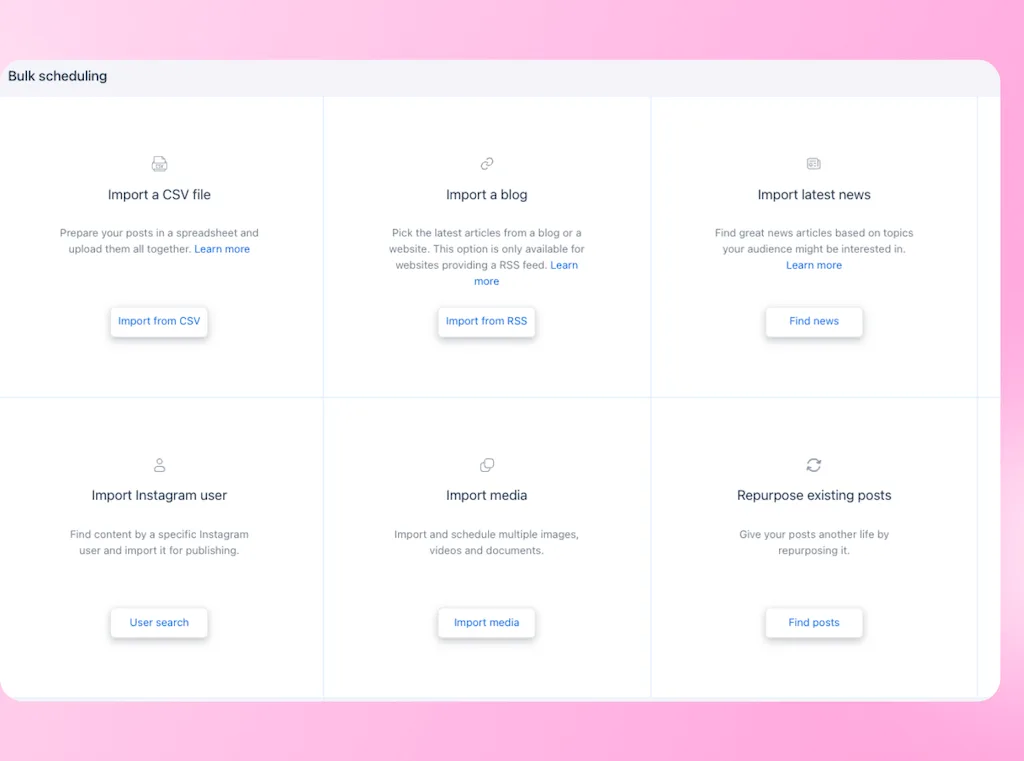
Vista Social’s scheduling guide shows the composer and network-specific controls. You can also see how publishing and scheduling works before building the batch.
Day four: give engagement one home
Done when you have chosen one inbox view and one daily time to check it. Connecting the feed is only half of the job. A unified inbox you never open recreates the same missed-reply problem in a nicer interface.
Choose the profiles and engagement types you need to monitor. Then set a fifteen-minute block at a realistic time, such as 10 a.m. after the first publishing checks or 3 p.m. before client updates.
Third-party inbox coverage varies because each network exposes different data. Comments are widely available, while messages, mentions, reviews, live comments, and shares differ by network.
Some feeds update in real time, and others refresh on a schedule. Check the current support matrix and keep a short native-app check for anything the tool cannot receive.
A useful inbox routine has four actions:
- Reply when the answer is clear and approved.
- Assign or flag messages that need another person.
- Label themes that may become content or FAQs.
- Mark the conversation complete so the queue stays usable.
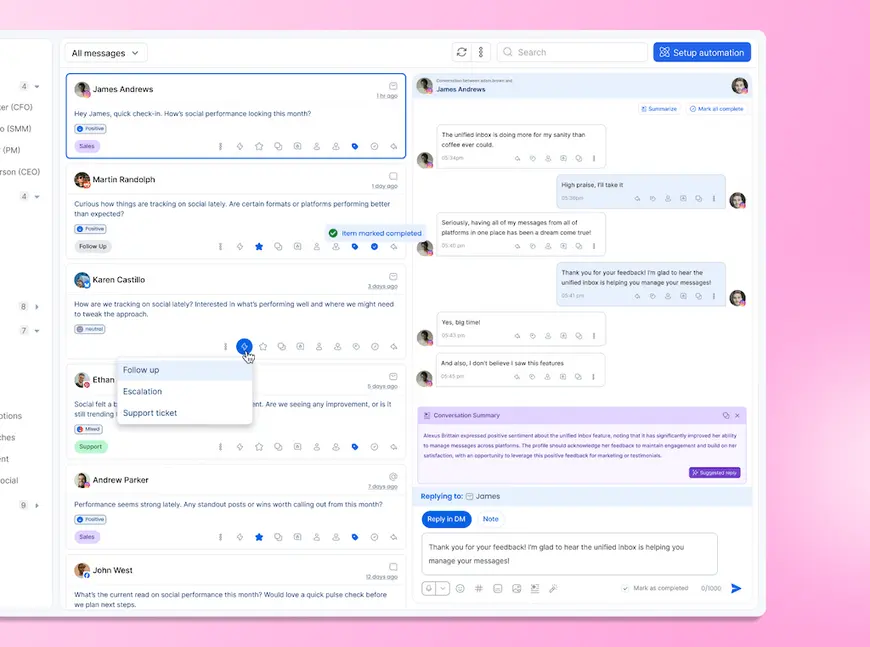
The Vista Social unified inbox guide covers filters, replies, notes, and organization. Current support documentation lists network-by-network coverage.
Day five: save one report you could send today
Done when one useful report has a clear audience, a saved setup, and a delivery format you have checked. Build it for the client or stakeholder most likely to ask at the worst possible moment.
This first report is a baseline, not a verdict on the posts you scheduled yesterday. Use whatever historical data the networks backfill, confirm the available date range, and save the structure so the next reporting period becomes a rerun rather than a rebuild.
Choose the decision before choosing the metrics:
| Audience | Useful first report | Decision it supports |
| Client or owner | Profile and post performance | What worked and what should change next month? |
| Community lead | Inbox performance | Where are response volume and delays building? |
| Campaign owner | Labeled campaign or post report | Did this campaign reach and engage the intended audience? |
Run the report once. Check the date range, profile selection, time zone, branding, links, and any AI-written summary. If it is accurate and useful, save the template or schedule rather than rebuilding it next month.
Skip the unrequested executive dashboard. One sendable report gives you a baseline. Custom sections and deeper campaign reporting can follow a real stakeholder request.
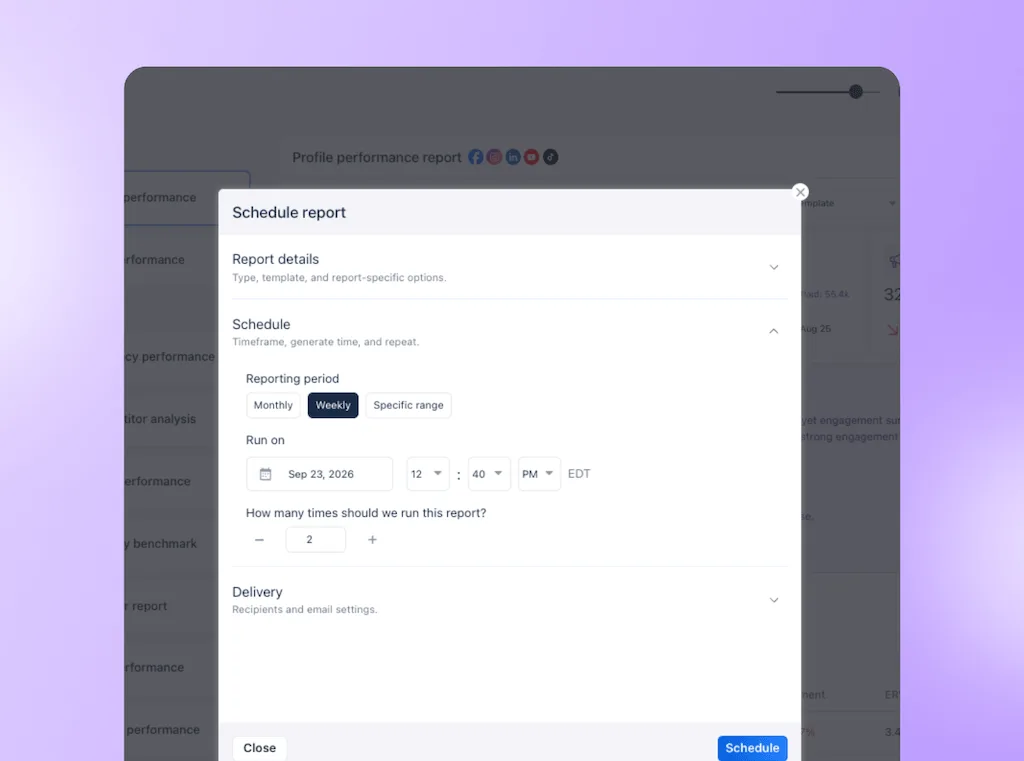
Vista Social can schedule standard reports on Professional and above, while its custom report builder starts on Advanced. The reporting and analytics guide covers the basic reporting flow.
What should wait until week three?
Leave advanced features closed until the first two weeks show you which problem needs solving.
| Leave this closed | Open it when |
| Approval workflows | A client contract requires approval from day one, or two people regularly review posts before publishing |
| Automation rules and agents | You can name a recurring trigger, action, exception, and reviewer from work you have already observed |
| Social listening | You have a clear research question, keyword set, campaign, competitor category, or issue to monitor |
| App integrations | A specific handoff between tools keeps slowing or breaking the work |
| Detailed team roles | Another person needs limited access to a client, inbox, report, or approval step |
Move approvals into week one when a client contract requires them. During a mid-campaign migration, protect the live publishing schedule before tidying defaults. This sequence is opinionated, not universal.
Use an account-aware assistant after profiles, brand context, permissions, and review rules are ready. At that point, it can draft posts, examine performance, or build reports from information you have checked.
Finish week one with a working system
A social media tool becomes useful before every feature is configured. Connect every profile, save the decisions you repeat, schedule a real week, route engagement into one inbox, and save a report. Completing those five jobs means the platform is already carrying part of the operation.
During week two, notice what still sends you back to native apps, spreadsheets, or manual handoffs. Those points of friction will tell you whether approvals, automation, listening, integrations, or deeper reporting should come next.
If you want to test the sequence in Vista Social, start a free 14-day trial and use the checklist above as your evaluation criteria: one live schedule, one working inbox, and one reusable report by Friday. No credit card is required.
Frequently asked questions
What should you set up first in a new social media tool?
Connect every account and place it in the correct client or brand group. Connections unlock publishing, inbox activity, and reporting and may require an account owner or a two-factor code.
How long does it take to set up a social media management tool?
Budget two to three focused hours across the week. Treat that as a planning estimate because profile count, permissions, content readiness, and reporting needs change the total. Record your own time for the next migration.
Should you schedule a test post or a real week first?
Schedule a real, low-risk post within the next 24 hours, then fill the following week with five to seven more. The first post confirms that publishing works. The rest of the work will be done next week.
What can wait until after week one?
Approvals, automation rules, social listening, app integrations, and detailed team roles can usually wait. Move one forward only when a contract requires it or a real recurring problem already exists.
What should you move from your old social media tool?
Bring your media library, reusable captions and templates, recent client reports, and future scheduled posts. Export any records a contract requires. Leave expired drafts and historical clutter unless you have a named business reason to retain them.
Why do scheduled posts fail after a connection worked?
Social-network authorizations can expire or become invalid after password changes, security events, permission changes, or token expiry. Check the tool’s connection-status screen and reauthorize the affected profile without deleting it first.
When is a social media management tool unnecessary?
If you publish twice a month to one account, native posting may be simpler. This setup earns its keep when several profiles, recurring settings, inboxes, or client reports make repeated manual work the larger cost.
About the Author

Content Writer
Orion loves to write content that refuses to be boring. As part of Vista Social, he helps brands, creators, and agencies stop doom scrolling and start winning with social media. When he's not in front of a keyboard, he's watching films in IMAX with his wife, dissecting football tactics (the European kind), and getting lost in a good book.