


Ask Vista in Microsoft Teams: The AI Agent for Social Media Teams
November 27, 2026
7 min read

Summarize with AI

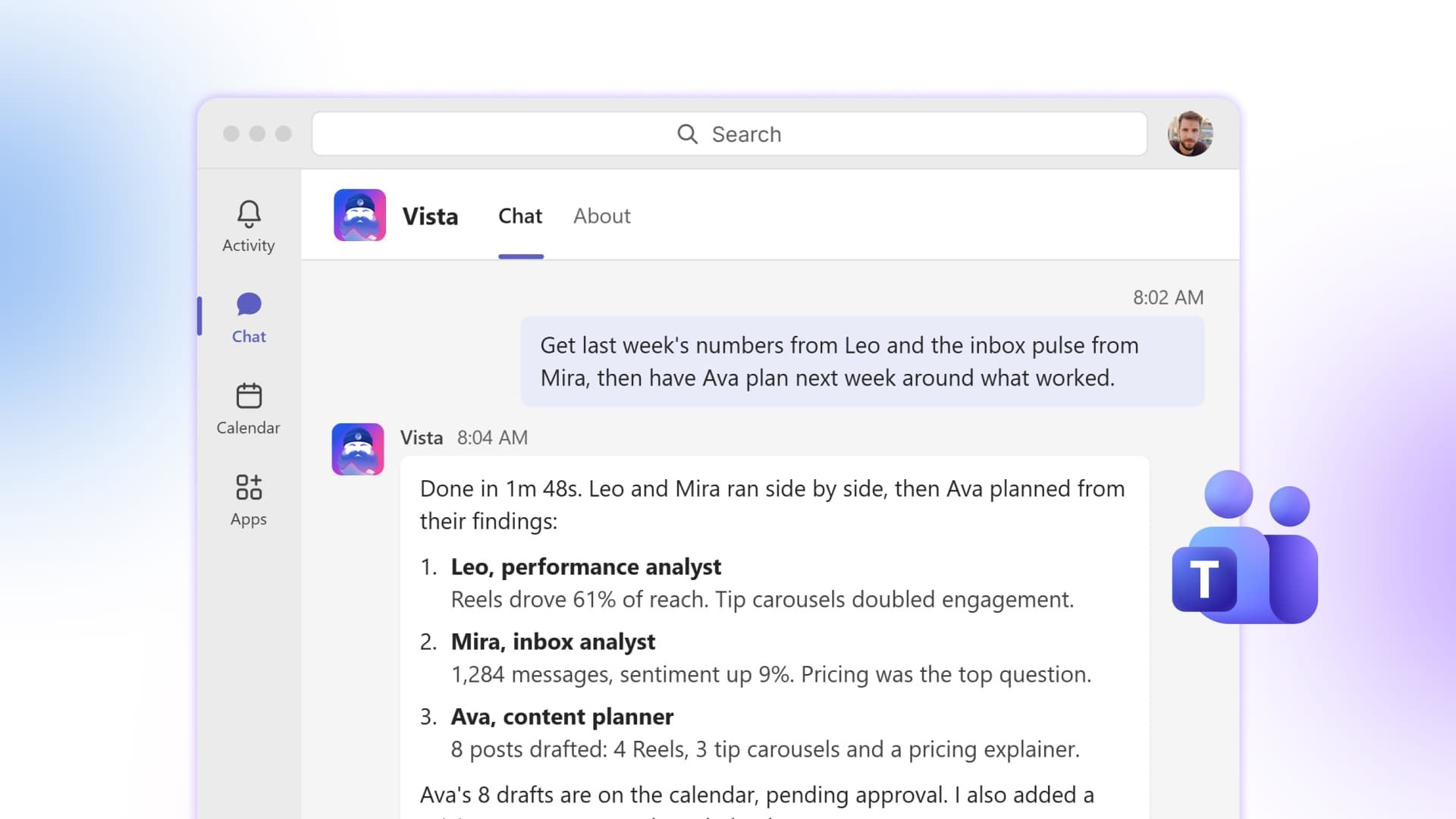
Table of contents
Share

Vista Social

X (Twitter)


A decision in Teams can set off work in several places: update the calendar, pause a campaign, prepare content for every location, or give a customer issue an owner.
Ask Vista brings those jobs into the discussion. Mention @Vista with what you need done, including any exceptions or deadlines, and it can work across the Vista Social tools and connected information available to the request.
You can ask for the whole outcome, not just the next lookup. Your team still controls access, reviews the proposed work, and makes the final call.
Microsoft Teams access is included on Vista Social Advanced, Scale, and Enterprise plans. Answers use your account’s AI credits.
Connect it from Settings → Integrations using a Microsoft work or school account. Setup requires a Vista Social account Admin or Manager, and your Microsoft 365 administrator may need to allow the app.
Table of contents
Why does Ask Vista belong in Teams?
Your colleagues already use Teams to share decisions. Ask Vista helps turn those decisions into work in the social system behind them, without asking someone to rebuild the assignment elsewhere.
- When plans change: Coordinate changes across upcoming posts and connected campaigns.
- When work spans locations: Use shared details to prepare local content and route follow-ups.
- When the team agrees: Carry the decision from the thread into the next action.
That gives the people in the discussion a way to move the work forward, not simply request another update.
What makes it different from a general Teams assistant?
Ask Vista is the AI assistant inside Vista Social, connected to the social work your user can access. The Teams integration brings that same assistant into your team’s conversations.
It can work from:
- Your account: social profiles, performance data, scheduled posts, and approval statuses.
- Your brand: the knowledge and instructions assigned to the channel.
- Your discussion: the brief and replies in the thread where you mention it.
- Connected sources: information from services connected for the request, with shared channel connections using their owner’s access.
If your company uses Microsoft Copilot, Ask Vista can sit alongside it. Copilot’s context depends on your Microsoft setup and connected sources; Ask Vista provides a direct route to your Vista Social data and supported social actions.
What can Ask Vista do in Teams?
Describe the outcome you need, including the exceptions, owners, and deadlines. These five examples show how a Teams request can span publishing, ads, connected business data, customer follow-up, and team access. They’re starting points, not a fixed menu.
The images below are illustrative conversations, not screenshots of completed live Teams sessions. Available actions depend on your permissions, connected accounts, and enabled features. Select an image to open it at full size.
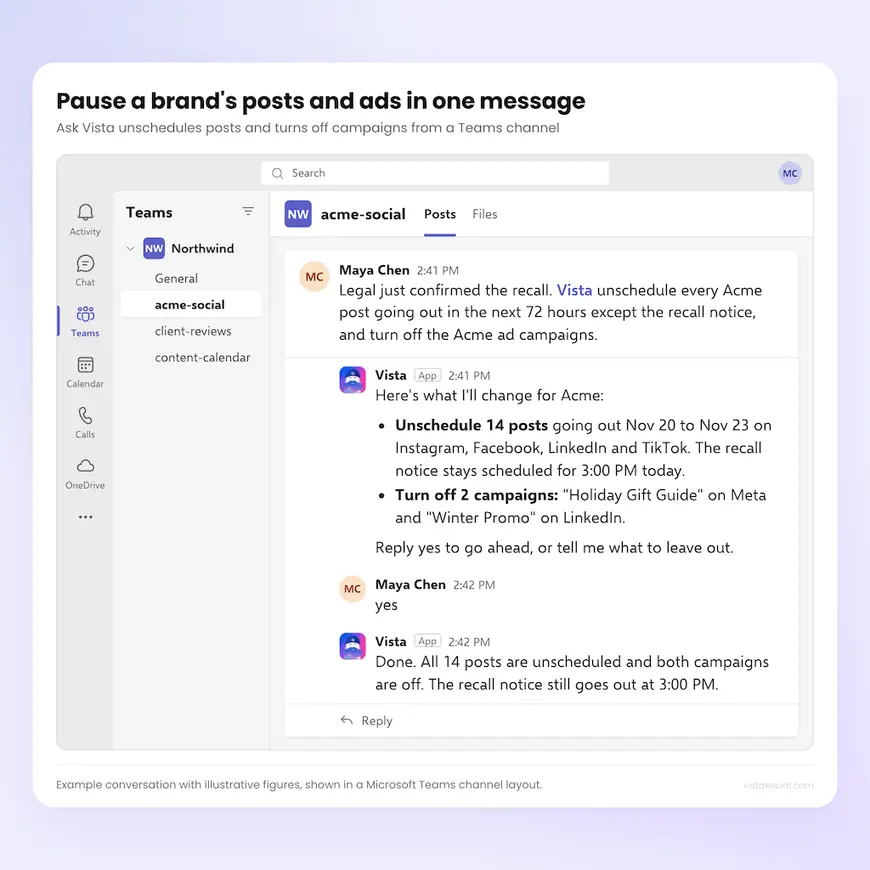
Pause a brand’s posts and ads
When plans change, the instruction often affects more than the calendar. Ask Vista can help hold upcoming posts and turn off connected ad campaigns while preserving the content you still need to publish.
- Set the scope: name the brand, time window, and the post that must stay scheduled.
- Check the changes: review the matched posts and campaigns before confirming. Check the completion results for anything skipped or unsuccessful.
Create posts for every store opening
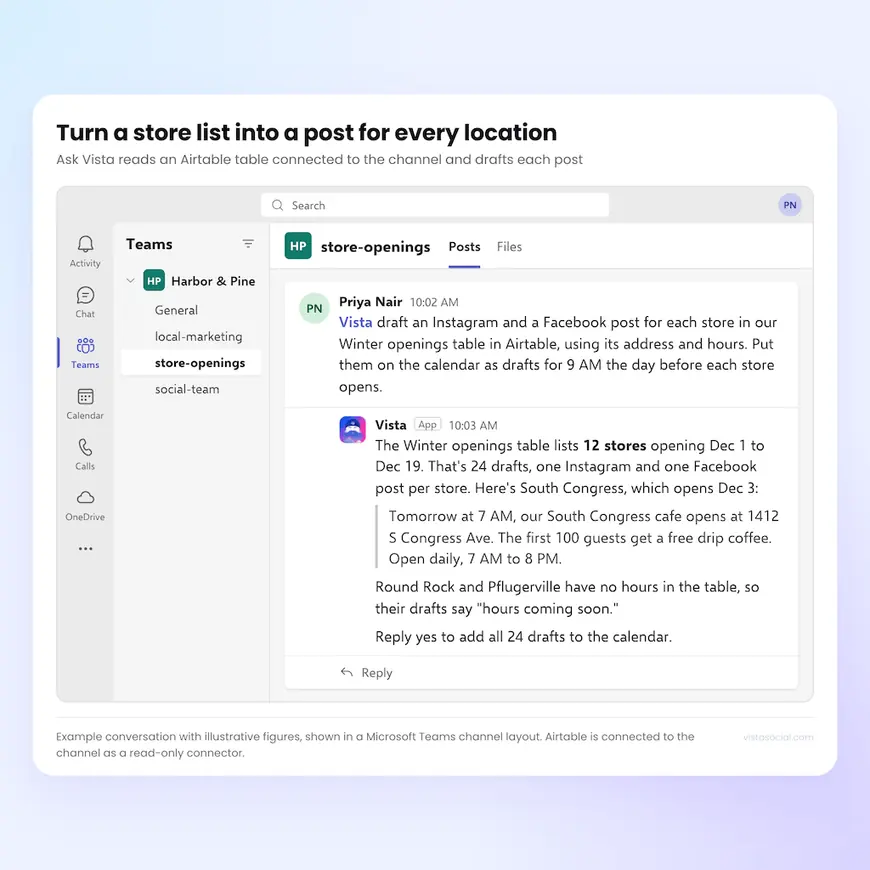
A store-opening list can become the brief for a local content rollout. With Airtable connected to the channel, Ask Vista can use each store’s details to prepare location-specific drafts in Vista Social.
- Connect the source: this example needs an Airtable connector shared with the Teams channel. Shared source reads use the connection owner’s access.
- Keep the review: check the store-to-profile matches, addresses, hours, and time zones. The posts remain drafts until the publishing workflow is completed.
Route weekend reviews to the right people
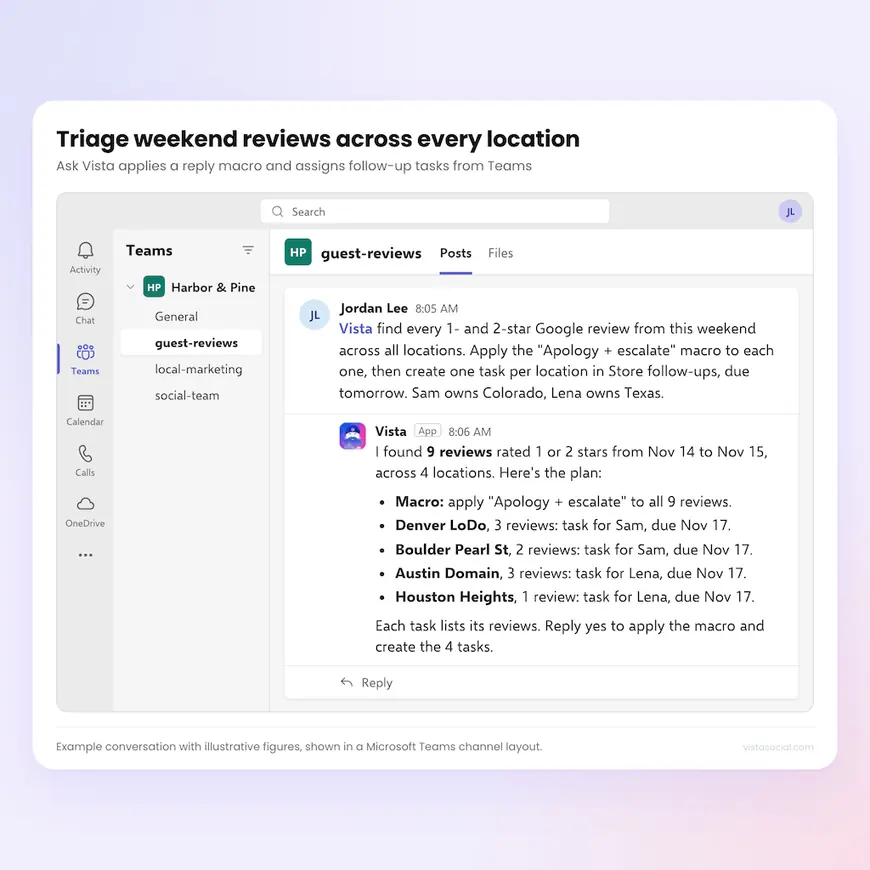
Bring the low-rated reviews into view, apply a saved workflow, and give each location a follow-up owner. You can include the routing rules and deadline in the same request.
- Use your saved process: the macro must already exist. Its configured actions, not its name, determine what happens to each review.
- Make follow-up clear: create the tasks in Vista Work with the relevant location, owner, and due date. People still own the investigation and customer response.
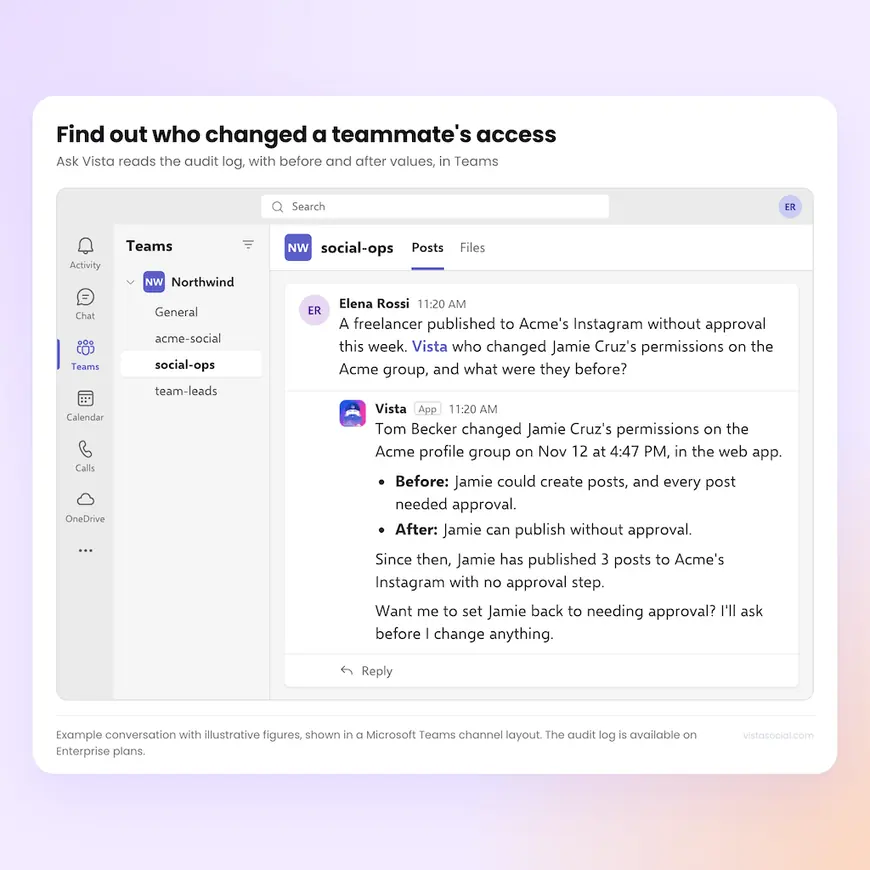
Find out who changed someone’s access
When an approval permission changes, ask for the recorded history instead of trying to reconstruct it from messages. Ask Vista can read the audit log and show the before-and-after permission values where they were captured.
- Check availability: the audit log is an Enterprise feature that must be enabled. Account owners and managers can read it; there’s no history from before recording began.
- Act separately: an authorized user can follow up with “@Vista set Jamie back to needing approval on the Acme group.” Check the current permissions and intended change first.
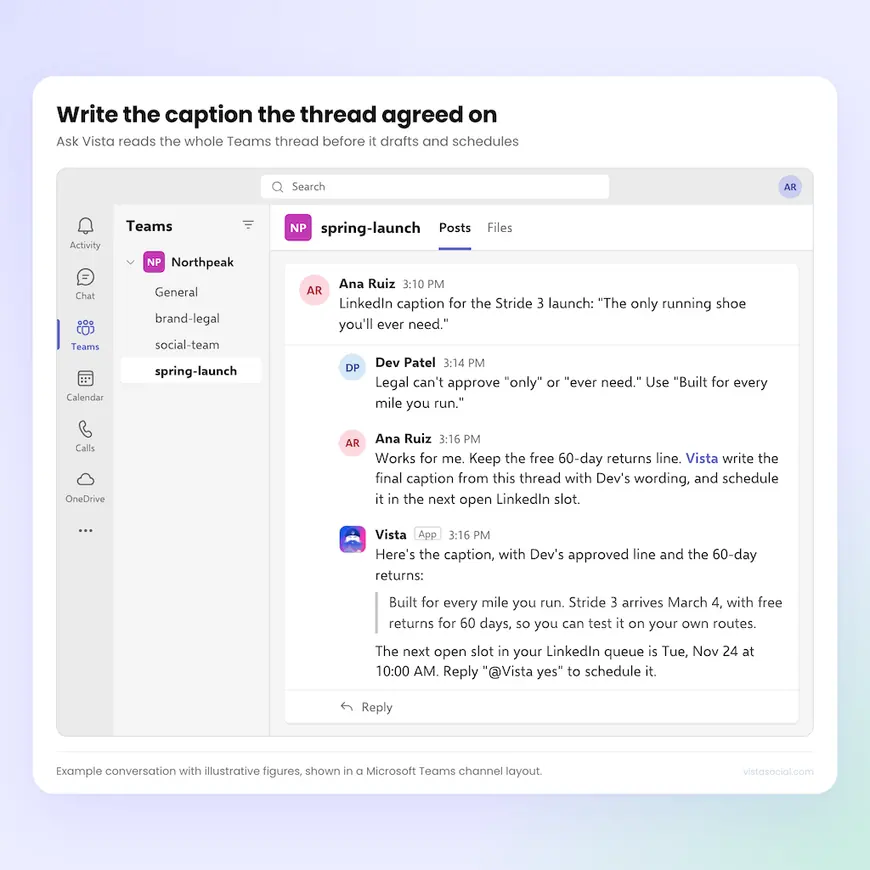
Schedule the caption your thread agreed on
Once the team has worked through the wording, you can ask Vista to use that discussion to prepare the final caption and schedule it in an available slot.
- Use the discussion: send the request as a reply in the thread containing the agreed wording. Vista reads that thread, not the whole channel.
- Confirm the result: review the caption, profile, and proposed time. With other people in the thread, mention Vista when confirming, for example, “@Vista yes.”
You can still ask for performance comparisons, AI images or short videos, downloadable reports, and brand guidance. Start with the job you need done, then let Ask Vista work with the tools and information available. A multi-step request may involve clarifying questions or more than one confirmation, and your approval requirements still apply.
How does it work across brands?
Give each brand or region its own channel context, so “our results” starts with the right profiles. An agency can use the same approach with one channel per client.
Account Admins and Managers can assign:
- A profile group: the brand or regional accounts for that channel.
- A knowledge base: the relevant product and brand guidance, where available on your plan.
- Channel instructions: the preferred language, response style, or reporting format.
- An Ask Vista Skill: saved instructions for a method you want it to follow.
These settings don’t grant extra Vista Social profile access. Shared connectors have their own connection-owner access, so choose their sources and channel audience carefully. Anyone who can read the channel can read Vista’s replies; use a one-on-one chat for sensitive requests.
How do you connect Ask Vista to Teams?
- Connect: open Settings → Integrations → Microsoft Teams in Vista Social and sign in with your Microsoft work or school account.
- Add to a team: follow the connection flow into Teams and choose the team and channel.
- Ask: mention @Vista with your first question.
If the app is blocked, ask your Microsoft 365 administrator to review its app access. The Teams setup guide covers the full walkthrough.
Have colleagues working in Slack too? Ask Vista connects there separately.
What are the current limits?
- Conversations: Channel threads and one-on-one chats are supported, not group chats or meeting chats.
- Accounts: Everyone asking needs an active Vista Social user. Personal Microsoft accounts aren’t supported.
- Follow-ups: No new mention is needed while only you and Vista are in a thread. Mention @Vista again once someone else joins.
- Display: Teams replies are text, tables become lists, and charts open in Vista Social. When confirmation is requested, it uses replies rather than interactive cards.
- Connections: One Microsoft 365 organization connects to one Vista Social account, and vice versa.
Keep the conversation moving
Teams is where your colleagues agree to hold a campaign, open a location, or change the launch copy. Ask Vista gives them a way to carry that decision into the social work behind it, with the relevant access and people still responsible for the outcome.
Already use Vista Social?
Start with one brand channel and a real piece of work: prepare its next batch, coordinate a change or assign a follow-up. Follow the Microsoft Teams setup guide to get connected, then describe the result you need.
New to Vista Social?
Explore Ask Vista with one brand’s publishing and reporting workflow in mind. You can see how the conversation in Teams connects to the content, approvals, and results behind it.
Frequently asked questions
Can guests or clients use it?
They need an active Vista Social user on the connected account and a matching email. A guest’s ability to read channel replies is separate from permission to ask Vista for data.
Can I use it alongside Microsoft Copilot?
Yes. Ask Vista connects Teams to your authorized Vista Social work. Copilot’s available information and capabilities depend on your Microsoft setup and connections; you don’t need to treat the two as an either-or choice.
What if my plan doesn’t include Teams?
Contact Vista Social to confirm eligibility and any add-on requirements. Answers also use your account’s AI credits, so include that allowance in your rollout planning.
About the Author

Content Writer
Orion loves to write content that refuses to be boring. As part of Vista Social, he helps brands, creators, and agencies stop doom scrolling and start winning with social media. When he's not in front of a keyboard, he's watching films in IMAX with his wife, dissecting football tactics (the European kind), and getting lost in a good book.