


Published on July 15, 2026
10 min to read
Never Open a Design Tab Again: Generate Post Images Inside the Composer

Summarize with AI

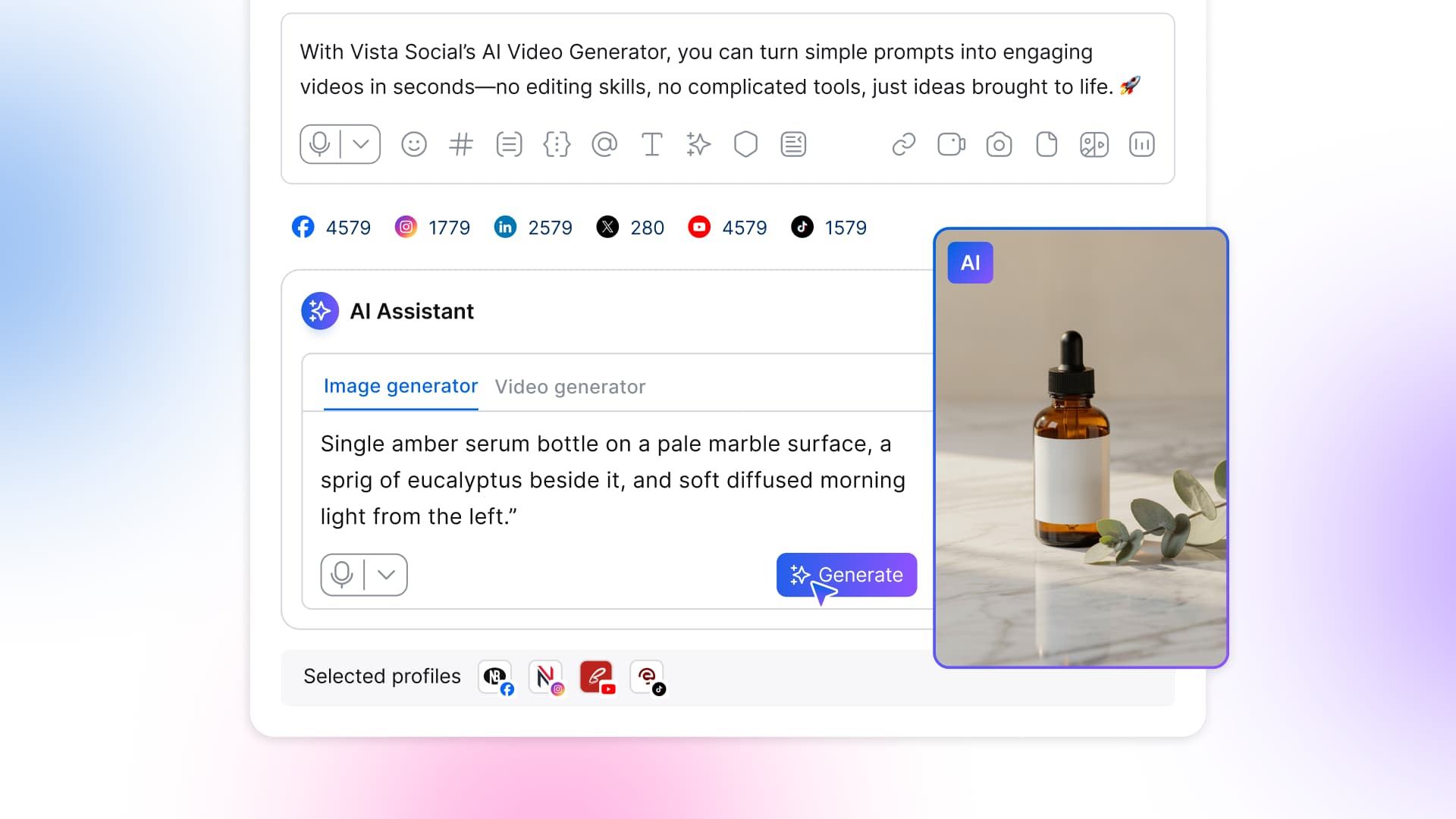
Table of contents
Summarize with AI

ChatGPT

Claude

Perplexity
Share

Vista Social

X (Twitter)


Count the browser tabs open behind your scheduler right now. There’s a good chance one of them is a design tool, sitting there because every post you build eventually sends you over to it for the image, then back.
That round trip is the longest part of publishing. The caption takes a minute, but the visual means leaving the composer, searching for a template, resizing, exporting, and re-uploading. It’s the step that turns a five-minute post into a fifteen-minute one.
An AI image generator for social media closes that gap by living inside the composer. You describe the image on the post you’re already writing. It’s made in seconds, and it drops onto the post without a single tab switch.
The real upgrade for a busy social manager in 2026 is making the picture without a design tool open at all.
The short version:
- The image is the bottleneck: Writing the caption is quick, but leaving to design the visual is where a scheduled post stalls, so keeping the whole job in one window is the real time-saver.
- Text-to-image: You type a sentence describing the picture you need and get usable options in seconds, with no template hunting and no design skills required.
- Edit by instruction: When something’s off, you say the change in plain words and the image re-renders, so a fix is a sentence, not a project.
- It publishes from where you generate it: The finished image attaches to the post in the composer, so you set the aspect ratio, add alt text, and schedule without ever switching tools.
Table of contents
Why generating images inside the composer beats a separate design tab
A standalone design tool is good at what it does. The cost is the round trip: every image means leaving the post, doing the work somewhere else, exporting, and carrying the file back. Do that nine times a day, and the switching adds up to real hours.
Generating in the composer removes the trip entirely. The two compare like this on the moves that eat up your afternoon:
| The step | Separate design tab | In the composer |
|---|---|---|
| Finding a starting point | Search templates or a blank canvas | Type one sentence describing the image |
| Making the image | Lay out, resize, style by hand | Generated in seconds, a few options to pick from |
| Fixing something | Reopen the editor and adjust manually | Say what to change in words; it re-renders |
| Getting it onto the post | Export, download, switch tabs, upload | Already attached in the composer |
| Sizing per network | Resize and re-export for each ratio | Set the aspect ratio right there |
None of those steps is hard on its own, but stacked and repeated all day, they’re why the visual runs late and why “I’ll add the image later” turns into a post that misses its slot.
The Vista Social fast path: The generator lives in the same window as your caption and your calendar, so the design round trip that used to eat ten minutes every post disappears, and nothing gets stuck waiting on an image at 4pm.
How to generate a post image inside the composer (step-by-step)
Below is the whole thing, start to finish, the way you’d run it on a real post, using a skincare launch as the example.
Step 1: Open the composer and start your post
Start where you always do, in the post composer, with your caption and the network picked. The image generator sits right there in the same window, so you don’t have to go anywhere to make the visual. Writing the caption first helps, since the words in front of you make it easier to describe.
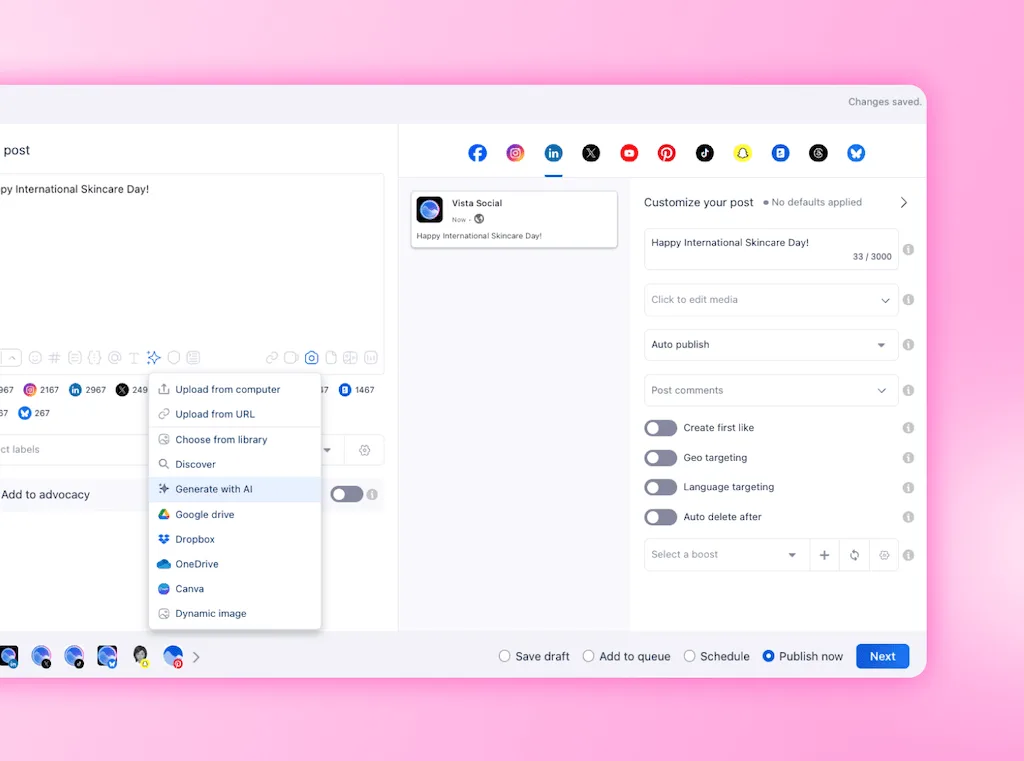
Step 2: Describe the image in one sentence
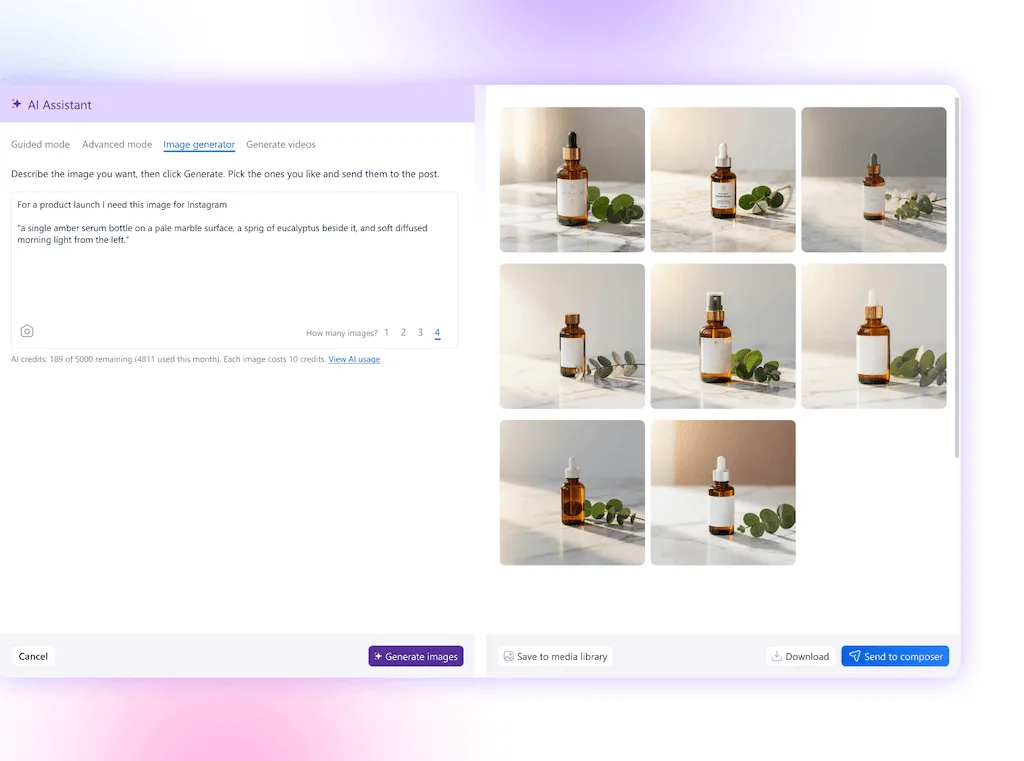
Open the generator and type a single plain sentence describing the shot you want. Name the subject, the angle, the lighting, and the mood, the same details you’d give a photographer on a brief.
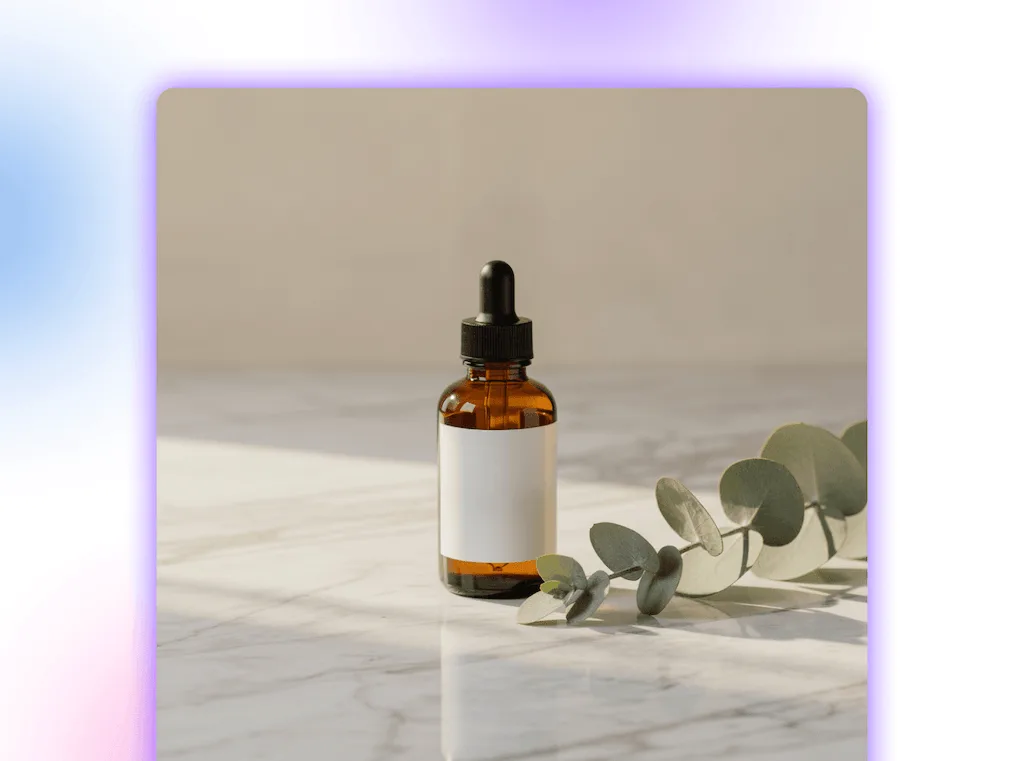
For the launch post, that’s something like “a single amber serum bottle on a pale marble surface, a sprig of eucalyptus beside it, and soft diffused morning light from the left.” Concrete subject, clear light, one clean scene.
Hit generate, and a few options come back in seconds. Pick the strongest one, or adjust the sentence and go again if none land.
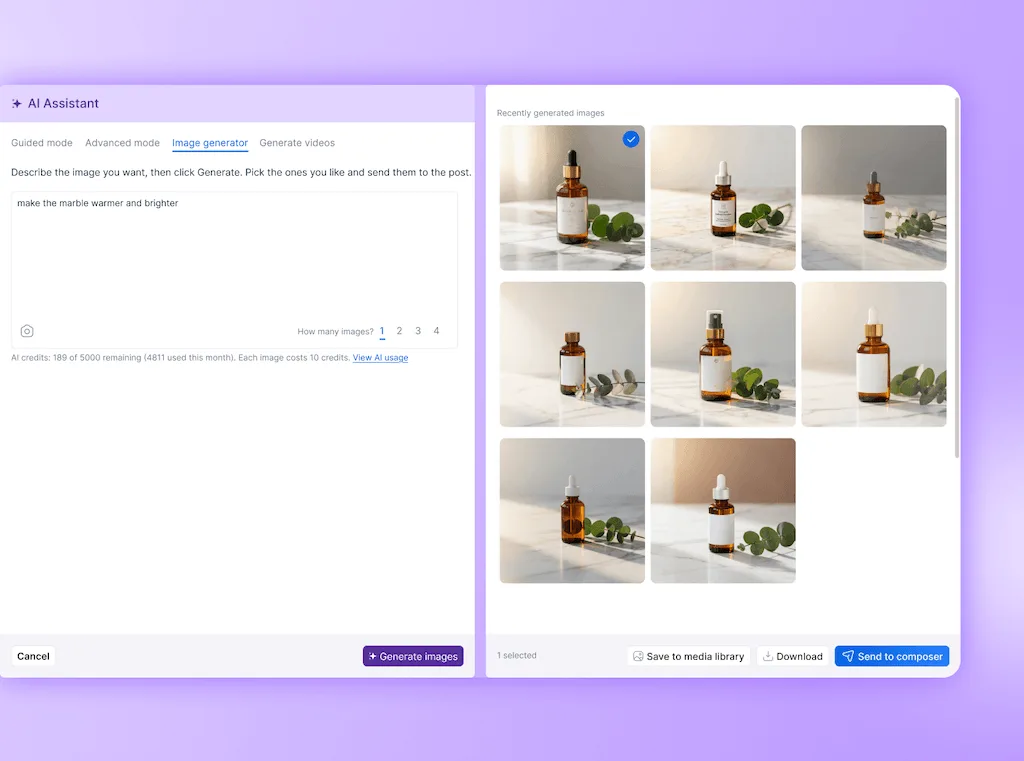
Step 3: Fix what’s off by giving an instruction
Say the bottle looks great, but the marble reads a little grey. Instead of opening an editor, you type the one thing to change, like “make the marble warmer and brighter,” and a corrected version comes back.
Want the bottle centered, or a cooler tone, or a clear band at the top for a headline? Each is one more sentence, not a round in Photoshop, so the fix that used to mean re-exporting from a design app is now a quick line and a few seconds’ wait.
This is the moment the detour is gone for good, so it’s worth feeling it once yourself. Make a post image in the Vista Social composer and refine it with a single instruction.
Step 4: Set the aspect ratio for the network
Different networks want different aspect ratios. A square or portrait for the Instagram feed, a wider frame for a landscape post, a tall one for a story. Instead of re-exporting at each size, you set the ratio right in the generator. The image is composed for that frame from the start and nothing important gets cropped.
Step 5: Drop it on the post and schedule it
When the image looks right, it goes straight onto the post you already had open, so the caption, image, and schedule all sit in one place, ready to go out.
Vista Social also writes alt text for the image on upload, so the post stays accessible without you stopping to type one. Set the time, add it to the queue, and the post is done, image and all, in one tool.
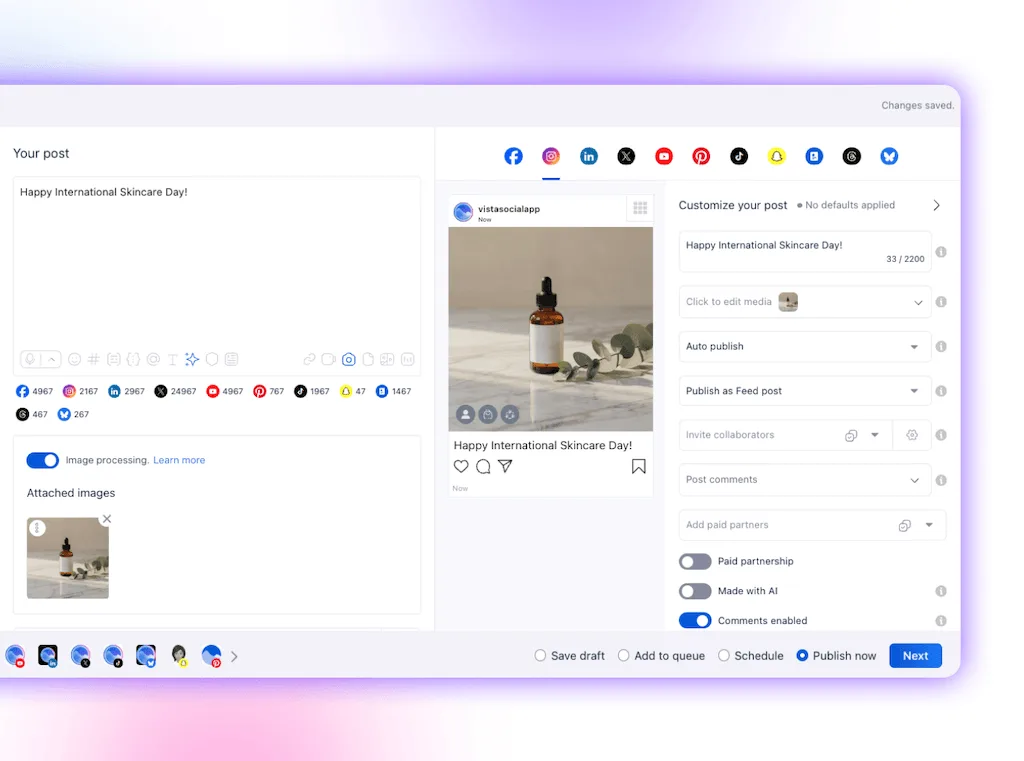
The Vista Social fast path: The generated image publishes from the same window where you write and schedule your posts. There’s no export, no download folder, and no re-upload standing between “I need an image” and “it’s scheduled.”
That’s a full post, captioned to schedule, without a design tab. Build your next post image in Vista Social and see how much shorter the afternoon gets.
How to write a prompt that doesn’t look AI-generated
When a generated image screams “AI,” the prompt is almost always the cause, not the tool. A vague ask gives you the generic, over-polished look everyone recognizes now. While a specific one reads like a real photo.
The build-a-prompt method is to name four things in order, each one narrowing the image from a category down to a single shot:
- Subject and angle: Name the one thing in the frame and how it’s shot, so “a single amber serum bottle, shot straight on at eye level,” instead of “skincare product.”
- Setting and props: Where it sits and what’s beside it, like “on a pale marble surface with a sprig of eucalyptus,” which grounds the shot in a real place.
- Light and mood: “Soft diffused morning light from the left, clean and airy,” so it reads as photographed rather than rendered.
- Framing and guardrails: “Leave a clear band across the top for a headline, no text in the image, and no logos,” which keeps the garbled lettering that gives generation away out of the frame.
Getting specific matters more than it used to. The volume of low-effort AI content has trained people to spot it. Andrew Hutchinson, who covers the platforms at Social Media Today, put the tale plainly:
“These sorts of clumsy mash-ups of real and fake end up looking so obviously AI-generated that they’re off-putting and are becoming increasingly more so as a rising number of cheap websites and outlets expand their use of AI to create their visuals.”
Andrew Hutchinson, Does Generative AI Content Have a Place in Social Media Marketing?
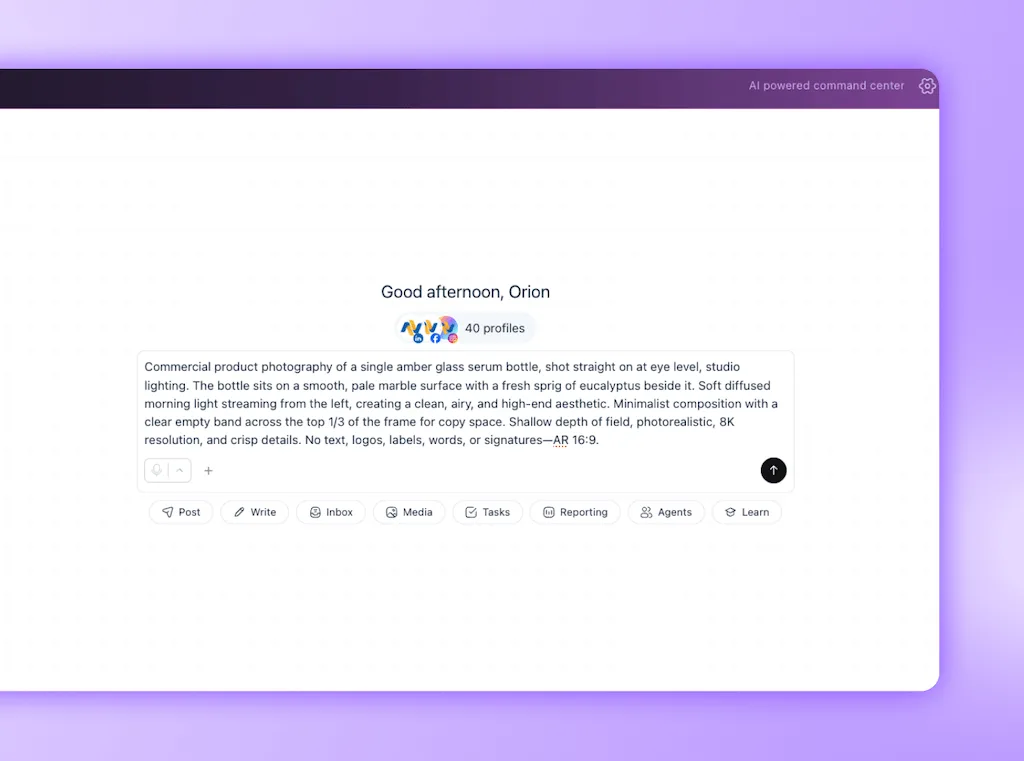
Stitch those four parts together, and you have a prompt that gives the generator almost no room to fall back on the generic. For the launch post, the finished line reads:
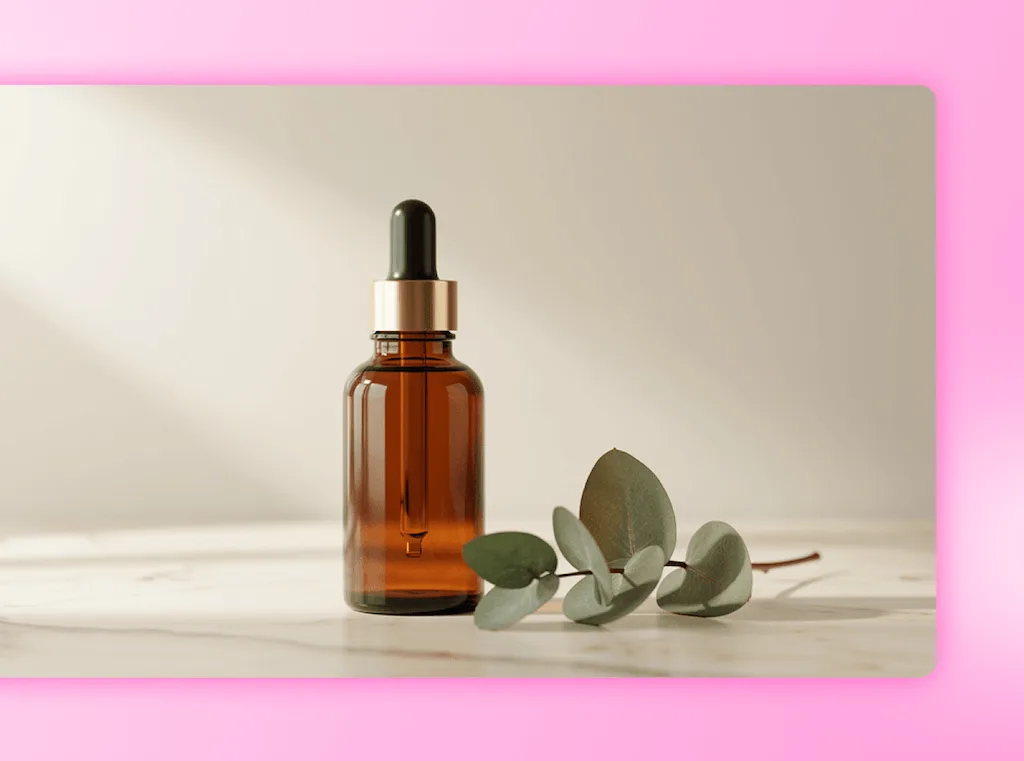
That reads like a real product shot because you told it what a photographer would need to know. You’re still the editor, picking the strongest option and regenerating the misses, so feeding the tool your brand voice and visual style keeps every result recognizably yours. For the deeper case on why a briefed image beats a library one, our piece on why stock photos read as invisible has the head-to-head proof.
Be honest about the limits too. Generation is still weak at exact in-image text, precise logos, and the faces of real people, so keep those to a real photo or a design tool.
What do AI image credits cost?
Generating images uses credits. It’s a way of metering how much you make, and image generation is included in Vista Social’s plans. Since allowances can change, the current figures live on the pricing page.
For a solo marketer, the visuals for a normal posting week fit inside the plan you’re already on. No separate design subscription on top. For a team, it’s custom images across the whole calendar, not just the hero posts you’d have paid a designer for.
Either way, it folds a cost you were already carrying into the software running your calendar. Check the current plans and credit allowances for the numbers.
If a design subscription is one of the bills on your stack, this is the one to fold in. Compare it inside Vista Social and see what you’d stop paying for separately.
When you should still open a design tool
Generation doesn’t retire your design app, and pretending it does would set you up for disappointment. Some jobs still want real design control, and it’s worth knowing them:
- Exact brand assets: Precise logos, brand fonts, and locked color codes belong in a design tool that renders them exactly, not a generator that approximates.
- Heavy on-image text: Quote graphics, carousels, and anything where words are the design are still cleaner when built by hand.
- Multi-layer templates: A branded frame you reuse across dozens of posts is a template job, not a per-post generation.
- Real people and products: For actual faces and things people will buy, a genuine photo beats a rendered stand-in on trust alone.
For those, Vista Social’s built-in Canva integration lets you design without leaving the app, so even the template work stays in one place. Use generation for the everyday feed images and the design app for the pieces that need it.
Where this fits with Vista Social’s other AI
The in-composer generator is one piece of a wider set of AI tools. The generator is hands-on: you drive it, prompt by prompt, right in the post.
Ask Vista is the account-aware assistant that knows your connected profiles and works across scheduling, replies, and reporting, so one makes the picture in front of you while the other works across the whole account.
The same idea extends past still images. Vista Social’s AI image and video generation covers short video the same way, and its broader AI content creation tools round out captions and ideas, all where you post.
The next post you schedule
Go back to those tabs behind your scheduler. On the next post, the design tool is one you never have to click over to. You type what the image should be, pick from the options, fix the one thing that’s off with a sentence, set the ratio, and schedule, all in the window you were already in.
You’re still the one with the eye, deciding what’s good and regenerating what isn’t. What an AI image generator for social media hands back are the minutes you spent only moving files between tools and one fewer tab to keep open.
The design tab switching was never the fun part of the job. Generate your first post image for free in Vista Social and close it for good.
Frequently asked questions
What is the best AI image generator for social media?
The best one for a working social manager is built into the tool you already schedule with. It removes the export-and-upload round trip. In Vista Social, you describe the visual, refine it in plain language, set the aspect ratio, and publish without opening a separate design app.
Can I generate images for Instagram without a design tool?
Yes. You write a one-line description, generate a few options, and pick the feed ratio you need, all inside the composer. Nothing has to be built from a blank canvas. The result is ready to publish the moment you pick it.
How do I make AI images that don’t look fake?
Brief the prompt like you’re directing a photographer. Name the subject, angle, lighting, and mood, and add a short “no text, no logos” so the model doesn’t leave those tell-tale garbled words in the image. Then judge the output and regenerate the misses. A specific prompt plus an editing eye is what separates a real-looking image from an obvious AI-generated one.
Is there a free AI graphic design option for social media?
Vista Social folds image generation into its plans rather than selling it as a separate design subscription. Each generation draws on credits whose current allowances are listed with the plans. So a normal posting week’s visuals fit inside the tier you already use to schedule.
What is edited by instruction?
It’s a way to adjust a generated image with words instead of tools. You tell the generator what should change. Say “wider frame” or “cooler tone,” and a new version comes back, so refining a picture takes a sentence instead of a trip back through a photo editor.
Does generating images replace a graphic designer?
No. It absorbs the routine post-visuals a designer never wanted anyway. Freeing their time for the brand systems, campaigns, and templates that need a human hand. You stay the one with taste, choosing and refining what the tool produces.
Try Vista Social for free
A social media management platform that actually helps you grow with easy-to-use content planning, scheduling, engagement and analytics tools.
Get Started NowAbout the Author

Content Writer
Orion loves to write content that refuses to be boring. As part of Vista Social, he helps brands, creators, and agencies stop doom scrolling and start winning with social media. When he's not in front of a keyboard, he's watching films in IMAX with his wife, dissecting football tactics (the European kind), and getting lost in a good book.