

Published on February 12, 2026
16 min to read
AI for LinkedIn: 11 AI-Powered Workflows That Save Time

Summarize with AI

Table of contents
Summarize with AI

ChatGPT

Claude

Perplexity
Share

Vista Social

X (Twitter)


Every article about AI for LinkedIn tells you the same thing. Use ChatGPT to write your headlines, try some prompt templates, and maybe throw in a carousel generator if you’re feeling fancy.
Meanwhile, your AI-assisted posts are getting buried.
Richard van der Blom’s LinkedIn Algorithm Report found that AI-generated posts receive 30% less reach and 55% less engagement than human-written content. The algorithm has gotten smarter. Your audience has gotten skeptical, and most B2B marketers are still using AI in ways that actively hurt their visibility.
The problem? Everyone treats AI as a content writer when they should be treating it as a workflow engine. The brands winning on LinkedIn aren’t the ones generating posts faster. They’re the ones who offloaded their analytics, scheduling, and research to AI so they could spend more time on the human elements that actually drive engagement.
This guide breaks down the specific AI workflows that save time without sacrificing authenticity. You’ll learn how to connect AI directly to your social management platform and automate the tedious stuff. Below are 11 AI workflows ranked by impact. Start with the ones that take the most time and expand from there
Table of contents
Why use AI for LinkedIn?
The numbers tell an interesting story. McKinsey’s 2024 Global Survey found that 72% of organizations now use AI, with marketing and sales leading adoption. HubSpot’s research shows 74% of marketing professionals currently use AI in their work.
However, only 32% of marketers are satisfied with the value they’re getting. That gap between adoption and satisfaction reveals the real issue. Most people are using AI to write posts when they should be using it to eliminate busywork.
Think about where your time actually goes.
- You spend Monday morning staring at an empty content calendar, scrolling through your feed looking for inspiration
- You spend Thursday afternoon pulling data from three different dashboards to build a performance report your boss asked for at 2pm
- You spend random pockets throughout the week responding to comments, trying to keep up with engagement while also doing your actual job
AI can compress those Monday morning brainstorms into five focused minutes. That Thursday afternoon report? One question to your AI assistant, answered in under a minute. Comment responses? Draft suggestions are ready for your review and personal touch.
How to use AI for LinkedIn
The typical advice stops at “generate headlines with ChatGPT.” That approach misses the point entirely.
LinkedIn rewards genuine expertise. Your audience is sophisticated, and the content that performs demonstrates real insight. So the workflows below focus on solving problems you probably didn’t realize could be solved this way.
1. Run your LinkedIn operation from a single chat window
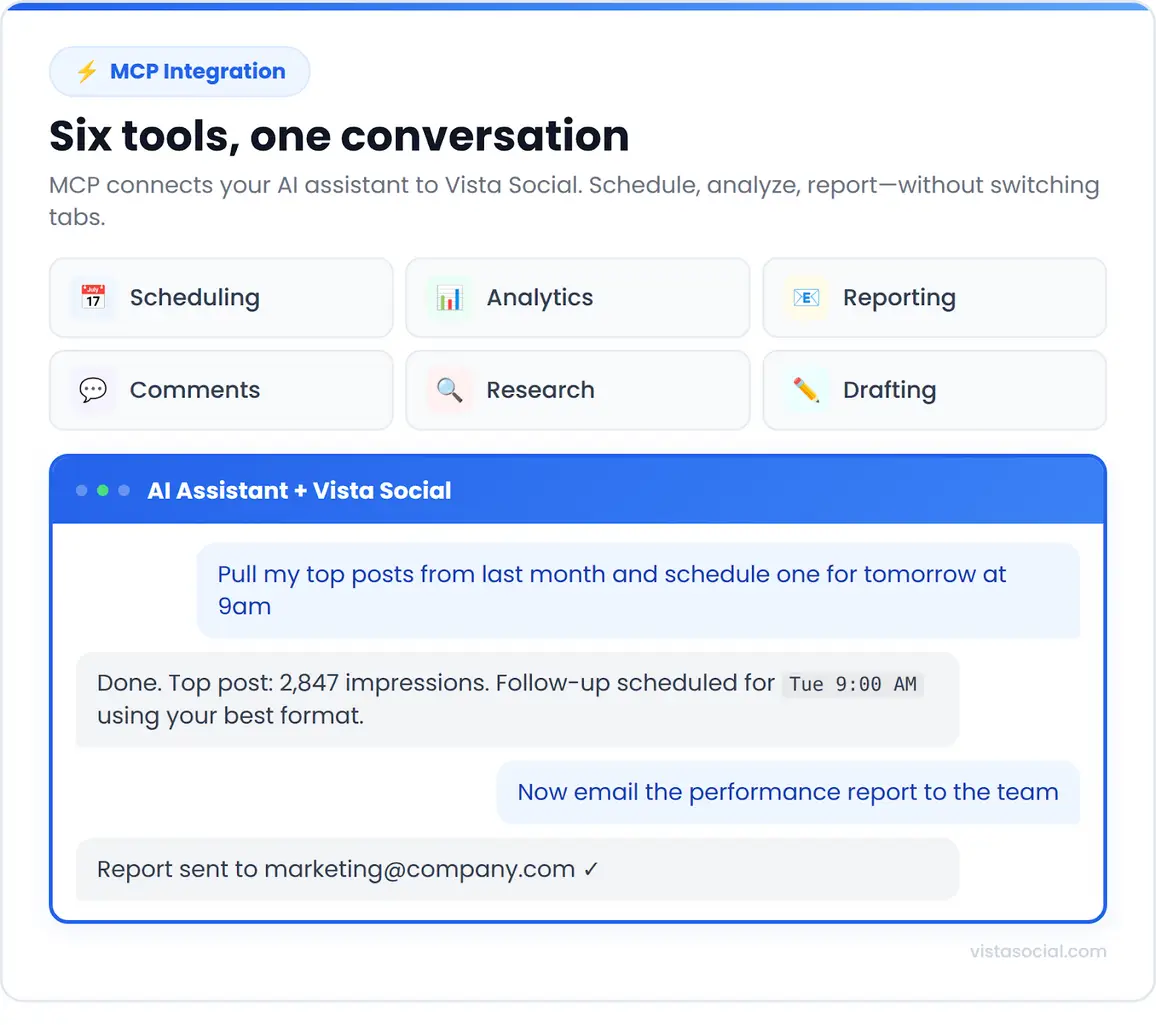
MCP (Model Context Protocol) lets AI assistants like Claude and ChatGPT communicate directly with Vista Social.
You type a question in plain English, and your AI pulls the answer straight from your account. No dashboard hopping. No CSV exports. No copying data between tabs.
How to connect MCP to Vista Social
1. Log in to your Vista Social account
2. Go to Settings in the left sidebar
3. Click Account Settings
4. Select Integrations from the menu
5. Scroll to the MCP Server section
6. Click Copy next to your MCP URL (your API key is already embedded in this URL)
7. Open Claude Desktop or ChatGPT
8. Navigate to Settings or Connectors
9. Click Add new connector
10. Enter Vista Social as the connector name
11. Paste your MCP URL into the Remote MCP Server URL field
12. Select No authentication since the API key is already in your URL
13. Click Save
Your AI assistant can now communicate directly with Vista Social.
How to use MCP prompts
For Claude, add “Using Vista Social” at the beginning of your prompt so Claude knows to route the request through the MCP connection.
For ChatGPT, select Vista Social from the dropdown list of connected apps before typing your prompt.
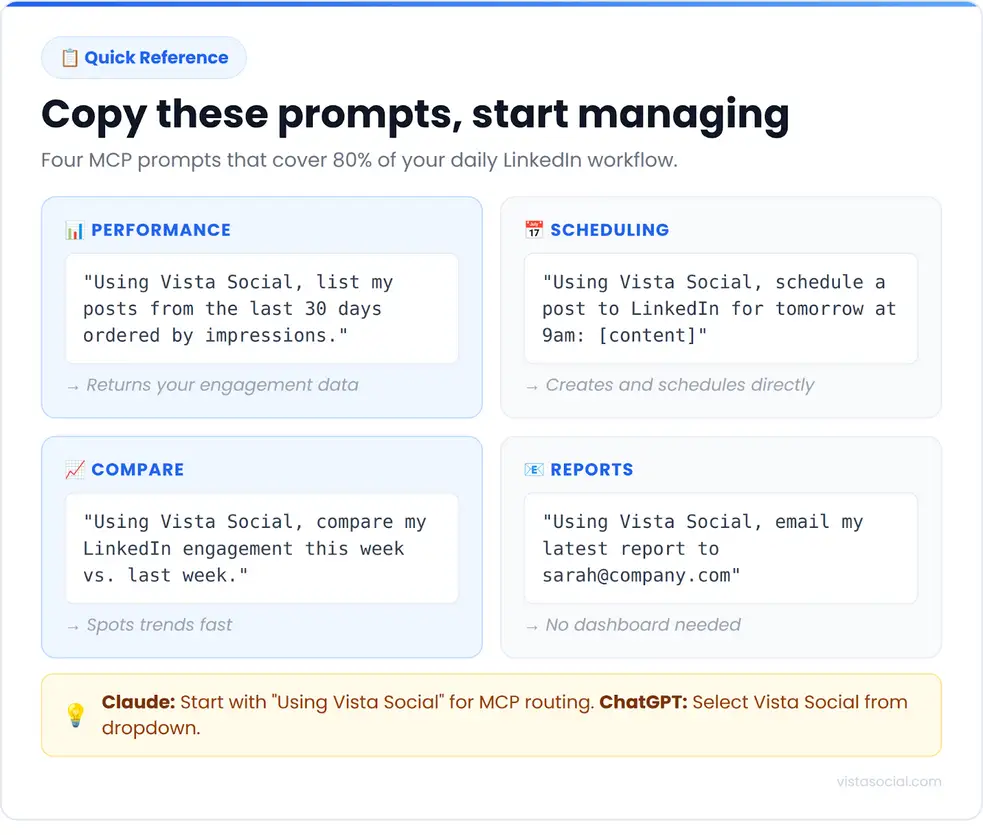
Here are prompts you can try immediately after connecting:
- Check your connected profiles: “Using Vista Social, what social profiles do I have connected?”
- Pull recent performance data: “Using Vista Social, list my posts published in the last 30 days and order them by impressions.”
- Compare time periods: “Using Vista Social, compare my LinkedIn engagement from this week to last week. What changed?”
- Schedule content: “Using Vista Social, schedule a post to my LinkedIn profile for tomorrow at 9am with the following text: [your post content].”
- Generate and send reports: “Using Vista Social, email a copy of my latest performance report to sarah@company.com”
The power comes from combining multiple operations in a single conversation. You can research your past performance, draft new content based on patterns, and schedule posts all within one chat thread.
2. Turn your analytics into actionable insights
Most social media managers know their engagement rate went up 12% last month, but few can explain why. The workflows below show you how to extract meaning from your data.
How to analyze performance patterns via MCP
1. Open Claude Desktop or ChatGPT with your Vista Social MCP connection active
2. Start with a broad performance question
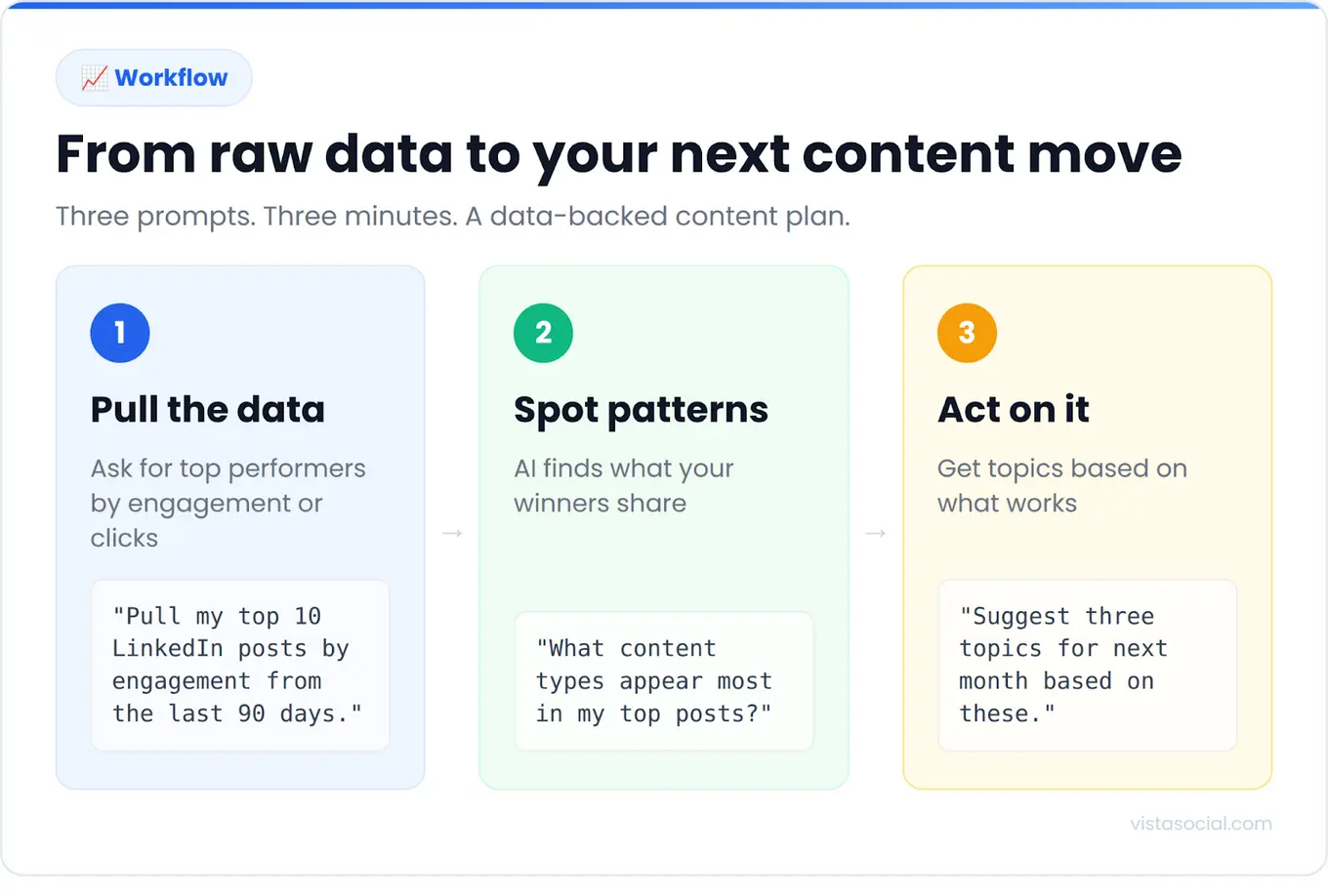
Example prompt: “Using Vista Social, pull my top 10 LinkedIn posts by engagement from the last 90 days. What types of content appear most frequently in this list?”
3. Follow up with deeper analysis based on the initial results
Example follow-up prompts: “What did the comments on these top posts have in common? Were people asking questions, sharing experiences, or debating?”
“Which of these posts generated the most profile visits?”
“What time of day were these posts published? Is there a pattern?”
4. Ask for actionable recommendations
Example prompt: “Based on these patterns, what three content topics should I focus on next month?”
How to run analytics reports in Vista Social
1. Log in to Vista Social
2. Click Report” in the left sidebar
3. Click Run report
4. Select Social Media Performance for an overview or Post Performance for content-specific metrics
5. Choose your LinkedIn profile from the profile selector
6. Set your date range
7. Click Save
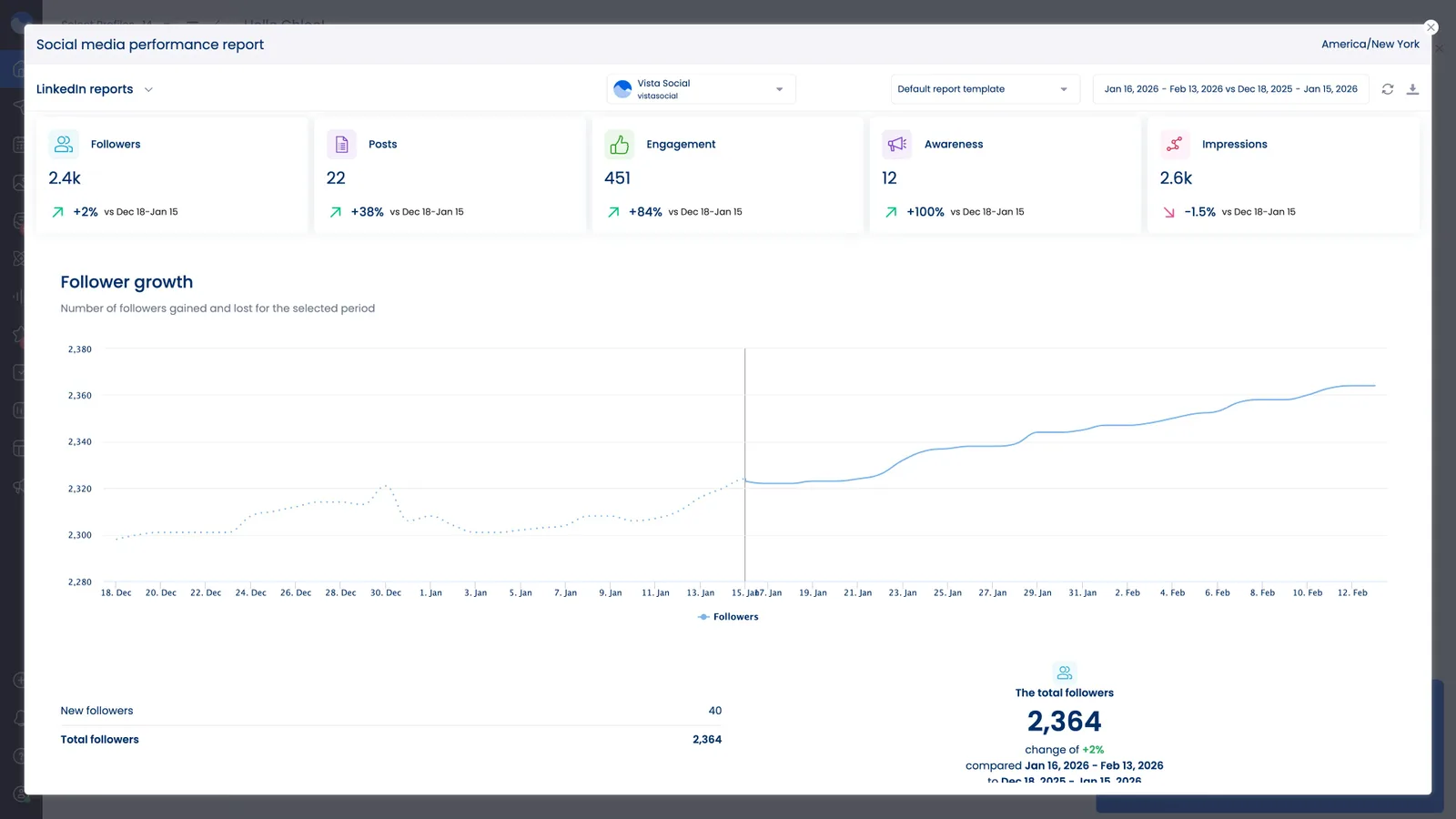
The report shows follower growth, engagement trends, impressions, and post-by-post breakdowns. You can export as PDF or CSV or generate a shareable link for clients.
For LinkedIn personal profiles, Vista Social tracks metrics that most platforms cannot access, including profile visits, connection growth, and follower interactions.
3. Mine your comment section for content ideas
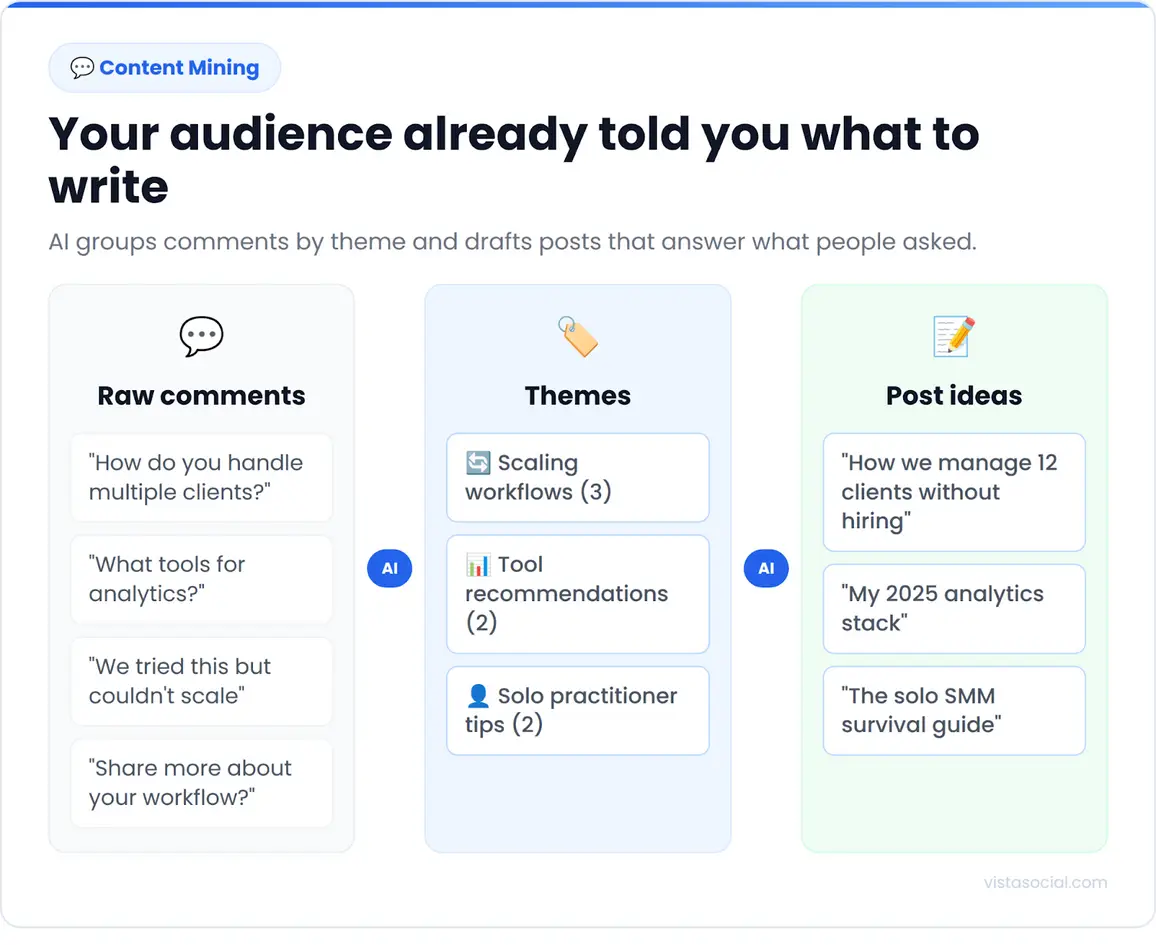
Your audience tells you exactly what they want to know more about, but reading through hundreds of comments takes hours. AI compresses that work into minutes.
How to analyze comments via MCP
1. Open your AI assistant with Vista Social connected
2. Ask for a summary of questions from your audience
Example prompt: “Using Vista Social, what questions have people asked in the comments on my LinkedIn posts this month?”
3. Identify recurring themes
Example prompt: “Group these questions by topic. Which topics come up most frequently?”
4. Turn insights into content
Example prompt: “Draft a LinkedIn post that answers the top three questions my audience asked this month. Format it as numbered insights. Then schedule it for the next optimal posting window.”
How to review comments in Vista Social’s Inbox
1. Click Inbox in the left sidebar
2. Use the filter dropdown to select your LinkedIn profile
3. Click the Comments tab to view all recent comments
4. Use the search bar to find comments containing specific keywords
5. Click any comment to view the full context and reply directly
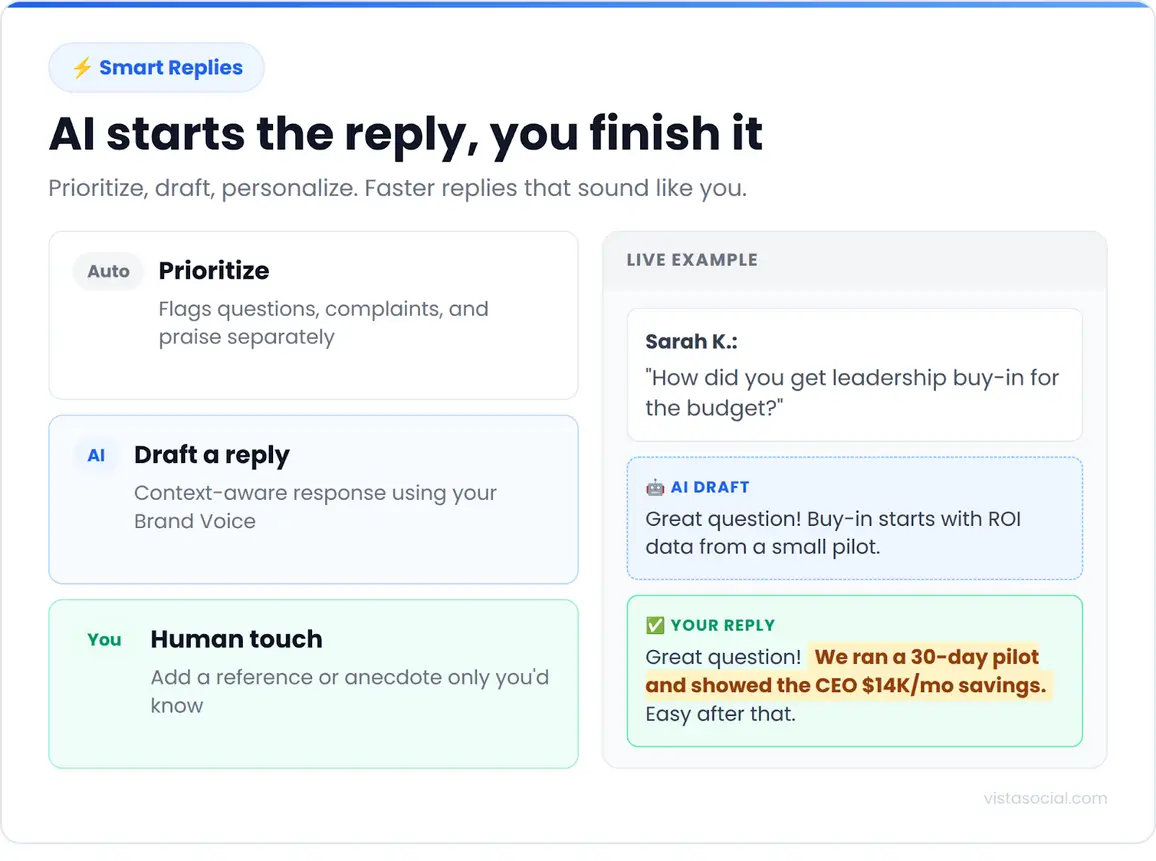
Vista Social’s message intent detection automatically categorizes incoming comments. Questions get flagged differently than praise or complaints, so you can prioritize responses that need thoughtful replies.
4. Manage multiple LinkedIn profiles without chaos
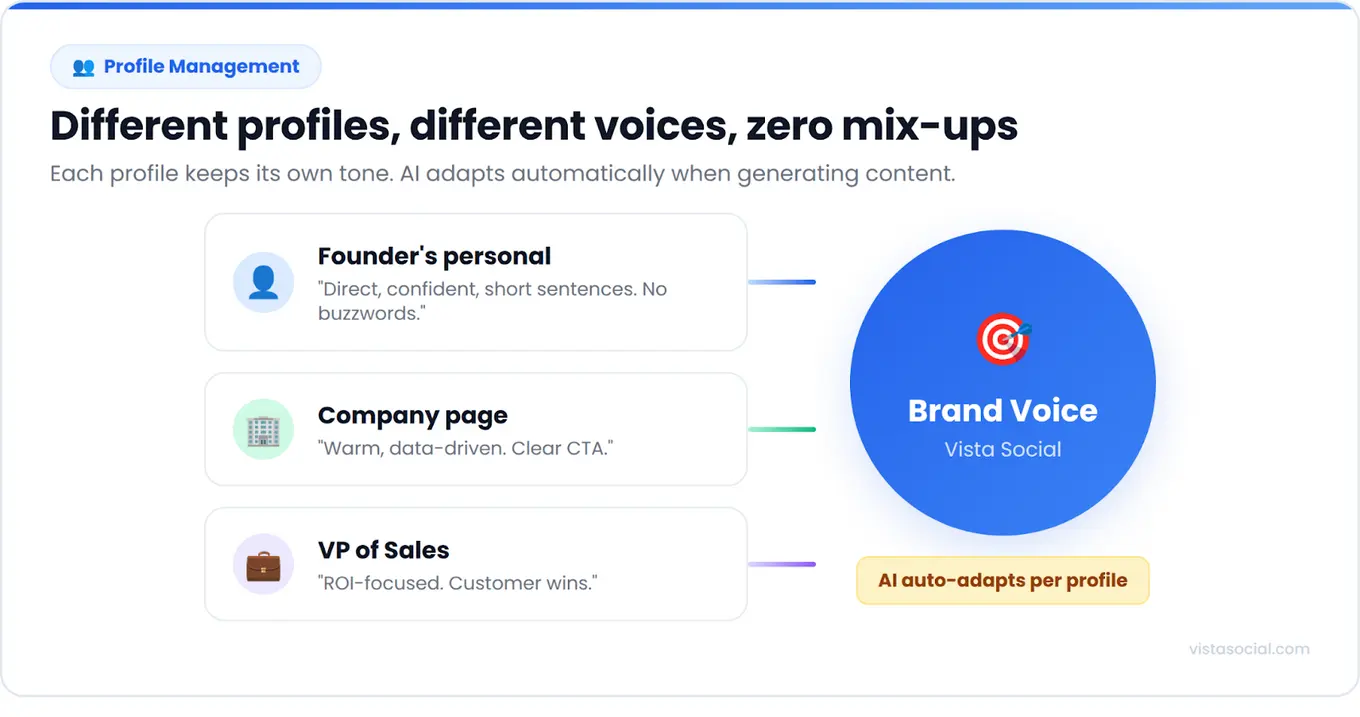
Agencies and enterprise teams often manage a founder’s personal profile, the company page, and several executive accounts simultaneously. Each profile needs a different voice. Vista Social’s Brand Voice feature keeps them distinct.
How to set up Brand Voice for each profile
1. Click Settings in the left sidebar
2. Select Profile Groups
3. Click on the profile group you want to configure
4. Click Brand Voice
5. Click Edit Policy
6. Write a description of this profile’s tone and style
Example for a founder’s personal profile: “Direct and confident. Uses short sentences. Challenges industry assumptions. Occasionally self-deprecating. Never uses buzzwords like ‘synergy’ or ‘leverage. ‘Prefers specific numbers over vague claims. Writes from personal experience.”
Example for a company page: “Professional but approachable. Focuses on customer success stories. Uses ‘we’ instead of ‘I.’ Avoids controversial takes. Emphasizes data and results. Always includes a clear call to action.”
7. Click Save
Now when you use the AI Assistant to generate content for this profile, it automatically adapts to the voice you defined.
How to coordinate content across profiles via MCP
1. Open your AI assistant with Vista Social connected
2. Review what’s already scheduled
Example prompt: “Using Vista Social, show me everything scheduled for next week across all my LinkedIn profiles.”
3. Check for conflicts or opportunities
Example prompt: “Are any posts covering similar topics on the same day? Should I space them out or coordinate the timing?”
4. Create coordinated content
Example prompt: “Draft a LinkedIn post for our company page announcing our new product feature. Then draft a supporting post for Marcus’s personal profile sharing his perspective on why we built it. Schedule the company post for Tuesday at 10am and Marcus’s post for Tuesday at 11am.”
5. Amplify reach through employee advocacy
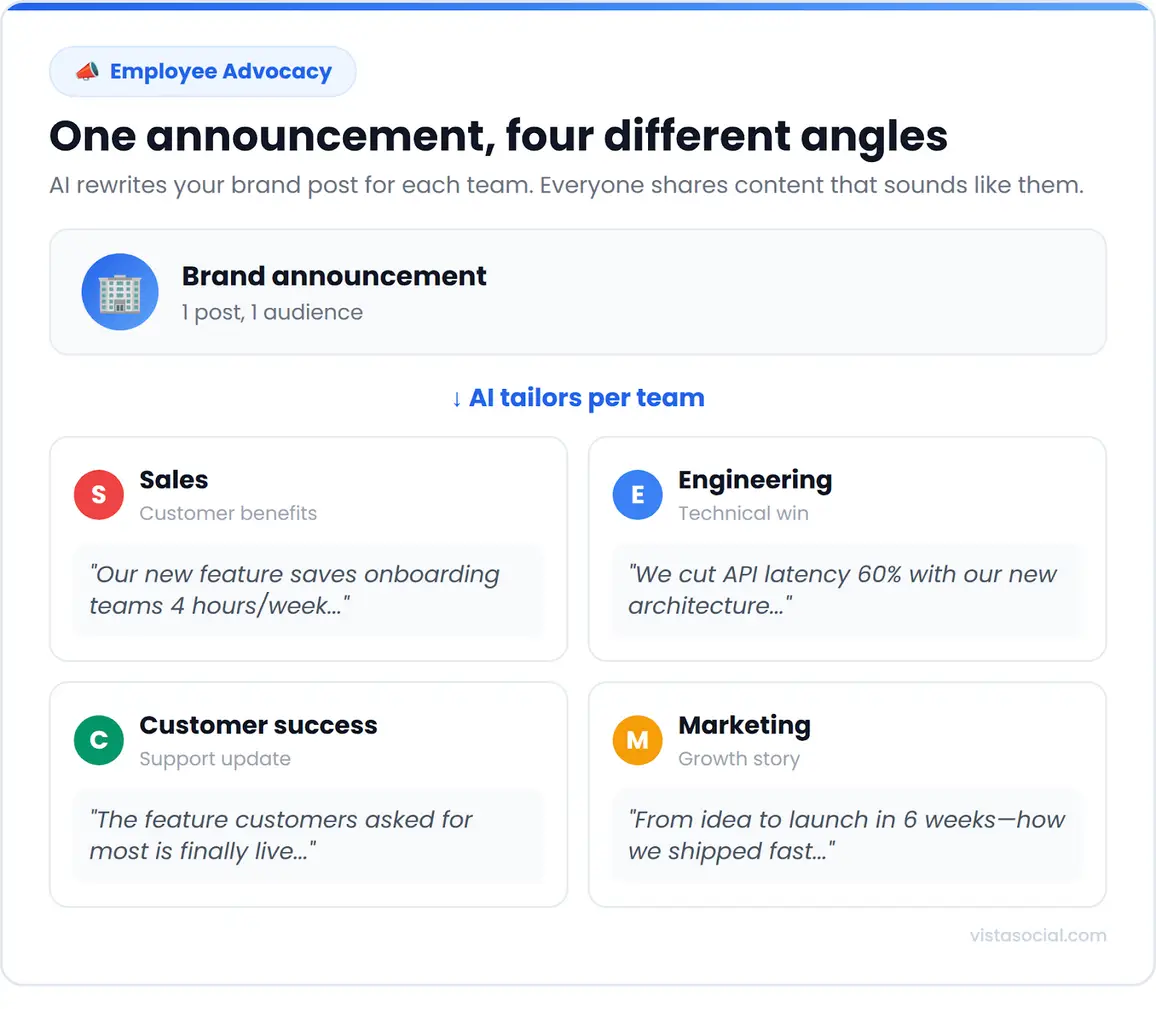
Content shared by employees generates significantly more engagement than content shared by brand channels. Vista Social’s Employee Advocacy feature lets you create pre-approved content that team members can share to their personal profiles with one click.
How to set up Employee Advocacy
1. Click the Employee Advocacy icon in the left sidebar (or access it from Settings if you need to enable the add-on)
2. Click Create Advocacy
3. Add the content you want employees to share
4. Set the campaign to publish or save in drafts
5. Click Publish
Employees receive a notification and can share the content on their LinkedIn profiles directly from their advocacy dashboard.
How to create content variations for different teams
Different employees have different audiences. Sales team members want to share content that helps them look knowledgeable to prospects, while engineers want to share content that impresses their technical peers.
1. Open your AI assistant with Vista Social connected
2. Generate role-specific variations
Example prompt: “Using Vista Social, I need to create employee advocacy content about our new product launch. Draft three versions:
- One for sales team members that emphasizes customer benefits
- One for engineers that emphasizes the technical achievement
- One for customer success that emphasizes support improvements
Make each version sound like a personal observation, not a corporate announcement.”
3. Create separate advocacy campaigns in Vista Social for each team
4. Add the appropriate variation to each campaign
How to track advocacy performance via MCP
Example prompt: “Using Vista Social, which employees have shared the most advocacy content this quarter? What types of posts generate the most engagement when employees share them?”
6. Respond to comments faster without sounding robotic
LinkedIn’s algorithm rewards engagement, and responding to comments signals that your content sparks conversation. Crafting thoughtful responses to dozens of comments takes time, though, so the AI Assistant helps you draft replies quickly while you add the human touch.
How to use AI-suggested replies in the Inbox
1. Click Inbox in the left sidebar
2. Find the comment you want to respond to
3. Click the AI Widget icon (the magic wand) next to the reply field
4. Review the suggested response
The AI reads the commenter’s message and generates a contextually relevant reply. Your Brand Voice settings apply automatically.
5. Edit the suggestion to add your specific perspective, a follow-up question, a reference to something specific from their comment, or a relevant experience from your own work
6. Click Send when you’re satisfied
How to prioritize important comments via MCP
Example prompt: “Using Vista Social, show me all unanswered questions in my LinkedIn inbox from the last 48 hours.”
This surfaces the comments that need thoughtful responses so you can focus your time where it matters most.
7. Build reusable content frameworks from your best posts
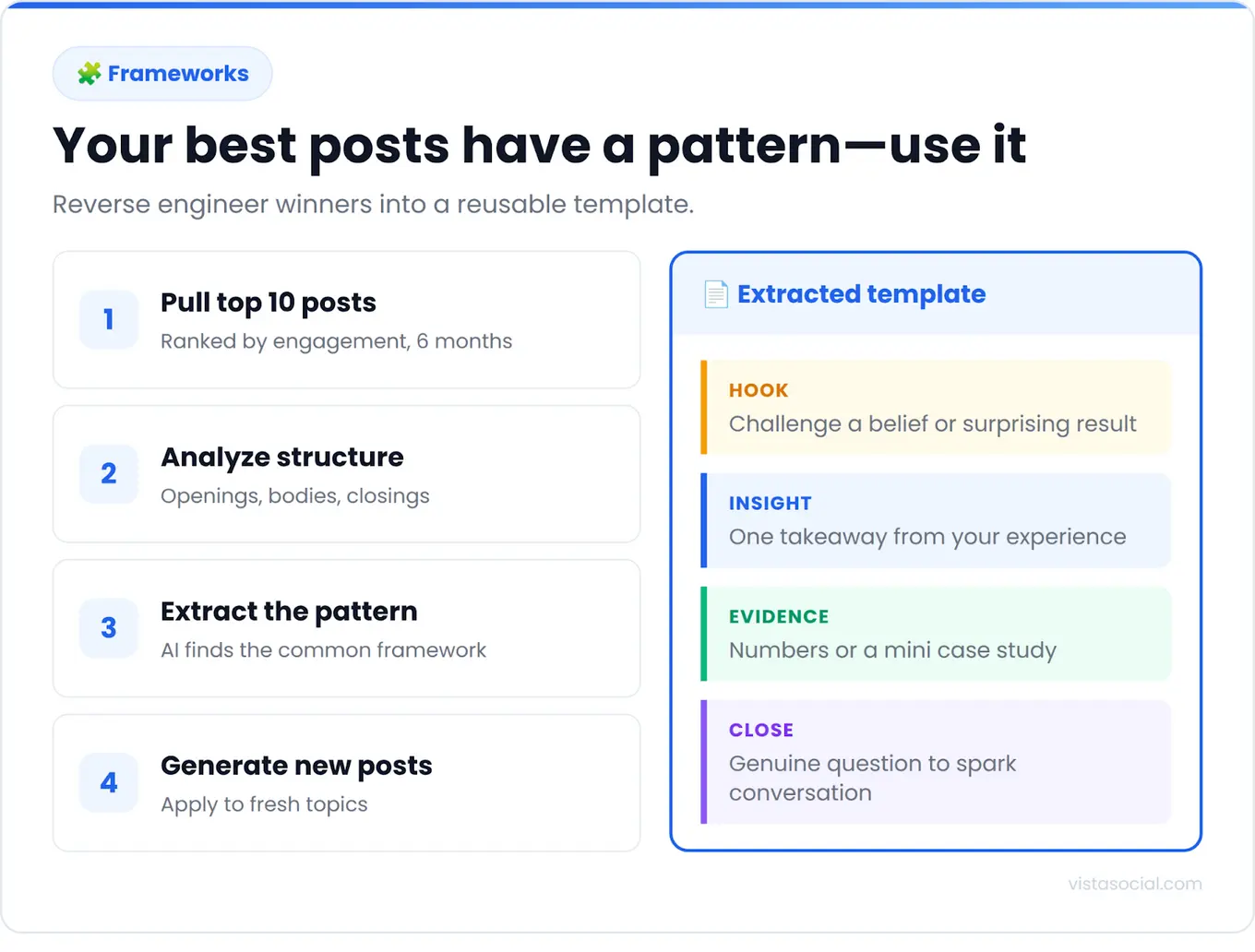
Instead of approaching each post as a blank slate, reverse engineer your top performers to create templates you can use repeatedly.
How to analyze your best content via MCP
1. Open your AI assistant with Vista Social connected
2. Pull your top performers
Example prompt: “Using Vista Social, pull my top 10 LinkedIn posts by engagement from the last six months.”
3. Identify structural patterns
Example prompt: “Analyze the structure of each post. How do the openings compare? What about the body and closing? What patterns appear across the top performers?”
4. Create a reusable template
Example prompt: “Create a LinkedIn post template based on these patterns. Include placeholders for the hook, the main insight, supporting evidence, and the closing question.”
5. Save the template for future use
Example prompt: “Using this template, generate five LinkedIn post ideas about [your topic]. Each should follow the same structure but cover a different angle.”
How to save ideas in Vista Social
1. Click Create in the left sidebar
2. Select Ideas
3. Click Create new idea
4. Paste your template or generated ideas into the content area
5. Add tags to organize your ideas by topic or content type
6. Click Save
When you’re ready to turn an idea into a post, click the idea and select Create post. The content moves to the Publisher, where you can refine it and schedule it.
8. Track which content drives business results
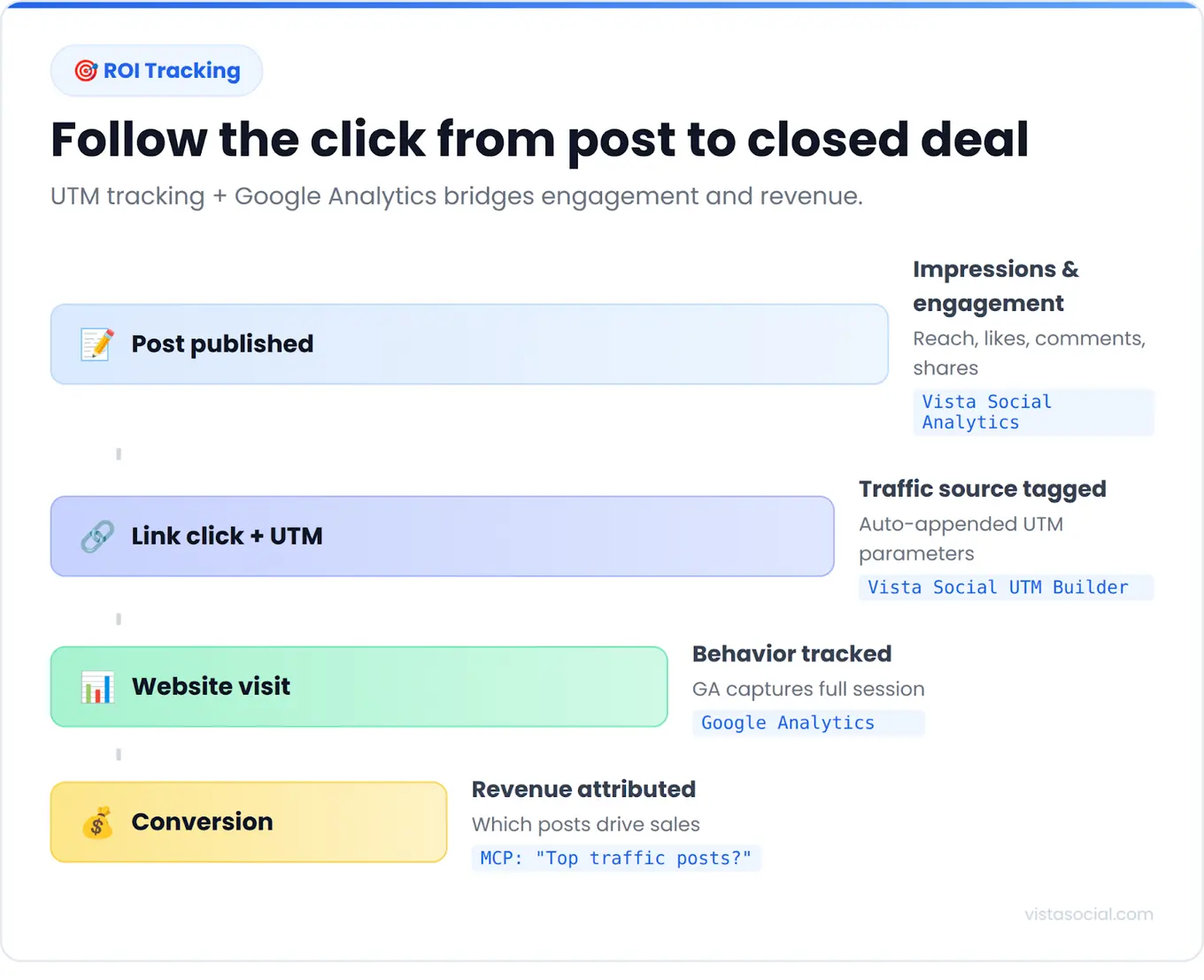
Engagement metrics feel good, but business metrics pay the bills. Vista Social integrates with Google Analytics so you can track what happens after someone clicks through from your LinkedIn content.
How to connect Google Analytics
1. Click Settings in the left sidebar
2. Select Integrations
3. Find Google Analytics and click Connect
4. Authorize Vista Social to access your Google Analytics account
5. Select the property you want to track
How to add UTM tracking to your posts
1. Create a new post in Vista Social
2. Add your link in the content field
3. Click the Link Settings icon
4. Enable UTM tracking
5. Fill in your campaign parameters (source, medium, campaign name)
6. Vista Social automatically appends the tracking data to your link
How to analyze business impact via MCP
Example prompt: “Using Vista Social, which LinkedIn posts drove the most website traffic this quarter?”
Example prompt: “Compare the conversion rate of traffic from my personal LinkedIn profile versus our company page. Which audience takes action more often?”
Example prompt: “Using Vista Social, generate a LinkedIn performance report for the last month focused on traffic and conversions rather than engagement metrics. Email it to marketing@company.com.”
9. Schedule posts at your audience’s optimal times
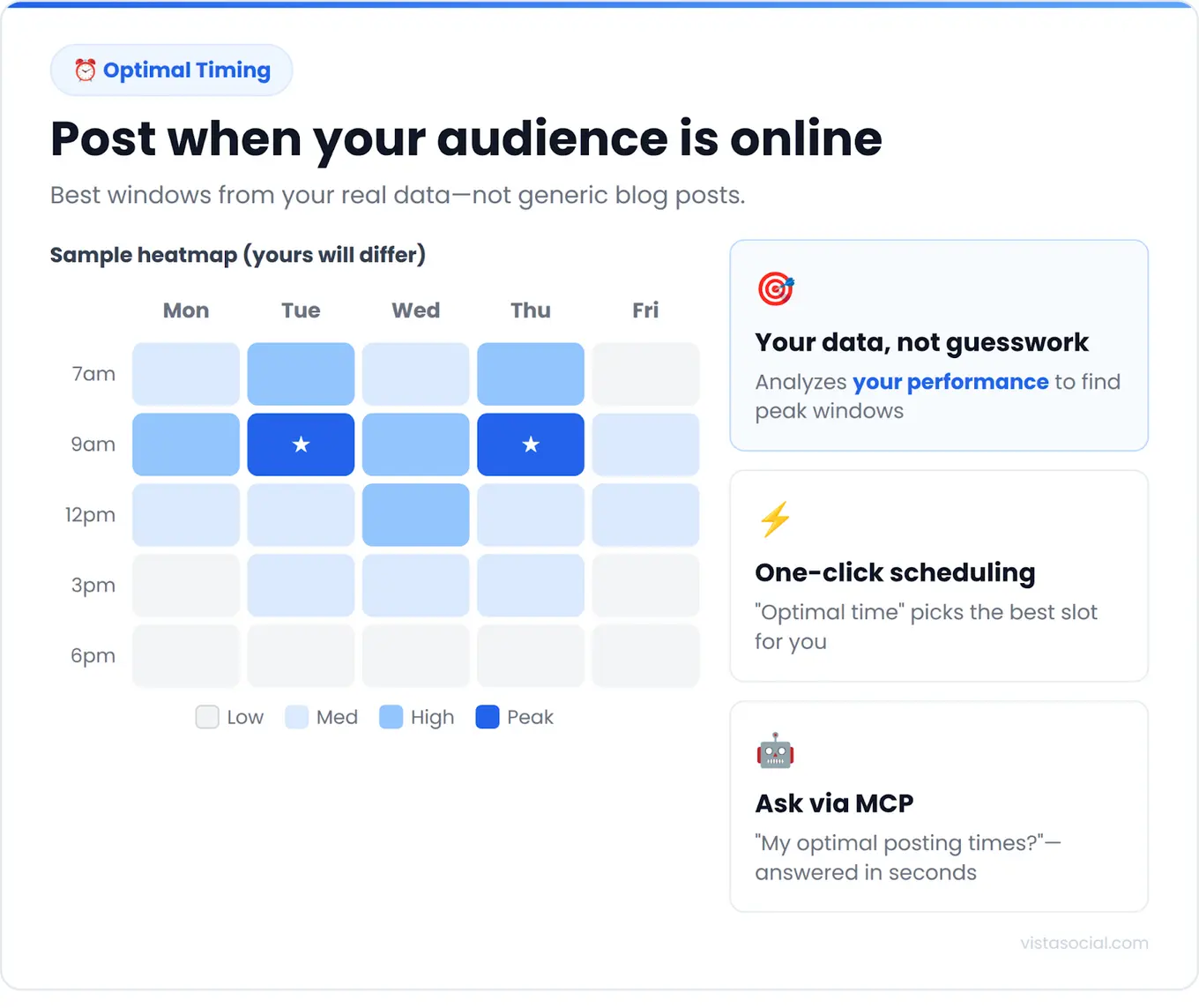
Vista Social analyzes your historical performance data to identify when your specific audience engages most, based on your actual data rather than generic best practices.
How to enable optimal timing
1. Create a new post in Vista Social
2. Select your LinkedIn profile
3. Click the scheduling option
4. Select Optimal time
Vista Social automatically slots your post into the next available high-engagement window based on your historical data
How to view your optimal times via MCP
Example prompt: “Using Vista Social, what are the optimal posting times for my LinkedIn profile this month based on my engagement data?”
How to build a consistent posting schedule
Example prompt: “Using Vista Social, create a weekly posting schedule for my LinkedIn that publishes thought leadership content on Tuesday and Thursday mornings and engagement-focused posts on Wednesday afternoons. Use optimal times based on my data for each slot.”
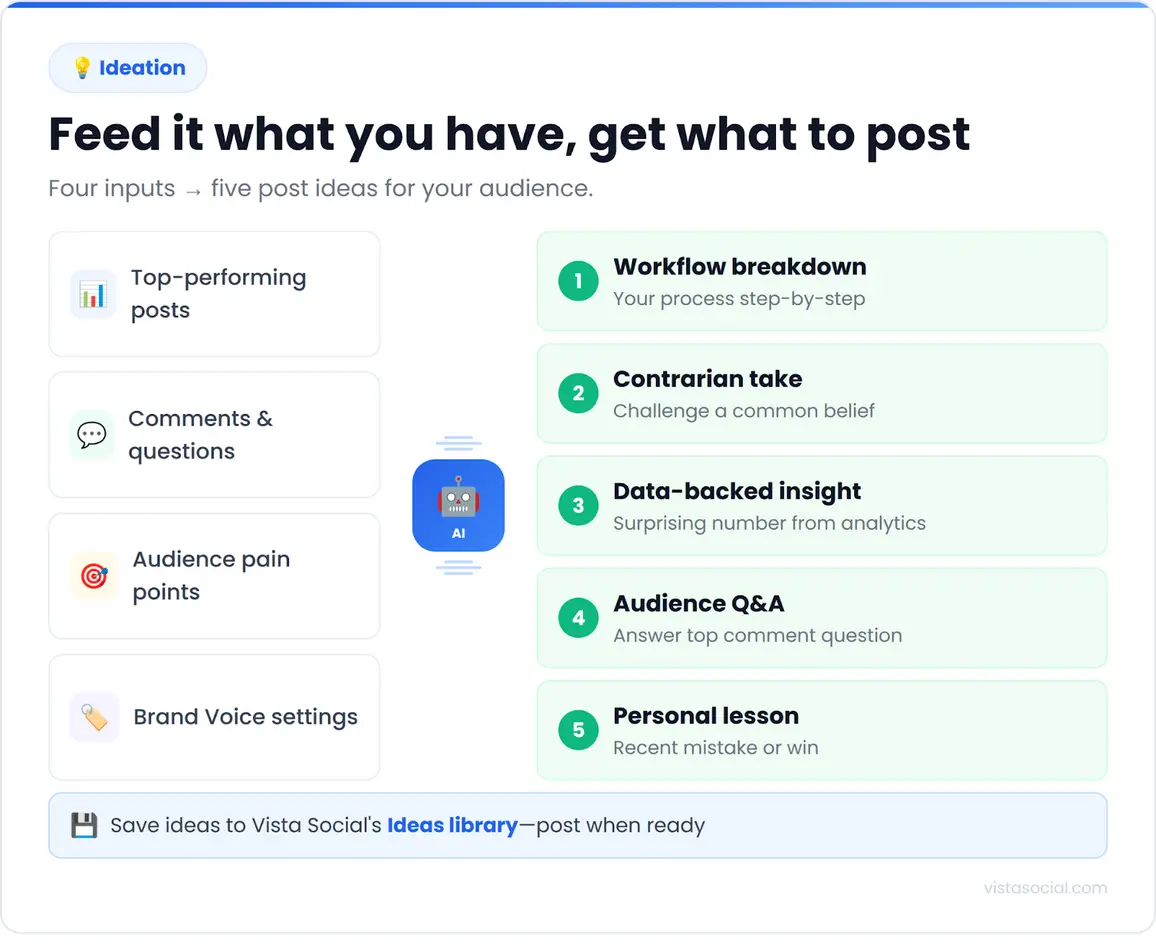
10. Generate content ideas without starting from scratch
The AI Assistant in Vista Social generates content tailored to your brand voice. Use it when you need volume or when you’re stuck.
How to brainstorm ideas with the AI Assistant
1. Click Create in the left sidebar
2. Select Ideas
3. Click Create new idea
4. Click the AI Widget (magic wand icon) in the content area
5. Select Advanced Mode for open-ended brainstorming
6. Enter a detailed prompt
Example prompt: “Give me 10 LinkedIn post ideas for a B2B SaaS company selling project management software. Focus on pain points like missed deadlines, team miscommunication, and executive visibility. Target operations managers at companies with 200-500 employees. Tone should be helpful and confident.”
7. Click Generate
8. Review the ideas and select the ones worth developing
9. Click Save to add them to your Ideas library
How to draft posts with the AI Assistant
1. Click Create in the left sidebar
2. Select New Post
3. Choose your LinkedIn profile
4. Write a rough draft or bullet points in the content field (or start empty)
5. Click the AI Widget (magic wand icon)
Choose Guided Mode to select tone and format, or Advanced Mode to write your own prompt
6. Click Generate caption
7. Review the output and edit to add your specific examples and voice
8. Generate additional variations if needed
9. Click Schedule or Publish when satisfied
Your Brand Voice settings apply automatically to every generation. Edit the output to add your specific examples, personal experiences, and the details that make your content uniquely yours.
AI tools for LinkedIn
You could cobble together five different tools to handle content creation, scheduling, analytics, engagement, and reporting. Or you could pick one that does it all without the tab-switching chaos.
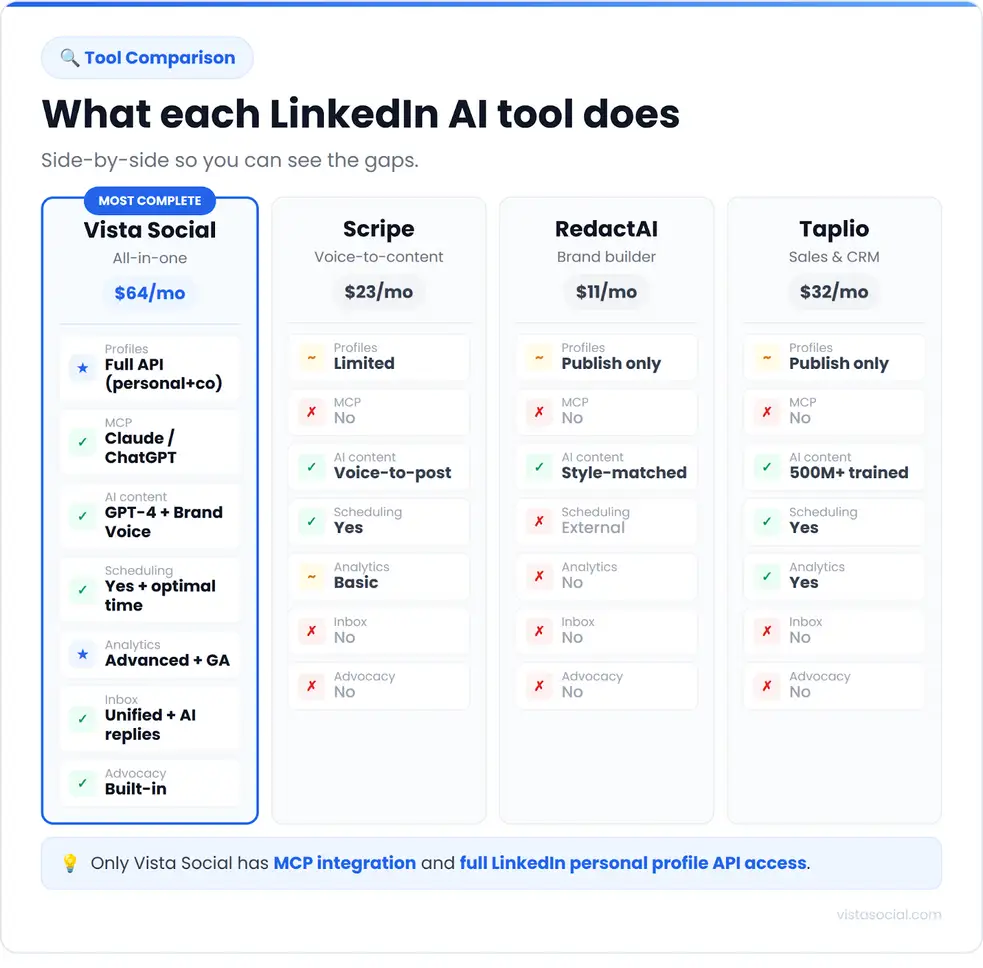
Here’s how the top LinkedIn AI tools stack up.
Quick comparison
Vista Social
Most social media tools treat AI as a checkbox feature. Vista Social built AI into the foundation.
The difference shows up in how everything connects. You’re not jumping between a scheduling tool, an analytics dashboard, a content generator, and an inbox manager. Everything lives in one place, and the AI understands context across all of it.
LinkedIn personal profile access
Here’s something most people don’t realize. LinkedIn heavily restricts what third-party tools can do with personal profiles. Most platforms can only post to company pages.
Vista Social has full LinkedIn personal profile API access, meaning you can schedule posts to your personal profile, monitor your inbox, and pull comprehensive analytics. Getting this access required a year of persistence and a two-month security audit from LinkedIn. Very few platforms have it.
MCP integration
Vista Social is one of the first social media platforms to build an MCP server. Connect it to Claude or ChatGPT once, and you can manage your entire LinkedIn presence through conversation.
Ask “What were my top posts this month?” and get actual data. Say “Schedule a post for tomorrow at 9am,” and watch it happen. Request “Email my performance report to the client” and it sends. No other major social management platform offers this capability.
What else is included
Vista Social packs features that usually require separate subscriptions:
- Employee advocacy for amplifying reach through team members’ personal profiles
- Social listening to track brand mentions and industry conversations
- Review management for Google, Facebook, TripAdvisor, and other platforms
- Vista Page for link-in-bio landing pages
- DM automation for lead capture and instant responses
- Approval workflows for team collaboration
- Bulk scheduling via spreadsheet uploads or RSS feeds
- Canva integration for creating visuals without leaving the platform
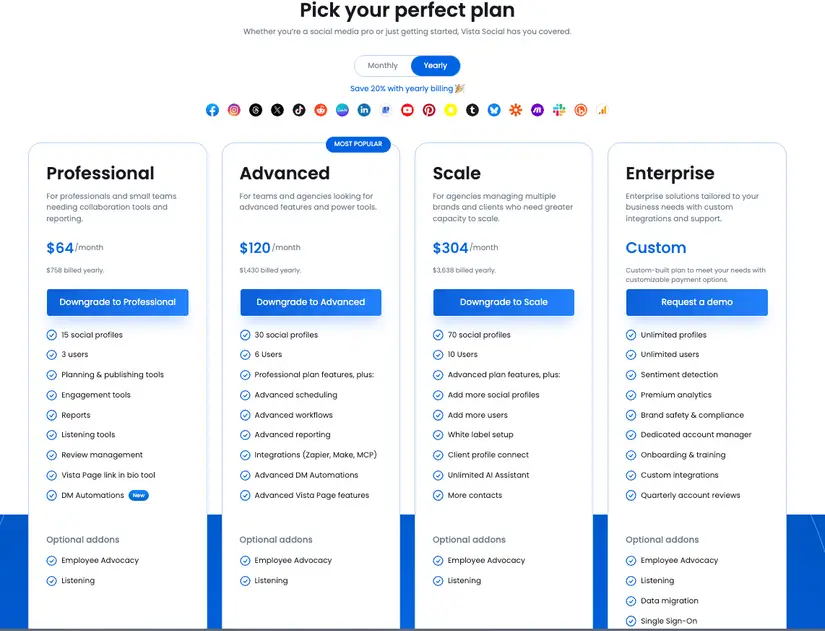
Pricing
Bottom line: Vista Social makes sense if you want one platform that handles scheduling, engagement, analytics, and AI content generation without the tool stack bloat. The MCP integration and LinkedIn personal profile access are genuine differentiators that no competitor currently matches.
Scripe
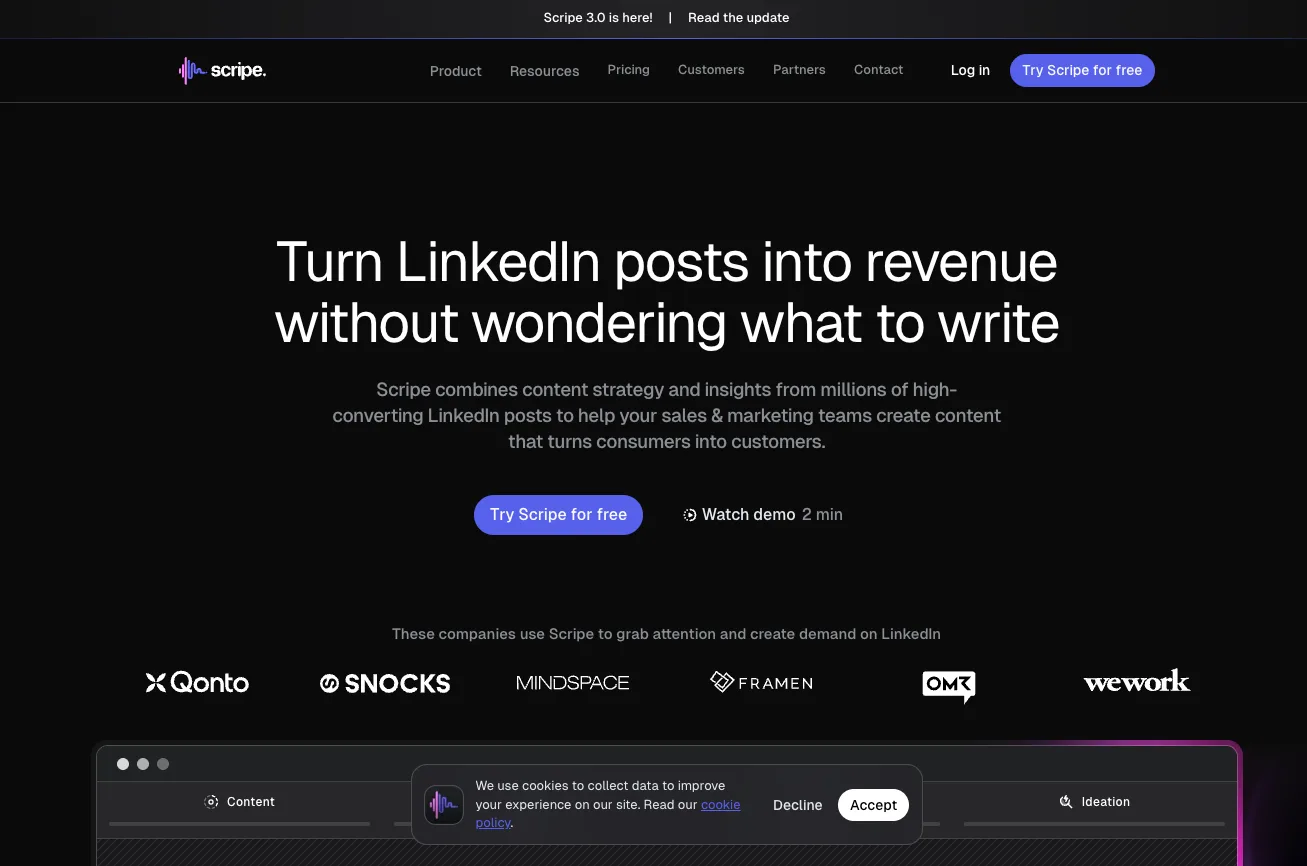
Scripe takes a different approach to LinkedIn content. Instead of typing, you talk.
The voice-to-post feature lets you record your thoughts as voice memos, and the AI transforms them into polished LinkedIn posts. For busy executives who have insights but no time to write, this workflow can be a game-changer.
Key features:
- Voice memo to LinkedIn post conversion
- AI trained on your existing writing style for more authentic output
- Content calendar for scheduling
- Analytics focused on post performance
- Team collaboration for agencies managing multiple accounts
Limitations:
Scripe focuses exclusively on LinkedIn content creation, so there’s no unified inbox, no cross-platform publishing, and no MCP integration. If you need broader social media management, you’ll need additional tools.
RedactAI
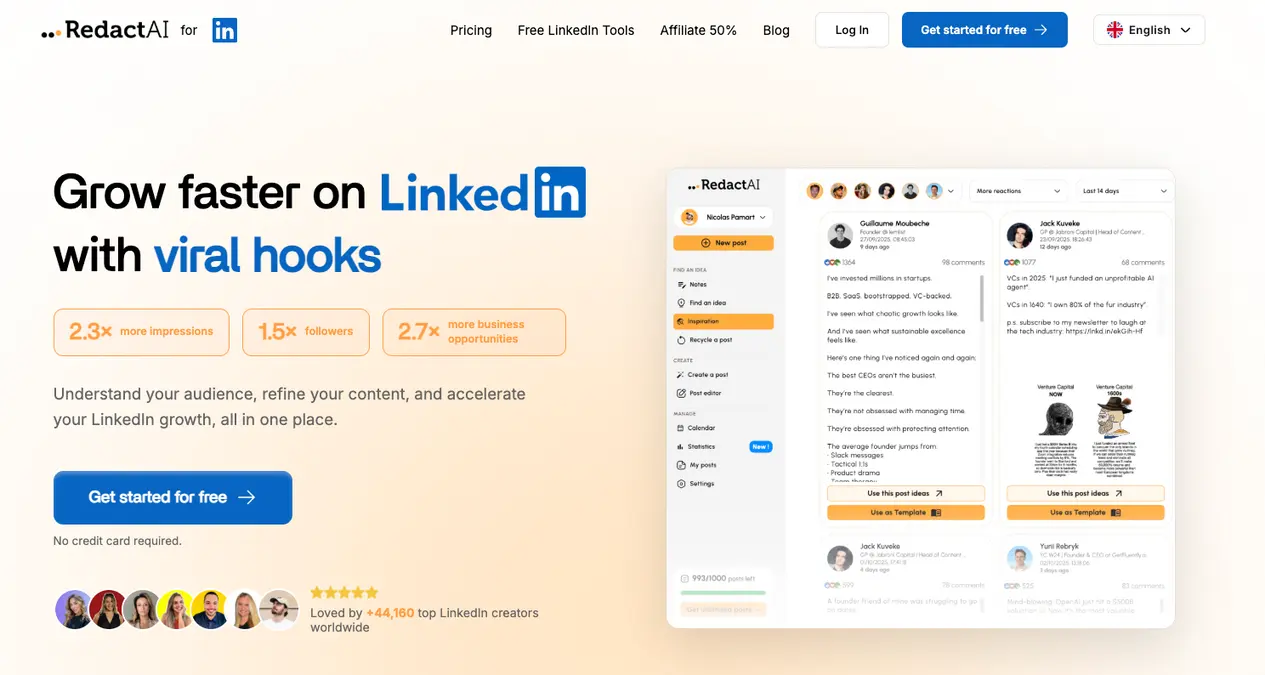
RedactAI positions itself as a LinkedIn post generator that learns your personal writing style.
The tool analyzes your previous LinkedIn posts to understand your tone, vocabulary, and content patterns. When you generate new posts, the output sounds more like you and less like generic AI.
Key features:
- Writing style analysis based on your existing content
- Post generation from ideas, URLs, or blog content
- Post-recycling to resurface high performers
- Free profile review and text formatting tools
Limitations:
RedactAI handles content generation only, so there’s no built-in scheduling for posts created in the tool, no inbox management, and no analytics beyond basic metrics. You’ll need to copy content into another tool to actually publish it on a schedule.
Taplio
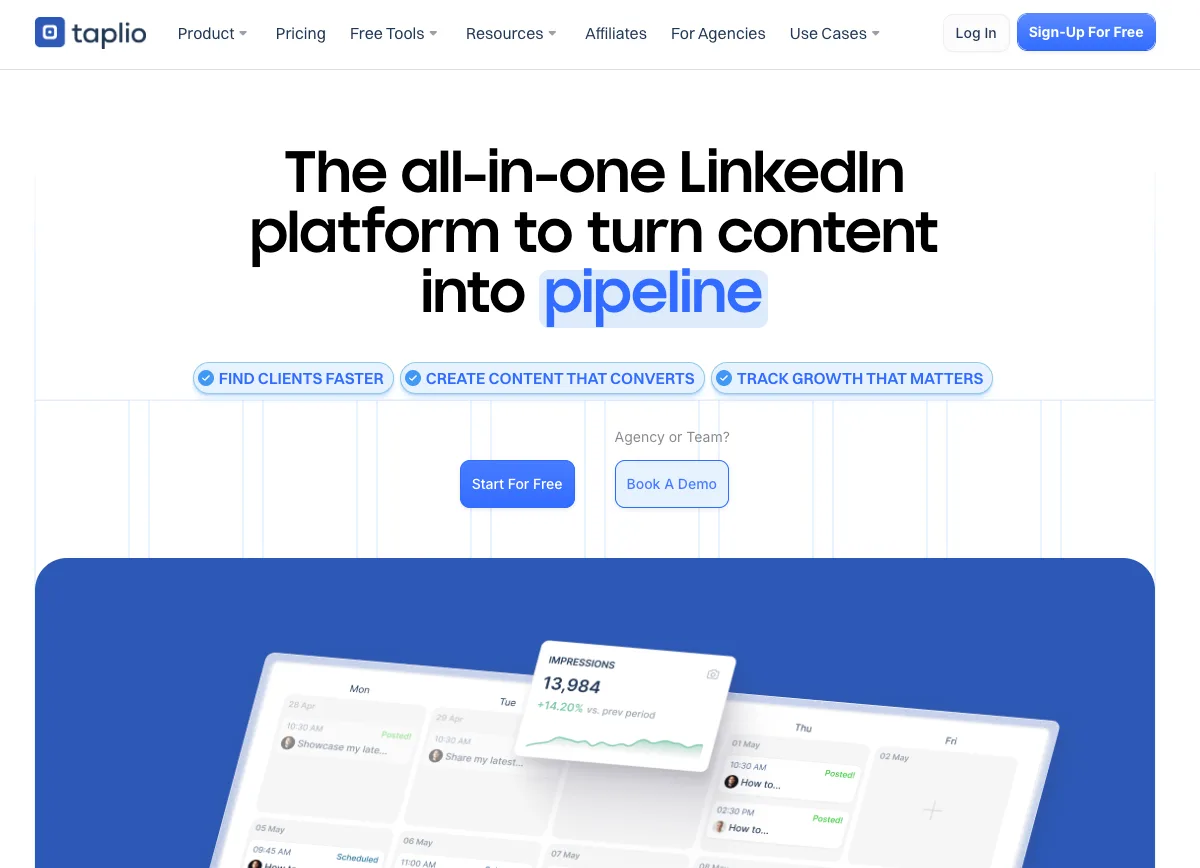
Taplio combines LinkedIn content creation with lead generation features, targeting sales professionals and founders who want to turn their content into a pipeline.
The AI trains on over 500 million LinkedIn posts to help you create content that matches what performs on the platform. The Lead Database and Chrome extension add prospecting capabilities you won’t find in pure content tools.
Key features:
- AI content generation trained on LinkedIn-specific data
- Carousel creator that transforms URLs, videos, or blog posts into visual content
- Post scheduling and performance analytics
- Lead database with 3+ million contacts for prospecting
- Chrome extension for on-platform insights and engagement
Limitations:
The AI content generation requires the Standard plan ($49/month) or higher, and some users report the output feels generic and needs significant editing. The tool focuses heavily on LinkedIn, so cross-platform management isn’t its strength.
Boost your strategy with AI for LinkedIn
Most advice about AI for LinkedIn stops at “use ChatGPT to write better posts.” That approach is actually hurting your reach.
The marketers winning on LinkedIn aren’t generating more content. They are however, using AI to eliminate the tedious parts of their workflow so they can invest more energy in the creative work that builds real connections.
MCP takes this further by letting you manage your entire LinkedIn presence from inside whatever AI tool you’re already using. Schedule posts. Pull performance data. Generate reports. All without leaving a conversation.
Start small. Pick one workflow that eats your time, whether that’s brainstorming, comment management, or reporting. Build AI into that specific process. Once you see results, expand to the next one.
And never forget that AI should not be the final touch on your LinkedIn content. The algorithm detects it. Your audience recognizes it. Use AI to multiply your capabilities while keeping the human element that actually drives engagement.
Try Vista Social for free and see what happens when AI integrates into your workflow instead of sitting in a separate tab.
Frequently asked questions
Can AI write my LinkedIn posts for me?
AI can generate LinkedIn posts, but using them without editing is a mistake. Research shows AI-generated posts receive significantly less reach and engagement than human-written content. Use AI as a starting point, then heavily edit to add your specific examples, unique perspective, and authentic voice. The goal is faster drafting, not hands-off automation.
What is MCP for social media?
MCP stands for Model Context Protocol, a standard that lets AI tools like Claude and ChatGPT connect directly to other software. For social media, this means you can manage scheduling, analytics, and engagement from inside your AI chat instead of switching between apps. Vista Social offers a native MCP server that connects your social accounts to your preferred AI assistant.
How do I know if my LinkedIn content sounds like AI?
Common AI tells include generic opening hooks, excessive emoji use (especially 🚀 and ✨), corporate buzzwords like “leverage” and “synergy,” perfectly structured posts with no rough edges, and a lack of specific personal examples. If you cannot identify a single detail that only you would know, your content probably sounds like AI wrote it.
Will LinkedIn penalize me for using AI?
LinkedIn’s algorithm appears to detect and reduce reach for content that shows obvious AI patterns. The platform has also added C2PA tags to identify AI-generated images. The safest approach is to use AI for ideation and drafting while always adding human editing and personal elements before posting.
How much time can AI actually save on LinkedIn management?
The savings depend on your current workflow. Users report cutting content creation time by 60-80% when using AI for drafting because you’re editing instead of starting from scratch. Reporting and analytics can drop from hours to minutes with MCP integration. Comment management speeds up with AI-suggested replies but still requires human review. Expect to save 5-10 hours weekly if you’re currently managing LinkedIn manually.
Should I use AI for LinkedIn carousel posts?
AI excels at structuring carousel content by generating slide headlines, extracting key points from longer content, and organizing information into swipe-worthy sequences. The visual design still benefits from human attention, but the content framework can be AI-assisted. Just ensure each slide delivers genuine value rather than fluffy filler.
Try Vista Social for free
A social media management platform that actually helps you grow with easy-to-use content planning, scheduling, engagement and analytics tools.
Get Started NowAbout the Author

Content Writer
Orion loves to write content that refuses to be boring. As part of Vista Social, he helps brands, creators, and agencies stop doom scrolling and start winning with social media. When he's not in front of a keyboard, he's watching films in IMAX with his wife, dissecting football tactics (the European kind), and getting lost in a good book.
Loading related tools...




Tools
PublishingAnalyticsEngagementIntegrations
FacebookInstagramLinkedInRedditSnapchatThreadsTikTokX (Twitter)YouTubeBlueskyVista Page (link-in-bio)All IntegrationsCopyright © 2026 Vista Social LLC. All Rights Reserved.