

Published on January 15, 2026
9 min to read
Social Inbox Automation: Put Your Social Conversations on Autopilot

Summarize with AI

Table of contents
Summarize with AI

ChatGPT

Claude

Perplexity
Share

Vista Social

X (Twitter)


Managing all of your social media messages across all of your platforms can feel like a thankless and never-ending job.
Just when you’ve cleared out your Instagram DMs, you open TikTok to find a flood of comments. Respond to those, turn to the next platform, and find your Threads mentions are overflowing. Meanwhile, app store reviews, X/Twitter messages, and YouTube video comments are piling up in the background.
Your entire day is now dedicated to handling customer requests and concerns across social media, even though you still have to handle content creation, publishing, reporting, and…so much more.
With social inbox automation, you can manage conversations across every platform from one place and create simple workflows that keep you and your team organized.
Let’s dig into what this looks like in a social media strategy and why it can be such a time saver.
Table of contents
5 real-life use cases for social inbox automation
So what does social inbox automation actually look like when implemented? Let’s walk through a few real-life scenarios that showcase how this feature can be used.
1. Ecommerce brand managing product questions
Scenario: Your skincare company gets dozens of daily questions (comments and DMs alike) about ingredients, shipping, and product recommendations across Instagram, TikTok, YouTube, and Threads.
How to use social inbox automation:
- Use AI intent detection to identify different types of questions (product info, shipping, returns) and auto-respond with the right information
- Auto-label questions about specific skin concerns as “needs expert” and assign the task to the SME on your team
- Create email notifications to alert the team lead when negative sentiment is detected in a comment, message, or review
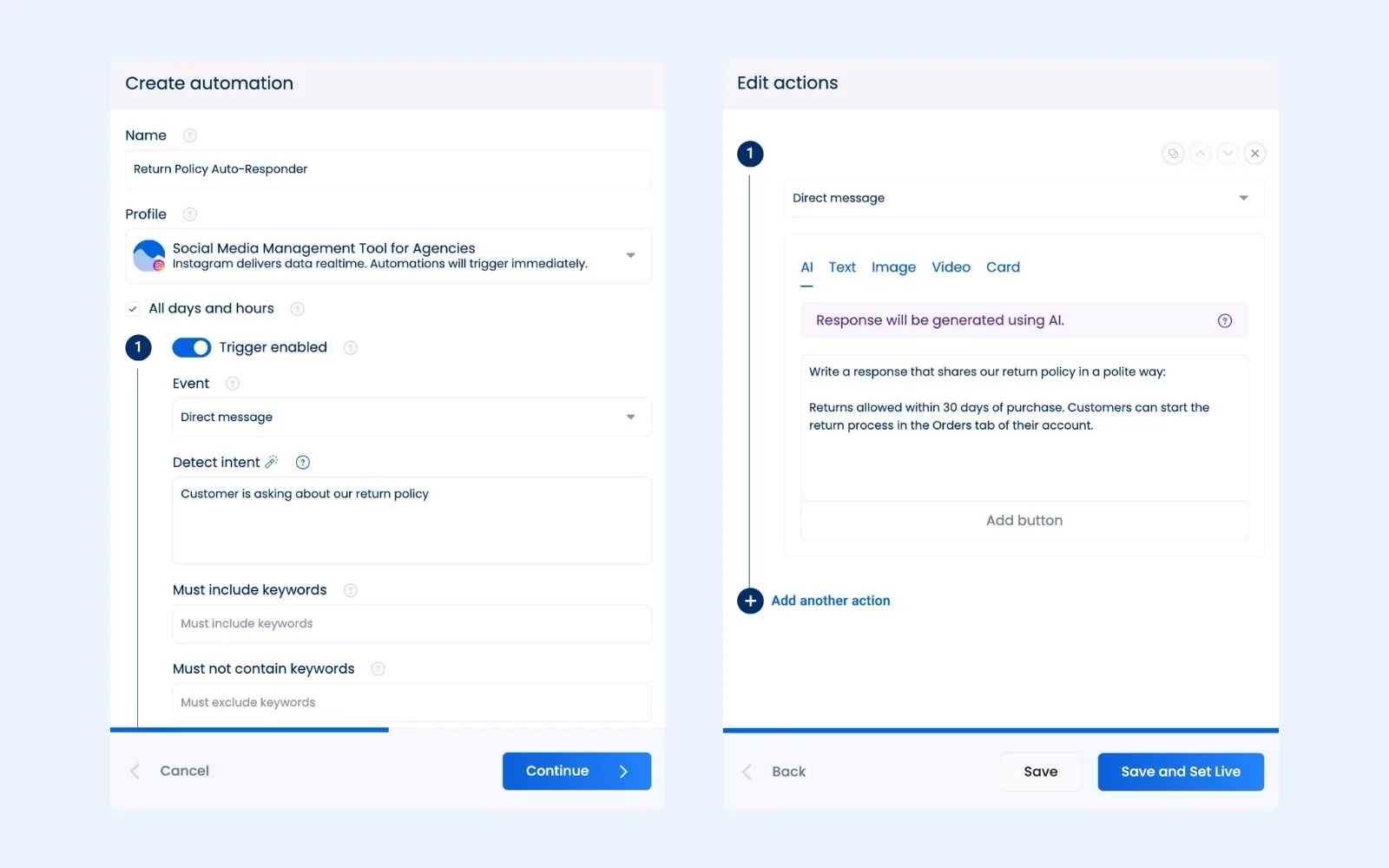
Sample automation workflow:
2. SaaS company managing app store reviews and social support
Scenario: Your project management software company monitors the Apple App Store, Google Play Store, Twitter/X, and LinkedIn for bug reports and feature requests.
How to use social inbox automation:
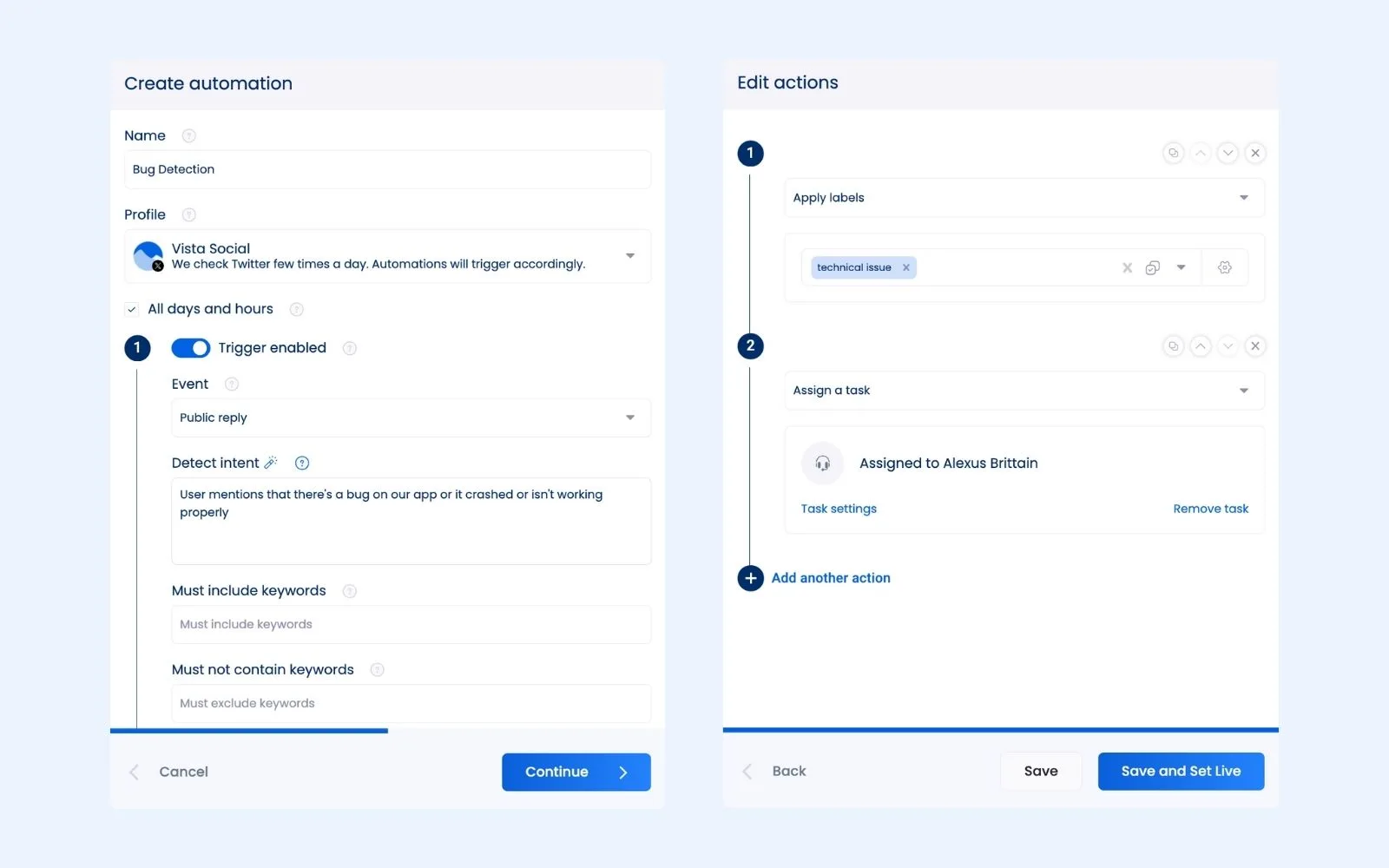
- Use AI intent detection to identify comments or messages that indicate a bug or crash on your app or software and auto-label it with “technical issue” and assign to your support engineer
- Auto-label feature requests with “product feedback” and compile for the product team
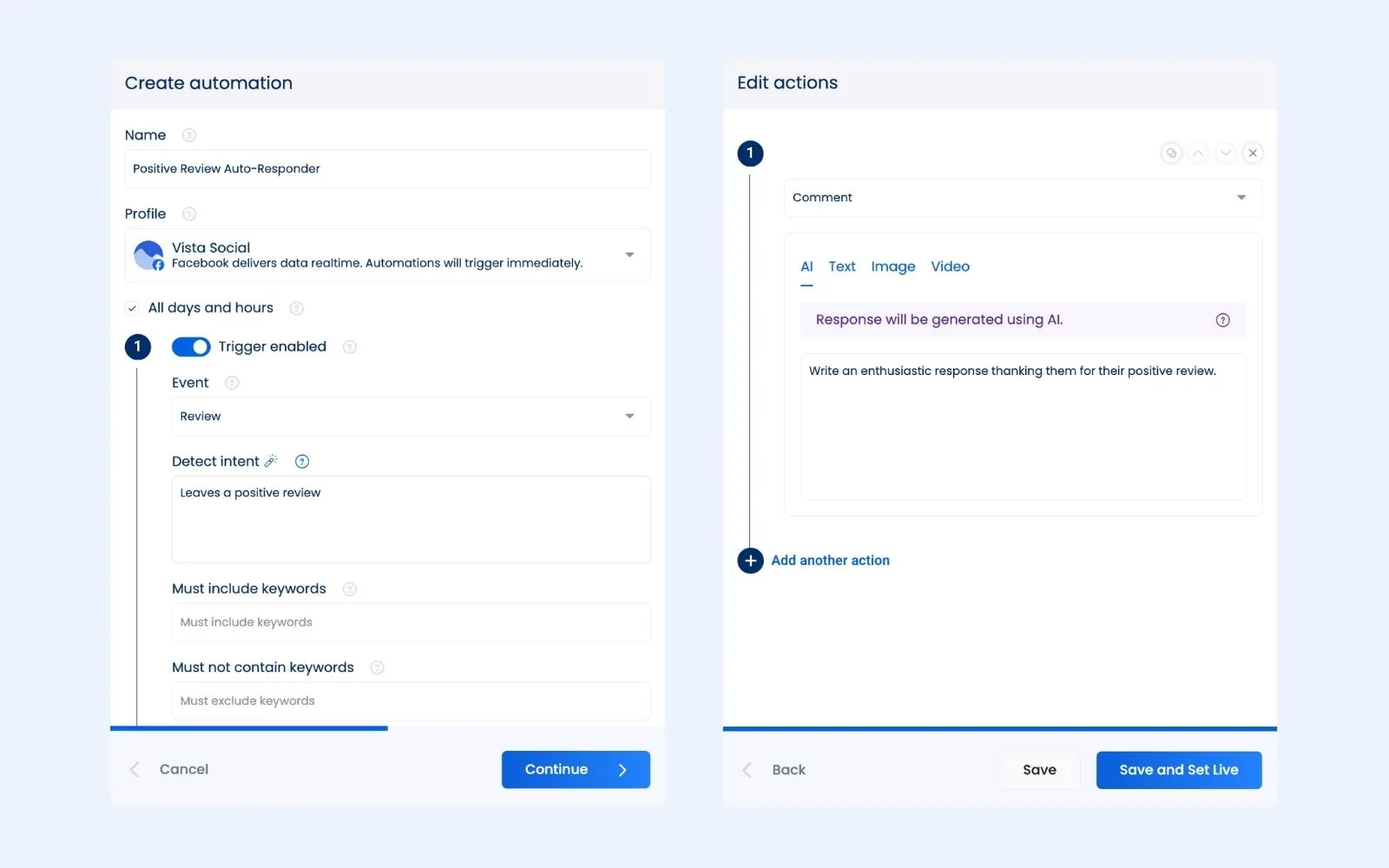
- Auto-respond to positive reviews with automated “thank you” responses (but using AI so that each response is personalized and not the same canned reply again and again)
- Create email notifications to send immediate alerts about critical platform issues to the on-call support person
Sample automation workflow:
3. Restaurant chain monitoring reviews and mentions
Scenario: Your regional restaurant chain with 25 locations needs to track mentions, comments, and reviews across Facebook, Instagram, Google Business, Yelp, and TikTok.
How to use social inbox automation:
- Auto-label negative comments and reviews with location tags (when mentioned) and assign to the regional manager
- Automate “thank you” responses for positive reviews (but have AI write them so they’re all catered to each review)
- Send immediate email alerts to corporate whenever your chain is mentioned alongside a food safety concern
- Create auto-responders for questions about hours, menu items, or reservations
Sample automation workflow:
4. Gaming company managing its online community
Scenario: Your indie game studio has an active community on X/Twitter, YouTube, Instagram, Bluesky, Reddit, and both app stores.
How to use social inbox automation:
- Auto-tag bug reports and route them to QA team members
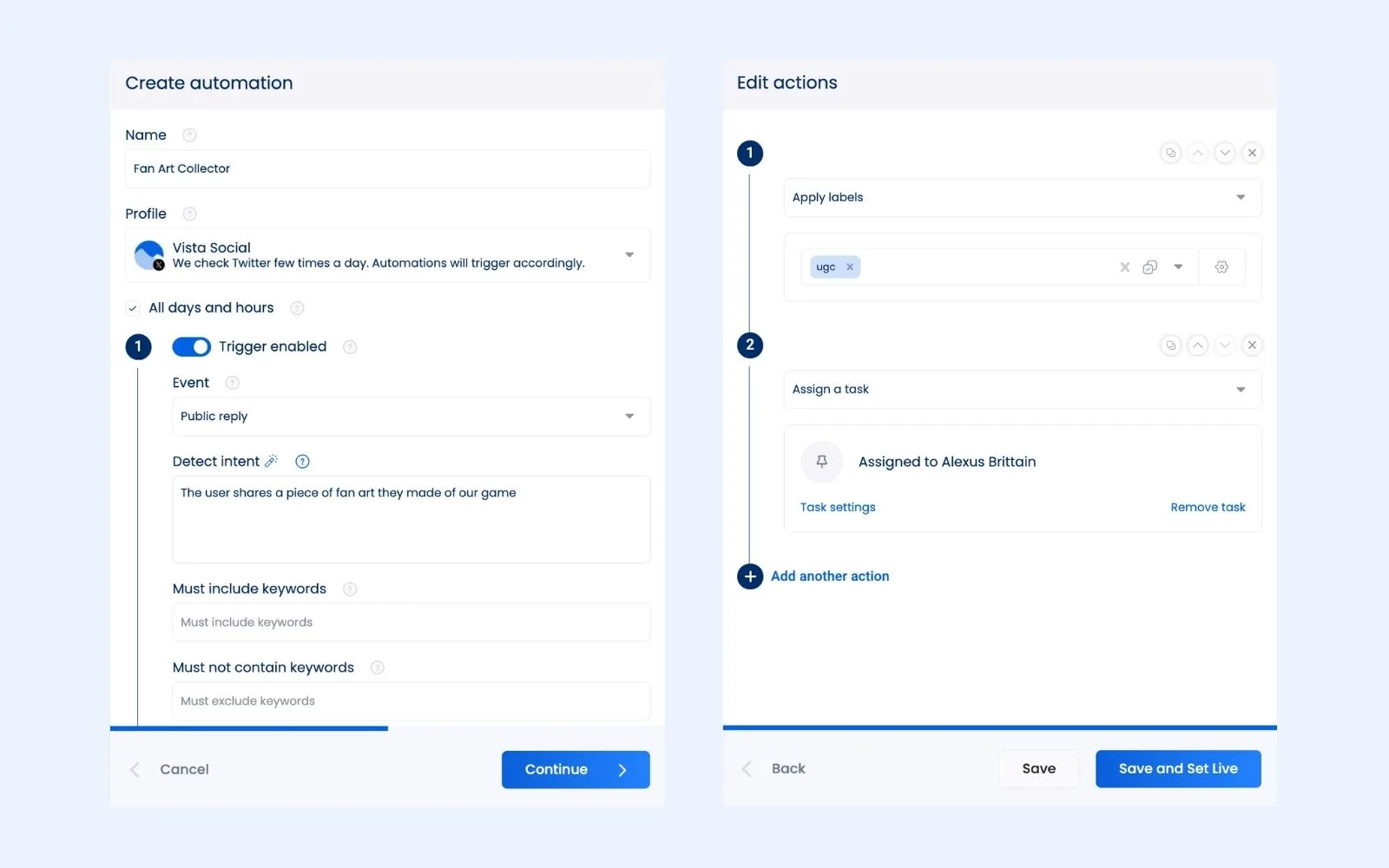
- Use AI intent to detect when gamers have created and shared fan art and assign to a community manager to reach out about re-sharing it as UGC
- Auto-tag requests for game keys or partnership inquiries as “business dev” and assign to the appropriate team member
Sample automation workflow:
5. Agency managing multiple client accounts
Scenario: Your social media agency manages 15 clients across various industries, each with presences on 4-8 different platforms.
How to use social inbox automation:
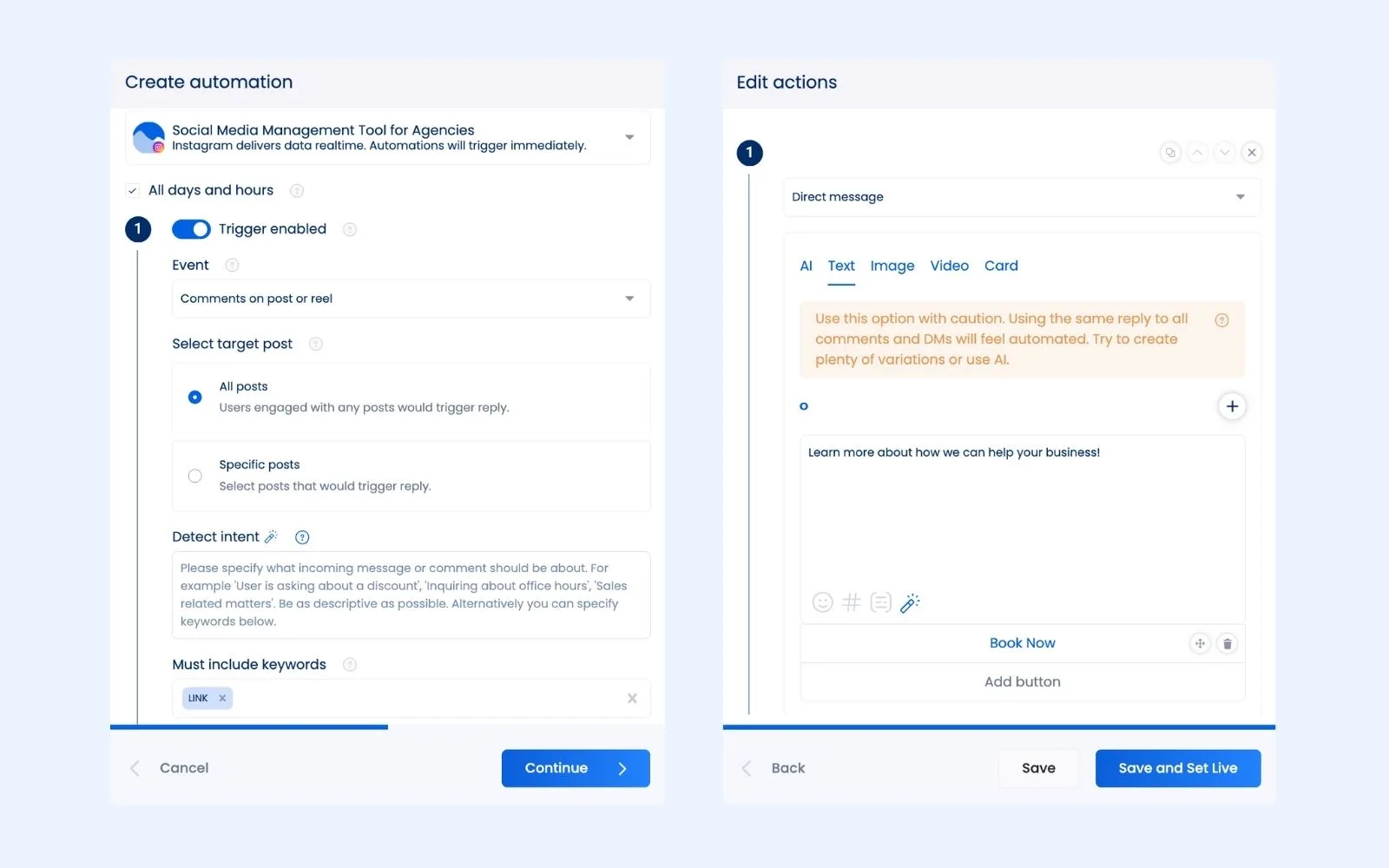
- Create custom automation rules for each client based on their typical customer conversations (i.e., Client A, a fitness brand, has automations that identify workout questions and provide automated exercise tips while Client B, a law firm, has automations that identify consultation requests and automatically respond with a booking link)
- Input different brand voice guidelines for each client so the responses fit their voice and personality
- Use a DM automation that automatically sends links to your service pages to interested clients on your own social media platforms
Sample automation workflow:
How to set up social inbox automation workflows in Vista Social
Ready to put your inbox workflows on autopilot? Follow along to get your first automation created in Vista Social.
Step 1: Open the Automations tab in Vista Social
Let’s start this off assuming that you’ve already created your Vista Social account and connected all of your social media and review platforms. If not, that’ll be your step one.
But if so, log in and head to Automations in the left sidebar.
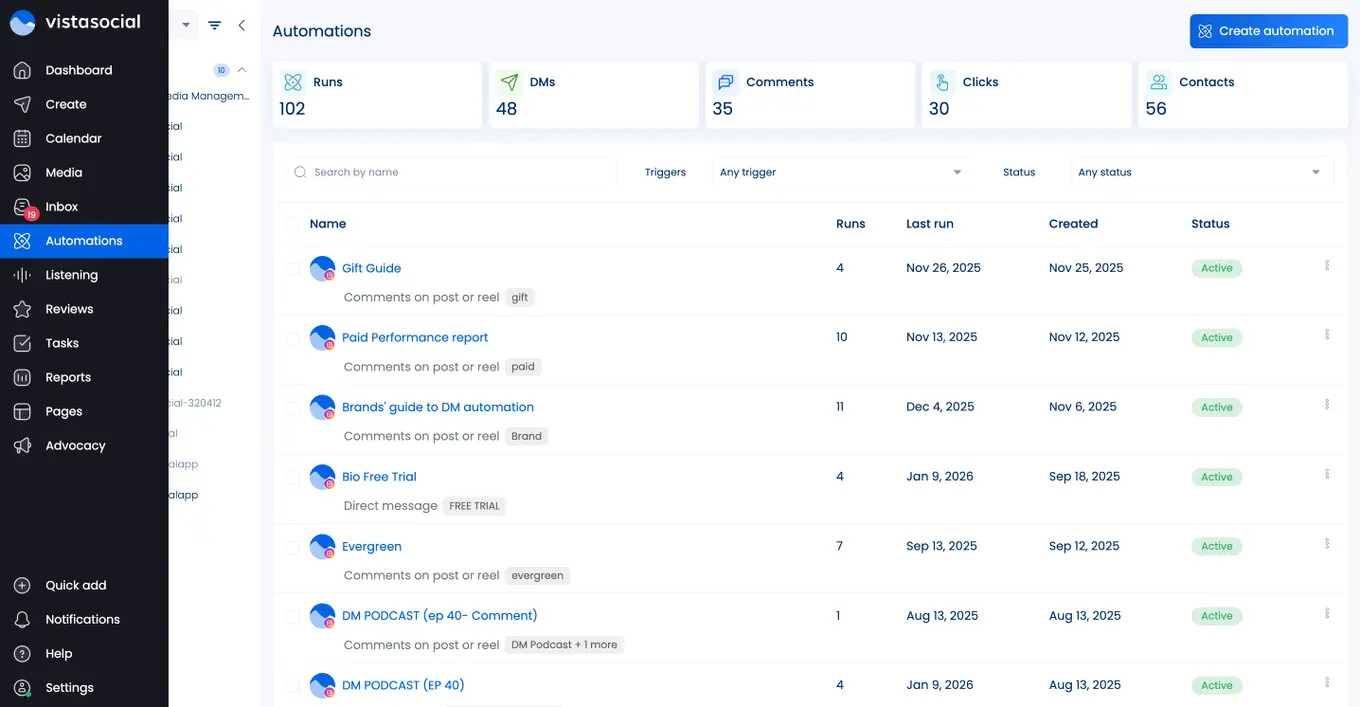
You’ll be taken to the automations dashboard where you can see all of your active and paused automations, how many times they’ve run, and other data about your workflows.
Step 2: Create an automation
Click the Create automation button in the top right corner to get started building out your first workflow. A pop-up will appear giving you the option to choose from one of our ready-made templates, or you can start from scratch.
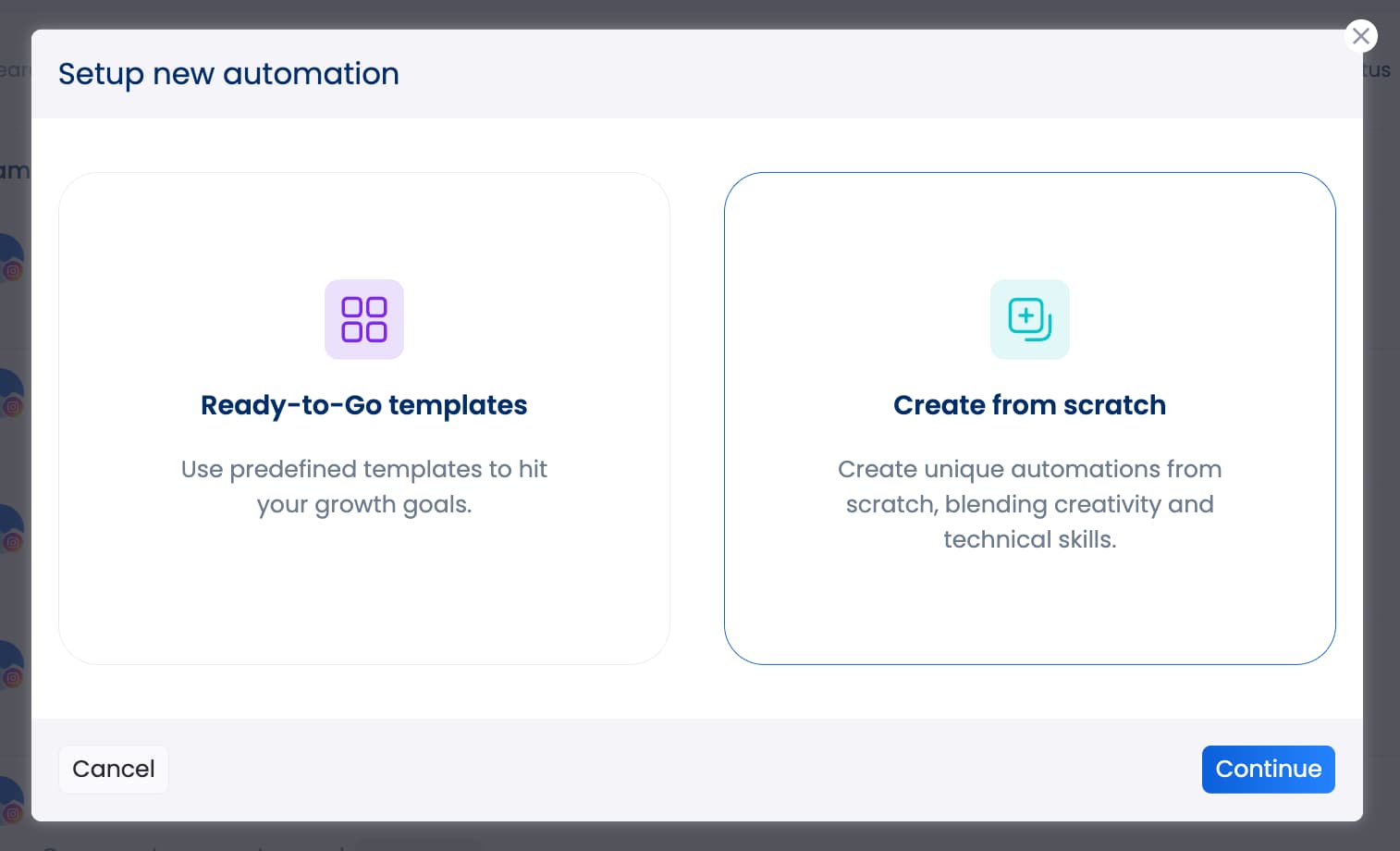
We’re going to be creating a workflow from scratch in this tutorial. So click that option, then click Continue.
Step 3: Add your trigger
Give your automation a name and select the platform you want to create your automation on. For example, you might want to set up an auto-responder for Instagram messages or an auto-assign for negative reviews on Google Business.
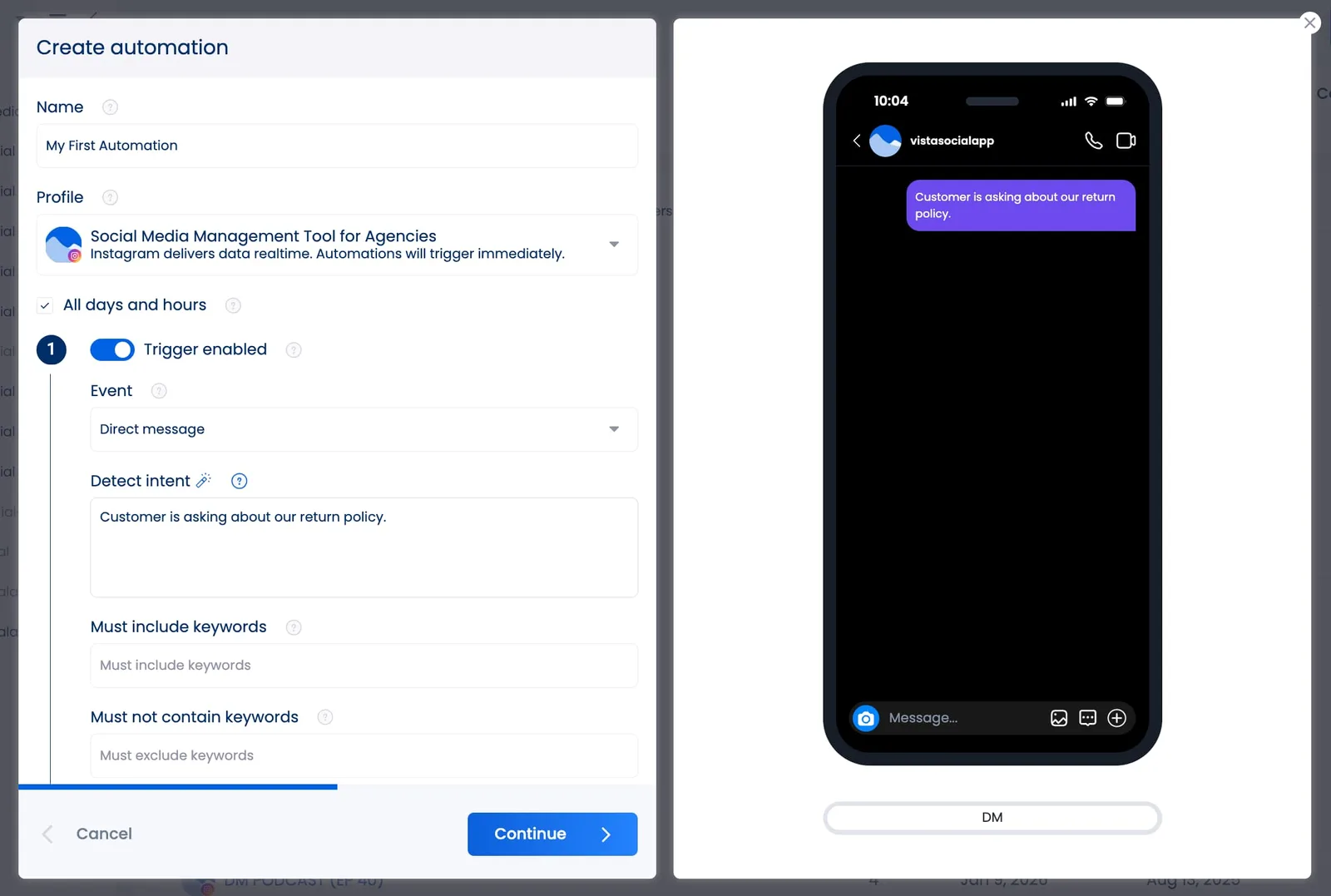
The settings you can customize on this screen include:
- Trigger days/times: You can have this automation be live at all times, or you can set certain days/times for it to activate. For example, you might have a certain time period when you have a community manager actively checking your channels, but you need your automation to alert an on-call team member of incoming messages during their off time.
- Event: Depending on the platform you choose, there are different events you can set to trigger the automation. These consist of a new DM, comment (whether on a post, livestream, or Reel), story reply, mention, or review.
- Detect intent: Let our AI analyze each incoming message, comment, or review to detect the intent. We can then use this intent as part of the automation trigger. In our example above, we’re asking the AI to detect anytime someone DMs about a return policy. This automation will only fire when the AI has detected that kind of question. This is a much easier way to go about this, rather than inputting keywords since not everyone will word queries the same way.
- Keywords: You can include and exclude keywords if you prefer to go that route over AI intent detection. Or, this is the spot to include the keyword you want people to comment to fire a specific DM automation from your post(s).
- Followers only: You can choose whether you want your automation to fire only for followers or not. If you select Yes, our automation will ask the user to follow you before we send them the information from the rest of the automation. It’s a great way to grow your following.
Once you’ve completed these fields, click Continue.
Step 4: Set up your action
Now it’s time to set up the action that happens after the user has triggered the automation. This will be your brand’s response, whether it’s an auto-DM or an internal action.
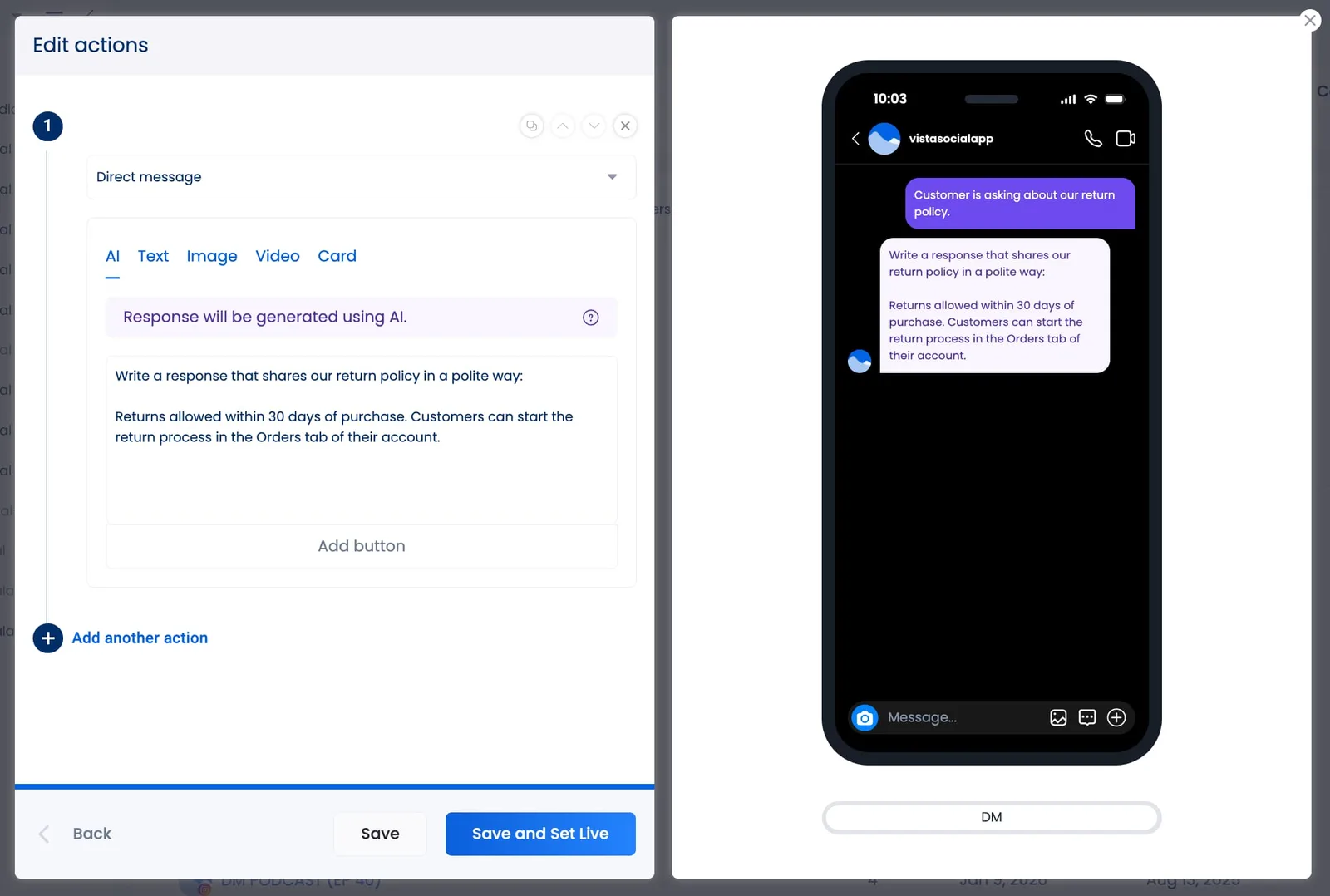
You’re able to choose a network action (something that occurs on the social network) or a Vista Social action (something that occurs internally).
The available network actions (note that they vary from platform to platform depending on its API) include:
- DM: Respond by sending an automated DM
- Comment: Respond by leaving an automated comment
- Delay: If you create a multi-part automation, you can set a delay in between comments or messages
- Data collection: Some platforms allow us to send a data collection form for lead generation
The available Vista Social actions include:
- Assign task: Automatically assign the comment or message to a user or user group so they can handle it
- Create label: Automatically add a label to the comment or message to keep conversations organized
- Mark as resolved: If you’ve set up an auto-responder, make sure to add this so the conversation is marked as resolved in the Social Inbox
- Send email notification: Automatically alert someone via email of a critical comment or message
So in our example, we’re creating an auto-responder that will trigger when customers ask about the return policy. We’re providing guidelines to the AI so that it can send a custom, personalized response every time, rather than appearing like a canned, automated reply.
However, you can set up your own text replies if you prefer. Just make sure to create enough variations that your account won’t be flagged as sending spam.
Step 5: Set your new automation live
Once you’re satisfied with your workflow, click Save and Set Live. But before you call it a day, make sure to head over to the platform you created the workflow for and test it out. Make sure everything appears the way you want it to, and make any necessary edits until it’s perfect.
There you go—you can now completely automate your social inbox, setting up auto-responders for common questions and alerting the right people for other inquiries that require a human touch.
You’re welcome.
Try Vista Social for free
A social media management platform that actually helps you grow with easy-to-use content planning, scheduling, engagement and analytics tools.
Get Started NowAbout the Author

Content Writer
Chloe West is a content marketing manager for Vista Social. She has over seven years of experience in digital marketing for B2B SaaS companies. When she's not working, you'll find her spending time with her family, reading a book, or watering her plants.
Loading related tools...



Tools
PublishingAnalyticsEngagementIntegrations
FacebookInstagramLinkedInRedditSnapchatThreadsTikTokX (Twitter)YouTubeBlueskyVista Page (link-in-bio)All IntegrationsCopyright © 2026 Vista Social LLC. All Rights Reserved.