


MCP for Agencies: Managing 50+ Client Accounts Through AI Chat
April 27, 2026
11 min read

Summarize with AI

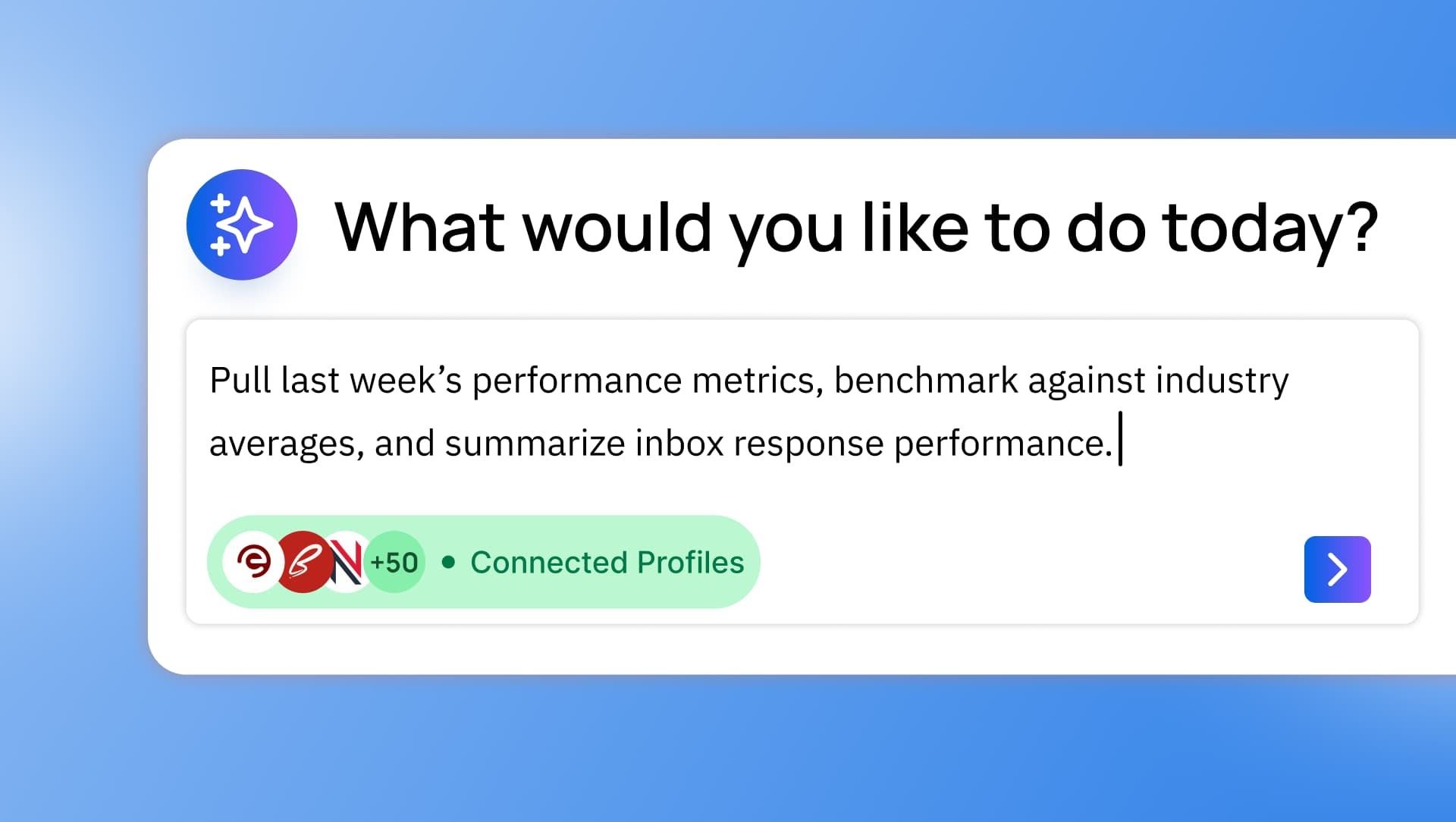
Table of contents
Share

Vista Social

X (Twitter)


Running a social media agency means you’re never managing just one brand—you’re managing dozens. Each client has their own Instagram presence, their own Facebook community, their own LinkedIn voice, their own content calendar, and their own approval workflow that works slightly differently from the last one. Keeping all of it moving without dropping anything is the actual job, and it only gets harder as you grow.
Connecting Vista Social to an AI assistant through MCP changes the equation. Instead of your team navigating between platforms to pull reports, check approval queues, triage inboxes, and file content briefs for each individual client, the AI handles that operational layer directly. This means your team can spend their time on strategy and creative work rather than dashboard navigation.
This guide covers what MCP is, how it works with Vista Social, and exactly how agencies can use it to manage 50 or more client accounts without adding headcount to do it.
Table of contents
What is MCP?
MCP is an open standard that allows AI tools like Claude and ChatGPT to connect directly to external platforms and take real actions inside them. Before MCP, AI could only work with what you gave it. Now it can go and get what it needs and actually do something with it.
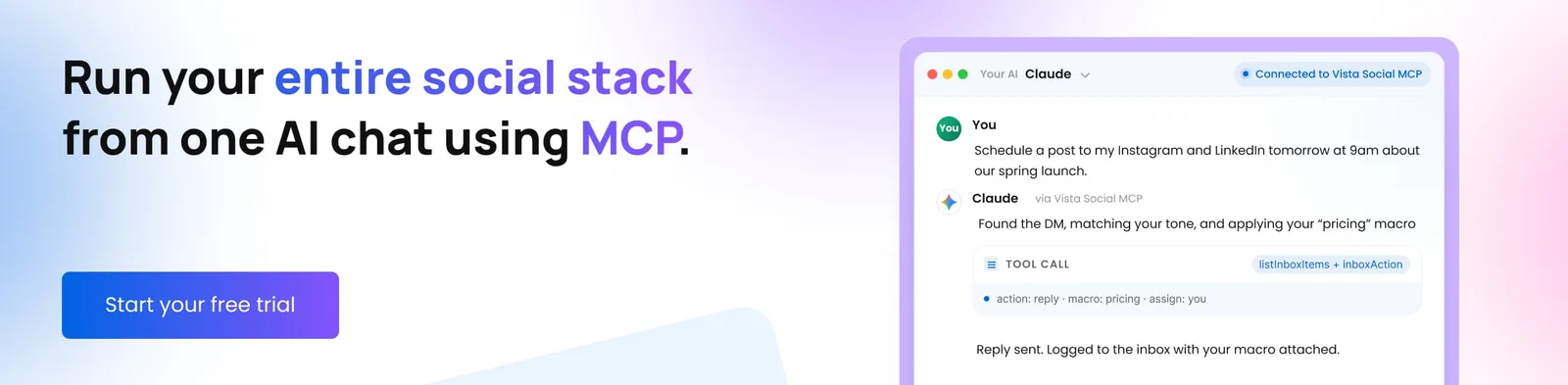
Vista Social’s MCP integration means your AI assistant can query live account data, schedule content, manage inbox items, pull reports, and handle approval workflows directly from your chat window, across every client profile group you have connected.
For a deeper look at how the protocol works, our complete MCP guide covers the full architecture.
How to set up MCP for your agency
Before MCP can do what it’s supposed to do at agency scale, your Vista Social account needs to be structured around profile groups, with each client having their own group and all their connected social profiles sitting inside it. That structure is what lets MCP act on the right client’s data rather than pulling everything from across your whole account at once.
Step 1: Create a profile group for each client
1. In your Vista Social dashboard, go to Settings, then Profile Groups.
2. Click Add profile group.
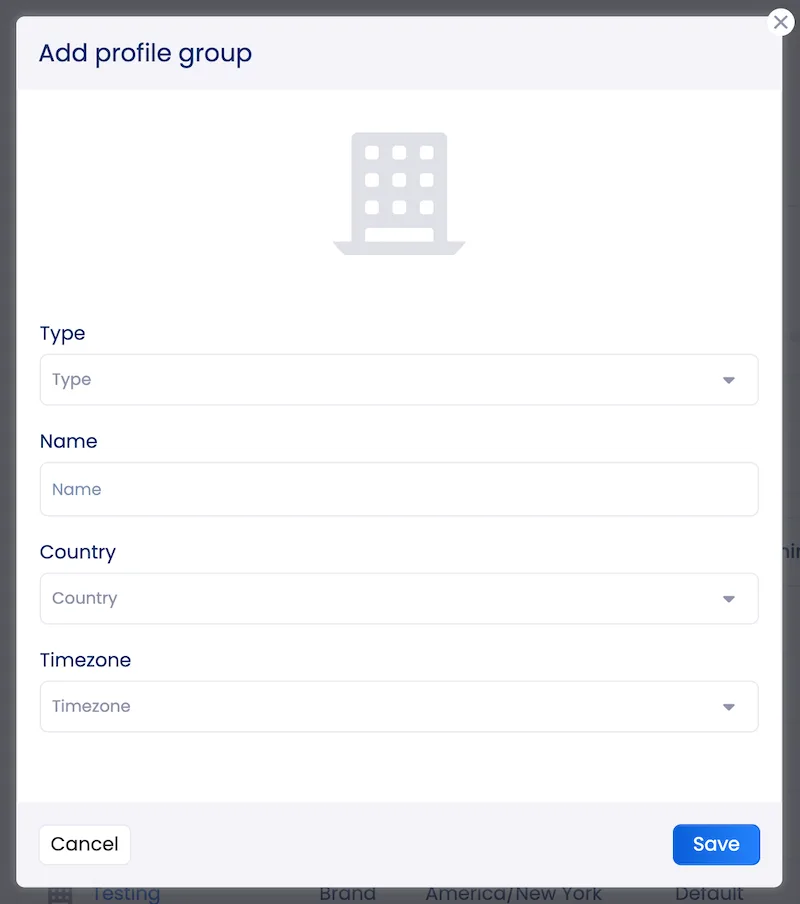
3. Choose a profile group type to represent it accurately. Your options are:
- Agency
- Brand
- Client
- Campaign
- Group
- Project
4. Name the group after the client, for example “Acme Co.” or “Bright Path Wellness.”
5. Select the client’s country and time zone so content goes out in the right time zone.
6. Click Save and repeat for every client.
If you already have profiles connected but they’re sitting outside organized groups, move them into the right client groups before you enable MCP. The cleaner your setup, the better the AI performs.
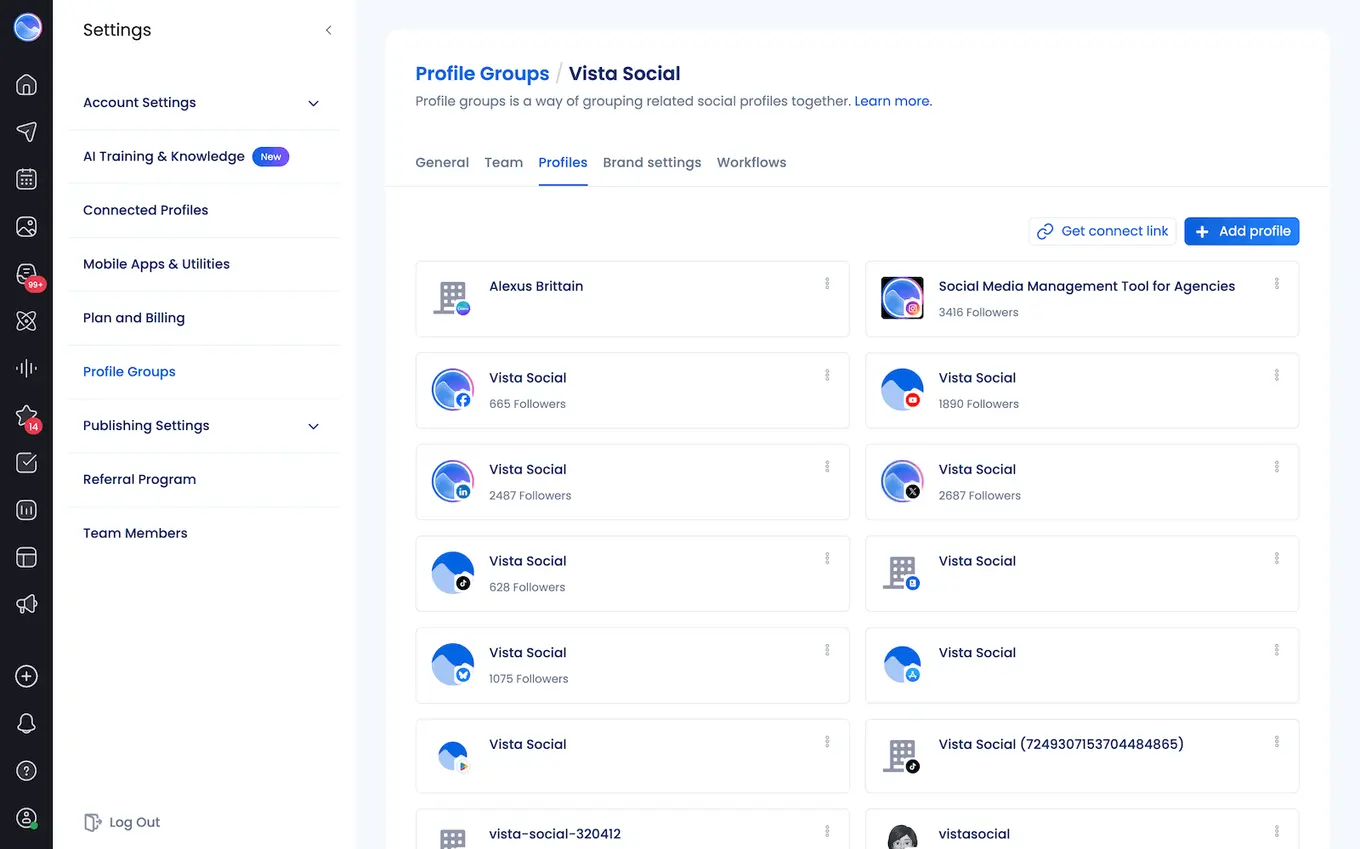
Agency shortcut: Once a profile group exists, Vista Social lets you generate a secure link so clients can connect their own social profiles without needing to be added as team members. Go to Settings, then Profile Groups, select the relevant group, click to the Profiles tab, and click Get connect link. Send it over and let the client handle the rest.
Step 2: Set up role-based permissions
Go to Settings, then Team Members. Set each team member’s access to Restricted User, then select the specific client groups they need to manage, rather than giving full account access.
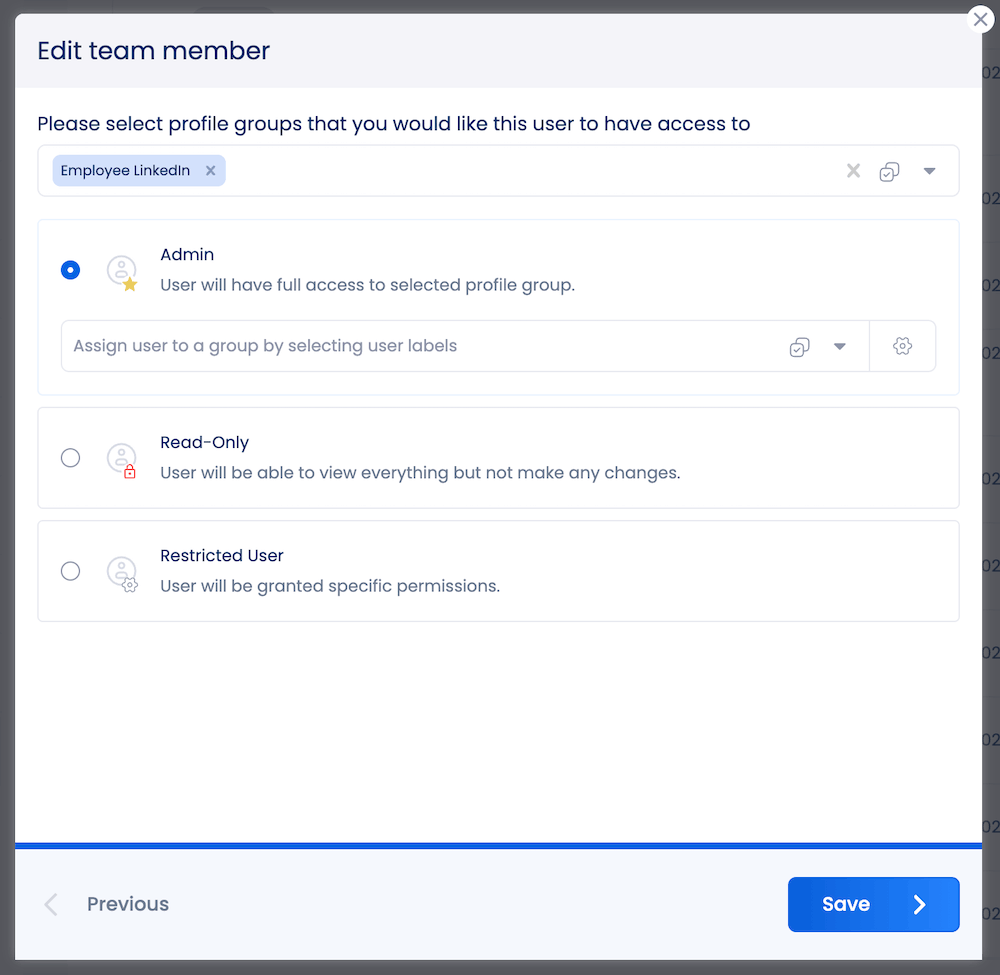
When a team member’s AI assistant operates inside Vista Social, it should only be touching the clients that person is actually responsible for, and this is how you make sure that’s the case.
Step 3: Connect Vista Social to your AI tool
For Claude:
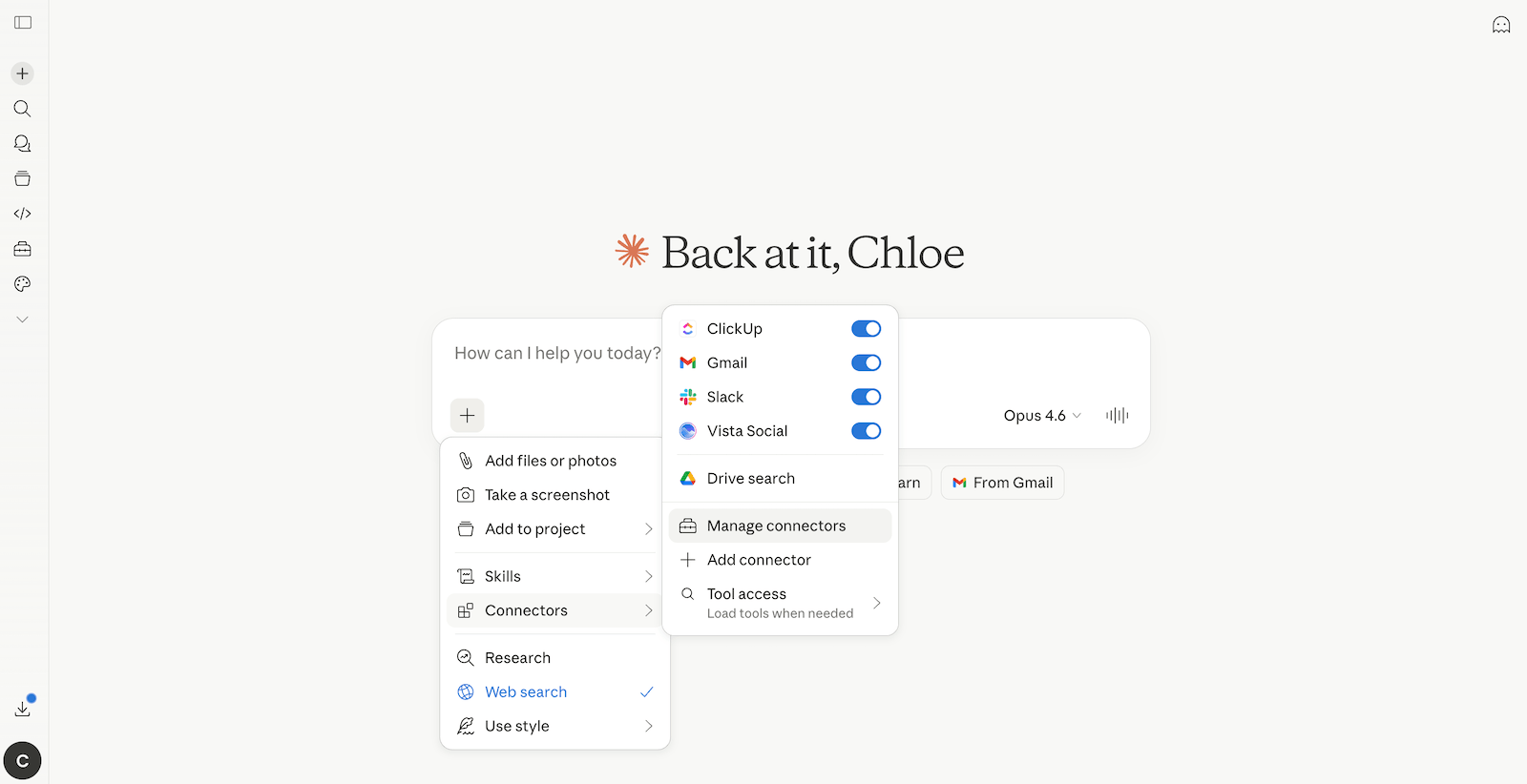
1. Head over to Claude and click the + in the bottom right corner of your chatbox, go to Connectors, then click Manage connectors.
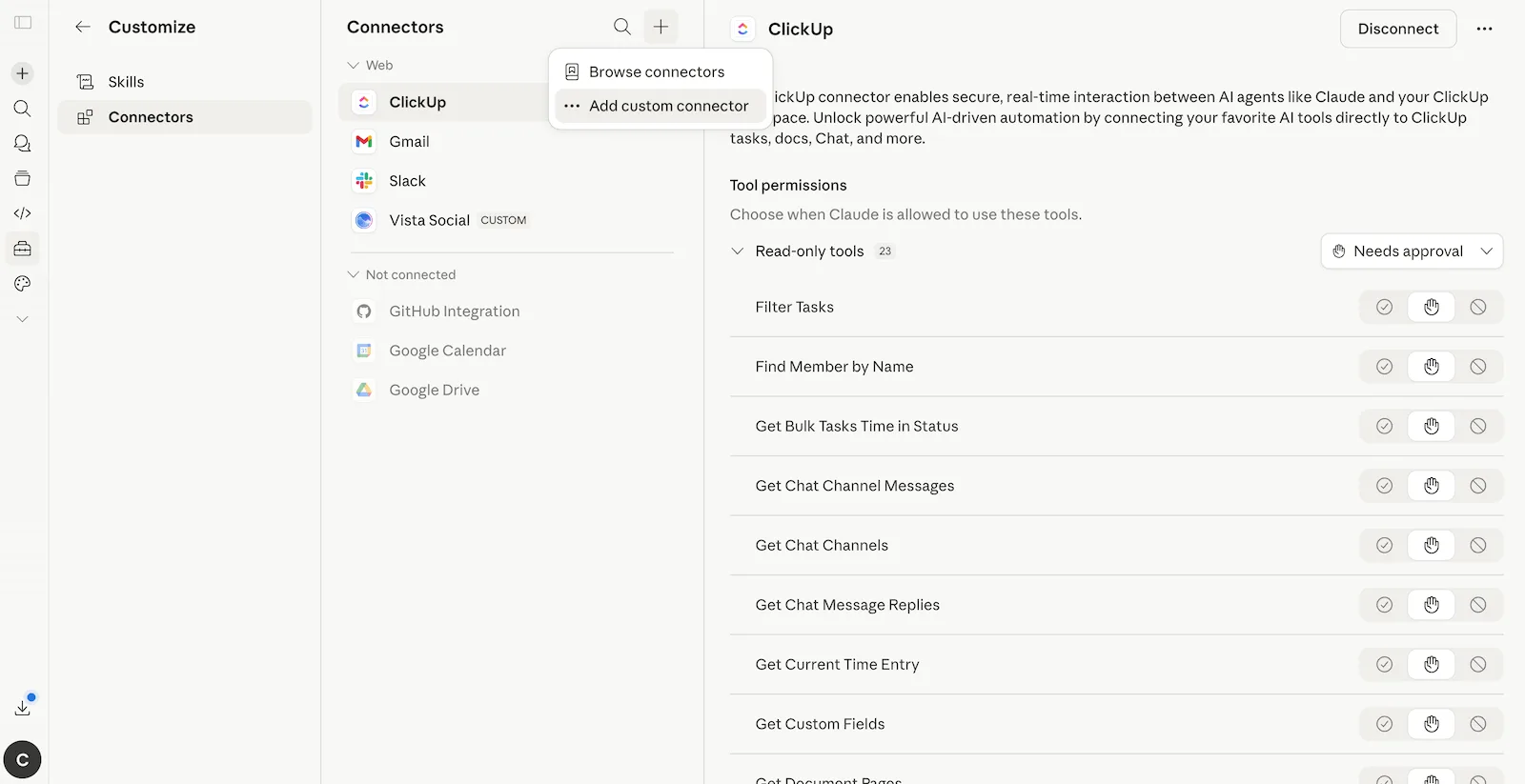
2. Click the + at the top of the page and select Add custom connector.
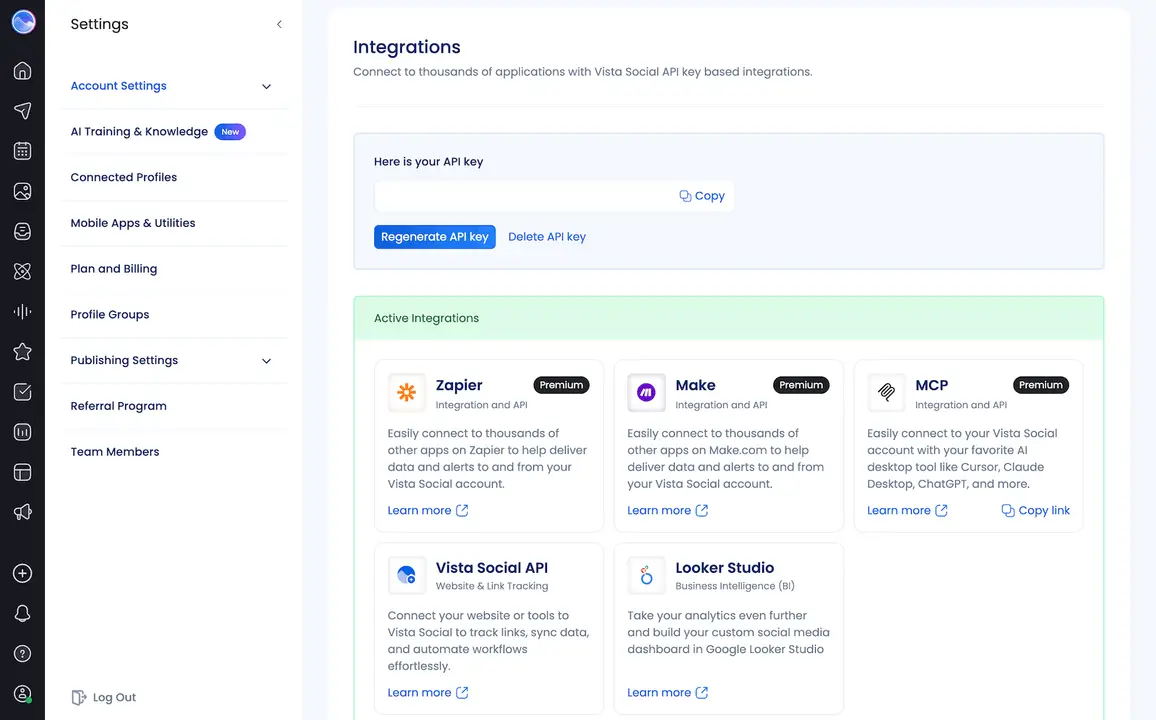
3. In your Vista Social dashboard, go to Settings, then Account Settings, then Integrations.
If this is your first time accessing integrations, click Generate API key. If you’ve already done this, simply click Copy link next to the MCP integration.
4. Back in Claude, paste the URL into the Remote MCP server URL field, give it a name, and click Add.
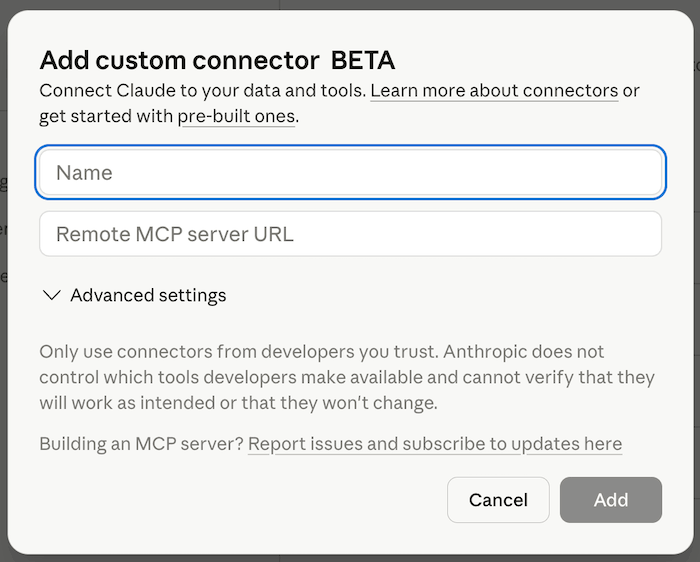
5. Confirm the Vista Social connector is enabled in your chat window before you start. For each of your prompts, you’ll include “Using Vista Social” at the beginning so Claude knows to use that connection.
For ChatGPT:
1. Go to Settings, then Apps.
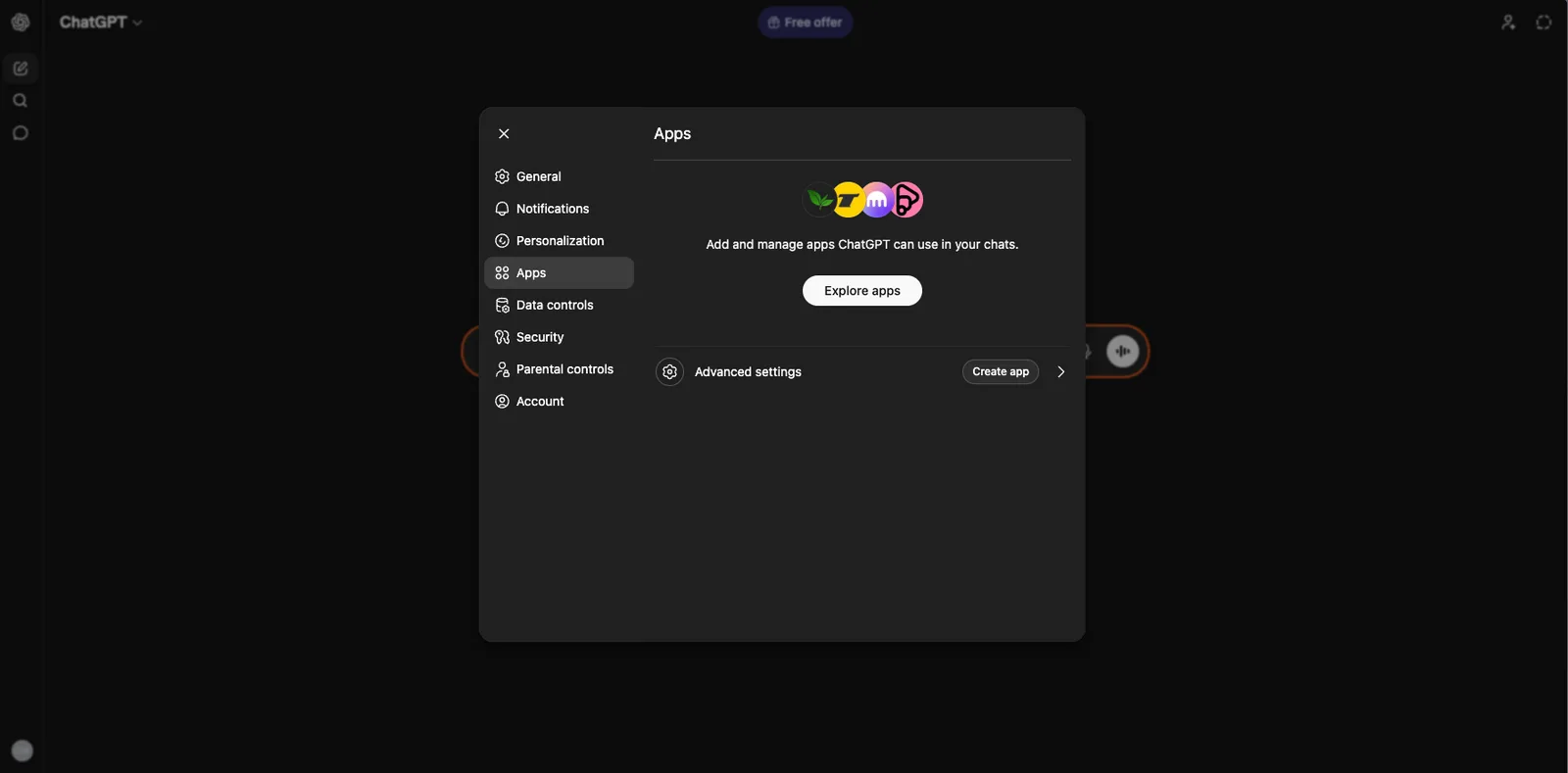
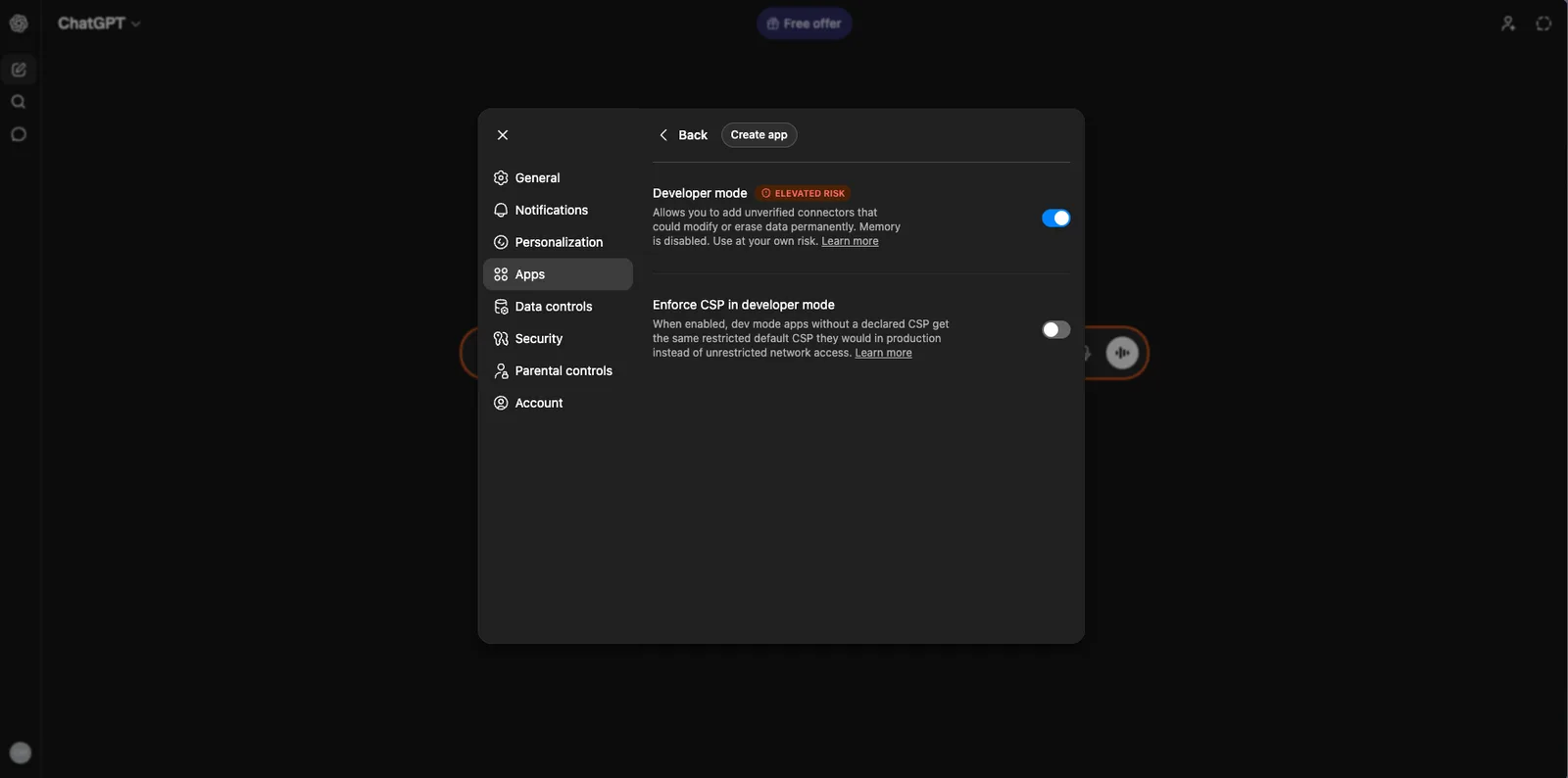
2. Click Advanced settings and turn Developer mode on, then click Create app.
3. Add Vista Social as a connector using the MCP URL you copied from your Vista Social settings.
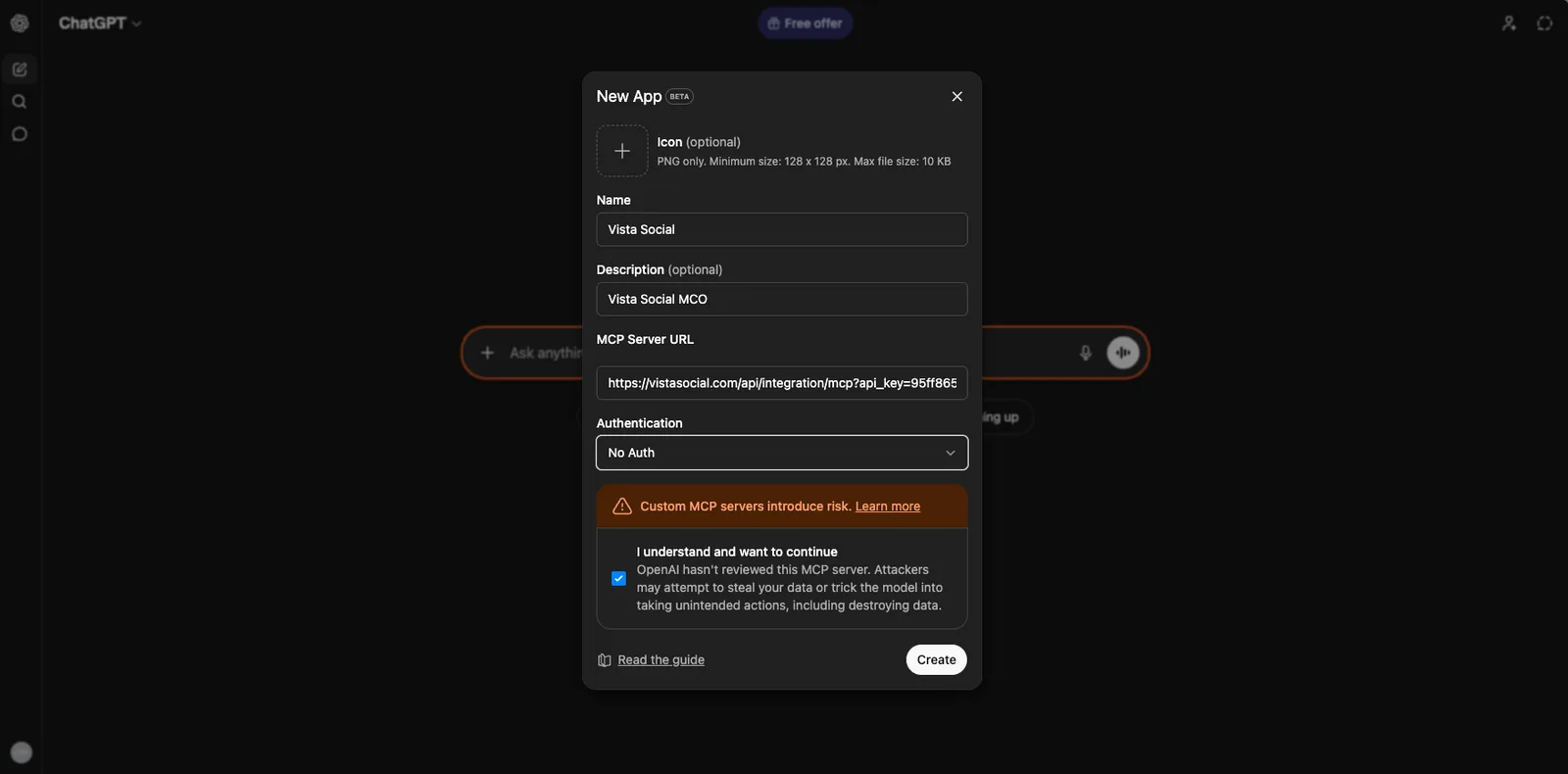
Before you connect, make sure you have:
- A Vista Social account with MCP enabled under Settings → Integrations
- A paid Claude or ChatGPT plan (free accounts don’t support custom connectors)
- Your MCP URL ready from Vista Social’s integrations settings
Some features, including inbox management, detailed analytics, and sentiment reporting, require the Scale plan with Premium Integrations.
How agencies can use MCP to manage 50+ client accounts
Each workflow below follows the same principle: the AI takes the action rather than describing what action should be taken.
Workflow 1: Weekly client reporting at scale
Client reporting is the most reliably time-consuming task at any agency, and the heaviest part of it, pulling the data, formatting it, adding context, is the part that genuinely doesn’t need a strategist doing it. MCP handles that entirely.
The prompt:
“For the [Client Name] profile group, pull last week’s performance metrics, benchmark against industry averages, and summarize inbox response performance. Format the output as a client-ready weekly summary.”
What the AI actually does:
- Pulls impressions, reach, engagement rate, and follower growth for the profile group
- Pulls industry benchmarks and frames the client’s metrics as percentiles rather than raw numbers
- Retrieves response time, coverage rate, and community management quality
- Surfaces a brand health snapshot from incoming comment and message sentiment
The output arrives as a client-ready summary in the chat, ready to paste into a report or send directly. Our guide on AI social media reporting covers how to pair this with Vista Social’s white-labeled report builder for polished, branded deliverables.
Workflow 2: Content performance diagnosis and planning
Every smart agency uses what worked last month to shape what gets built next month. With MCP, that analysis and the brief writing that follows it happen inside the same conversation, rather than across a spreadsheet, a doc, and a dashboard that nobody syncs properly.
The prompt:
“Show me the top 10 posts across the [Client Name] profile group for the last 30 days by engagement rate, then save 10 new content idea drafts to their Idea Library inspired by the patterns in what performed best.”
What the AI actually does:
- Pulls and ranks content across all networks in the profile group
- Pushes new concepts directly into the client’s Idea Library inside Vista Social, so the next planning session starts with a ready-made brief instead of a blank document
- Returns recommended scheduling windows based on that specific client’s actual historical engagement data
Pay attention to this second step. The AI is filing a brief directly inside Vista Social, inside the right client’s account, without anyone opening the platform. That’s not a small thing.
For more ready-made prompts built around this kind of workflow, our list of MCP prompts has 20 more options you can test out.
Workflow 3: Multi-client inbox triage
Monday morning at a 50-client agency can feel like arriving to find 40 fires with no map of where they are. MCP gives you the map before you’ve even had your coffee.
The prompt:
“Across my priority client groups, surface all unread inbox items with negative sentiment from the last 24 hours, organized by profile group.”
What the AI actually does:
- Shares message counts and an overview across selected profile groups
- Filters live inbox data by sentiment (negative), seen status (unread), and item types across comments, DMs, mentions, and reviews
- Executes labeling, starring, completing, or replying directly from within the chat
Macros extend this further. If your agency has saved response workflows in Vista Social for recurring situations, like tagging a message as a sales lead and sending a booking link, MCP can also retrieve and run those in one step.
Workflow 4: Approval routing and internal collaboration
Approval queues are where agency workflow goes to get messy. Posts sit in review because nobody knows whose turn it is, feedback lives in a Slack thread from three days ago that nobody can find, and figuring out what’s actually blocked requires opening four different views to piece it together.
The prompt:
“Show me all posts currently in review across my client profile groups, and for each one tell me which step of the approval workflow it’s on and how long it’s been waiting.”
What the AI actually does:
- Pulls the full live approval queue across all clients in one query
- Puts feedback directly on the right post inside Vista Social, visible to the whole approval chain, without the reviewer needing to track down the post manually
- Returns the full internal conversation history on any post before someone weighs in, so everyone’s working with the same context
A full approval sweep across your entire client roster, with feedback left where it belongs, handled in one chat session. Our AI social media command center guide covers how to build this into a broader agency workflow.
Workflow 5: Task management and team accountability
Tasks get assigned, forgotten, completed without updates, or lost in Slack entirely. At an agency with multiple team members across 50 clients, the visibility problem is real, and it gets worse the faster you grow.
The prompt:
“What open tasks do I have assigned across all my client groups? Flag anything overdue or due today.”
What the AI actually does:
- Keeps active tasks visible in queues rather than aging out of view
- Marks tasks complete directly from the conversation
- Pushes @mentions and status updates onto the correct task inside Vista Social without the team member needing to navigate there
Start the day with one prompt to surface what needs attention and end it with one to close out what got done. Task visibility stays accurate across the team without anyone chasing updates at the end of the day.
MCP prompt templates for your agency
Save these in a shared team doc and adapt the profile group names to your own client naming conventions.
Monday morning triage
“Across all my client profile groups, show me unread negative-sentiment inbox items from the last 48 hours, posts in review that have been waiting more than 24 hours, and open tasks due today, organized by profile group.”
Weekly client report
“For [Client Profile Group], generate a weekly performance summary covering follower growth, engagement rate, top 3 posts by engagement, inbox response rate, and a sentiment overview, formatted for a client-facing email.”
Content ideation with Idea Library save
“Look at the top 5 posts by saves and shares for [Client Profile Group] in the last 30 days, identify the common themes, and then create 8 content idea drafts based on those patterns and save them to the Idea Library for that group.”
Competitive benchmark check-in
“For [Client Profile Group], run an industry benchmark comparison and tell me which metrics are above, at, or below the industry average, flagging any areas where we’ve dropped more than 10% from last month.”
Approval queue sweep
“Show me all posts in review across my active client groups, and for each one tell me the client name, which network the post is for, which approval step it’s on, and how many hours it’s been waiting.”
Community management triage
“For [Client Profile Group], list all unanswered comments and DMs from the last 24 hours, grouped by sentiment, and for the negative ones suggest replies using our saved macros where applicable.”
Month-end performance review
“For [Client Profile Group], pull last month’s full performance data covering follower growth by network, engagement rate trend week over week, top 10 posts by engagement, inbox response performance, and sentiment breakdown, then summarize the three biggest wins and the three areas that need the most strategic attention next month.”
The agencies winning at scale have one thing in common
Their AI does actual work. It pulls the reports, files the briefs, flags what needs attention, and handles what doesn’t need a human, so the people on the team spend their time on strategy, client relationships, and creative decisions that actually matter.
That’s what MCP makes possible when it’s connected to Vista Social. Not a productivity feature you bolt on. A genuine change in how the operational side of running an agency gets done, and which parts of it still need a person doing them.
Connect Vista Social to your AI assistant, get your profile groups organized, and run the Monday triage prompt at the start of next week. You’ll know within that first session what’s been taking time that never needed to.
Start your Vista Social agency free trial to test drive this workflow for your own team.
MCP for agencies FAQs
Does MCP work with both Claude and ChatGPT?
Yes. Vista Social’s MCP integration works with Claude, ChatGPT, and other MCP-compatible AI tools, and setup takes about ten minutes with no technical knowledge needed. The full walkthrough is in our MCP guide.
Do you need profile groups set up before using MCP?
Yes, and for agencies this step is the foundation everything else runs on. Profile groups are how Vista Social organizes client accounts, and they’re how MCP knows which client you’re asking about. Without clean, client-specific profile groups, queries pull mixed data across your entire account, so set up one group per client before connecting.
Which Vista Social plan includes MCP?
MCP is available on the Advanced plan. Full access to inbox management, detailed analytics, and sentiment reporting requires the Scale plan with Premium Integrations. Reach out to the Vista Social team for enterprise pricing.
About the Author

Content Writer
Orion loves to write content that refuses to be boring. As part of Vista Social, he helps brands, creators, and agencies stop doom scrolling and start winning with social media. When he's not in front of a keyboard, he's watching films in IMAX with his wife, dissecting football tactics (the European kind), and getting lost in a good book.