

Published on March 10, 2026
12 min to read
Marketing Automation 101: How to Build Workflows That Work

Summarize with AI


Table of contents
Summarize with AI

ChatGPT

Claude

Perplexity
Share

Vista Social

X (Twitter)


Do me a favor and take a quick look at your to do list for the day. I would be willing to put money on the fact that there are more tasks there than you can reasonably accomplish today.
I would also be willing to put money on the fact that there’s probably at least one task you could be automating, taking it completely off your plate for the foreseeable future.
You know you’re stretched thin. With new platforms and tactics popping up every day, constant customer conversations happening, and endless content creation needs, something’s got to give.
And that’s exactly where marketing automation comes in.
In this guide, we’ll break down exactly what marketing automation is, why it matters, and—most importantly—walk you through 7 workflows you can start building today.
Let’s dig in.
Table of contents
What is marketing automation?
Marketing automation is the practice of using software to handle repetitive marketing tasks automatically, without requiring manual effort each time.
Here are some basic examples of marketing automation:
- Bulk uploading a week’s worth of social media content and scheduling them out based on a preset publishing queue, rather than publishing each post manually and individually
- Automating a response for each FAQ your brand gets DMed so you don’t have to manually go through them all
- Setting up a “thank you” automation for each positive review your brand gets on Facebook or Google
You set up rules and triggers that handle tasks like these for you in the background. Marketing automation is all about removing the busywork so your team can spend more time on the things that require a human touch.
How does marketing automation work?
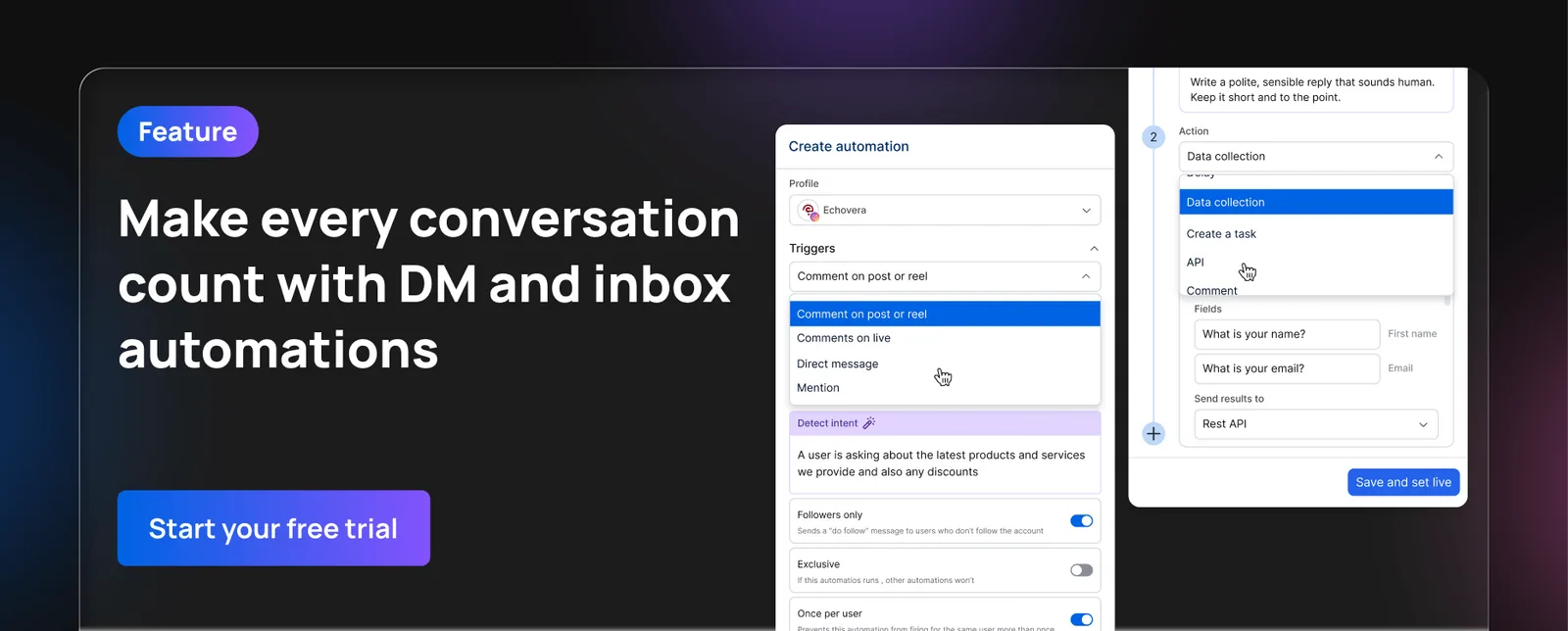
Any marketing automation, no matter how simple or complex, consists of three main parts: triggers, conditions, and actions.
Here’s how it works:
- Triggers are the events that kick off an automation. A new comment on your post, a DM from a follower, a post going live, or even a specific time of day—these are all triggers.
- Conditions are the filters that determine whether the automation should proceed. For example: “only if the message contains a specific keyword” or “only if the post is on Instagram.”
- Actions are what happens when the trigger fires and the conditions are met. That could mean sending an auto-reply, assigning a conversation to a team member, applying a tag, or adding an internal note.
When you string these together, you get a workflow. And when you build multiple workflows that handle different parts of your marketing process, you’ve essentially built a system that runs your operations on autopilot.
Is marketing automation important for marketing teams?
Short answer: Absolutely.
But let’s be specific about why—because “automation saves time” barely scratches the surface.
It eliminates human error on repetitive tasks
When your team is manually handling dozens (or hundreds) of tasks per day, mistakes happen. Messages slip through the cracks, posts go out at the wrong time, leads don’t get tagged correctly. Automation ensures consistency across every touchpoint.
It scales your output without scaling your headcount
Hiring more people to handle more work isn’t always an option, especially for growing teams. Automation lets a lean team operate like one twice its size by handling the high-volume, low-complexity tasks automatically.
It speeds up response times
Customers expect fast replies on social media. Like, within 24 hours fast. Or even less on some platforms. Automated routing and auto-responders can help you meet those expectations, even outside business hours.
It gives you cleaner data
When automations handle tasks like tagging and routing, your reports become more accurate and consistent. No more relying on individual team members to remember to tag a conversation correctly.
It keeps your team focused on high-impact work
The less time your team spends on manual busywork, the more time they have for campaign strategy, creative development, community engagement, and the kind of work that drives real results.
But for social media teams specifically, automation can be the difference between constant overwhelm and having the time you need to actually dedicate to making a strategy successful.
7 marketing automation workflows you need (+ how to build them)
Now for the good stuff. These are 7 marketing automation workflows you can build inside Vista Social—complete with how to set each one up step by step.
1. Auto-reply to common DMs
There are probably a few questions you get in your DMs again and again, like:
- What are your hours?
- Can we request a game on the bar TVs?
- Can I return a shirt that doesn’t fit?
- Does your base plan support multiple team members?
The most basic automation you should put in place is one that auto-responds to some of these commonly asked questions.
What it does: Automatically sends a reply when someone DMs you with a question about your business.
Why it matters: Taking advantage of auto-replies for FAQs—or basic queries about your business—can immediately lighten your team’s load while also keeping your customers satisfied.
How to build it in Vista Social
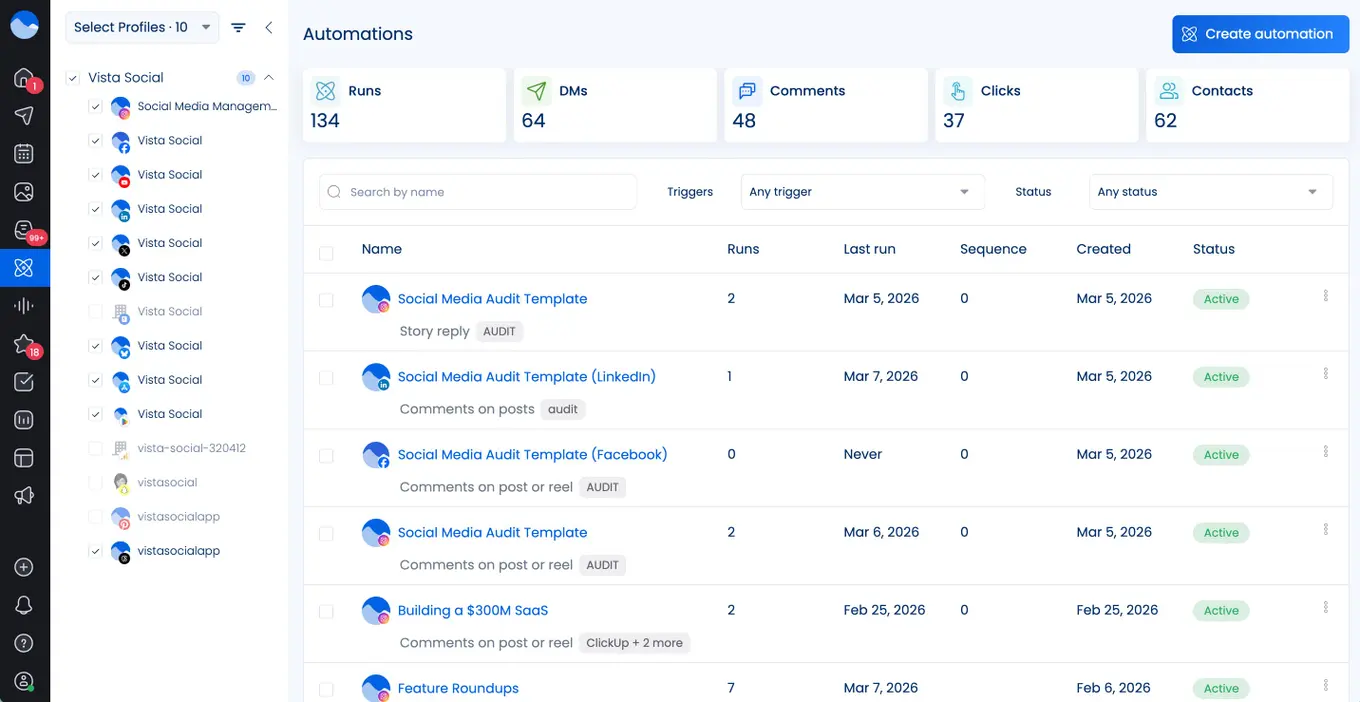
Step 1: Navigate to the Automations section in your Vista Social dashboard.
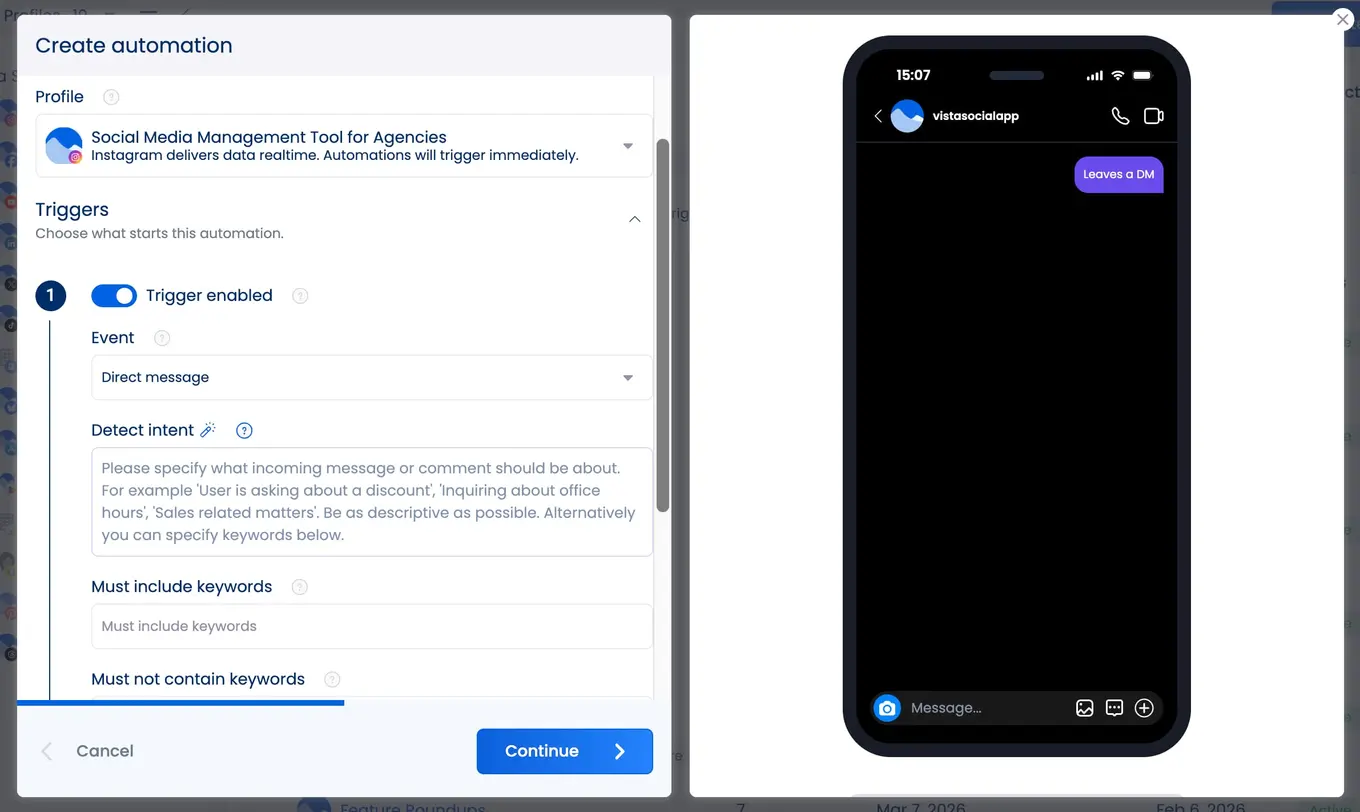
Step 2: Create a new automation from scratch, select your social media profile, and set the trigger event to Direct message.
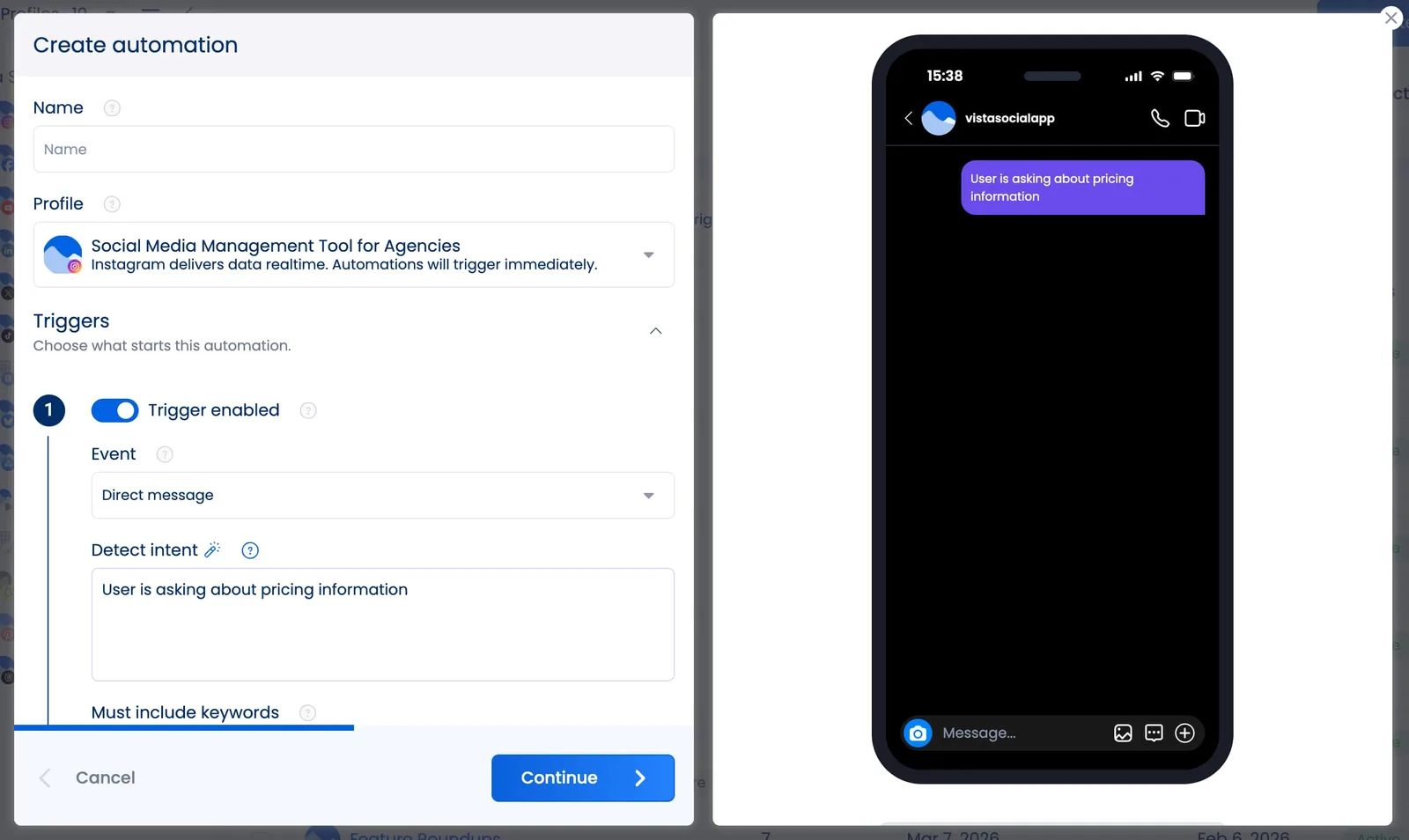
Step 3: Add a condition that tells the trigger when to fire. You have a couple of different options with Vista Social:
- Set a specific keyword (like for messages containing “pricing,” “cost,” or “how much”)
- Let AI detect the message’s intent so that even a message asking something like “What’s the damage?” or “What will this run me?” will trigger an automation for pricing information
Click Continue once you’ve input your conditions.
Step 4: Set the action to Direct message so an auto-reply will be sent once someone triggers the automation.
You can always put together some generic auto-response like, “Thanks for reaching out! You can find our current pricing at [link]. If you have any other questions, our team will follow up shortly.”
But let’s do one better.
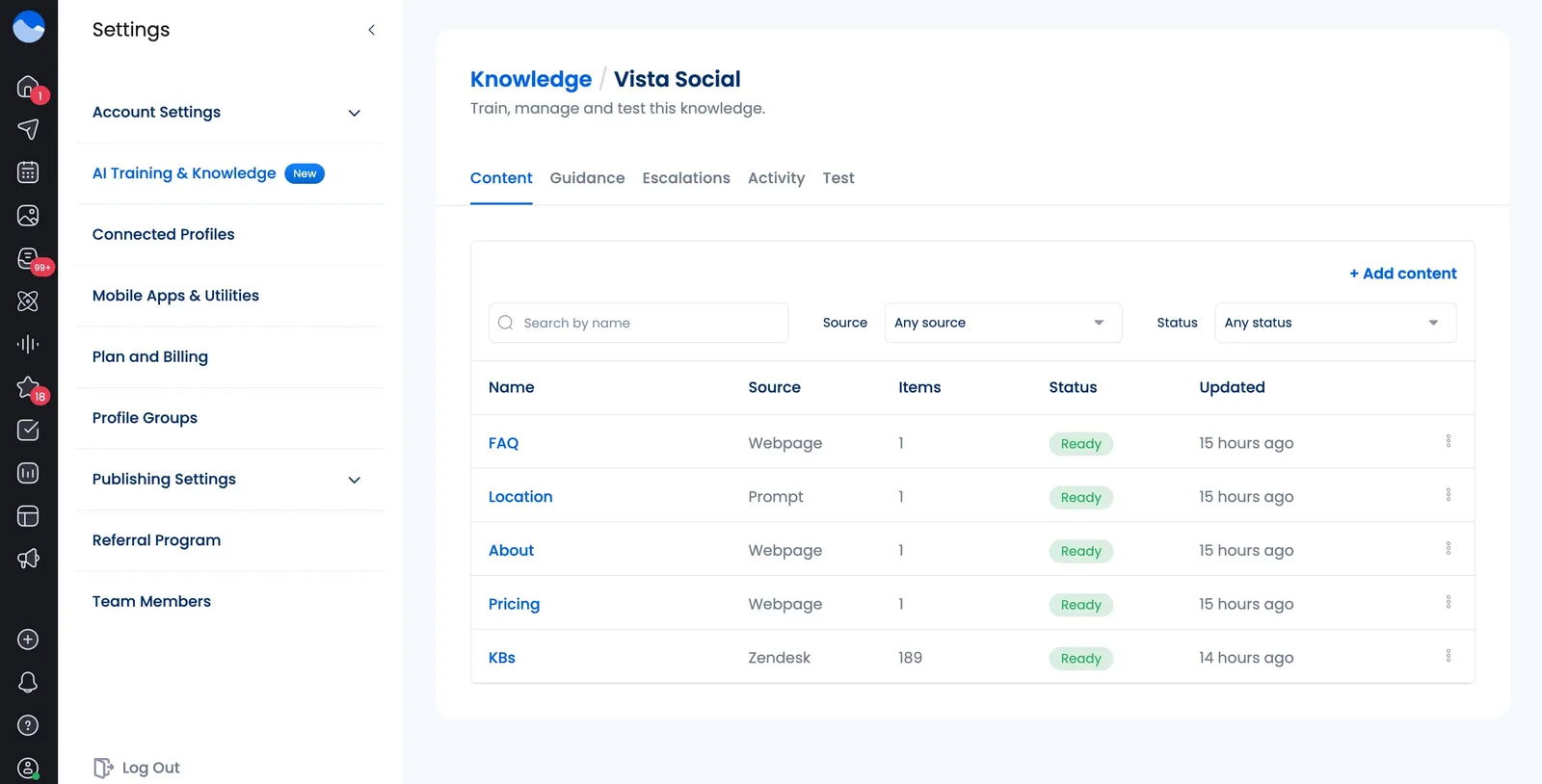
You can head to the AI Training & Knowledge section of your Vista Social account settings and actually upload your brand’s specific data and information so the AI can pull completely accurate answers to any customer support questions.
So now, when someone asks a question like, “What does your base plan cost?” your automation can trigger a response that gives them the correct answer every time.
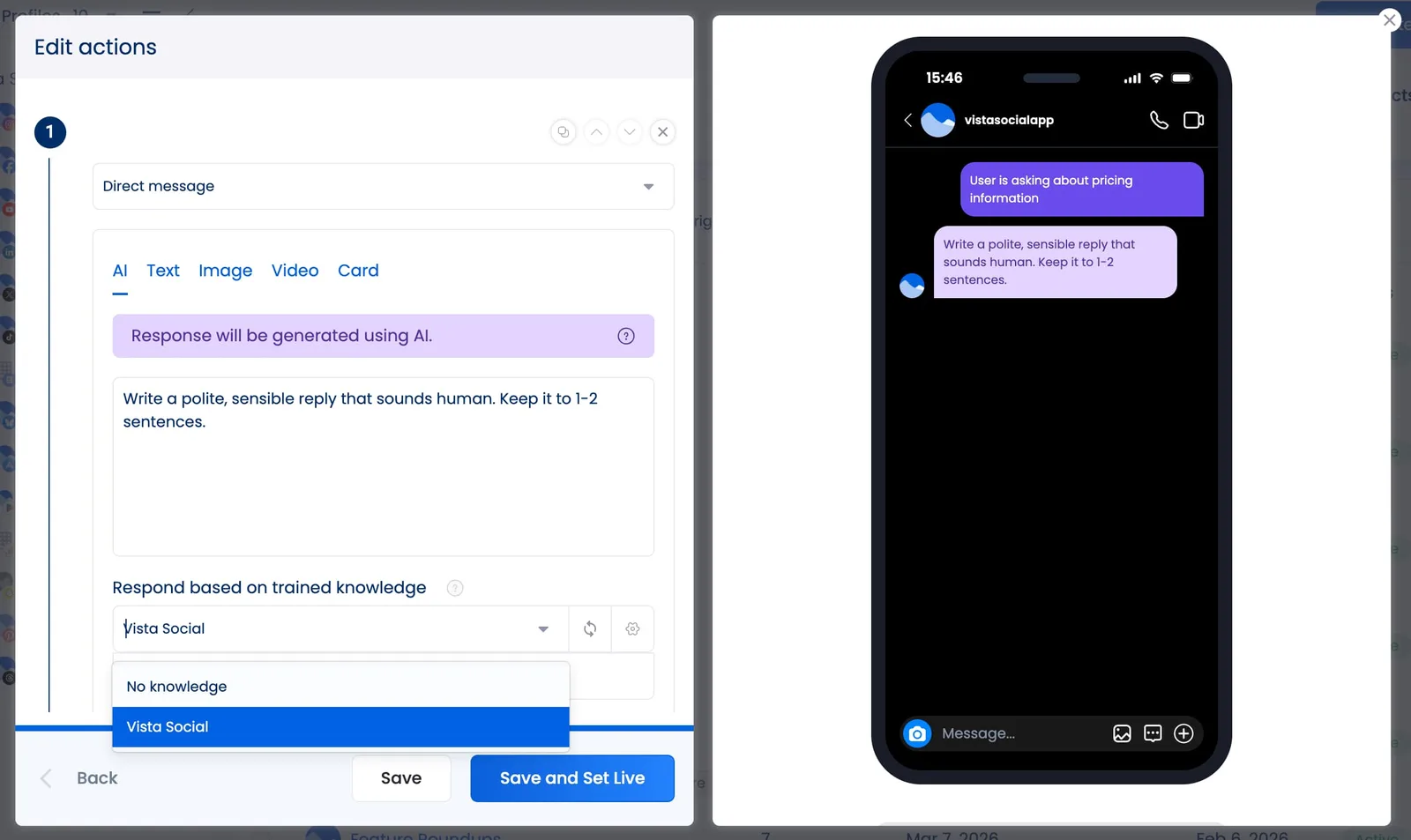
Once you’ve uploaded all of your information into the AI Knowledge dashboard, you can select your brand’s knowledge from the dropdown Respond based on trained knowledge.
Step 5: Activate the workflow and monitor responses to make sure everything is firing appropriately. You can head to the AI Training & Knowledge section of your settings, then click the Activity tab to view questions that your audience has asked.
2. Route conversations by platform or topic
Do you have certain team members who handle different platforms or customer questions? Instead of requiring them to have notifications on (because ew) or putting one person in charge of assigning conversations, create automation workflows that route specific conversations to whoever needs to handle it.
What it does: Automatically assigns incoming messages from specific platforms or about specific topics to the team members who manage them.
Why it matters: If one person handles your Instagram DMs and another manages Facebook messages (or if you have different SMEs that handle different types of questions), manual routing wastes everyone’s time. This workflow gets messages to the right person instantly.
How to build it in Vista Social
Step 1: Create a new automation from scratch, select your social media profile, and set the trigger event to Direct message.
Step 2: Set your condition. If the condition is platform-based, you’ve already handled this part when you selected the profile your automation will be active on.
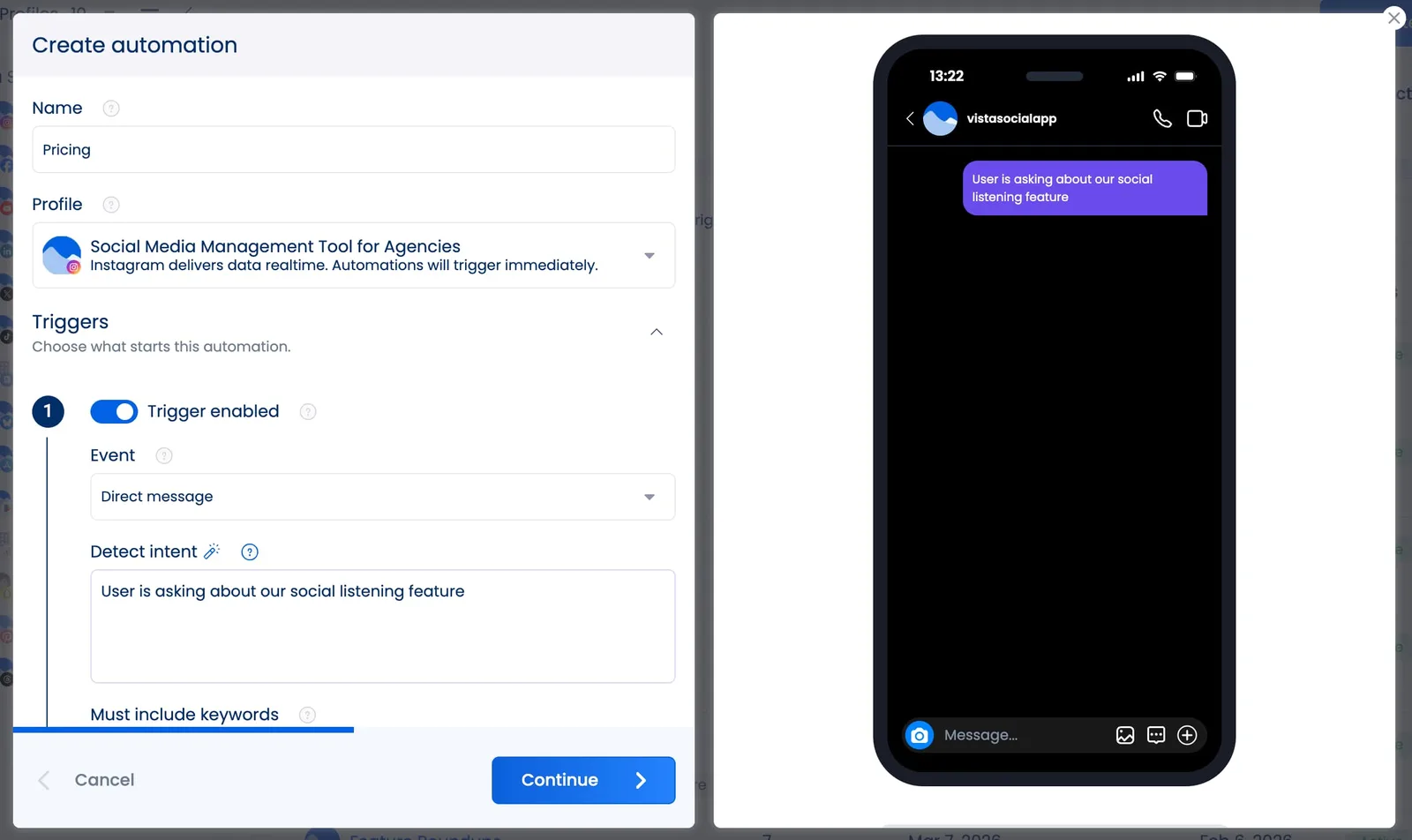
But if this is topic based, you can choose to input the topic in the Detect intent field or by inputting specific keywords. Click Continue to move onto the next step.
Step 3: Set the action to Assign a task or Send emails depending on how you want this workflow to go.
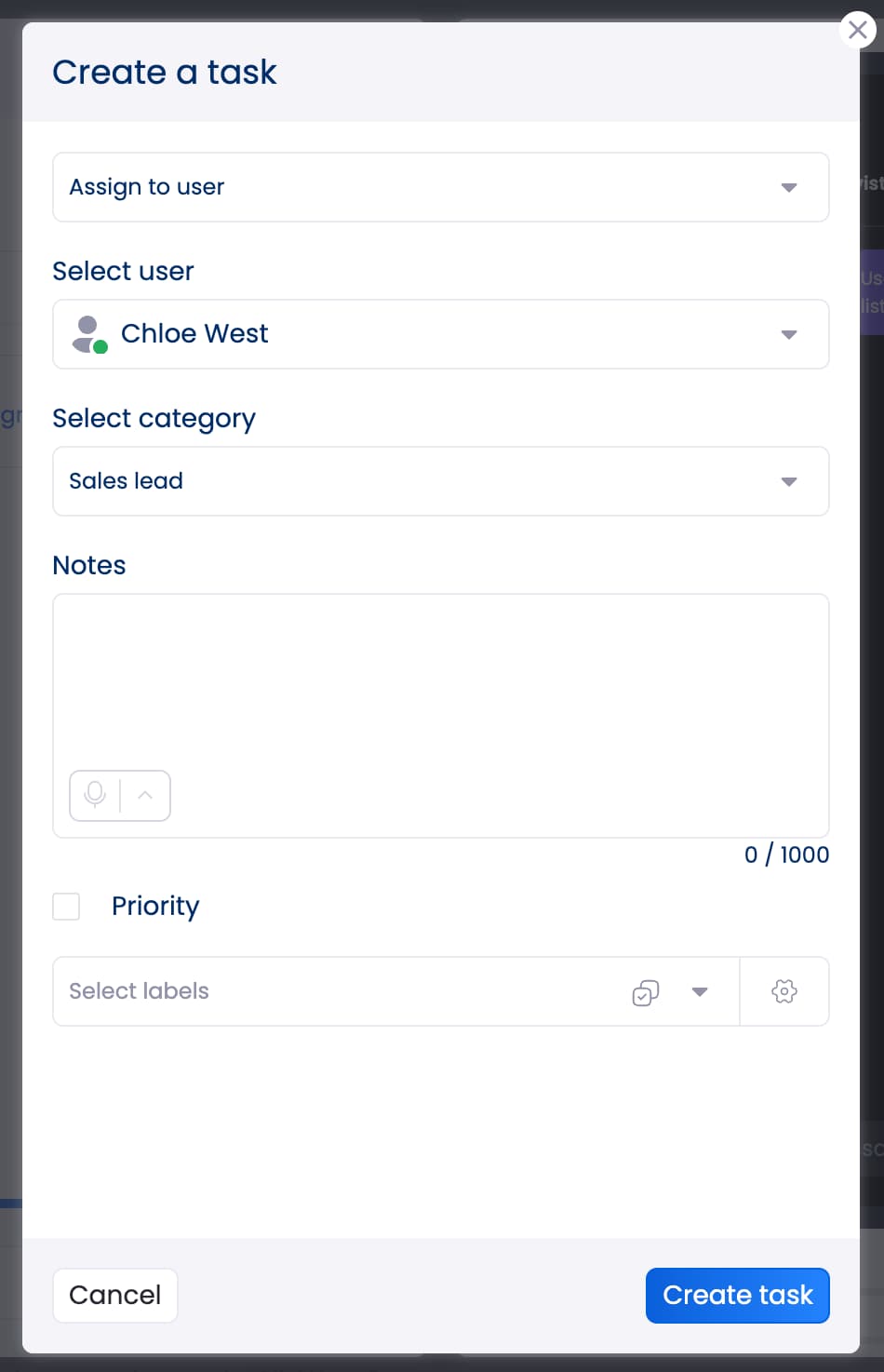
If you choose Assign a task, you’ll be prompted to configure the assignment. You can choose between assigning it to a specific user or a user group you have categorized your team into.
Once you’ve selected the specific team member or user group, you’ll be able to pick a category for your task, whether it’s a:
- General task
- Sales lead
- Support issue
You can also add notes for the team member getting this task assignment, mark whether it’s a priority or not, and assign a label to categorize this message.
If you choose Send emails, the operation is much simpler. You select the user(s) you want to notify of an incoming message via email, or paste the email address of someone who may not be in your Vista Social account so they can still be aware of incoming conversations.
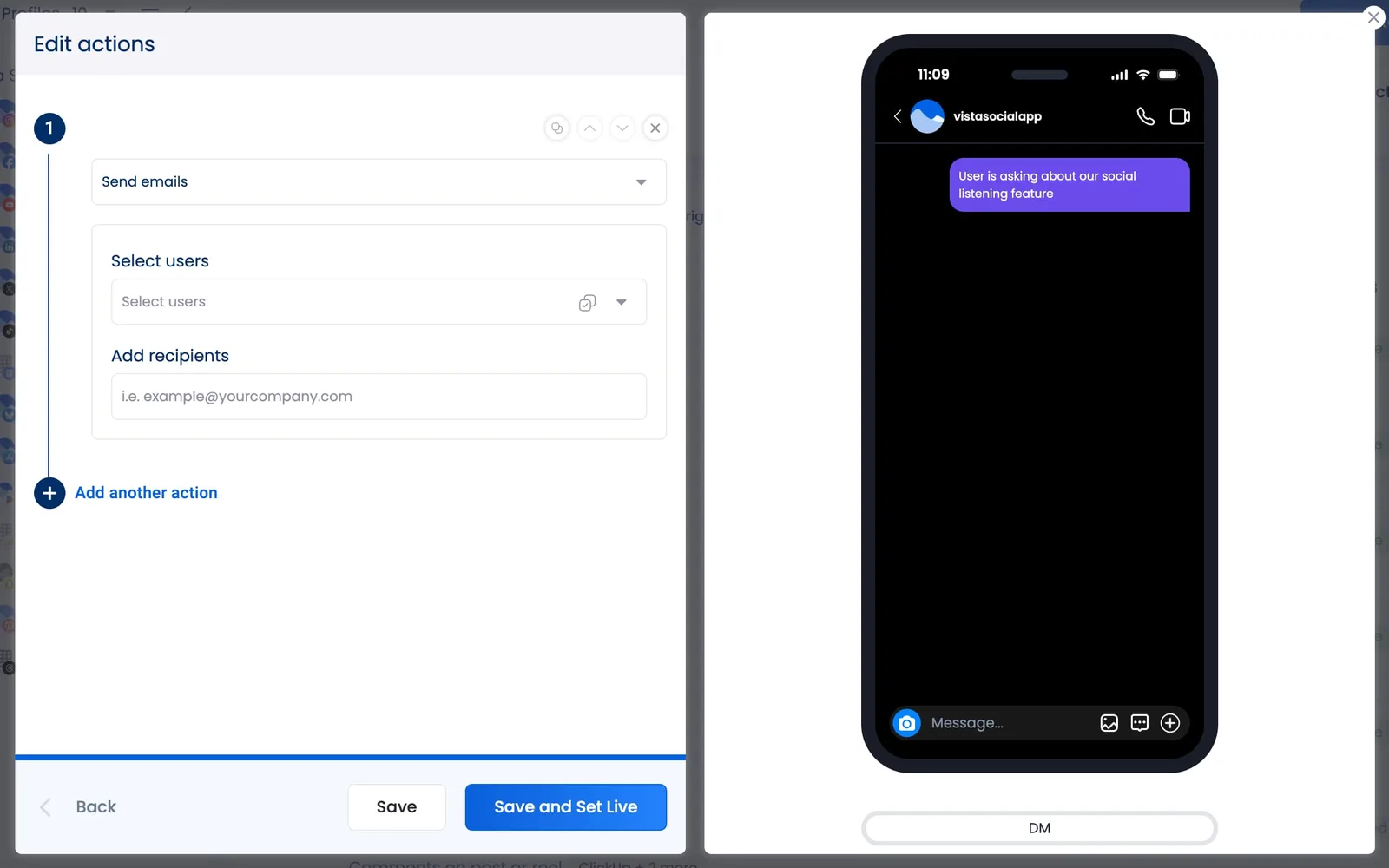
Step 4: Duplicate this workflow for each platform or topic and assign accordingly.
3. Tag and categorize incoming messages
Keep your social inbox as organized as possible by applying labels to different topics of conversation. This can make it easy to find comments or messages and to ensure you never miss a response.
What it does: Automatically applies tags to incoming messages based on content, keywords, or sentiment.
Why it matters: Clean tagging means better reporting. When every message is categorized correctly, you can pull accurate reports on what your audience is asking about, what complaints are trending, and where opportunities exist.
How to build it in Vista Social
Step 1: Create a new automation from scratch, select your social media profile, and set the trigger event to Direct message.
Step 2: Create your condition. You can choose to add keyword conditions (i.e., messages containing words like “bug,” “broken,” or “not working”) or you can detect intent with AI to categorize your DMs. Click Continue to move on.
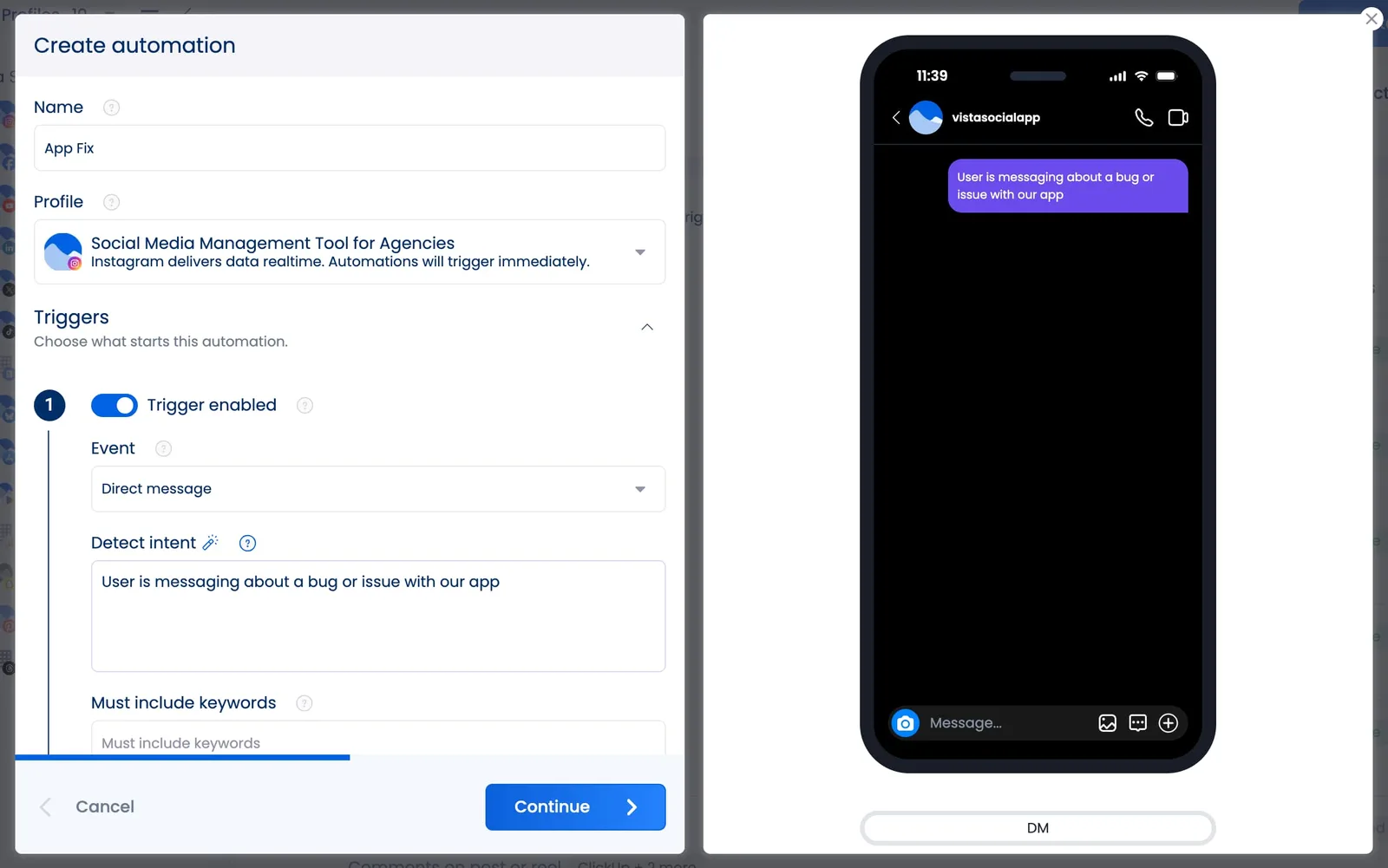
Step 3: Set the action to Apply labels, then select the appropriate label(s) from the dropdown menu.
You can label things by:
- Category
- Client
- Urgency
- Sentiment
- And more
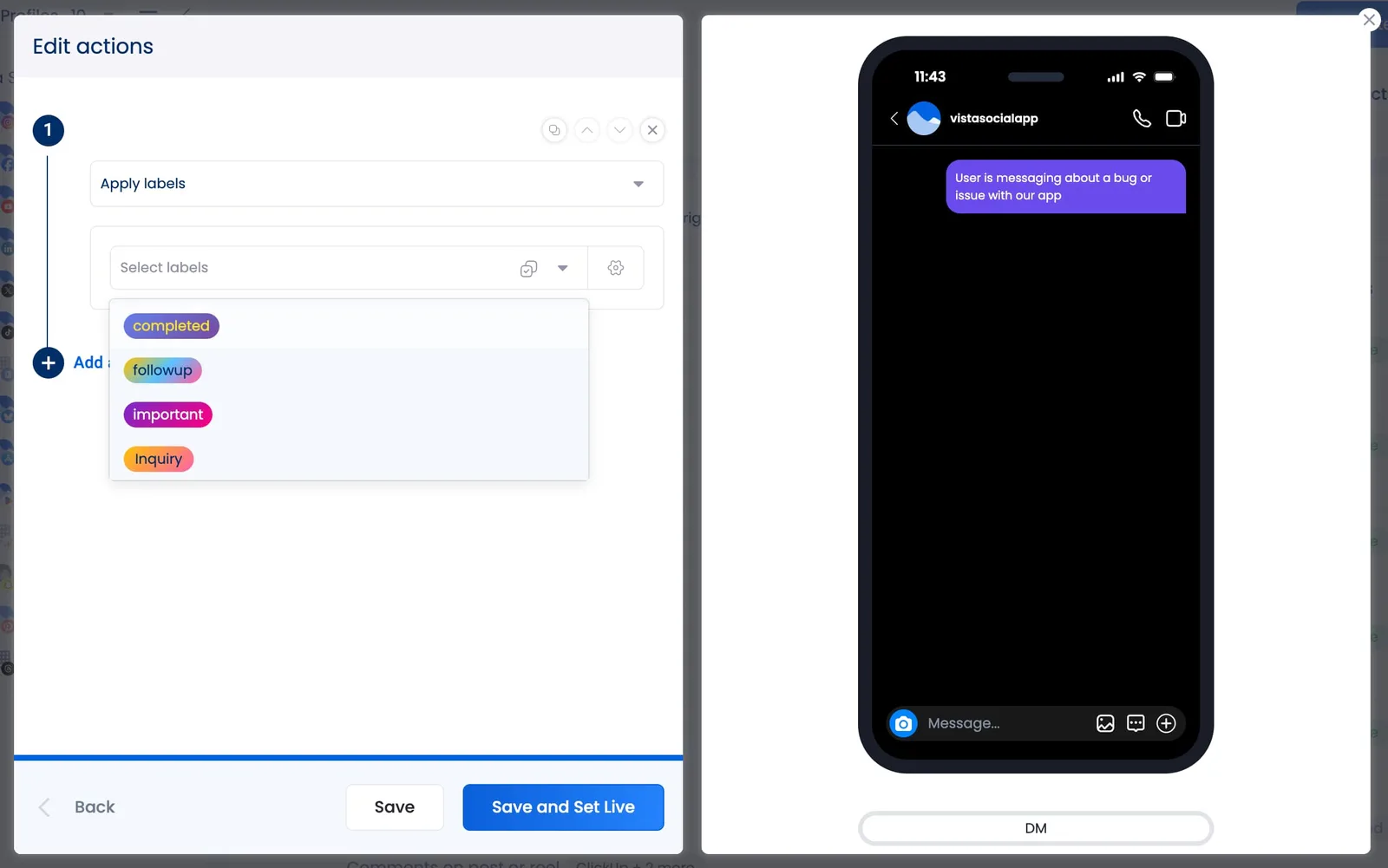
Step 4: Use these labels later to filter your inbox and identify patterns.
4. Escalate negative sentiment automatically
If someone leaves a bad review or sends an angry message to your brand account, you want to reach out to those customers to learn more about the situation immediately. Use automation to escalate these negative reactions so your team can jump on them.
What it does: When a message or comment is flagged with negative sentiment, it automatically gets escalated to a senior team member or manager.
Why it matters: Negative comments can snowball fast on social media. The faster a senior team member sees and responds to a frustrated customer, the better your chance of turning that experience around.
How to build it in Vista Social
Step 1: Create a new automation from scratch, select your social media profile, and set the trigger event to Direct message, Comment on post or reel, or Review.
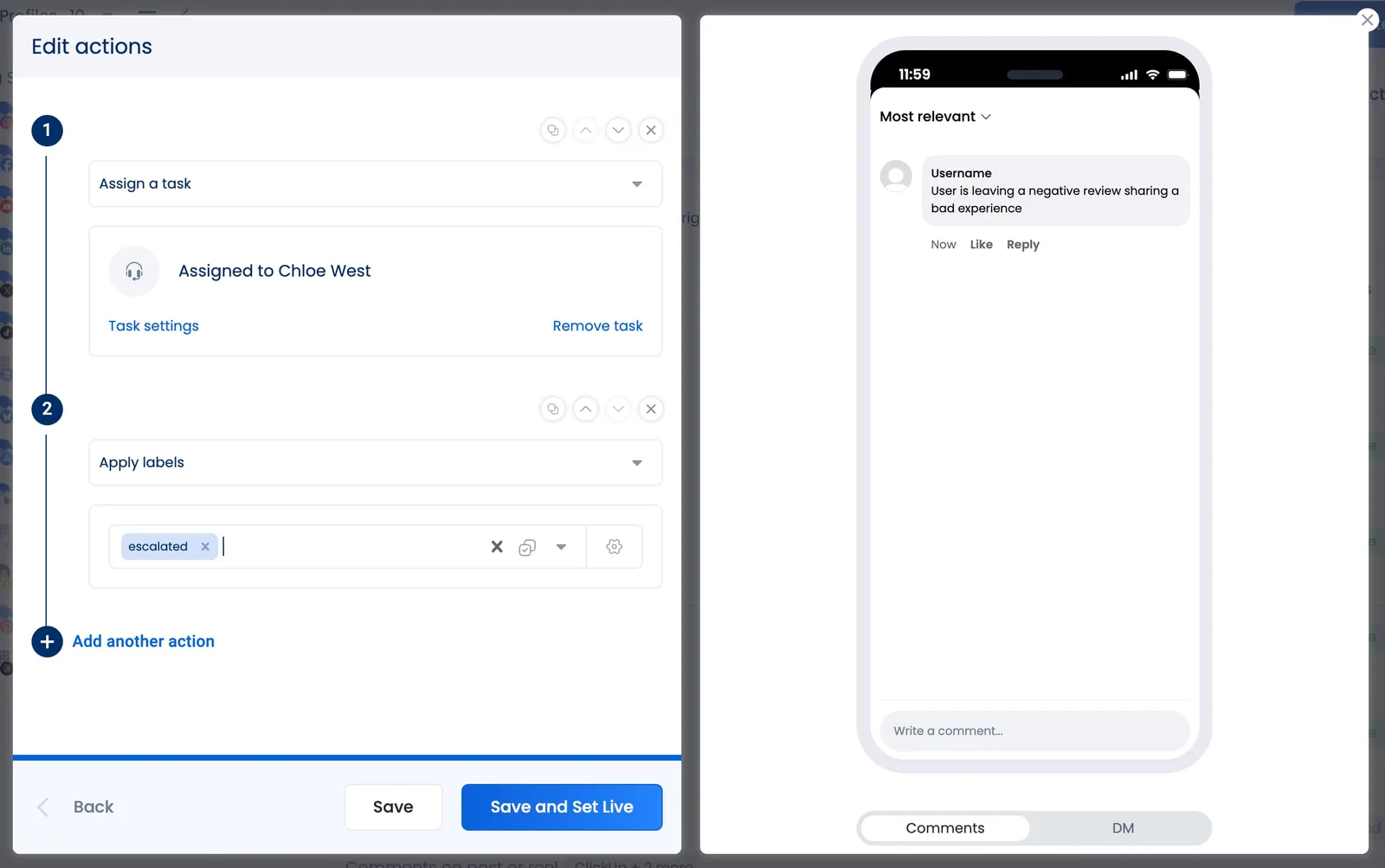
Step 2: Add a condition filtering for negative sentiment. We did so in the example below by using the Detect intent field. Then click Continue.
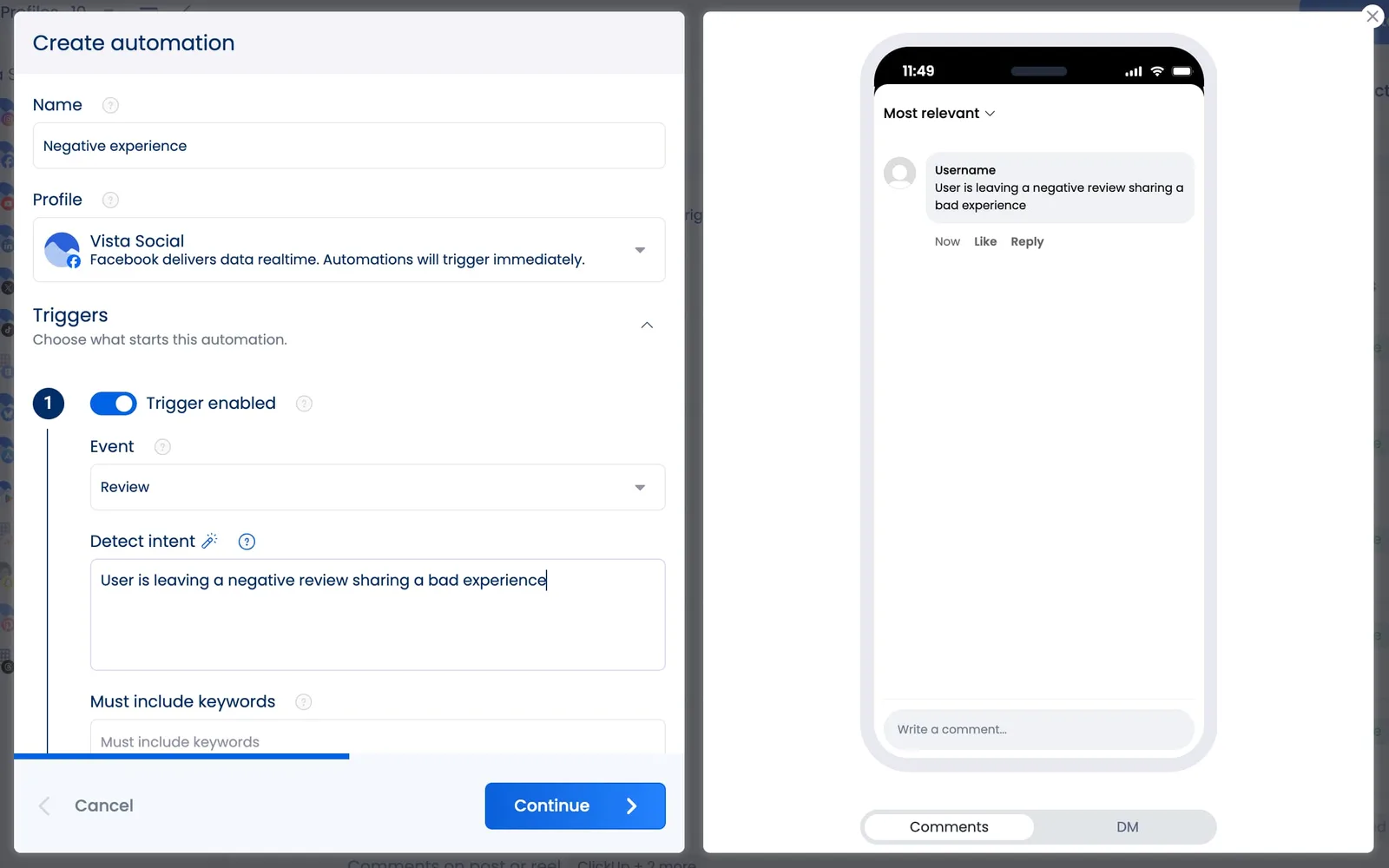
Step 3: Set the action to Assign task and configure the task assignment so the team member in charge of handling unhappy customers immediately gets a notification to hop in and address the situation.
Step 4: Optionally, you can add a second action to Apply labels and tag something like Escalated for tracking purposes.
5. Auto-publish RSS content to social
Want to automatically share your new blog posts to social media without having to do the process manually each time? This is an especially great workflow to set up if you have a massive publication so that your content is always being shared with potential new readers.
What it does: Automatically creates and publishes social media posts whenever new content is published on your blog or website via RSS feed.
Why it matters: Content promotion is one of the easiest things to let slip. When a new blog post goes live, you want it shared across your social channels immediately — not three days later when someone remembers.
How to build it in Vista Social
Step 1: From your Vista Social dashboard, click Create in the left hand sidebar, then click Smart publishing.
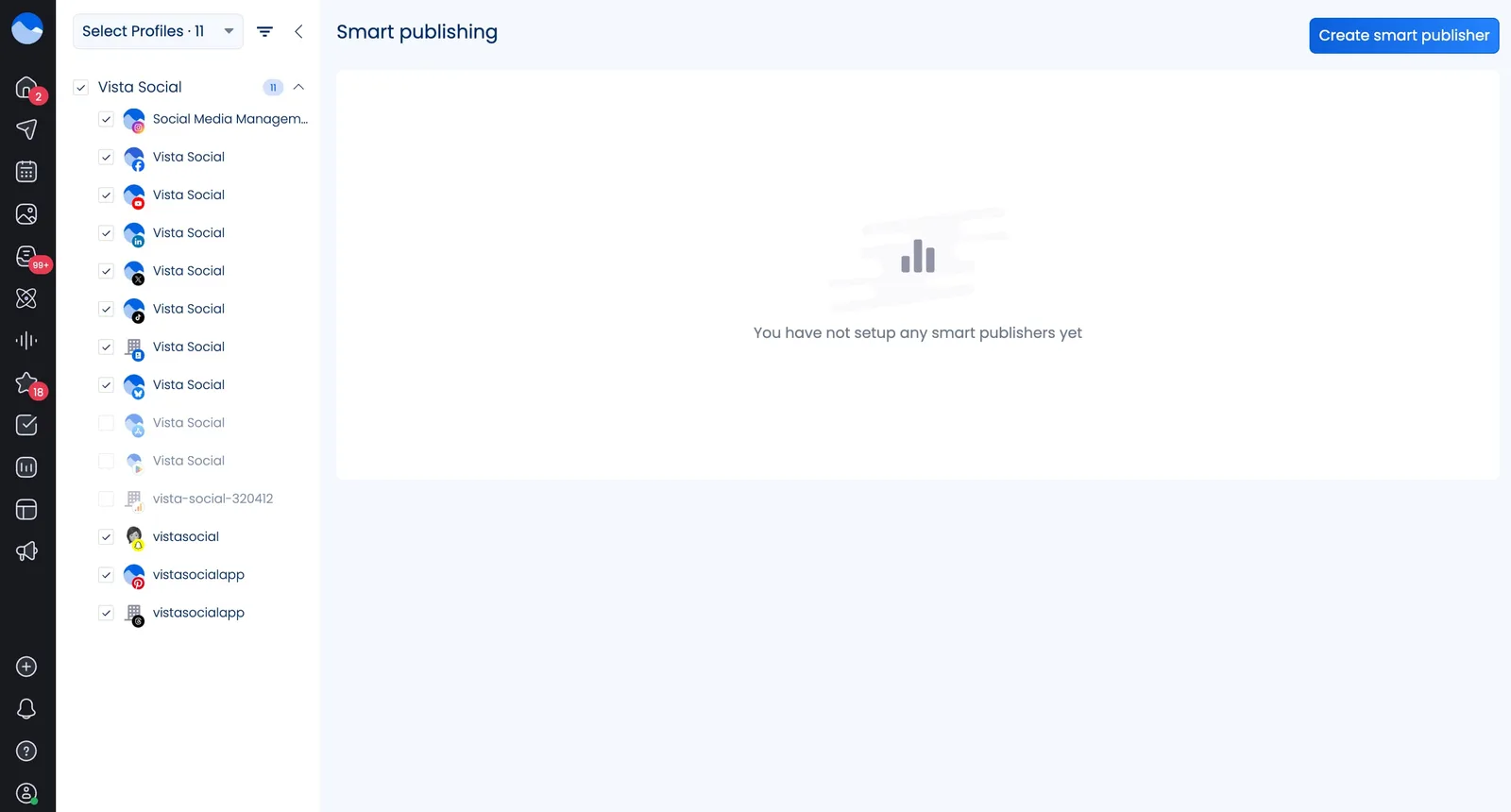
Step 2: Click Create smart publisher in the top right corner. Give it a name, then select Specific blog (rss) from the publisher types.
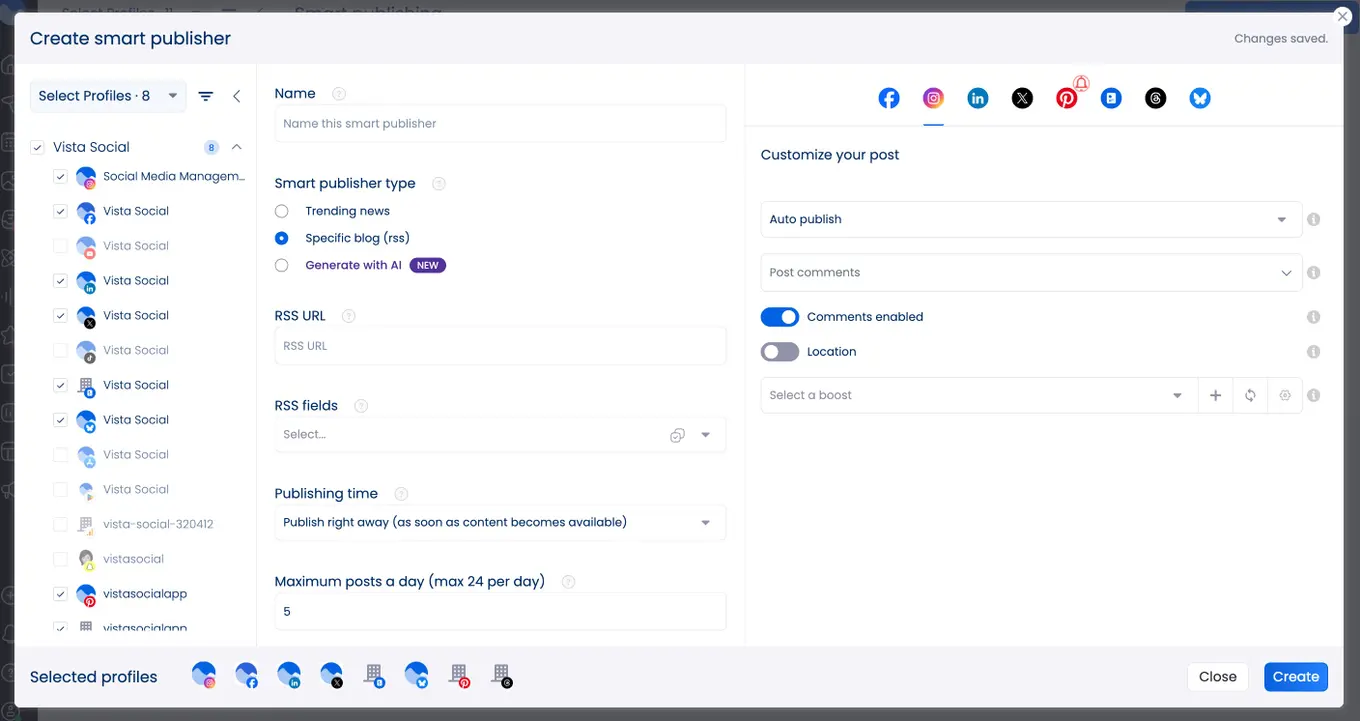
Step 3: Complete all of the fields in the Smart publisher. This includes:
- Selecting the social media profiles where the content should be shared
- Pasting in your blog’s RSS URL
- Adding publishing time parameters (i.e., publish right away or add to queue)
- Specifying a maximum number of posts a day
- Filtering keywords
- Choosing whether or not you want to review posts before they go live
- And more
Once you’ve filled out your Smart publisher, click Create and watch as your content auto-publishes to your social media profiles.
6. Schedule recurring evergreen content
If you have some content that’s never going to go out of style and you want it to reach as much of your audience as possible, consider resharing it to get it in front of even more eyes. You can do this on autopilot so you don’t have to manually add it back into your content calendar.
What it does: Automatically recycles and reposts your top-performing evergreen content on a set schedule.
Why it matters: Your best content deserves more than one moment in the spotlight. Evergreen posts—tips, how-tos, testimonials, FAQs—stay relevant over time. Automating their rotation keeps your content calendar full without creating new content from scratch.
How to build it in Vista Social
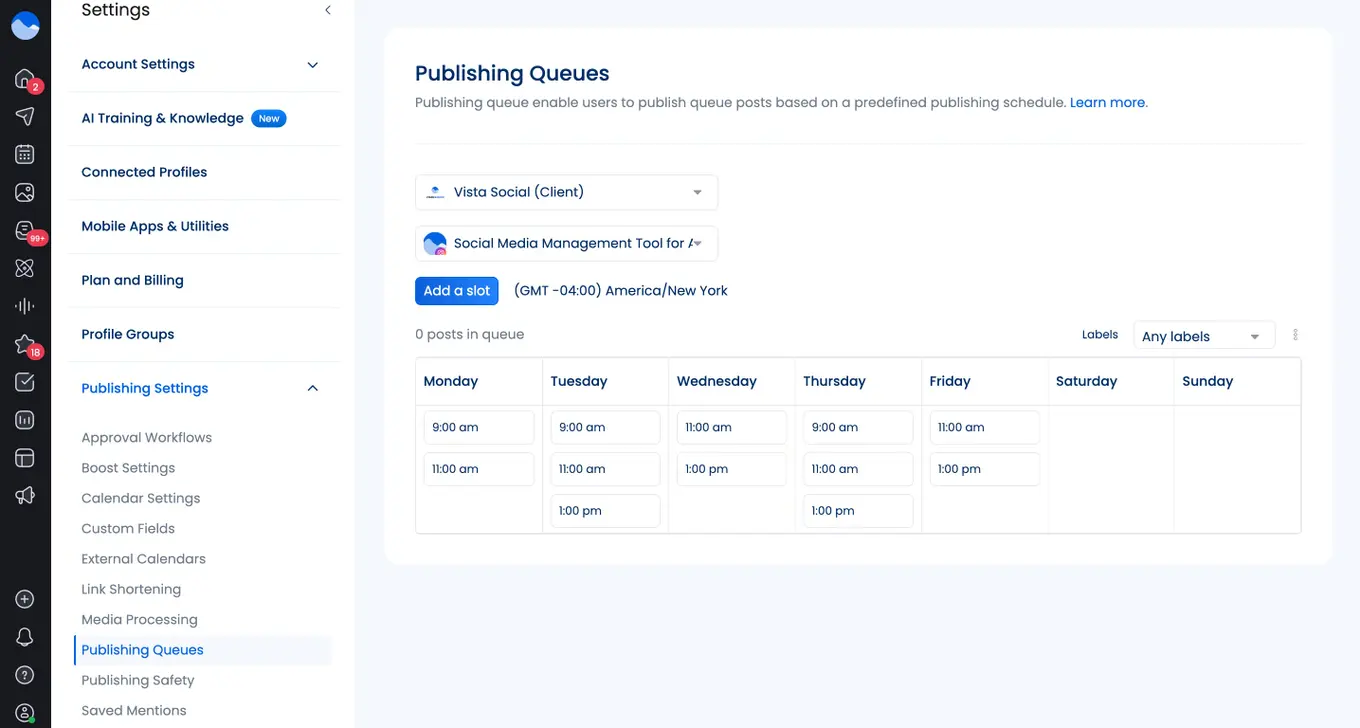
Step 1: Create a publishing queue by heading to Settings > Publishing Settings > Publishing Queue. Select the profile group then the profile you want this queue to apply to, then choose your automatic publishing times.
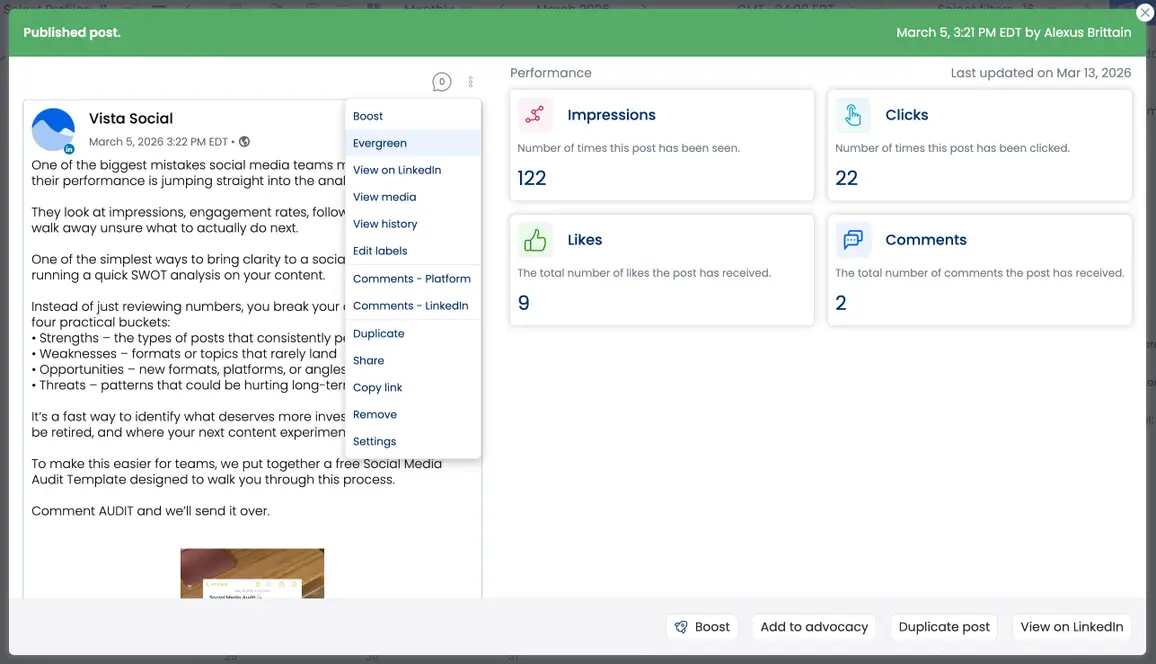
Step 2: Now this part of the process is a little manual, but you can always add it to your publishing workflow. Head to your content calendar, find any post(s) you want to mark as Evergreen and put on a republishing queue. Click on it, then click the three dots and select Evergreen from the drop down.
Step 3: Input your evergreen settings. Give your post an expiration date, tell the automation how many times the post can be reshared, and give a minimum time frame between reshares.
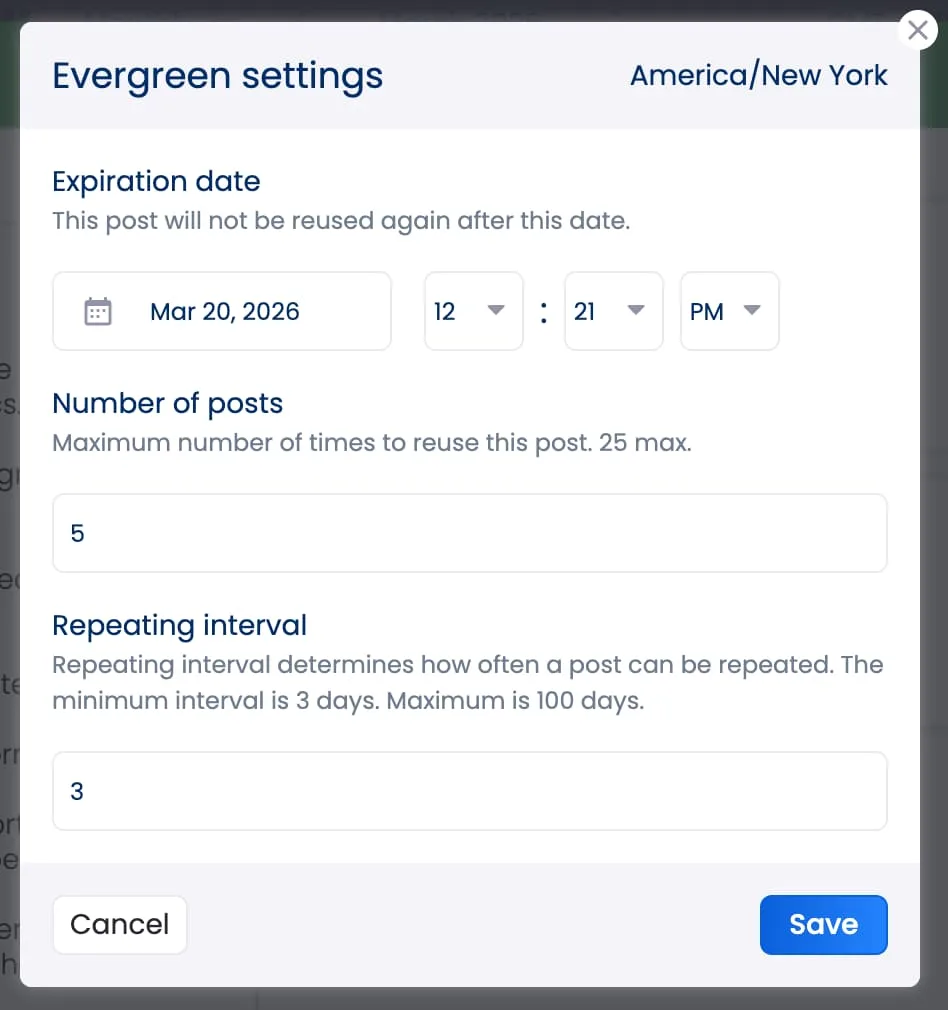
Step 4: Click Save and watch as Vista Social rotates your evergreen posts through your publishing queue. You can review performance periodically and swap in new evergreen posts as needed.
7. Auto-generate performance reports
Stay on top of your social media performance without manually putting together and generating reports each time. With Vista Social, you can create templates or select from our available reports and automatically send them to yourself or your clients.
What it does: Automatically compiles and delivers performance reports to your team or stakeholders on a recurring schedule.
Why it matters: Pulling reports manually every week or month is tedious — and it often gets deprioritized. Automating report delivery ensures your team (and your clients or leadership) always has the latest data without anyone having to remember to pull it.
How to build it in Vista Social
Step 1: Navigate to the Reports section in Vista Social to get started.
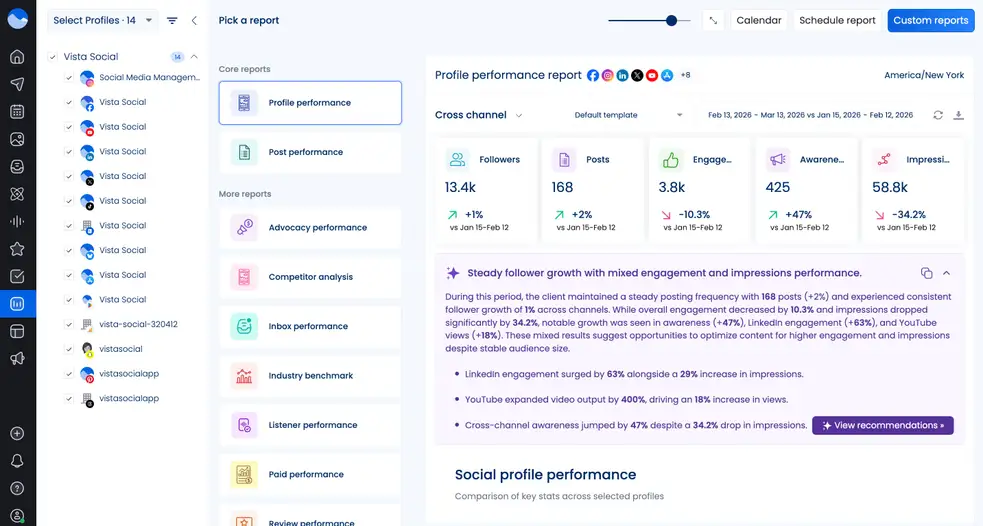
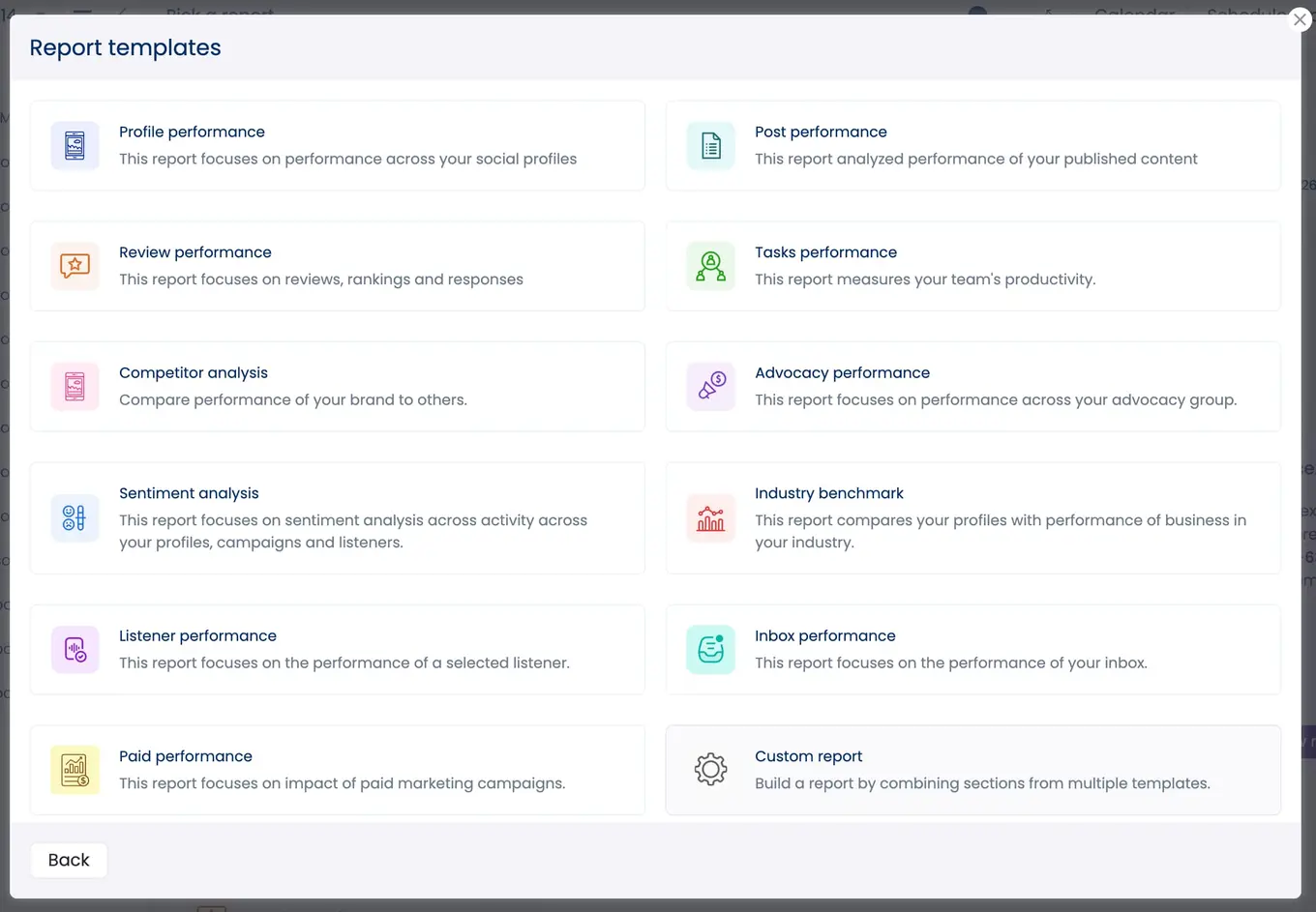
Step 2: You can skip this step if you just want to automate one of our existing reports. Otherwise, you can click Custom reports in the top right corner and build out a custom report with the metrics that matter most to your team.
Click New template in the top right corner of the popup, then click Custom report in the bottom right from the available report options.
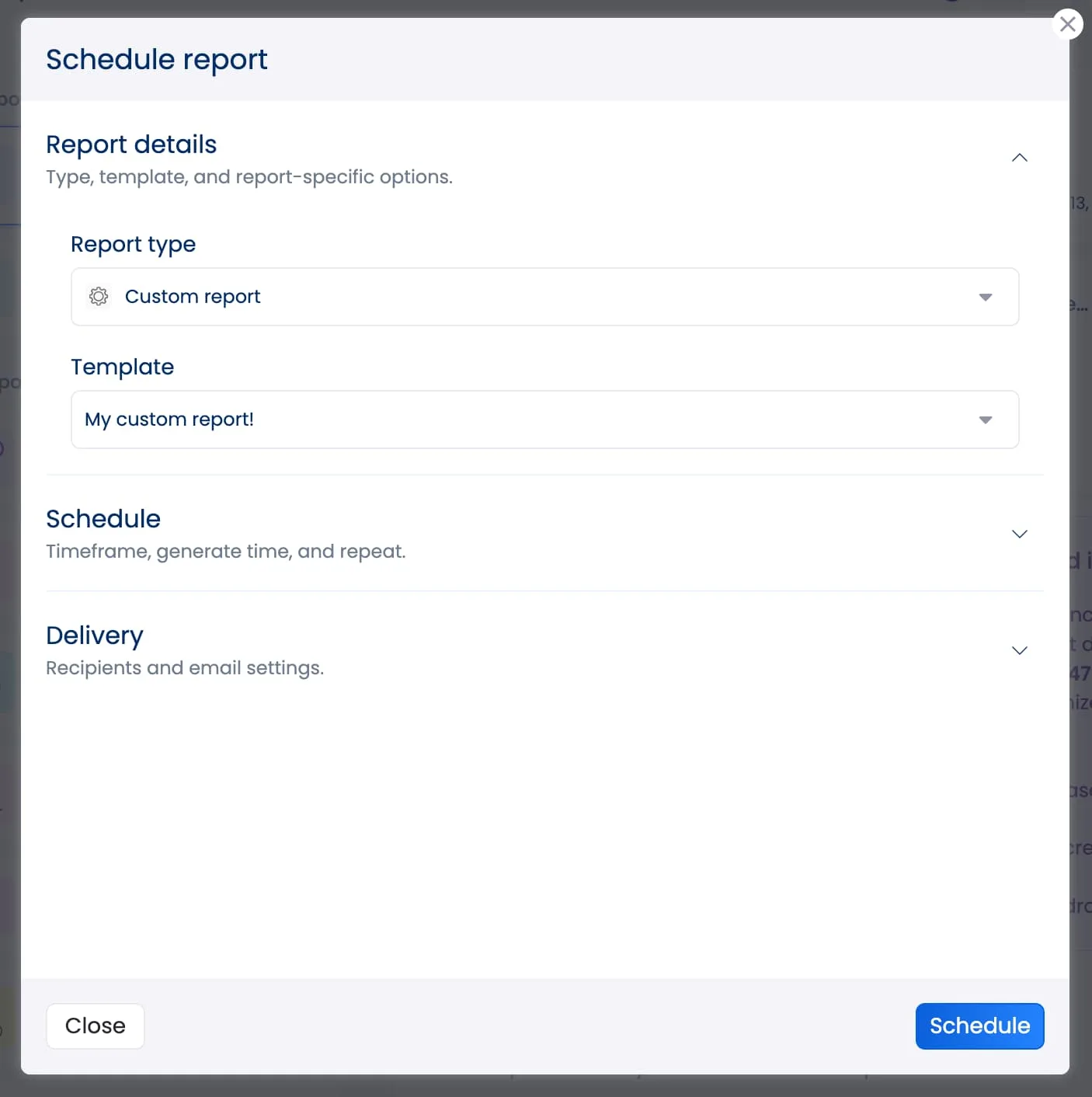
Step 3: Once you’ve finalized your new template, click Schedule report in the top right corner of the Reports dashboard.
Go through each of the options to:
- Choose the report you want to schedule
- Pick your reporting cadence (weekly or monthly)
- Select the date you want your schedule to start on
- Decide on the number of times you want this schedule to run
- Choose your reporting format (PDF or report link)
- Input your report recipient(s)
- Customize your report email
Set up as many scheduled reports as you want so each of your performance updates are generated and delivered automatically, keeping your stakeholders in the loop without any manual effort.
Create your first marketing automation workflow
Your competitors are already automating their marketing workflows. The brands that are winning on social media aren’t just creating better content—they’re building smarter systems that let their teams move faster, respond quicker, and operate more efficiently.
The good news is you don’t need a massive tech stack or a dedicated operations team to start automating. You just need the right tool.
Vista Social’s built-in automation features make it easy to build the workflows we covered in this guide—from auto-replies and conversation routing to automated reporting and evergreen content scheduling. Everything lives in one platform, connected to all your social profiles, so you can set up powerful automations without juggling multiple tools.
Whether you’re a solo marketer looking to reclaim hours of your week or a growing team that needs to scale operations without adding headcount, Vista Social has the automation tools to make it happen.
Get started with Vista Social for free and start building your first automation workflow today.
Marketing automation FAQs
What’s the difference between marketing automation and social media management?
Social media management covers the full scope of managing your brand’s presence across social platforms—content creation, scheduling, engagement, analytics, and more. Marketing automation is a subset of that: it’s specifically about using technology to automate repetitive tasks within your broader marketing strategy. A tool like Vista Social combines both, giving you full social media management capabilities with powerful automation features built right in.
Do I need technical skills to set up marketing automations?
Not at all. Modern marketing automation tools like Vista Social are designed for marketers, not developers. You can build workflows using visual interfaces—selecting triggers, conditions, and actions from dropdown menus. No coding or technical background required.
How do I know which tasks to automate first?
Start with the tasks that are high-frequency and low-complexity. If your team is doing the same thing dozens of times per day—like routing messages, tagging conversations, or posting content at specific times—those are prime automation candidates. Once those are running smoothly, you can move on to more sophisticated workflows.
Will automation make my brand feel less personal?
Only if you do it wrong. The best marketing automation is invisible to your audience. Auto-replies should sound human and helpful, not robotic. Routing and tagging happen behind the scenes. And the time you save on repetitive tasks gets reinvested into genuine, personal engagement. Done right, automation makes your brand more personal, not less.
How do I measure whether my automations are working?
Track the metrics that each automation is designed to improve. For auto-replies, measure response time. For routing workflows, track resolution speed. For content automations, look at posting consistency and engagement rates. Vista Social’s reporting tools make it easy to see the impact your automations are having across the board.
Try Vista Social for free
A social media management platform that actually helps you grow with easy-to-use content planning, scheduling, engagement and analytics tools.
Get Started NowAbout the Author

Content Marketing @ Vista Social
Chloe West is a content marketing manager for Vista Social. She has over seven years of experience in digital marketing for B2B SaaS companies. When she's not working, you'll find her spending time with her family, reading a book, or watering her plants.
Loading related tools...

The most complete social media management platform for teams who demand more.






Tools
PublishingAnalyticsEngagementIntegrations
FacebookInstagramLinkedInRedditSnapchatThreadsTikTokX (Twitter)YouTubeMCPVista Page (link-in-bio)All IntegrationsCopyright © 2026 Vista Social LLC. All Rights Reserved.